

Importing bank statements
Download your statement from your bank’s website, then import it into the matching money account. The file is read first, so you see what it holds before anything is imported. Lines already imported are skipped, so you can import overlapping statements safely.
The entity’s Banking tab, then a money account, then Import Statement
(/dashboard/finances/accounting/{entity}/banking/{account}). It needs the Import and review bank lines
permission. Holding companies don’t import statements.
Files you can import
Section titled “Files you can import”OFX, QFX, QBO, CSV, Excel, camt.052/053/054, MT940/942, BAI2 or open-banking JSON, up to 10 MB.
| Family | Formats |
|---|---|
| Classic downloads | OFX, Quicken (QFX), QuickBooks Web Connect (QBO), Bank CSV, Excel spreadsheet, Simple CSV (date, description, amount) |
| ISO 20022 | ISO 20022 camt.052, camt.053, camt.054 |
| SWIFT and US corporate | SWIFT MT940, SWIFT MT942, BAI2 |
| Open-banking exports | Financial Data Exchange (FDX), UK Open Banking, Berlin Group (NextGenPSD2), Australia CDR |
Bank CSV files from these banks are recognised by their own layout: RBC, TD, BMO (accounts and Mastercard), Scotiabank, CIBC, Desjardins, Chase (chequing and card), Bank of America (chequing and card) and Wells Fargo. Any other CSV or spreadsheet works once you map its columns.
A file is limited to 10 MB. A ledger export from accounting software belongs in the import wizard, and a payroll register in Payroll: the statement import says so if you choose one.
Importing a statement
Section titled “Importing a statement”- On the money account, choose Import Statement and pick the file.
- Choose Read the File. The file is read first, so you see what it holds for (account) before anything is imported. You see what it was read as, for example Read as OFX (OFX), 98% sure.
- Check the preview: the Period, Opening balance, Closing balance, Lines and the first lines with Date, Description and Amount. Lines the import won’t take are counted: pending, informational, zero or in another currency. Notes from the reader are listed under the preview.
- If the file was misread, open How to read this file (below) and choose Read Again.
- Choose Import … Lines.
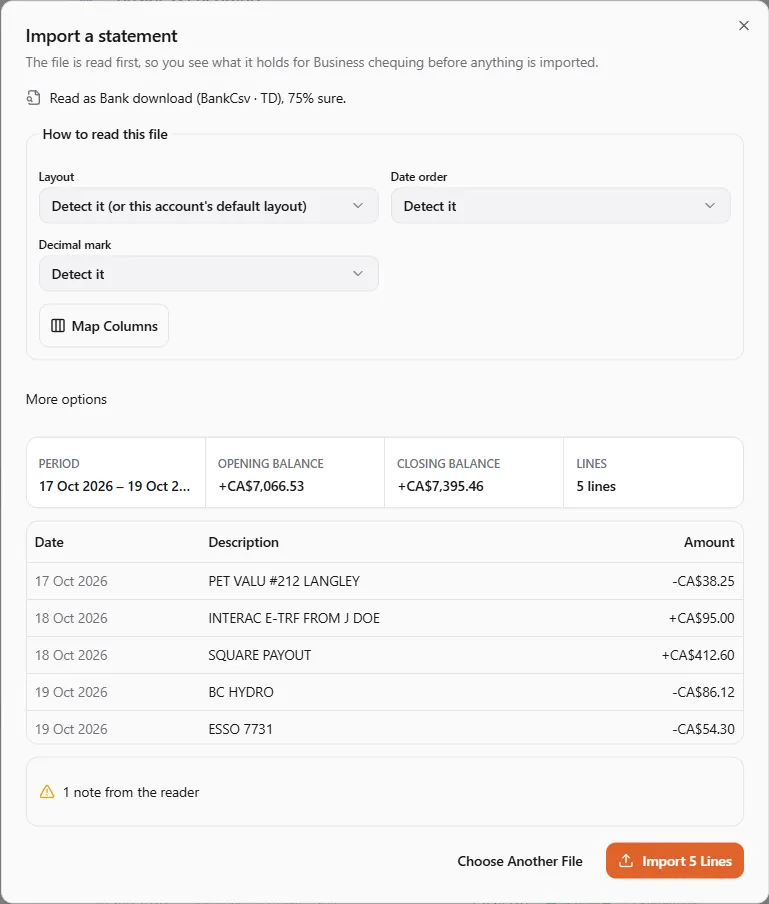
The result says how many lines were imported, then: how many were already imported, how many fell before the opening date, how many were matched, suggested by rules and recorded by rules. Then review the lines.
How to read this file
Section titled “How to read this file”When the books need help, How to read this file offers:
| Option | Use it for |
|---|---|
| Layout | Detect it (or this account’s default layout), one of your Saved layouts, or one of the Banks presets. |
| Sheet | The sheet of a spreadsheet that holds the statement. |
| Date order | Day / month / year, Month / day / year or Year / month / day when dates are ambiguous. |
| Decimal mark | Point (1,234.56) or Comma (1.234,56). |
| Account in the file (last 4) (under More options) | For a file with several accounts: the last four characters of the one to import. |
When a file holds several accounts, the books take the one whose last four characters match the money account, else the only one in its currency, else they ask you to choose.
Mapping a CSV’s columns
Section titled “Mapping a CSV’s columns”For a CSV or spreadsheet the books can’t place, choose Map Columns. Tell the books which column holds what. The layout is saved for this account, so the next file from this bank reads by itself.
- Tick The first row holds the column names if it does.
- For each field, pick its column, or Not in this file: Date, Description, Amount (money in positive) — or Money out and Money in — and optionally Payee or payer, Reference, Balance, Transaction ID, Value date, More description and Currency. Give the date, and either one amount column or a money-out and a money-in column.
- For a card download where purchases are positive, tick Purchases show as positive amounts (a card download): flip the signs.
- Give the Layout name and tick Use it for this account’s files from now on to make it the default.
- Choose Save Layout. The file is read again with it.
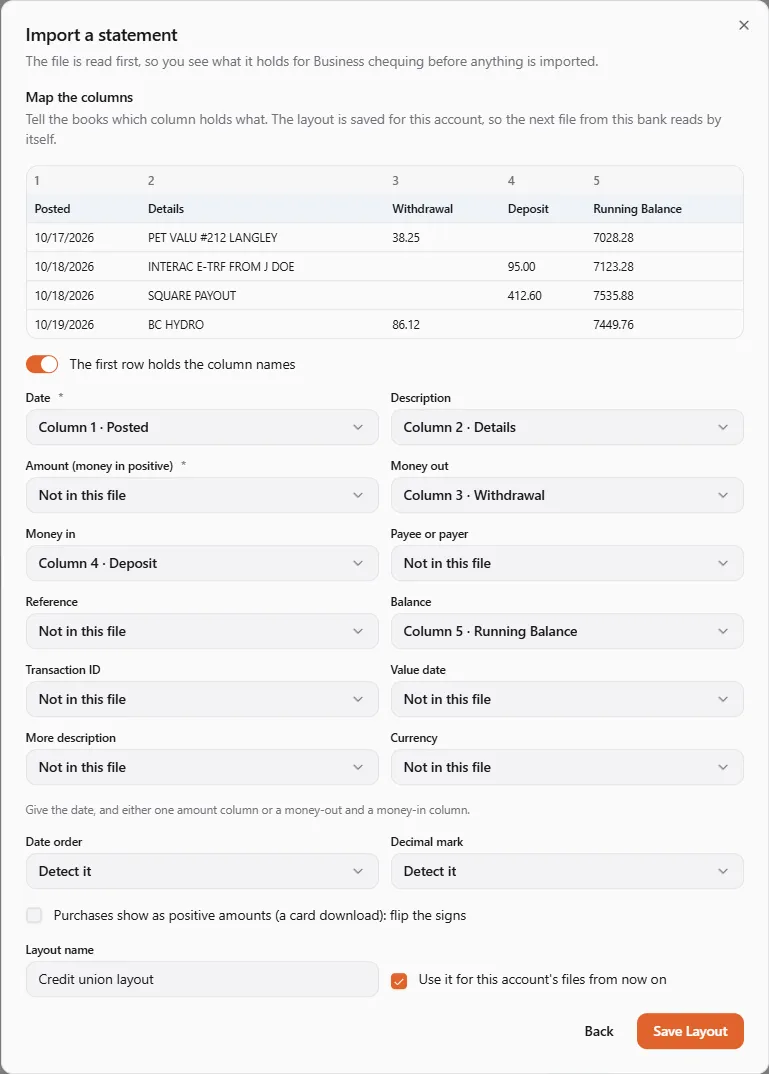
Saved layouts are listed on the import (2 saved layouts). Make Default and Remove manage them.
What happens to each line
Section titled “What happens to each line”- Duplicates are skipped. Each line is recognised by the bank’s own transaction id, or else by its date, amount and description, so an overlapping statement imports only its new lines (two identical purchases on one day stay two lines). The same file can’t be imported twice.
- Lines before the account’s opening date are skipped: they are inside the opening balance.
- Pending, informational, zero-amount and other-currency lines are not taken.
- Each line is matched to an entry that moves the account by the same amount within 5 days, when there is exactly one. Then the account’s rules run.
- The statement’s closing balance is what you reconcile to.
If something went wrong
Section titled “If something went wrong”- “The file couldn’t be read. Check that it’s a statement of this account, then try again.” — try another format, layout or date order, or map the columns.
- “This file was imported before.” — nothing new to import.
- “This statement is in …, but the account is in …” — import it into a money account in that currency.
- “This file is larger than 10 MB.” — download a shorter period from your bank.