

Publishing a listing
Before an animal listing goes public, the listing editor runs a Publish checklist. Every item must be green before Publish turns on. This page explains each item the checklist can show — what it means, how to fix it, and where — so you never have to guess.
Dashboard → Pets → Animal listings → My Listings → (your listing) (/dashboard/listings/{id}). The Publish checklist is
the first card on the right, above the Publish button. A listing you just saved is a Draft — it only
shows under the Draft and All tabs of My listings until you publish it.
How the checklist works
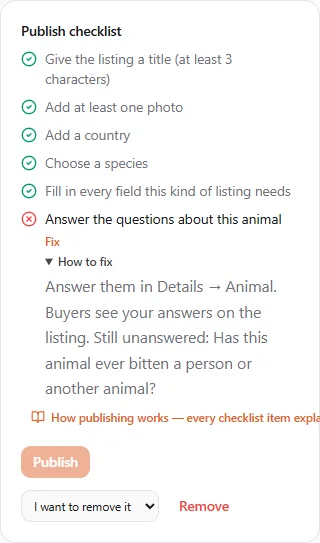
Section titled “How the checklist works”- A green tick is done. A red cross still blocks publishing.
- Every red item has a How to fix section with the steps. The first red item opens it for you; click How to fix on any other item to open its steps.
- Next to a red item you may see:
- Fix — jumps to the exact place in this listing that fixes it: a step of the Details wizard (Basics, Animal, Health, Price, Location) or the Photos tab.
- A link to another page when the fix lives elsewhere: Open Receive payments, Open the pet, Open the litter, Open Specializations or Start a new listing.
- Save your changes, and the checklist updates. When every item is green, Publish turns on.
- How publishing works — every checklist item explained, under the list, opens this page.
The items
Section titled “The items”Content
Section titled “Content”| Item | What it means | How to fix it |
|---|---|---|
| Give the listing a title (at least 3 characters) | The title is missing or too short. | Fix → Basics. A short title such as the animal’s name and breed. |
| Add at least one photo | Listings need at least one photo. | Fix opens the Photos tab → Add photos. Upload a picture or pick one from your media library. The first photo becomes the cover; Make cover changes it. |
| Up to N photos per listing (this one has M) | This listing has more photos than your profile’s limit. | Remove photos in the Photos tab until N are left. Verifying your profile raises the limit. |
| Video isn’t available for your profile yet | The listing has a video and your profile can’t add video yet. | Remove the video in the Photos tab. |
| Remove contact details from the text | The title or description contains a phone number, an e-mail address or a link. | Fix → Basics and delete them. Buyers contact you through inquiries, which keep your details private. |
| Add a country | The listing has no location. | Fix → Location. |
| Choose a species | No species is selected. | Fix → Animal. Choose the species, and the breed if you know it. |
The animal and its dates
Section titled “The animal and its dates”| Item | What it means | How to fix it |
|---|---|---|
| Add the expected date | A planned litter needs an expected birth date. | Fix → Animal. |
| The expected date must be within the next N months | The expected date is too far ahead (or too far in the past). | Fix → Animal and choose a closer date. |
| The animal must be at least N days old at hand-over | The species has a minimum age at hand-over. | Fix → Animal and set the “ready to go home” date to the day the animal reaches that age, or later. |
| {Species} can’t be listed as {kind} | This kind of listing is not allowed for this species. | Choose another species, or Start a new listing of a kind that fits. |
| This profile must own the pet | Only the pet’s owner can list it. | Open the pet to check who owns it. Switch to the owning profile, or transfer the pet to this profile first. |
| Only living animals can be listed | The pet’s record says it has passed away. | Open the pet and correct the record if that is a mistake. |
| Stud service needs an intact male | Stud listings need a male that is not neutered. | Open the pet and check its sex and reproductive status. |
| This profile must own the litter / Closed or cancelled litters can’t be listed | The litter belongs to another profile, or it is closed or cancelled. | Open the litter to check. Only expected, born or weaned litters can be listed. |
Price and deposits
Section titled “Price and deposits”| Item | What it means | How to fix it |
|---|---|---|
| The deposit can be at most N% of the price | The deposit is higher than the platform allows. | Fix → Price. Lower the deposit or raise the price. |
| The rehoming fee is above the limit | Rehoming fees only cover your costs, up to a platform limit. | Fix → Price and lower the fee. |
| Protected deposits aren’t available for your profile yet | The listing takes a deposit through United Pet Club and your profile can’t take protected deposits yet. | Turn off the deposit in Details → Price. Verifying your profile can turn deposits on. A litter with a Litter Pass can take protected deposits whatever your limits. |
When the listing takes a protected deposit (Reserve), the Reserve items appear too — the animal or litter record, the microchip, a born litter, a pickup date within the allowed days, a price, the deposit cap and a connected payout account. Each has its own How to fix; see Deposits and Reserve.
Your limits
Section titled “Your limits”| Item | What it means | How to fix it |
|---|---|---|
| M of N active listings in use | Every active listing uses a slot, up to your profile’s limit. | Pause, mark as placed or remove another active listing to free a slot. Verifying your profile raises the limit, and so does your profile’s age. |
| M of N active litter listings in use | The same, for litter listings. | Close or pause another litter listing to free a slot, or get a Litter Pass for this litter. Verifying your profile raises the limit, and so does your profile’s age. |
These limits are free and no plan changes them: see Limits on listings, breeds, litters and posts. When publishing, renewing, adding photos or promoting runs into a limit, a window explains it: what you reached, how much you’re using, what sets your limit and what raises it.
Your profile
Section titled “Your profile”| Item | What it means | How to fix it |
|---|---|---|
| Only {kind} profiles can create {listing kind} listings | Some kinds (adoption, foster) are for organization profiles only. | Switch to an eligible profile with the profile switcher and create the listing there. |
| Add the {specialization} specialization to this profile | This kind of listing needs a specialization (for example Breeder to sell). | Open Specializations, add it, then come back and publish. |
| Verify your identity | Selling needs a verified identity. | Open Receive payments and complete the payout setup — Stripe verifies your identity as part of it. |
| Your profile must be active | The profile is suspended or closed. | Contact support. |
Local rules
Section titled “Local rules”Some areas have their own rules. They show as Local rules: …:
| Item | How to fix it |
|---|---|
| Local rules: at least N days old at hand-over | Fix → Animal, set a later “ready to go home” date. |
| Local rules: the animal must be microchipped | Fix → Health, mark it microchipped, and add the chip number to the pet’s record. |
| Local rules: the animal must be spayed or neutered | Fix → Health, once it is. |
| Local rules: the rehoming fee is above the limit | Fix → Price. |
| Local rules: a breeder licence number is required | Fix → Price, enter your licence number in Breeder licence number (up to 64 characters), and Save changes. |
| Local rules don’t allow this kind of listing here | Check Fix → Location. If the location is right, this kind of listing can’t be published there. |
Rules for this kind of animal
Section titled “Rules for this kind of animal”Some kinds of animal and some kinds of listing need more before they go public: a date of birth, an answer to a question, a document. These show as their own items, only when a rule applies to your listing:
| Item | What it means | How to fix it |
|---|---|---|
| Fill in every field this kind of listing needs | A field this species or kind of listing needs is empty. How to fix names it. | Fix → Animal (or Health), fill it in, and Save changes. For a listing of your pet, a missing sex or birth date goes on the pet’s record. |
| Answer the questions about this animal | This kind of listing asks you some questions. | Fix → Animal: answer each one under Questions for this listing, and Save changes. Buyers see your answers on the listing. |
| Attach the documents this kind of listing needs | A document such as a health certificate must be attached. | Fix → Photos: under Documents, choose Who can see it, click Attach … and pick the file. |
| Meet the welfare standards for this kind of listing | The animal must be, for example, vaccinated before this kind of listing can go public. | Fix → Health: tick each box once it is true. |
| This breed can’t be listed from where it is | Local law restricts this breed where the animal is. The note under it names the rule. | Check Fix → Location. If the location is right, this listing can’t be published there. |
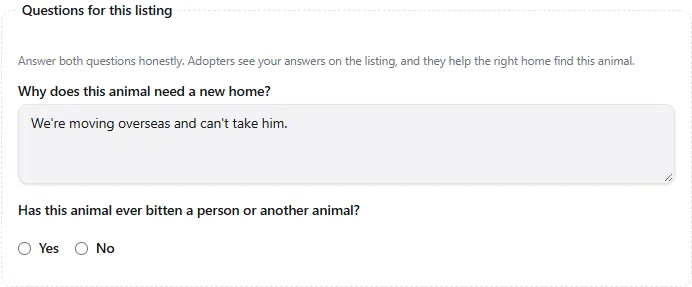
Questions for this listing sits at the end of the Animal step, with a short note from United Pet Club above it. Yes-or-no questions are two buttons; the others take a short answer. Extra fields that some species ask for (a hip score, say) appear here too, marked Required or Optional.
What each kind of animal or listing asks for to start with:
| Your listing | What it needs |
|---|---|
| A dog, cat, horse, rabbit, ferret, guinea pig, goat, sheep, pig, alpaca, llama, donkey, rat, mouse, gerbil, hamster, chinchilla or other mammal | Sex and Date of birth (an estimate is fine). A litter’s sex is on its animals; an upcoming litter’s expected date counts as its date of birth. |
| A bird or a reptile | Date of birth (the hatch date, or an estimate) |
| A fish | Nothing extra |
| A puppy or kitten for sale | It is reviewed by our team before it goes live unless it is vaccinated, dewormed and vet checked (it still publishes; it waits for review) |
| A listing for sale, a litter or a stud service that you mark Registered | The Registry it is registered with |
| Rehoming | Two questions: Why does this animal need a new home? and Has this animal ever bitten a person or another animal? |
United Pet Club can add rules for a breed or a kind of listing; when one applies to your listing, its item appears in the checklist and its fields in the listing editor.
Verify your business to go public
Section titled “Verify your business to go public”This item turns red when your business is not yet verified for public features. Under the checklist you then see the Business verification card with each step and its button:
| Step | What to do |
|---|---|
| Address verified | See the address check below. |
| Payout account connected | Finances → Receive payments → Set up receive payments and finish the Stripe setup. |
| Identity verified | Part of the same Stripe setup. If Stripe needs more, the step says so — Resume setup. |
| Phone confirmed | Recommended, but it does not block publishing. |
The address check
Section titled “The address check”Your business address is verified automatically when its postal code and country match the address Stripe verified on your payout account. The address step tells you which case you are in:
-
“Add your business address…” — you have no address yet. Add address opens Account → Contact → Addresses.
-
“Your address is verified automatically once Stripe has verified your payout account…” — finish the payout setup first; there is nothing to compare yet.
-
“Your address doesn’t match the address on your payout account (postal code …)” — the two disagree. Fix whichever one is wrong:
- your profile address: Edit address, or
- the address Stripe holds: Update payout details → on Receive payments, Manage on Stripe, change it there, come back and click Check status.
If your business really operates from a different address than the one Stripe has (for example, your legal address is at home and your shop is elsewhere), you don’t need to change anything: the step says our team is reviewing it, and once they verify the address the step turns green by itself.
After you press Publish
Section titled “After you press Publish”- Most listings go live immediately and show under the Active tab.
- The first listing of a new seller is checked by our team first: it shows under Pending review and moves to Active when approved. A note under the checklist says so before you publish (“Publishing will hold the listing for review: …”).
- A listing that looks like a duplicate of another seller’s, uses a flagged phrase or has an unusually low price is held for review the same way.
- You can’t have two public listings for the same pet at the same time.