

Telegram notifications
Every notification United Pet Club sends you — a new message, a sale, an invitation to join a profile, a lost-pet alert near you — lands in your in-app inbox and, for most kinds, in your email. If you would rather see them where you already are, you can also have them delivered as Telegram messages from the United Pet Club bot.
There is nothing to install beyond Telegram itself, no phone number to give us, and no cost. Telegram only lets a bot message people who have opened a chat with it, so connecting is a single tap on Start — and that tap is your consent.
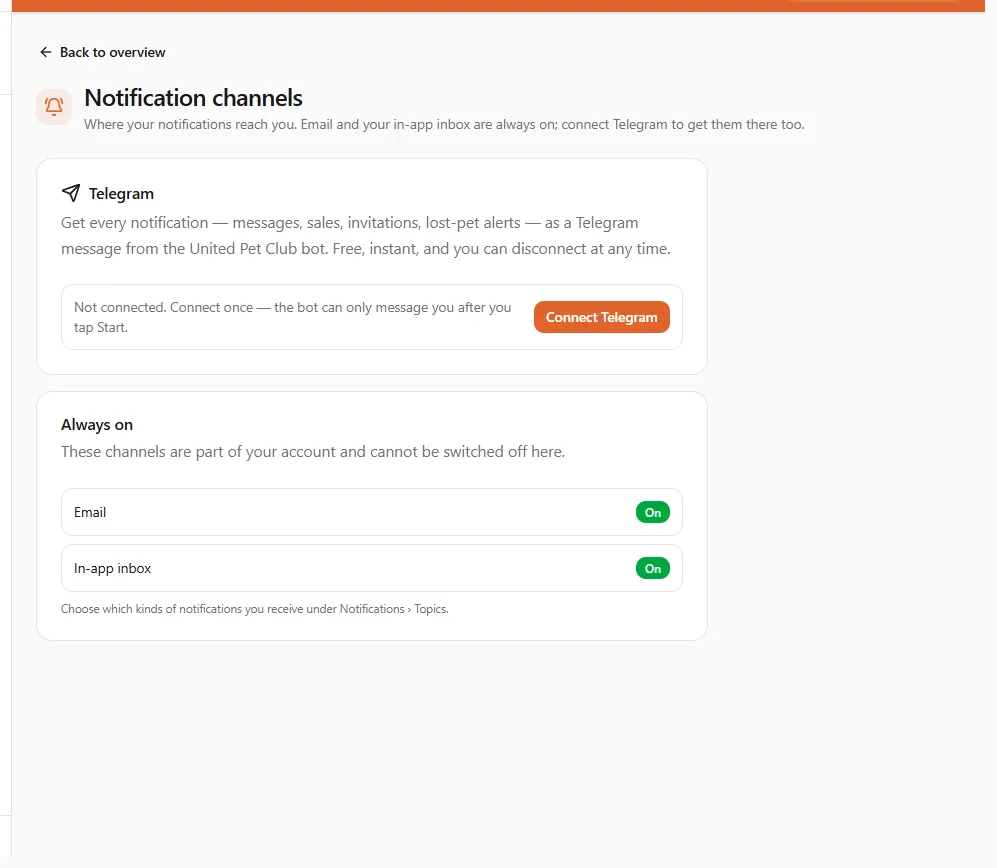
Account → Notifications → Channels. Email and the in-app inbox are always on; Telegram is the one channel you switch on yourself.
Connecting
Section titled “Connecting”- Click Connect Telegram. The page shows a one-time link and a QR code.
- Open the link — on a phone it opens the Telegram app straight in a chat with the bot; on a computer either scan the QR code with your phone or click Open Telegram to use Telegram Desktop or Telegram Web. Copy link puts the same link on your clipboard if you prefer to paste it somewhere.
- In Telegram, tap Start. That is the whole handshake — nothing to type, no code to copy back.
- Return to the page: it notices the connection by itself within a few seconds and switches to Connected, and the bot sends a short welcome message to the chat.
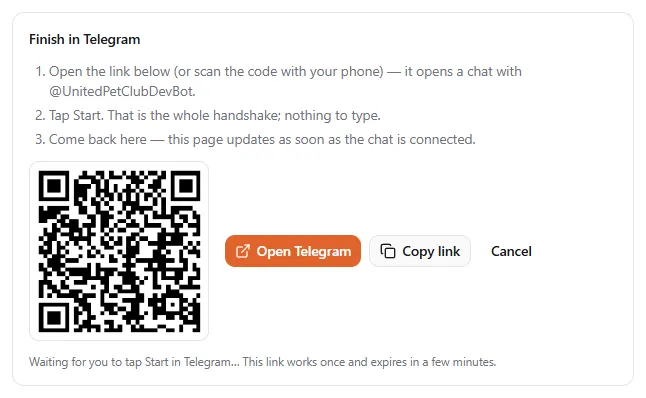
The link works once and expires after a few minutes. If it lapses, click Connect Telegram again for a fresh one — nothing else changes.
Once connected
Section titled “Once connected”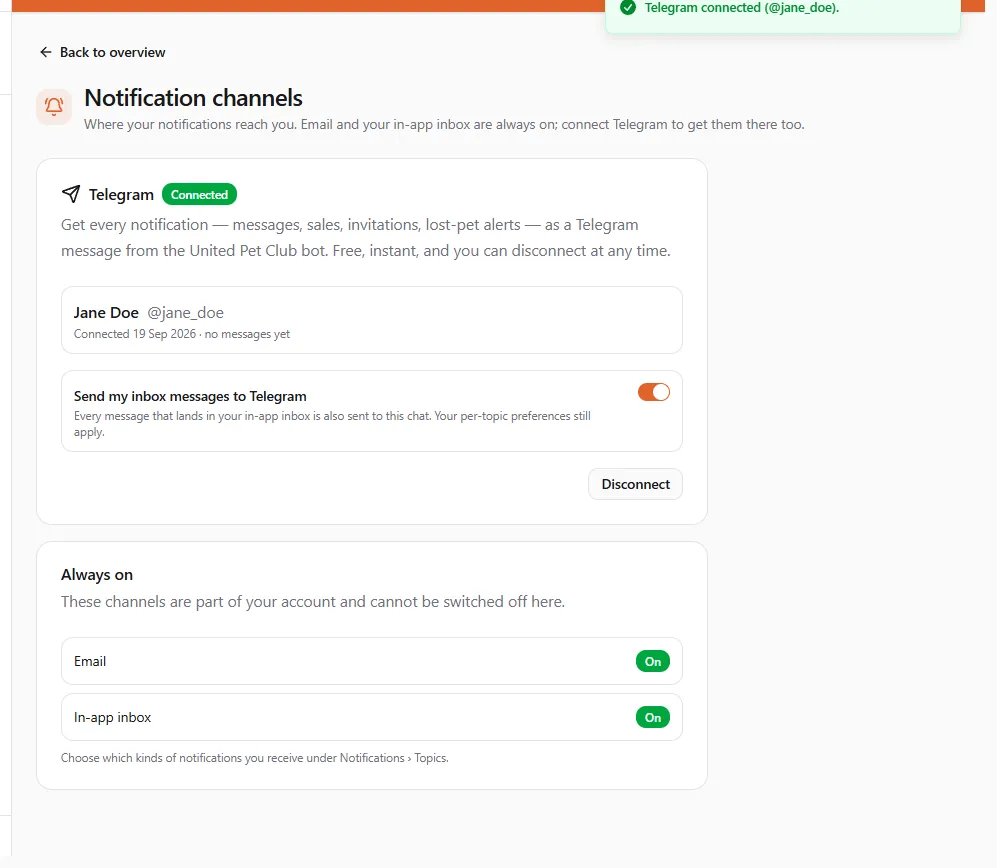
- Send my inbox messages to Telegram — on by default. Every message that lands in your in-app inbox is also sent to the chat. Turn it off to keep the chat connected but quiet (useful if you only want the alerts you pick later).
- Your per-topic preferences (Notifications → Topics) still apply: a kind of notification you have turned off does not reach Telegram either.
- Links in a notification open the same pages they would from the inbox — your dashboard messages, the order, the lost-pet report.
The bot only sends. It does not read anything you type back, and it never sees your phone number or contacts — only the chat you opened with it.
Disconnecting
Section titled “Disconnecting”Three ways, all equivalent:
- On the page, click Disconnect and confirm. The bot tells the chat it was disconnected.
- In Telegram, send /stop to the bot.
- In Telegram, block the bot.
You can connect again at any time by repeating the steps above — a fresh Start after a
/stop or an unblock re-enables the chat.
If something does not look right
Section titled “If something does not look right”- “Telegram is not available on this site yet.” — the bot has not been set up for this United Pet Club site. Nothing to do on your side.
- The page stays on “Waiting for you to tap Start” — make sure the chat that opened is with the bot named on the page (its @username is shown in step 1), and that you tapped Start rather than just opening the chat. If the link expired, click Cancel and start again.
- You tapped Start but the bot replied with instructions instead of “connected” — the link was used already or had expired; mint a new one from the page.
- Messages stopped arriving — check the switch on this page is on, that your Notifications → Topics choices still include the kind you expected, and that you have not blocked the bot in Telegram.