

Schedule setup checklist
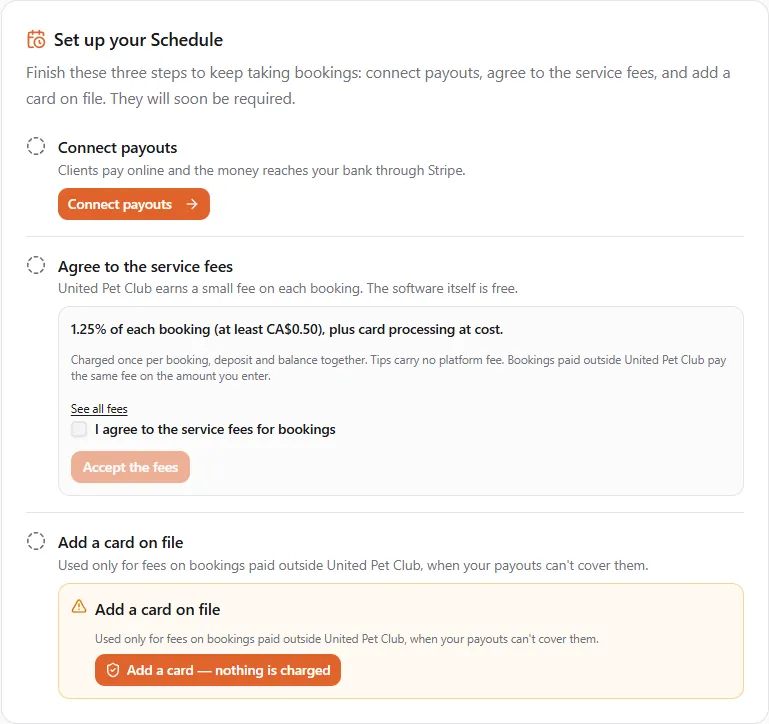
Before your business takes bookings in Schedule, it needs three things: payouts connected so clients can pay you, the service fees agreed to, and a card on file. The Set up your Schedule checklist walks you through them. Each step has its own button, you can do them in any order, and a step you’ve finished shows a green tick.
At the top of every page under Schedule in the left menu (Calendar, Appointments, Availability, Services, Staff & vehicles, Day plans, Booking policies, Clients), until all three steps are done. Once they are, the checklist disappears.
Step 1: Connect payouts
Section titled “Step 1: Connect payouts”Connect payouts — Clients pay online and the money reaches your bank through Stripe.
- Select Connect payouts. It opens Finances → Receive payments
(
/dashboard/finances/receive-payments). - Follow the steps there to set up your payout account with Stripe. See Receive payments.
- Come back to Schedule. The step reads Payouts connected once Stripe has switched on payouts for your account, which can take a little while after you finish.
Step 2: Agree to the service fees
Section titled “Step 2: Agree to the service fees”Agree to the service fees — United Pet Club earns a small commission on each booking. The software itself is free.
The step shows the fees for your country, in its currency. In Canada, for example:
Commission: 1.25% of each booking (at least CA$0.50), plus the Platform Processing Fee.
Classes: 7% in person and 17% online, plus the Platform Processing Fee.
Each payout carries the Stripe Payout Fees, charged at Stripe’s cost.
Charged once per booking, deposit and balance together. Tips carry no commission. Bookings paid outside United Pet Club pay the same commission on the amount you enter.
The first line is the rate you agree to. The class rates apply to services that take more than one client per session, and the Stripe Payout Fees are Stripe’s own charge for paying you out — see Fees.
- Read the terms. See all fees opens Finances → Fees, with the full table and a worked example.
- Tick I agree to the service fees for bookings.
- Select Accept the fees. You’ll see Service fees accepted. and the step reads Service fees accepted.
Your country is the one your payout account is in, or, before you have one, the country of your profile’s address. The Fees page uses the same rule, so the numbers always match.
If the step can’t show the fees
Section titled “If the step can’t show the fees”- Service fees aren’t published for your country yet. Contact support to get started. — United Pet Club doesn’t take bookings in your country yet. Contact support.
- We couldn’t load the service fees right now. Try again in a moment. — reload the page in a minute.
- The fees have changed — the fees were updated while the page was open. Reload, read the new terms and accept them.
Step 3: Add a card on file
Section titled “Step 3: Add a card on file”Add a card on file — Used only for fees on bookings paid outside United Pet Club, when your payouts can’t cover them.
- Select Add a card — nothing is charged.
- Enter the card in the secure form and confirm it with your bank if it asks. It’s a $0 verification: no money moves.
- The step reads Card on file.
A card that needs re-verifying, was declined or has expired doesn’t count: the step offers Re-verify card — nothing is charged or Replace card — nothing is charged instead. Everything about the card on file, including when it can be charged, is on Why we ask for a card.
Before and after the date they’re required
Section titled “Before and after the date they’re required”United Pet Club announces the date from which the three steps are required.
Until that date, the checklist sits above each Schedule page and says They will soon be required. Nothing is held back: you can set up your Schedule and take bookings as usual.
From that date, until the three steps are done:
- the checklist replaces the Schedule pages (Three steps before you take bookings…);
- you can’t add or change services, staff, vehicles, hours, time off or booking policies;
- new bookings are refused wherever they come from: your Dashboard, your booking page, your website, connected apps and Google. A client trying to book sees that the booking can’t be made yet.
If you try anyway, you’ll see Finish setting up payments first: To use your schedule, connect your payout account, accept the service fees and add a card on file. Your existing appointments are not affected.
When the service fees change
Section titled “When the service fees change”United Pet Club announces fee changes ahead of time.
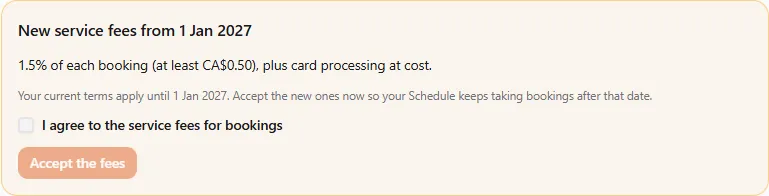
- A change is announced for a date. A New service fees from date notice appears above your Schedule pages, with the new terms: Your current terms apply until date. Accept the new ones now so your Schedule keeps taking bookings after that date. Tick I agree to the service fees for bookings and select Accept the fees. The notice goes away; nothing changes for you until the date.
- The new fees are in force and you haven’t accepted them. The checklist comes back with The service fees changed. Review the new terms and accept them to keep using your Schedule. Accept the new terms the same way.
If a step lapses later
Section titled “If a step lapses later”The checklist checks your business every time you open Schedule. If your payout account is disconnected, your card on file is removed or stops working, or new fees take effect without your yes, the checklist comes back with that step open. Once the date above has passed, new bookings pause until the step is done again. Your existing appointments carry on as normal.
If something went wrong
Section titled “If something went wrong”“We could not check your payment setup.” Nothing was changed. Try again in a moment.
I connected payouts but the step isn’t ticked. Stripe may still be checking your details. Open Finances → Receive payments to see what it still needs.
I accepted the fees on another profile. Each profile accepts for itself: switch to the business profile whose Schedule you’re setting up and accept there.
I don’t want to take bookings, just use the calendar. The Schedule is for taking bookings, so the three steps apply to every business that uses it.
Related
Section titled “Related”- Schedule — calendar, staff, vehicles & text reminders
- Fees — the Commission, the Platform Processing Fee and the Stripe Payout Fees.
- Why we ask for a card
- Receive payments