

Blogs
Your dashboard’s Blogs section is where you write, publish and manage posts. It’s organized per profile: switch profiles in the sidebar and you’ll see that profile’s posts.
My blogs
Section titled “My blogs”Open Blogs → My blogs to see your posts. Each row shows the post title, its status (Draft, Scheduled or Published), its visibility and when it was created. Select a post to open it, or use New post to start writing.
Choosing a post type
Section titled “Choosing a post type”Blogs → New post first asks what you want to make:
- Simple post — a focused article written with the rich-text editor (headings, lists, links). Best for stories and updates.
- Page — a full layout you design by dragging in sections, columns, images and video. Best for landing-style pages.
You can’t switch a post between the two types after it’s created, but you can always edit it in the same builder it was made with.
Writing a simple post
Section titled “Writing a simple post”The Simple post editor:
- Title — names the post. As you type, a URL slug is suggested automatically; edit the slug yourself at any time and it stops following the title.
- Visibility — Public (anyone can read) or Members (signed-in members only).
- Short description — an optional one or two sentence summary shown in listings.
- Content — the rich-text editor. Use the toolbar for bold, italic, headings, bulleted and numbered lists, quotes, code blocks and links.
When you’re done, choose:
- Save draft — keeps the post private to you so you can keep editing.
- Publish — makes the post live according to its visibility.
To publish later, set Schedule publish (optional) in the post’s settings before you choose Publish. The post shows as Scheduled and goes live on its own within a minute of that time, dated at the time you picked.
Posts are free. To keep spam off the site, a profile can publish a limited number of new posts in 24 hours (1 for a new, unverified personal profile, up to 10 for a verified business or organization). Only a post’s first publish counts: publishing it again, or publishing it in another language, is free. If you reach the limit, the message says when you can try again and what raises the limit, and a new post is kept as a draft. See Limits on listings, breeds, litters and posts.
Building a page
Section titled “Building a page”The Page type opens a visual builder. Fill in the title, slug, visibility and short description at the top, then design the body on the canvas below:
- Drag blocks from the left onto the page. Click any block to edit its settings on the right.
- Sections and Columns give you layout — drop other blocks inside them to arrange content side by side.
- Heading, Text, Button, Spacer and Divider cover the basics.
- Image and Video take a URL (paste a link, or a YouTube/Vimeo address for video).
- Reorder anything by dragging; remove a block from its menu.
Save draft and Publish work the same as a simple post.
Hashtag suggestions in your blog posts
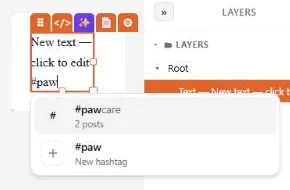
Section titled “Hashtag suggestions in your blog posts”Type # in the text of a blog post and a list of hashtags opens under the cursor, the same
Hashtag suggestions you get in feed posts:
- Right after
#: the hashtags members use most this week. - As you type: hashtags that start with your letters, the ones trending this week marked Trending, each with how many posts use it. The tag exactly as you typed it is offered last as a New hashtag when nobody has used it yet.
- Arrow keys move, Enter or Tab puts the hashtag in, Esc closes the list. You can also click a row.
This works in the text blocks of the blog editor (the Content step of a new post), in the simple post’s Content editor, and in the text blocks of your website’s pages (Website). Email campaigns, contracts and membership consent forms don’t suggest hashtags.
In the same places, #hashtags and @mentions show in their own colour as you type (see
Tags show in colour as you type).
Viewing a post
Section titled “Viewing a post”A post’s page shows its details (status, visibility, slug, publish date) and the fully rendered content. From here you can Edit it or use Actions to:
- Publish / Unpublish — take the post live or back offline.
- Change slug — rename the post’s URL. The old link automatically redirects to the new one.
- Delete — remove the post from your blog.
Editing a post
Section titled “Editing a post”Edit reopens the editor with the post’s current title, slug, summary and content loaded in. Save your changes and the post updates in place — published posts stay published.
Categories
Section titled “Categories”Blogs → Categories lets you create categories to group your posts by topic. Each category has a name, a URL slug (suggested from the name) and a status (Active, Hidden or Archived). Categories you create here can be assigned to your posts.
A category is one entry with a separate edition per language: the name, slug, description and search-listing text are all written per language, while the tree position and the cover image are shared. Edit on a category row changes the edition for the language you are working in; Add Translation creates a new one.
Description and search listing
Section titled “Description and search listing”The Description is a one- or two-sentence subtitle. It appears on the cards that link to the category and under the category’s own heading, so write it to name the topics a reader will find there — that is what helps them choose a card, and what tells search engines what the page covers. The tree shows each category’s description under its name, so gaps are easy to spot.
The Search engine listing fields are optional overrides for search results only: a custom page title (otherwise the category name is used) and a meta description (otherwise the description above stands in). Neither appears on the page itself. The counters show the length search engines typically display — going over doesn’t block saving, but the extra text is usually cut off.
Hub essay
Section titled “Hub essay”A category page normally opens straight into its list of articles. Because a parent category also lists everything its subcategories contain, a parent can end up looking like a repeat of the level below it. A hub essay gives the page something of its own to say.
Open the row menu and choose Write Hub Essay. You get the same editor used for posts, and the essay appears above the article list on that category’s page. It is written per language, like everything else here — start one in each language you publish in.
Each essay has a status. Only Published is shown to readers; Draft, In review, Approved and Archived are saved but stay invisible on the public site, so you can work on one without taking the current version down.
A language needs a translation of the category itself before it can have an essay — the essay is shown on that category’s page, which needs a name and slug in that language. Add the translation first, then write the essay.
Remove deletes the essay for the language you are working in. Other languages keep theirs.
Cover image
Section titled “Cover image”A category can carry a cover image from your media library. It shows on the cards that link to the category and when a category page is shared on social platforms. The same image is used in every language.
Per-language visibility
Section titled “Per-language visibility”Each language edition has its own visibility. Setting a language to Hidden takes that edition off the public site (readers get a not-found page, and search engines are not pointed at it) without affecting the other languages. When adding a translation, tick Stage as hidden to save it for review and switch it to Active later. The status menu on the row is different: it hides or archives the category as a whole, in every language at once.
Ads on your public blog
Section titled “Ads on your public blog”Readers may see a small number of clearly labelled ads on your public blog pages: at most one card at the end of the post grid on your blog’s home and topic pages, and at most one unit after the text of a post — never inside your writing.
Every ad carries its label — From United Pet Club for our own feature announcements, or Sponsored with the advertiser’s name. If an ad ever looks wrong or out of place, use the Report link under it. When there is nothing suitable to show, the space simply isn’t there: your pages never show empty ad boxes.
If your profile is verified and meets the eligibility bar, ads shown on your pages can earn you a revenue share — see Earning from ads on your pages.