

Customize your dashboard
The sidebar on the left of your Dashboard is set up for the profile you’re acting as. A personal profile gets a short sidebar with the things pet families come back for. A business gets the tools for what it does, with the most-used ones at the top. Customize Dashboard lets you switch any section on or off.
Customize Dashboard, pinned at the bottom of the sidebar. On a phone it’s at the bottom of the More tab. It opens a panel on the right, so you can watch the sidebar change as you go.
The same list is also a full page: See All Settings in the panel, or
/dashboard/settings/dashboard.
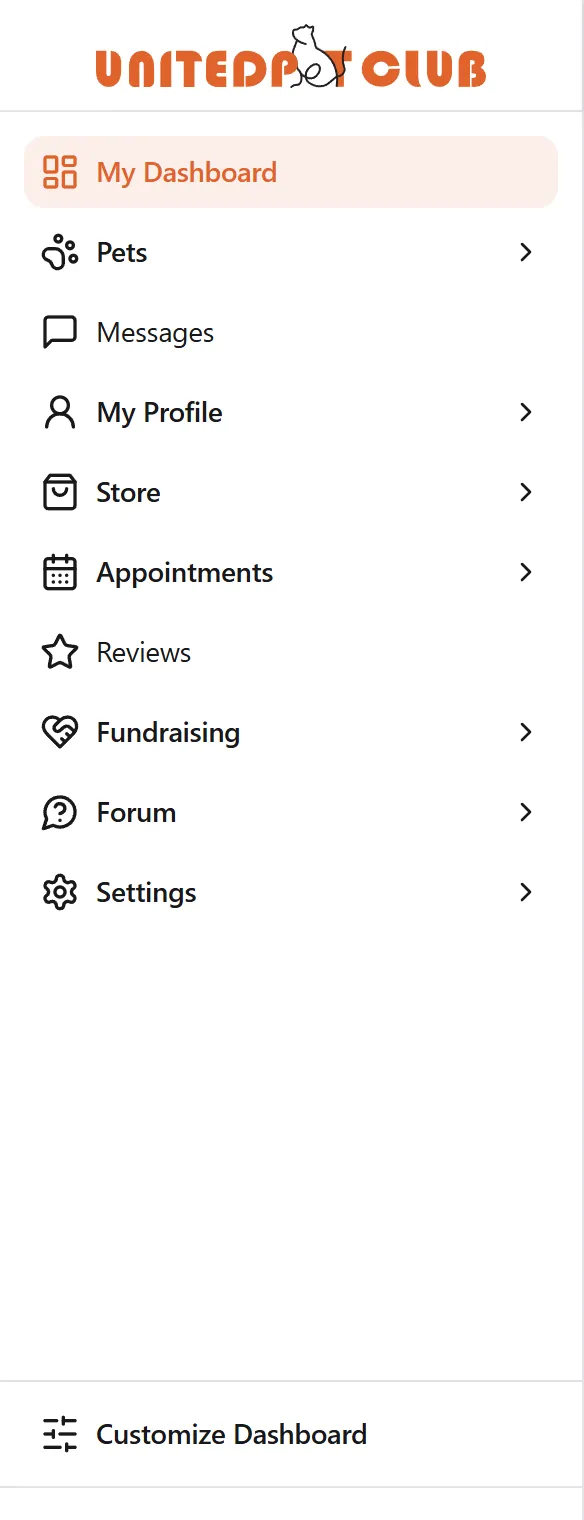
What your sidebar starts with
Section titled “What your sidebar starts with”My Dashboard (your home page), Pets, Messages, your profile section, Store and Settings are always shown — every profile has them and they can’t be switched off. The profile section is called My Profile, My Business or My Place depending on the profile (more). On a personal profile its first page is Portfolio, your career portfolio; every profile has its Work samples there too. Settings, at the bottom, holds your plan, gifts, standing and notifications. The rest depends on the profile:
| Your profile | Your sidebar starts with |
|---|---|
| A personal profile with no profession | The pet-family sidebar: the six above plus Appointments, Reviews, Fundraising and Forum |
| A business (organization or place), or a personal profile with a profession | Everything your professions use, with your trade’s sections right under Home |
A few examples of the sections a business sees first:
| You are a… | Right under Home |
|---|---|
| Groomer | Schedule |
| Trainer | Schedule, and Courses if you teach |
| Pet sitter or walker, behaviorist, rehab therapist, nutritionist, farrier, show handler, pet transporter, aftercare provider, photographer | Schedule |
| Breeder | Pets (with Litters and Animal listings) |
| Kennel or cattery | Pets, Schedule |
| Vet clinic | Schedule, Pro Assign |
| Vet or vet tech | Schedule |
| Shelter or rescue | Pets, Fundraising, Pro Assign |
| Store | Commerce |
| Brand or manufacturer | Commerce, Brand |
A business only starts with the trade sections it practises. Schedule, where a business takes bookings for its services, is for the professions in the table that take bookings. Any other business finds it switched off in Customize Dashboard and can switch it on there. Pro Assign is only for vet clinics and shelters; everyone else sees it greyed out.
Appointments and Schedule are two sides of booking. Appointments (every profile) holds the bookings you make with other businesses, and Find a service. Schedule holds the bookings clients make with your business; it’s for business profiles only, so a personal profile without a profession never sees it, not even in Customize Dashboard. It replaces the Grooming section businesses had before October 2026. See Schedule.
Pets is in every profile’s sidebar and can’t be switched off (since 2026-10-09). It holds your own animals, reminders, transfers and pets shared with you, and My Pet IDs: there is no separate Pet ID section any more. To register a microchip, tag, passport or tattoo, open the pet’s ⋮ menu, or select Register new on My Pet IDs and choose the pet first (more). Pets also has two groups that used to be sections of their own:
- Animal listings: your listings for sale, adoption, rehoming, foster or stud, and the inquiries and deposits on them. See Animal listings.
- Litters (called Breeding before 2026-10-09): your litters, the animals you’ve bred and your breeds. Every profile sees it. If your profile doesn’t offer Breeding yet, opening it asks you to add Breeding first, then takes you on to the page. See Litters and the Litter Pass.
A group opens on its own when you’re on one of its pages; otherwise select it to open it.
Brand holds your brand kits: your logo, colours, fonts and voice, which your blogs, website and designs draw on. Every profile can use it. A business starts with it on; a personal profile switches it on in Customize Dashboard under Marketing.
Your professions are the ones on My Profile → Specializations (My Business → Specializations on a business). Adding one there is what moves a personal profile to the business sidebar. Marking any of them as one you teach also opens Courses; see Teaching your profession.
Switch a section on or off
Section titled “Switch a section on or off”- At the bottom of the sidebar, select Customize Dashboard.
- Find the section. The list is grouped: Pets & care, Services, Selling, Marketing, Business and Community, and each row says in one line what the section is for.
- Flip its switch. The sidebar changes straight away.
- Close the panel.
Sections marked Recommended are the ones your profile starts with. The line at the top of the panel names the sections that are always there, in the same words as your sidebar: My Profile on a personal profile, My Business on a business, My Place on a place.
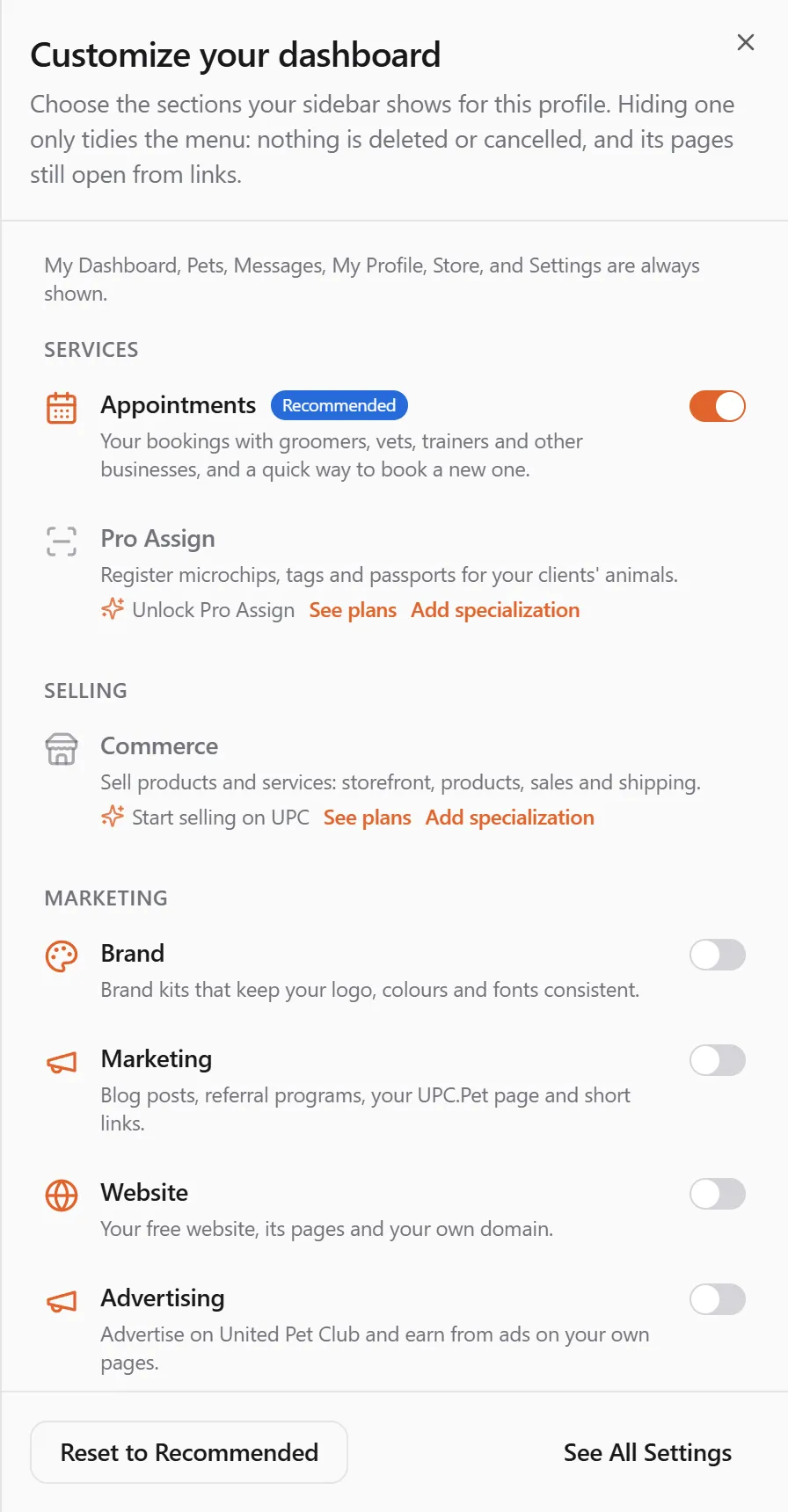
Sections you can’t use yet
Section titled “Sections you can’t use yet”Some rows are greyed out and have no switch. They show what the section needs:
- A profession or a plan — for example Commerce on a personal profile. Select See plans to see the plans that include it, or add the profession on My Profile → Specializations (My Business on a business).
- Enabled by United Pet Club on request — Sales & Marketing. A business profile starts it itself with a one-time setup payment: open the section from the sidebar and follow the card. See Starting Sales & Marketing.
A hidden section you open anyway
Section titled “A hidden section you open anyway”Switching a section off takes the whole section out of the sidebar at once: the section and every link under it. That’s true even when you switch it off while you’re on one of its pages. The page you’re on stays open, and nothing moves you away from it.
If you later open a page from a section you switched off, from a link, an email or a notification, the page opens as usual, and the section stays out of the sidebar. To get it back, switch it on in Customize Dashboard. It comes back with all its links.
Each profile has its own dashboard
Section titled “Each profile has its own dashboard”Your choices are saved for the profile you’re acting as, and they follow you to every device you sign in on. Switch to another profile and you get that profile’s sidebar. If you see Choose a profile first. Each profile has its own dashboard., pick a profile in the switcher first.
When you add a profession
Section titled “When you add a profession”When a profile gets a new profession (or our team switches on Sales & Marketing for it), the sections recommended for it are added to the sidebar, even ones you had switched off before. A message tells you what changed, for example Sales & Marketing was added to your sidebar, or how many sections were added. Select Undo in that message if you’d rather keep them hidden.
Start over
Section titled “Start over”- Reset to Recommended (in the panel and on the page) goes back to the sections your profile starts with.
- Show All Available Sections (on the full page) switches on every section this profile can use.
On a phone
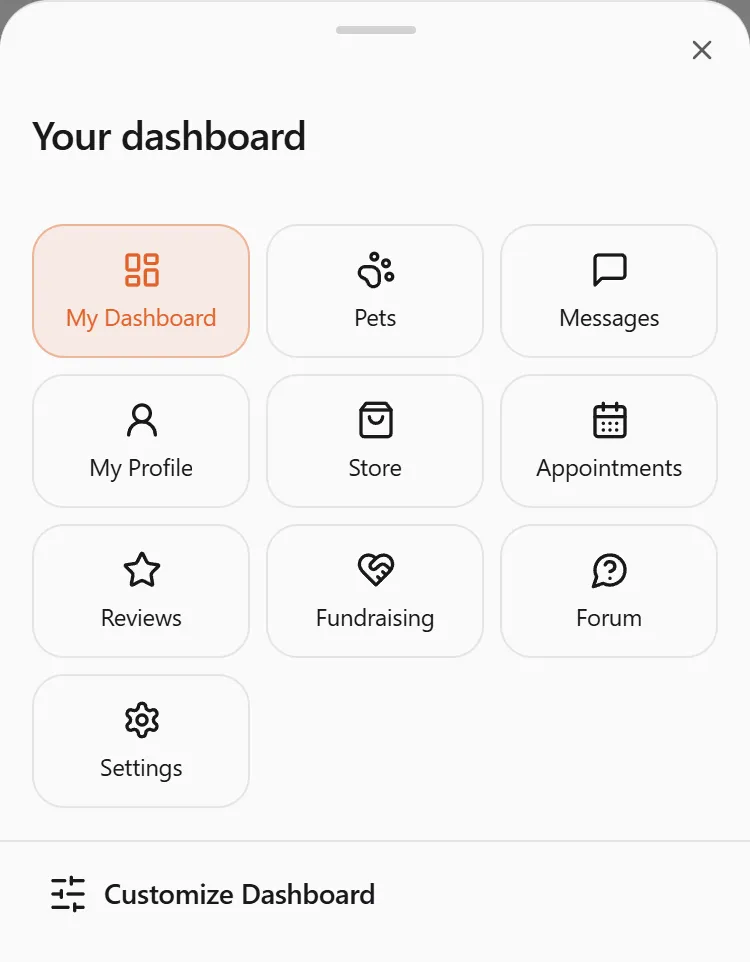
Section titled “On a phone”The tab bar at the bottom always shows Home, My Pets, Store, Search and More. More lists the same sections as your sidebar, each as a tile, and ends with Customize Dashboard. The + button’s quick actions are Add Pet, Register a Pet ID and Add a Litter; Add a Litter asks a profile that doesn’t offer Breeding to add it first.
The top bar keeps only what fits on a phone: the menu button, Upgrade, the language button, your notifications, the lock, and the picture of the profile you’re acting as.
- Your profile’s picture stands alone. Its name appears beside it only on a wide screen (a computer, or a tablet held sideways). Tap the picture to open your account menu, which names the profile and lets you switch to another.
- Search is in the tab bar instead.
- The paw-print Pet Recovery Lookup and Help buttons appear on a tablet or a computer. On a phone, look a pet up with Recover a Pet on the public site (see Looking up a lost or found pet).

Your home page
Section titled “Your home page”A personal profile with no profession gets a home page to match: what’s due for your pets comes first, then anything waiting for you to claim, then shortcuts to My Pets, My Bookings (your Appointments), My Orders, Pet IDs, Recovery and Recipes. Business profiles keep the business home, with verification and Partner progress near the top.
Settings → Gifts is where you give a plan as a gift, redeem one, and see the gifts you’ve sent and received. It sits next to Plan & Membership, so every profile has it.
If something went wrong
Section titled “If something went wrong”I can’t find a section I used to have. Open Customize Dashboard and switch it on. If it’s greyed out, the row says what it needs.
“We couldn’t save your sidebar.” Your change stays on this device and is sent again the next time you open the Dashboard. If it keeps happening, contact support.
A page I was sent to isn’t in my sidebar. That’s fine: the page works either way. Its section is switched off. Switch it on in Customize Dashboard if you want it in the sidebar.