

Pricing and markets
Every offer in your storefront needs at least one price. Most sellers set one price that applies everywhere. If you sell into more than one country, you can add a separate price for a country, for a state or province, or for a zone — a group of places you name yourself, such as “North America” or “EU except Ireland”. Buyers see the price for where they are; anyone outside every market you priced sees your everywhere price.
Commerce → Offers → your offer → Pricing (/dashboard/commerce/offers/{id}?tab=pricing)
holds an offer’s prices. Commerce → Storefront → Markets (/dashboard/commerce/storefront?tab=markets)
holds your zones.
Adding a price
Section titled “Adding a price”- Open the offer’s Pricing tab. Prices on this offer lists every price already set, newest first, with the market it applies to and whether the store currently shows it.
- Under Add a price, choose who the price is for in Sell this price to:
- Everywhere — the default. This is the price buyers see unless a closer match exists.
- One country — pick the country.
- One state / province — pick the country, then the state or province. This is available where the club’s region catalogue carries state codes; otherwise the list is empty and you can price the country or a zone instead.
- A zone — pick one of your zones or a platform zone (see below).
- Pick the currency, the price kind (unit price, flat fee, recurring, …) and the base amount. Amounts are entered without tax.
- For a unit price you can also fill Each additional unit: what every unit after the first costs when a buyer takes several on one order line. Leave it empty to charge every unit the base amount. See Lower price for each additional unit.
- Optionally tick Add an adjustment for a percentage or fixed discount or surcharge.
- Click Add price. The price is filed on your storefront’s price list for that currency and market; the list is created and activated for you when it does not exist yet. A live price of the same kind, currency and market is replaced, and the previous one is withdrawn after the new one is saved.
The note under the amount tells you which list the price lands on before you save.
Lower price for each additional unit
Section titled “Lower price for each additional unit”A unit price can charge the first unit its base amount and every further unit on the same order line a lower amount, with no limit on quantity. For example a base amount of 99.00 with Each additional unit set to 89.99 sells:
| Quantity | Buyer pays |
|---|---|
| 1 | 99.00 |
| 2 | 188.99 |
| 3 | 278.98 |
The additional-unit amount must be between 0 and the base amount, in the same currency. Set one per currency and market like any other price (for example CA$99.00 / CA$89.99 in Canada and US$89.99 / US$79.99 everywhere else). An adjustment on the price applies to each unit: a 10 % sale takes 10 % off the first unit and off each additional one. Shipping is separate: a lower delivery charge for several items is set on the offer’s shipping profile, not here.
In the Prices on this offer table the price reads, for example, CA$99.00 with then CA$89.99 each additional under it.
Which price wins
Section titled “Which price wins”When a buyer looks at the offer, the store picks the most specific market they are inside:
- a state or province price,
- then a country price,
- then a zone price,
- then the everywhere price.
A market price is only used when it exists for that offer. If your Ontario list does not carry the offer, an Ontario buyer gets your Canada price, and so on down the ladder. Within one market the usual rules apply: prices marked as fallbacks lose to regular ones, then the higher priority wins.
Prices on a draft list are shown in the table with an On a draft list label and are not sold until the list is activated (open Advanced: price lists & buyer preview and click Activate).
Prices inherited from your brand
Section titled “Prices inherited from your brand”If your location is part of a brand (see Brands and locations), the brand can set prices once for every location. On the offer’s Pricing tab those appear in a block headed Inherited from {brand} above your own prices, with the note Prices your brand set for this offer. They apply here until you override them with a price of your own.
- An inherited price is what buyers pay here as long as you have no price of your own for the offer. Your own price — for the same or any market — always wins over the brand’s.
- To charge something different, click Override on the inherited row. The brand’s amount, price kind and currency are copied into the Add a price form (Brand price copied into the form below — adjust it and add the price to override it here); change the amount and click Add price. From then on your price is sold and the brand’s is ignored for that offer.
- To go back to the brand’s price, withdraw your own price for the offer; the inherited row applies again.
Brand prices are edited on the brand’s profile, by the people who can act as the brand.
A zone groups places so you can price them once. Create zones on Commerce → Storefront → Markets.
- Click New zone and give it a name; the code is derived for you.
- Add places. Each place is one of:
- a country,
- a state / province,
- a city (type at least two letters to search),
- a postal prefix, such as
902for the Beverly Hills area orM5Vfor downtown Toronto, - a region group the platform maintains, such as the European Union.
- Tick Exclude this place on a place to carve it out — for example, add Canada and exclude Quebec.
- Save zone. Zones the platform provides appear under Platform zones and can be used the same way, but not edited.
A zone that a price list uses cannot be deleted; move those lists to another market first (from the Pricing tab’s Advanced section or the offer’s price list).
Checking what a buyer pays
Section titled “Checking what a buyer pays”On the offer’s Pricing tab, open Advanced: price lists & buyer preview. Enter a buyer’s country, state, and optionally postal code or coordinates, and click Resolve price to see the exact total and the market that produced it. Use this after setting up a zone to confirm an address inside and one outside it get the prices you expect.
- Currency is chosen per price; a country’s usual currency is suggested when you pick a country on the Region tab and no active list exists in it.
- Where you sell (the Region tab’s allow and block list) and what you charge (markets) are separate. A blocked country never sees the offer, whatever its price.
- Tax is never included in prices; it is worked out at checkout from the buyer’s address.
What shoppers see
Section titled “What shoppers see”Beside the store search box sits a Deliver to control — two lines, like the one on any large store: Deliver to over the place the page is priced for, for example British Columbia, Canada. Nobody has to choose anything first: the store starts from where the shopper’s connection says they are (country and, where the country is priced by region, the region), and names it right there.
Tapping it opens a small Choose your delivery location dialog (a bottom sheet on a phone):
- Detected from your connection shows the place the store worked out on its own. While it is the one in use it says In use; after a manual change it offers Use this to go back to it.
- Country, and for countries priced by region, Region. Both lists open with a search box: type a few letters of the name (or a country’s two-letter code) and the list narrows as you type. The country list starts with the United States, Canada, Mexico and the United Kingdom, then every other country alphabetically. Each change applies at once — every price on the page follows, and the region list for a newly picked country appears as soon as the page has re-priced. The choice is remembered for six months and covers the dashboard too.
- Done closes the dialog.
Re-pricing takes a moment, and the store never does it quietly. From the instant you pick a place until the new prices are on screen, the Deliver to button spins and reads Updating prices…, the dialog says Getting prices for Canada… (whichever place you picked), and if you close the dialog the page behind it fades and a small Getting prices for… pill floats at the top until the fresh prices land. Prices you see while that pill is up are still the previous place’s; the moment it disappears, everything on the page is priced for the new one.
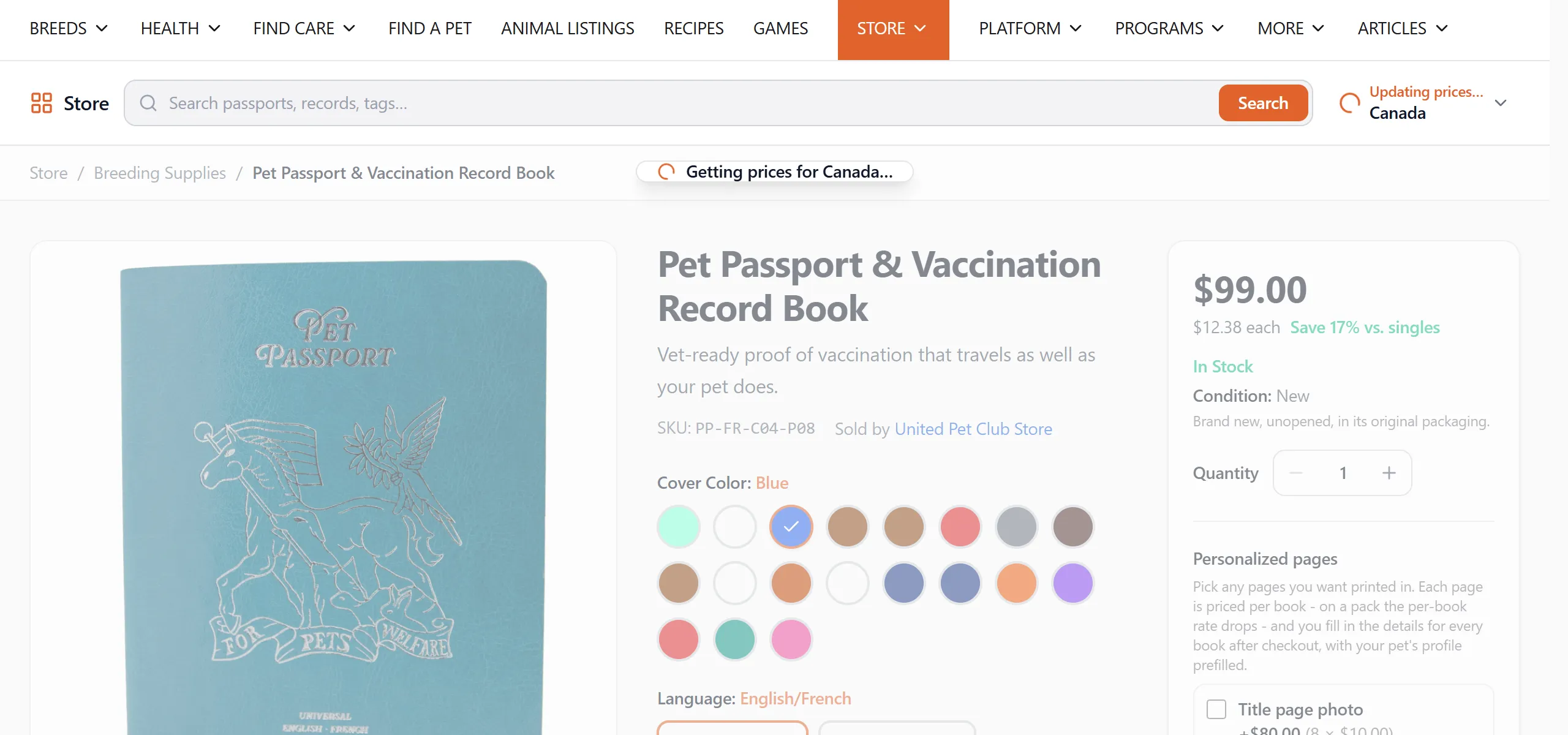
If the store cannot tell where a connection is from, it starts from the United States — the reader’s language does not change that — and the shopper picks their country in the dialog. A remembered choice always wins over the detected place, so a Deliver to that names a country you never meant to pick is fixed by opening the dialog and pressing Use this on the detected card, or choosing the right country.
A signed-in shopper who saved a currency under Account → Preferences → Currency sees prices in that currency wherever the seller has priced the item in it. An item the seller has not priced in that currency shows in the delivery country’s currency instead (and, failing that, in US dollars), so one page can honestly mix the two; the store home says Prices in EUR where available (your saved preference) when this is in effect. The delivery place itself is unchanged — the preference picks the currency, never the market — and the preference follows the shopper to any signed-in device.
Whatever the page showed, the cart prices each line again on the server for the delivery place — and once more against the shipping address at checkout — and the order is placed only if that price still matches what was resolved. A line that could not be priced for the destination stays in the cart marked for re-check rather than blocking checkout.