

Banking and reconciliation
Banking keeps your money accounts — bank accounts, cards, cash boxes, loans — next to the books. You import each account’s statement, check every line against the books, and reconcile: prove the books agree with the bank’s own closing balance.
The entity’s Banking tab (/dashboard/finances/accounting/{entity}/banking). Each money account shows its Book
balance, how many lines are waiting (3 lines to review), the Last statement date and Reconciled to date.
Rules opens the bank rules.

Kinds of money accounts
Section titled “Kinds of money accounts”| Kind | What it is |
|---|---|
| Bank account | A chequing or savings account. |
| Credit card | A card you pay off. What you owe shows as a negative balance. |
| Cash on hand | Petty cash or a till. |
| Loan | Money you borrowed and pay back. What you owe is negative. |
| Line of credit | A credit line you draw on. What you owe is negative. |
| UPC balance | What UPC holds for you until a payout. |
| Payment processor | Square, PayPal or a similar service. |
| Investment account | Shares, funds or other holdings. |
| Wallet | Cash or a wallet app, for personal books. |
Adding a money account
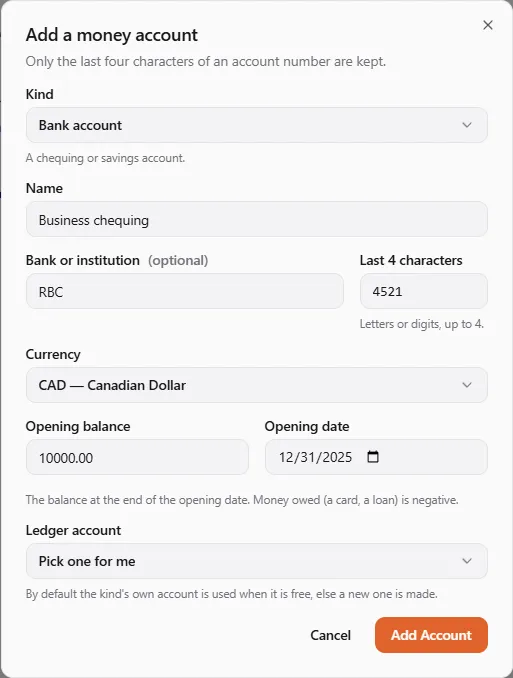
Section titled “Adding a money account”- Choose Add Account.
- Pick the Kind, and give it a Name (e.g. Business chequing) and the Bank or institution.
- Enter the Last 4 characters of the account number. Only the last four characters of an account number are kept.
- Pick the Currency. A foreign-currency account needs an exchange rate for its opening date. Add it under Settings first.
- Enter the Opening balance and Opening date: The balance at the end of the opening date. Money owed (a card, a loan) is negative. The books post the difference against opening balance equity. Statement lines dated on or before the opening date are skipped later: they are inside the opening balance.
- Leave Ledger account on Pick one for me unless your accountant wants a specific account.
- Choose Add Account.
Adding and changing money accounts needs the Manage and reconcile bank accounts permission. Close an account with Edit by switching off Account is open; Show closed accounts lists it again.
Importing a statement
Section titled “Importing a statement”On the account, choose Import Statement, choose the file, check what the books read, then import the lines. Lines already imported are skipped, so overlapping statements are safe. See Importing bank statements for formats, column layouts and bank presets.
A holding company’s books are kept by hand, so they don’t import statements.
Reviewing the lines
Section titled “Reviewing the lines”Open a money account (/dashboard/finances/accounting/{entity}/banking/{account}). Its Review tab lists the
statement’s lines with their status:
| Status | Meaning |
|---|---|
| To review | Not dealt with yet. |
| Matched | Tied to an entry already in the books. |
| Recorded | Posted to the books from this line. |
| Ignored | Left out on purpose. |
When a statement is imported, each line is matched automatically when exactly one entry in the books moves this account by the same amount within 5 days (Matched automatically). Rules then suggest a category for the rest (Suggested: …), or record them at once.
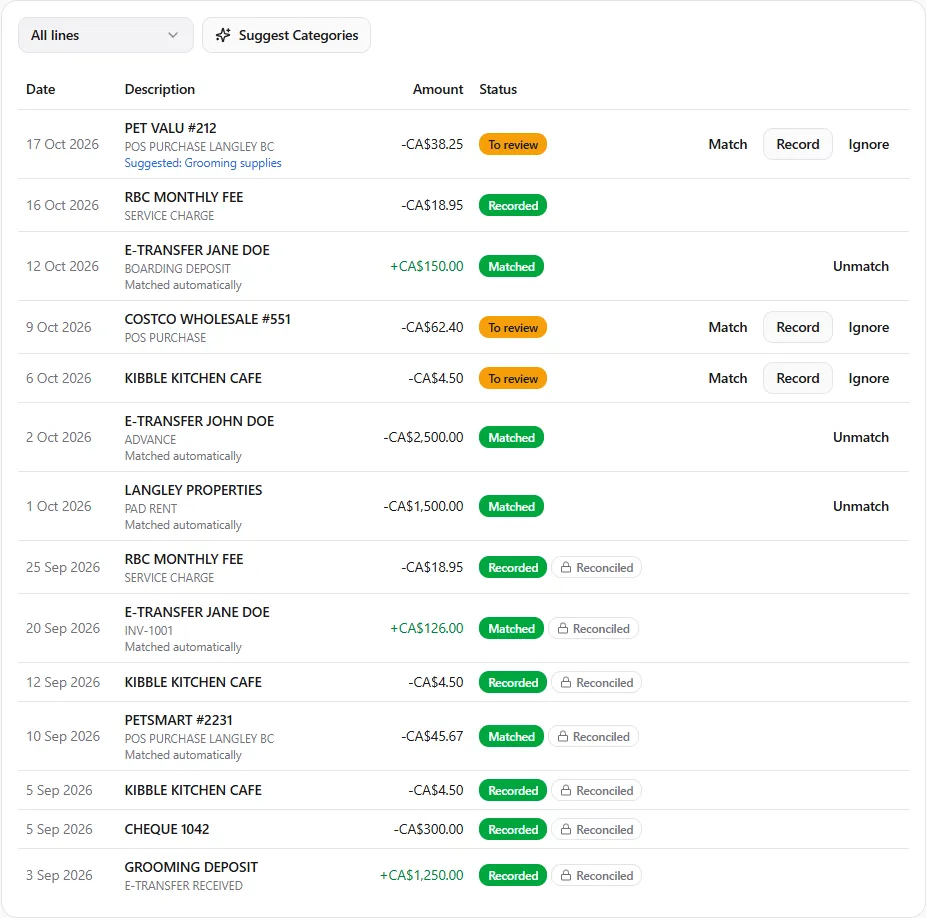
For each line still To review:
- Match — Pick the entry in the books that is this bank line. Entries with the same amount come first. Use it when the money was already recorded, for example by a document or by UPC.
- Record — Post the line to the books. Choose what it was for. Record as a category, an account, or a transfer to or from another money account (When the other account’s statement comes in, its line matches this entry.). Add a Party, Location, Class and Memo if you like, then Record Line.
- Ignore — leave it out, for example a line already inside an opening balance. Restore brings it back.
Unmatch frees a matched line that is not reconciled yet. Recording lines needs the Import and review bank lines permission; a grant limited to certain document kinds must include Bank lines.
Bank rules
Section titled “Bank rules”Banking → Rules: Rules suggest, or record, what an imported line is for. Lower numbers run first.
- Choose New Rule and give it a Name and an Order.
- Pick the account it Applies to (or every account).
- Add at least one condition: Description contains, Direction (Money in / Money out), At least, Up to.
- Under Then, pick the Category and optionally the Party.
- Tick Record matching lines at once to record without asking; otherwise the rule only suggests and you confirm each line.
- Choose Save Rule.
A rule like PETSMART → Supplies saves you choosing the same category every month.
Category suggestions from RetrieverAI
Section titled “Category suggestions from RetrieverAI”On a money account, Suggest Categories asks RetrieverAI to suggest a category for lines no rule covers (up to 100 at a time). Suggestions show as Suggested by RetrieverAI: …; nothing is recorded until you record each line. A rule’s suggestion is never replaced. It spends RetrieverAI credits from the profile you act as and needs the Use RetrieverAI permission. See RetrieverAI in your books.
Reconciling
Section titled “Reconciling”Reconcile when you have the bank’s statement for a period.
- On the money account choose Reconcile.
- Enter the Statement date and the Statement ending balance (As printed on the statement. Money owed is negative.).
- Read the figures: Opening balance, Cleared in the books, Book balance, the lines still to review and the Difference.
- When The statement and the cleared balance agree. and no line is left to review, choose Finish Reconciliation.
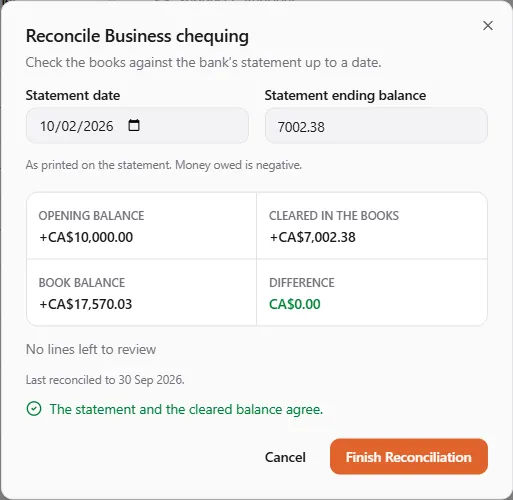
Every line up to the statement date must be matched, recorded or ignored first, and the statement balance must equal the cleared balance. The date must be after the last reconciliation and the opening date, and not in the future.
Once finished, the lines up to that date are locked: they can’t be unmatched or ignored. The Reconciliations tab lists every reconciliation. To change a locked line, choose Reopen Latest — only the latest reconciliation reopens, and its lines unlock. Reconcile again when you are done.
The Bank reconciliation report shows the result for any date; see Reports.
If something went wrong
Section titled “If something went wrong”- “This file was imported before.” — the same file can’t be imported twice. Import the next statement.
- “This statement is in USD, but the account is in CAD.” — import it into the money account in that currency.
- “This statement is for an account ending …” — the file belongs to another account.
- ”… statement lines up to … still need recording, matching or ignoring.” — review them before you finish.
- “The statement ends at …; the cleared lines come to …” — a statement or a line is missing. Import the missing statement, or look for a line you ignored by mistake.
- A bank line matched to a voided entry shows in the books check: unmatch it, then match or record it again.