

Creating and editing a contract
In the app you create a contract by writing it on your phone, from a template, or from a PDF, then set it up, add the people who sign it, check everything and send it. Editing a contract uses the same steps.
- New Contract: the + in the top bar on My Contracts, the New Contract button on its empty page, or New Contract in the + quick actions on Home (see Contracts in the Android app).
- From a template’s page: Use this template (see Contract templates).
- Edit: on a contract’s page, Edit (only the owner, and only until the first party signs).
The steps run as a full page with no tab bar: a progress bar on top, the step’s name, and Back and the next step’s button at the bottom. Cancel or the back arrow leaves without saving.
How do you want to build this contract? offers three cards:
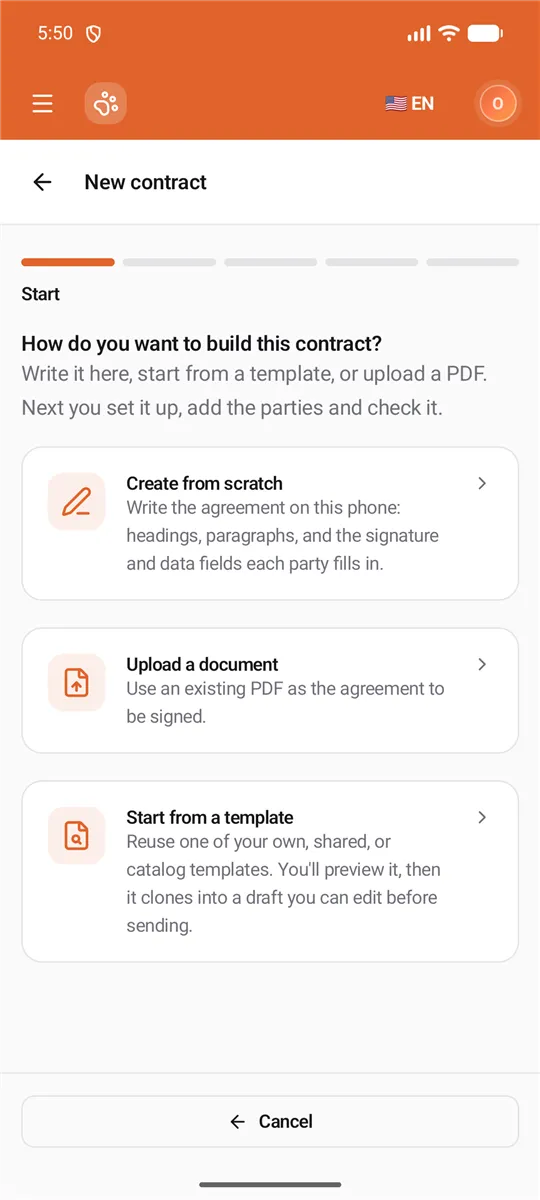
- Create from scratch — Write the agreement on this phone. Goes to Settings; you write the text on the Document step (see Writing the agreement).
- Upload a document — Use an existing PDF as the agreement to be signed. Goes to Settings; you pick the PDF on the Document step.
- Start from a template — Reuse one of your own, shared, or catalog templates.
Starting from a template
Section titled “Starting from a template”Pick a template from Mine, Shared with me or the Catalog (search by title on each tab).
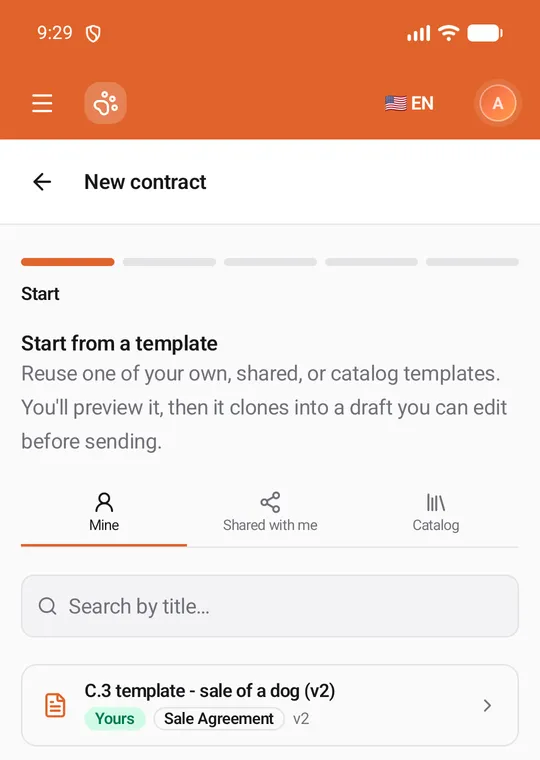
The template opens as a preview: its document, its Roles, and the box I have reviewed this template and understand I am responsible for its contents before sending. Tick it and tap Use this template. The app creates a draft contract from it (nothing is sent) and carries on with Settings for that draft: Draft contract created from template. Check its settings and parties; nothing is sent until you send it.
Settings
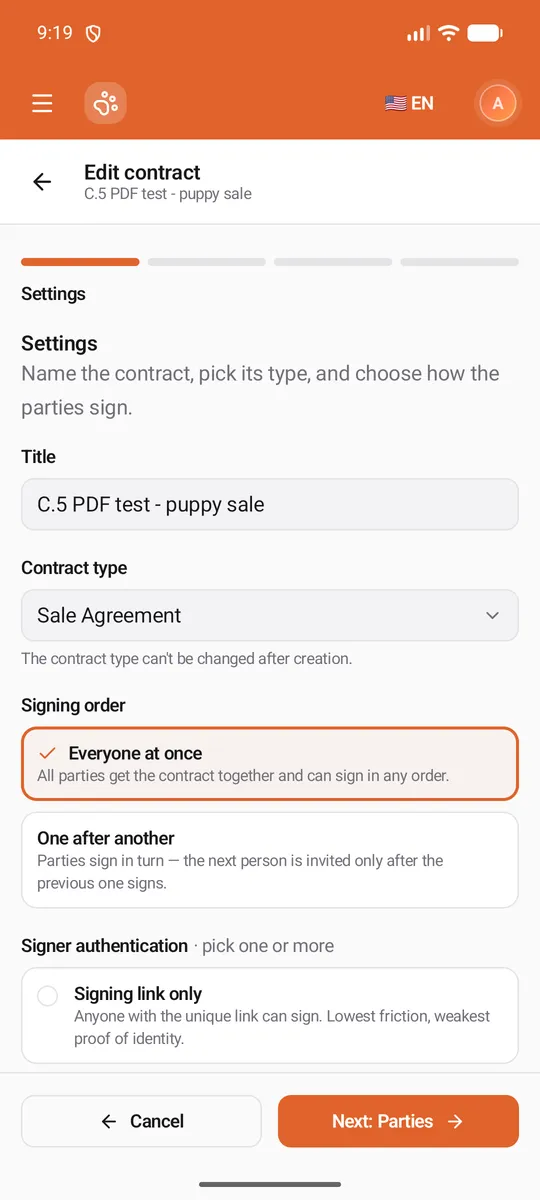
Section titled “Settings”Name the contract, pick its type, and choose how the parties sign.
| Field | What to enter |
|---|---|
| Title | The name everyone sees, e.g. Puppy Sale Agreement. Required. |
| Contract type | Sale Agreement, and so on. Required. The type decides the roles it starts with, and can’t be changed after creation. Types that can’t take an uploaded PDF aren’t offered for one. |
| Signing order | Everyone at once — all parties get it together and sign in any order; or One after another — the next person is invited only after the previous one signs. |
| Signer authentication | How signers prove who they are; pick one or more to require them together. Signing link only, Access code (a code you share with them yourself), Email one-time code, SMS one-time code, WhatsApp one-time code. The recommended choices carry Recommended; SMS and WhatsApp carry Extra fee (a fee per message). |
| Signing deadline (optional) | After this day the signing links stop working and the contract expires. Pick today or a later day; Remove clears it. |
Parties
Section titled “Parties”Add everyone who signs. The document’s fields are filled in by these parties. One card per party, in the role’s colour, starting with the roles the contract type needs:
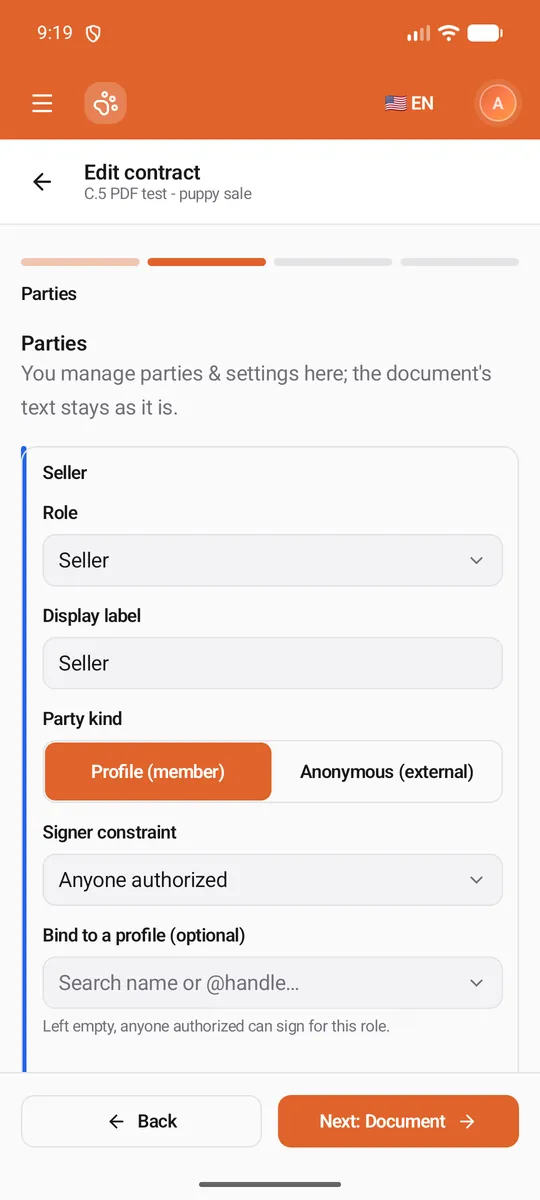
- Role — a role from the list, or Custom… with your own Custom role key (e.g. co-signer). Roles the contract type requires stay locked.
- Display label — what the party is called on the contract.
- Party kind — Profile (member) for a United Pet Club member, or Anonymous (external) for someone who signs from a link.
- Signer constraint — Anyone authorized, A specific user, or A qualification (then type the Qualification).
- Bind to a profile (optional) — search a member by name or @handle; only that profile can then sign this part. Left empty, anyone authorized can sign for this role. A party that needs a licensed vet (qualification VETERINARIAN, like a health certificate’s issuing vet) must be bound to the practice that will sign before the contract can be sent: the card says so, and Send stops with the same message (see Contract signers, links and locks).
- For an outsider: Name, Email and Mobile number. The email is required with an email one-time code, and the mobile number (with its country code, like +1 555 123 4567) with an SMS or WhatsApp code.
- Access code — when you chose access-code authentication: type one or Generate a random code, and give it to the signer yourself.
- Add party adds another; Remove takes one off. With One after another, each card shows Signs #1, #2… and Move earlier / Move later arrows set the order.
Document
Section titled “Document”-
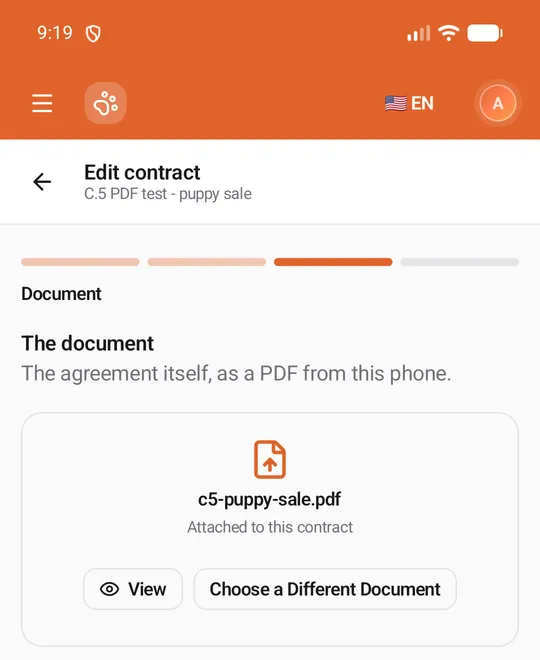
From a PDF: tick I own this or have permission to use it, then Upload a PDF and pick it from your phone. Once it’s attached, View opens it and Choose a Different Document replaces it. The PDF becomes the agreement: parties sign it, and a sealed certificate is made when everyone has signed.
-
Created from scratch: you write the agreement here (next section).
-
From a template, or written on the website: when the text is plain (headings, paragraphs and fields, like a contract written in the app), you edit it here the same way. A document designed in the website’s eSign editor, with its own layout, formatting or pictures, is shown to read: the app keeps it exactly as it is. To change it, use the eSign editor on the website (Paperwork → Contracts → Edit) on a computer. If some of its fields belong to no party (you removed a role it uses), the step says which; the contract can be saved but not sent until each field has a party.
Writing the agreement
Section titled “Writing the agreement”Write the agreement starts you off with the contract’s title, an empty paragraph, and a Signatures heading with each party’s Signature and Date signed fields, in signing order.
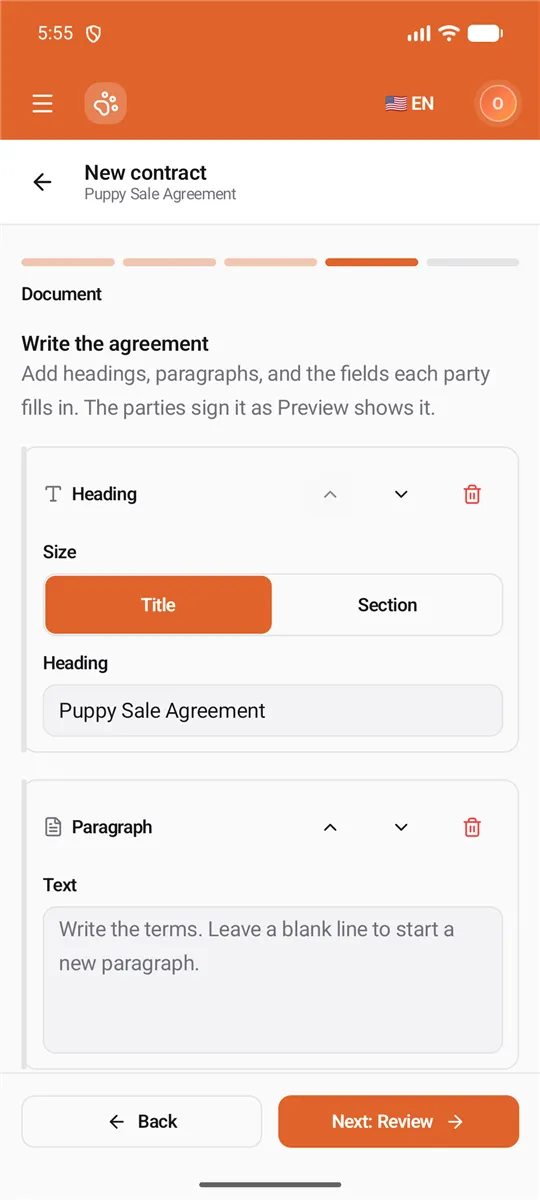
The agreement is a list of blocks, one card each:
- Heading — choose Title or Section size, then type it.
- Paragraph — the terms. Leave a blank line to start a new paragraph.
- Field — something a party fills in. Pick its Field type (Signature, Initials, Full name, Date, Date signed, Short text, Long text, Checkbox, Dropdown or Choice buttons), who it’s Filled in by, its Label and whether it’s Required. A Dropdown or Choice buttons field takes its Choices, one per line. Date signed fills itself in with the day that party signs.
Add puts a new Heading, Paragraph or Field at the end; the arrows on each card move it up or down, and the bin removes it. A field whose party you removed says Choose the party who fills this in; until each field has a party, the contract can be saved but not sent.
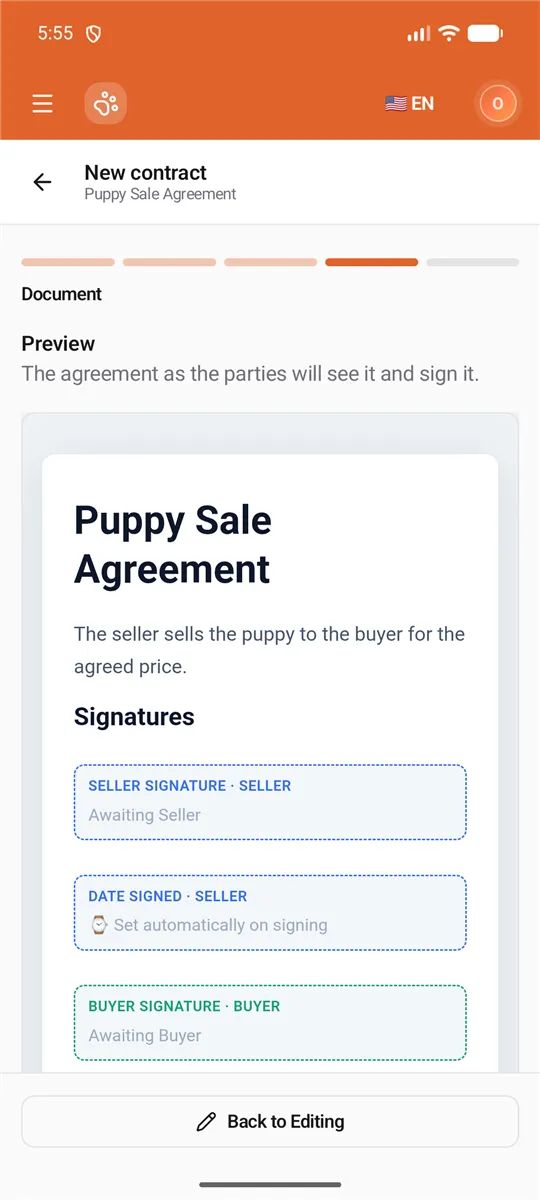
Preview shows the agreement exactly as the parties will see it and sign it, each party’s fields in its colour. Back to Editing returns to the blocks.
Review
Section titled “Review”Check and save shows everything at a glance — the settings, then each party with its kind, name and contact — and Send from when you have a connected mailbox.
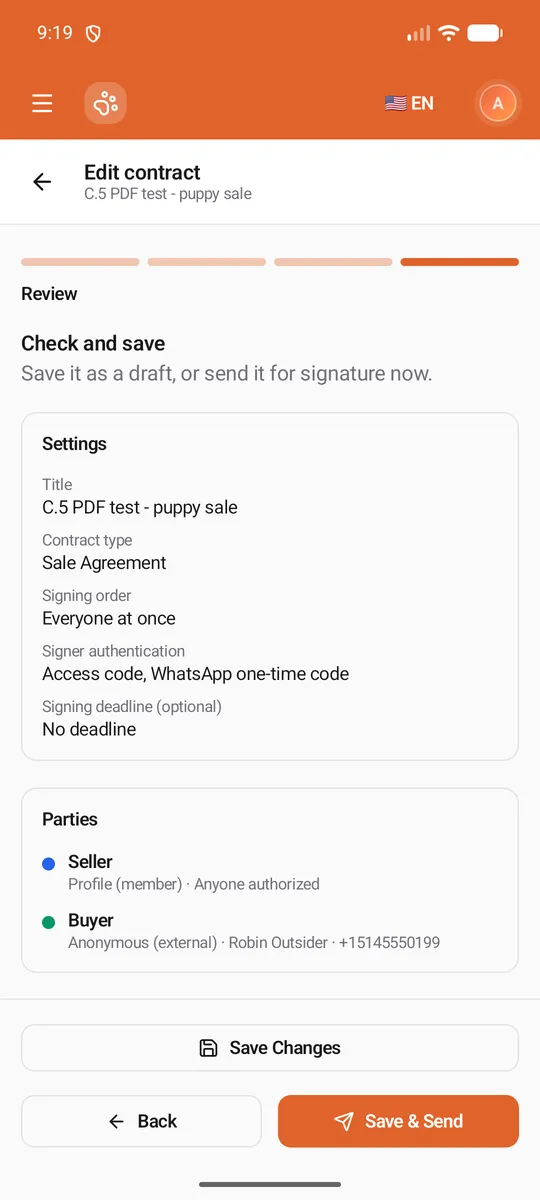
- Save Draft (new) or Save Changes (edit) keeps it as a draft.
- Create & Send (new) or Save & Send (edit) saves and sends it for signature. The signing links for outsiders are shown once afterwards, with Copy link and Share — copy them before you leave.
If the contract was saved but the send failed, the app says Saved as a draft, but it wasn’t sent with the reason; tap the send button again.
Editing a contract
Section titled “Editing a contract”Edit on a contract’s page opens the same steps, without Start, filled with the contract as it is. Its type is locked. Saving a contract that was already sent puts it back to Draft: send it again, and every party gets a new invitation.
The app refuses to edit when A party has already signed it, when the contract is no longer open (completed, sealed, declined, voided or expired), or when another profile owns it (Switch to that profile first).