

Use your own AI key
If you already pay OpenAI, Anthropic (Claude) or Google (Gemini) for API access, you can use your own key in the website builder. United Pet Club doesn’t charge for it: your provider bills you for those requests, and they don’t use your RetrieverAI credits.
Settings → AI keys (/dashboard/settings/ai-keys). The page lists the three providers. A provider
you haven’t added says Not added and links to the page where that provider hands out keys.
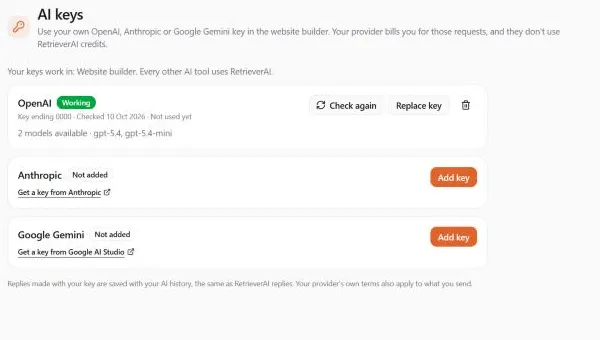
The keys belong to the profile you’re acting as. If you manage a business, switch to the business first, and everyone who works as that business in the website builder uses its key.
What you need
Section titled “What you need”An API key from the provider — not a chat subscription:
| Provider | Where to create a key | Good to know |
|---|---|---|
| OpenAI | platform.openai.com → API keys | A ChatGPT Plus subscription doesn’t include an API key. |
| Anthropic | console.anthropic.com → API keys | A Claude Pro subscription doesn’t include an API key. |
| Google Gemini | Google AI Studio → Get API key | On Google’s free tier, Google may use what you send to improve its products. |
Each provider bills you on its own terms. Set a spending limit in your provider account if you want one.
Add a key
Section titled “Add a key”- Go to Settings → AI keys.
- Select Add key next to the provider.
- Paste the whole key into API key. It’s one piece of text with no spaces.
- Select Save key. While it says Checking with the provider…, we ask the provider whether it accepts the key and which models it can use.
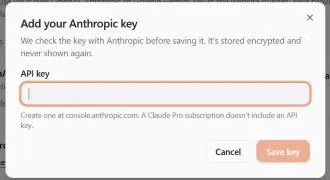
When the provider accepts the key, the row turns Working and shows Key ending with the last four characters, when it was Checked, and how many models it can use. We never show the key again — it’s stored encrypted. To change it, use Replace key.
If the provider doesn’t accept the key, nothing is saved and the dialog says why:
| Message | What to do |
|---|---|
| refused this key. Check that you copied all of it and that it’s still active. | Copy the key again from the provider, or create a new one. |
| says this key is out of credit or sending too many requests. | Add credit or raise the limit in your provider account, then try again. |
| accepted the key, but it can’t use any chat models. | Check the key’s permissions or project in your provider account. |
| didn’t answer. Try again in a moment. | The provider couldn’t be reached. Try again. |
Use it in the website builder
Section titled “Use it in the website builder”- Open the website builder (Website → My website, then edit your site) or a page under Website → Pages.
- Select RetrieverAI Create.
- Open Model. After the RetrieverAI models you’ll see Your OpenAI key (or Anthropic, or Google Gemini) for every key that works. It uses the first model the provider lists; the key’s other models are under More models.
- Describe what you want and select Generate.
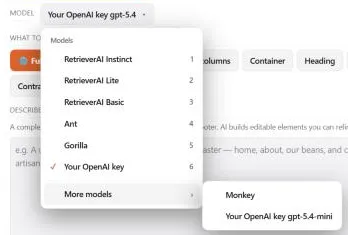
Requests with your key don’t use RetrieverAI credits, even when your balance is $0.00.
When your provider refuses a request
Section titled “When your provider refuses a request”If the provider refuses, the request stops and the AI dialog says why. It never switches to RetrieverAI or uses your credits without you choosing a RetrieverAI model.
- “OpenAI refused your API key. Check it or replace it in Settings > AI keys.” — The key no longer works (deleted, revoked or expired). On AI keys the row now says Refused, and the website builder stops offering it. Replace the key, or fix it with the provider and select Check again.
- ”… says your key is out of credit or sending too many requests …” — Add credit or wait, then try again.
- “This … model isn’t available with your key.” — Pick another model. Select Check again on AI keys to refresh the list of models.
- “Your own AI keys work in the website builder only.” — You picked your key in another editor. Pick a RetrieverAI model there.
Check, replace or remove a key
Section titled “Check, replace or remove a key”- Check again asks the provider again and refreshes the list of models. Use it after you fix a refused key.
- Replace key saves a new key for that provider (checked the same way).
- The bin button removes the key. The website builder stops offering that provider’s models. You can add a key again at any time.
Privacy
Section titled “Privacy”- Your key is stored encrypted and is used only on United Pet Club’s servers, never in your browser.
- What you send to the AI goes to your provider under its terms, after the same safety checks as RetrieverAI.
- Replies made with your key are saved with your AI history, the same as RetrieverAI replies.
Designers
Section titled “Designers”A designer can’t see or change a profile’s AI keys, and the website builder doesn’t offer the profile’s own keys during a designer’s session. Designers create with RetrieverAI.
Reference
Section titled “Reference”| Status on the AI keys page | Meaning |
|---|---|
| Not added | No key for this provider. |
| Working | The provider accepted the key the last time we checked or used it. |
| Refused | The provider refused the key. The website builder doesn’t use it until you replace it or select Check again and it works. |