

Brands and locations
If your business has more than one place — two grooming salons, a chain of clinics, a franchise — each place gets its own profile with its own handle, address, opening hours, calendar, store and reviews. A brand ties them together publicly: one name, logo and story, a page that lists every location, and common prices the locations inherit until they set their own.
My Account → Profiles → All profiles (/account/profiles). Every profile sits in its own
card, with its buttons inside that card. A brand and its locations share one card: the
brand at the top (badge Brand) with its Edit Profile, Requests and Add a location
buttons, then each location on its own row (badge Location) with that location’s buttons.
Everything else is listed under Other profiles. A location run by another account (a
franchisee’s) is shown in the brand’s card without buttons.
In the Dashboard, the same family is one click away: see From the Dashboard: Brand & Locations.
Create a brand
Section titled “Create a brand”- Open All profiles and click Add Profile.
- Choose the Brand purpose — its hint reads A brand identity for one or more locations or products. Because a brand is not a trade, the wizard skips the “what does it do” step and the specializations step.
- Pick the brand’s handle (for example
mrgroomer), its display name, and finish as usual.
Pick the brand handle with care: handles that start with it, such as mrgroomer.calgary, are
reserved for you from now on — nobody else can register them.
Add a location
Section titled “Add a location”- On the brand card, or on any existing location’s card, click Add a location. The new location is cloned from the profile you started from: same name, purpose, specializations and opening hours.
- Fill in Identity:
- Handle — once you type the city, the suggestion is your handle + the city, for
example
mrgroomer.calgary. Availability is checked as you type. - Display name — defaults to the template’s name; add the city if you like.
- Handle — once you type the city, the suggestion is your handle + the city, for
example
- Fill in Address. Start typing in Find the address and pick a suggestion: it fills Street address, City, Postal code, State / province and Country for you. You can still type or correct any field by hand. This becomes the location’s primary address — used for the directory, shipping origin and service area.
- Leave Copy specializations and Copy opening hours on unless the new place differs, and keep Link under {brand} on so the location is shown as part of the brand and inherits its prices until it sets its own. A location added from the brand this way doesn’t copy the hours once: it uses the brand’s hours and follows every later change to them (see Opening hours and holidays). A location added from another location gets a copy of that location’s hours.
- Click Create location. You land on the new profile.
The people who are owners or managers of the profile you cloned from are given the same roles on the new location. Anyone else who needs access is added on the new profile, as for any profile — or once for every location with an access policy.
From the Dashboard: Brand & Locations
Section titled “From the Dashboard: Brand & Locations”Dashboard → My Business → Brand & Locations (/dashboard/locations) shows the organization you
are acting as together with its family. It is listed for organization profiles only.
Everything on this page happens in the Dashboard. Nothing opens the Account app.
- This profile — the profile you are acting as, with a Brand, Location or Business badge and a Business settings button (your My Business overview).
- Pending requests — shown only when a link is waiting on a confirmation. Requests sent to you have Confirm and Decline; your own requests say who you are waiting for.
- Brand — for a location, the brand it is part of (Part of {brand} · N locations), with Switch to when you run the brand and Leave brand. A location with no brand gets Link to a brand here: type the brand’s @handle and click Link (see Link an existing location to a brand). The same card lists Brands carried, with Add a brand.
- Locations — a table of every location under the brand, with the brand’s location count and rating above it. Each row shows the location’s name and @handle, its City (with the province or state and country), its Rating and number of reviews, and who it is Run by. Your own row is marked This profile. A location you can act as has Switch to. Once you switch, its settings are the Dashboard’s own pages. A location run by another account says Run by another account and has no button.
Find a location
Section titled “Find a location”Above the table:
- Search by name, handle or city narrows the rows as you type. It also matches the province
or state code (for example
BC) and the country code. - Region (shown when your locations are in more than one province, state or country) keeps one region, for example AB, Canada.
- Run by (shown when another account runs one of the locations) keeps Run by you or Run by another account.
- Status (shown when a location is inactive) keeps Active or Inactive locations.
The count beside the filters says how many rows you are looking at (2 of 5 locations). Clear filters puts everything back.
Click a column heading (Location, City or Rating) to sort by it, and click it again to reverse the order. Names and cities sort A to Z first, ratings best first. Locations with no reviews yet always sort after the rated ones.
Open a location’s details
Section titled “Open a location’s details”Click a location’s name (or the arrow beside it) to open the row. It shows the location’s Address, its Reviews, its Status and who it is Run by, with View public page to open its page on the website in a new tab. Click the name again to close it. Several rows can be open at once.
On a phone the table keeps the name and the Switch to button; the city, rating and owner are in the opened row.
- Add a Location (top right) opens the Add a location form in the Dashboard
(
/dashboard/locations/new). It is the same form as in the Account app, copied from the profile you are acting as. From the brand it adds a location under the brand. From a location it adds another location under the same brand. When you click Create location you come back to Brand & Locations, and the new location is in the list with Switch to.
Give your team access to every location automatically
Section titled “Give your team access to every location automatically”Adding the same manager to each salon by hand does not scale, and the person you add today is missing from the location you open next month. An access policy fixes that: it says “this member of my account holds this role on every profile the account owns” — the locations you have now and any you add later.
Owners and admins get every location without a policy
Section titled “Owners and admins get every location without a policy”Since 2026-09-16 you do not need a policy for the people who run the account itself:
- an account Owner holds the Owner role on every business profile the account owns;
- an account Admin holds the Admin role on every business profile the account owns.
That happens on its own — when someone creates the account, accepts an Owner or Admin invitation, or is promoted on the Members page — and it covers locations, brands and organizations added later. Those profiles show up in the profile switcher at the top of every page, so an owner or admin can sign in once and switch to any of them to manage the team, the roles, the listings and the day-to-day work.
On the Profile access page these appear as policies with a From Owner role / From Admin role badge. They have no End policy button: to take that access away, change the person’s account role on the Members page (or remove them from the account), and the policy ends with it. Demoting an owner or admin to Member removes the access they only had through their role; anything granted directly on a profile, or by another policy, stays.
Create a policy
Section titled “Create a policy”- Go to My Account → Account Settings → Profile Access (
/account/account-settings/profile-access). If you belong to several accounts, pick the right one in the Select account drop-down. - Click Add policy.
- Choose the Member — anyone already on the account (see Members and invitations to bring someone in first).
- Choose the Profile role they should hold: Manager, Store manager, Designer or Viewer.
- Under Applies to, keep All owned profiles for a chain-wide role, or pick Selected profiles and tick the locations it should cover.
- Click Add policy. The confirmation tells you what happened on each location — for example Granted 3, already present 1, skipped 0, failed 0. “Already present” means the person already had a role there; nothing is duplicated.
You need to be an Owner or Admin of the account to add or end policies; members see the list only.
What happens when you add a location
Section titled “What happens when you add a location”Nothing you need to do. When a new location is created or an existing profile is added to the account, every All owned profiles policy is applied to it right away, and so is any Selected profiles policy that lists it. The policy card’s Applied date updates each time. A suspended member is the exception: their policies wait, and they get the new location when you resume them.
End a policy
Section titled “End a policy”Click the End policy button on the policy card and confirm. The member loses that role on the locations this policy gave it to them on — unless another policy still covers them, or the role was also granted directly on the profile, in which case those grants stay. Tick Show ended policies to see your history.
A policy also ends on its own when the member is removed from the account, and a From Owner role / From Admin role policy ends when that member’s account role changes (the history shows account role changed).
Link an existing location to a brand
Section titled “Link an existing location to a brand”Already have a profile for the place? Link it instead of re-creating it.
- Open the location’s profile page and find the Brand card. In the Dashboard, act as the location and open My Business → Brand & Locations: the Brand card is there too.
- Click Link to a brand and type the brand’s @handle. The card tells you if that handle is not a brand.
- Click Link.
What you see next depends on who owns the brand:
- You own the brand → Linked to {name}. Done.
- Someone else owns it (a franchise) → Request sent to {name} — it shows here once they confirm. Until then the location is not listed on the brand page.
A location belongs to one brand. To move it, click Leave brand first (the card asks you to confirm; nothing else about the profile changes) and then link to the other.
Confirm a franchise request
Section titled “Confirm a franchise request”When a location owned by another account asks to join your brand, it appears under Pending requests on your brand’s profile page (and the Requests count on the brand card): {name} asks to be a location of this brand.
- Confirm — the location joins the brand: it shows Part of {brand} on its public page, is listed and counted on your brand page, and inherits your brand prices where it has none of its own.
- Decline — the request is closed; the other owner can ask again later.
Your own outgoing requests show as Waiting for {name} to confirm. Either side can end an active link at any time from its Brand card.
Brands you carry
Section titled “Brands you carry”A store that stocks a brand’s products, or a workshop that is an authorized service provider for one, can say so without becoming part of that brand.
- On the location’s profile page, under Brands carried, click Add a brand and enter the brand’s handle.
- The brand’s owner confirms (instantly if it is your own brand). The location then appears under Where to find us on the brand’s public page.
Carrying a brand changes nothing else: it does not affect your rating, your handle or who can act on your profile.
Opening hours and holidays
Section titled “Opening hours and holidays”Each location has its own opening hours, but you don’t have to keep them in step by hand:
- Set the week once, on the brand. On the brand’s My Business → Hours page, set the brand’s week. Every location that uses the brand’s hours shows it, and follows when you change it.
- Let a location differ. On that location’s Hours page, choose Set my own hours (or Override under the brand’s week) and edit its week. Choose Use {brand}‘s hours to go back.
- Holidays follow each location’s region. Public holidays differ by province and state, so each location lists the holidays where it is. Set the holiday hours on the brand (Closed, Usual hours or Special hours) and every location in a region with that holiday follows; a location can change its own and go back with Use brand setting.
Step by step, with what customers see: Opening hours and Holiday hours.
What visitors see
Section titled “What visitors see”- On a location page: a chip Part of {brand} · N locations linking to the brand.
- On a brand page: Locations, headed by a summary such as 3 locations · 4.6 average from 31 reviews, opens with Find your nearest {brand}: the locations nearest the visitor first, each with its city, its distance and its own rating, and Book on the ones that take online bookings. The complete list is one click away under See all N locations. The brand page also gets a Book an appointment button that opens the same finder (Book at {brand}) — the brand itself is never booked; the visitor always books one location. And Where to find us lists the carriers, each marked Stocks products or Authorized provider.
- On a brand page whose company is on United Pet Club: a chip A brand of {company} that opens the company’s page. On that company’s page: Our brands, with one chip per brand, each opening the brand’s page. See The company behind a brand.
- In the groomer directory (and the other care directories) your brand shows at most two locations per list, each marked Part of {brand}, with a link to N more {brand} locations. Someone who searches your brand’s name sees every location.
- A brand’s own reviews and its locations’ reviews stay separate: a review of the brand rates Quality, Value, Customer care, Consistency across locations and Transparency; a review of a visit sits on the location that was visited.
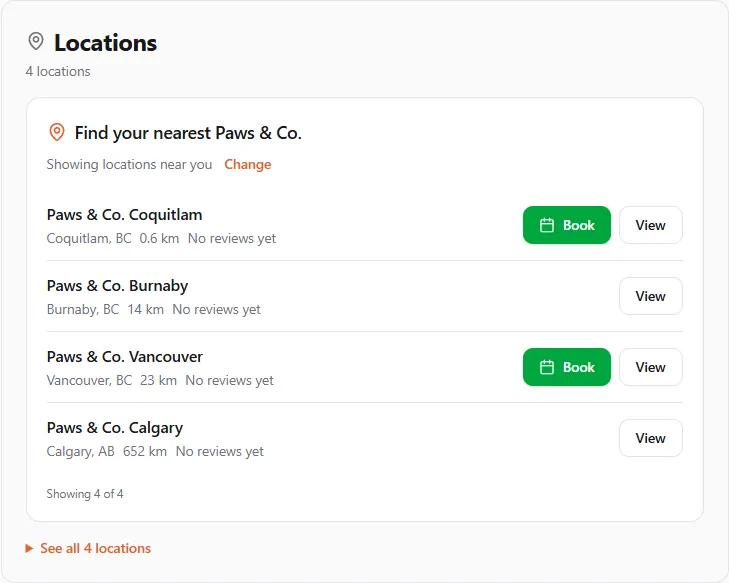
How visitors book: Booking with a brand that has many locations.
Related: Reviews — All locations and Pricing — prices inherited from your brand.
The company behind a brand
Section titled “The company behind a brand”A brand can show which company it belongs to. If your company has its own profile and owns one or more brands, the United Pet Club team can link each brand to your company’s profile:
- The brand’s page shows A brand of {your company}, and your company’s page lists Our brands.
- Only your company can list new products under that brand. Other sellers can still sell products that already carry it, but they can’t put your brand on a new product. Brands without a company linked stay open to every seller, so a shop can name the brands it resells.
To ask for the link, contact support with the brand’s and the company’s handles. The brand and the company must belong to the same account (see Managing profiles).
If something went wrong
Section titled “If something went wrong”- “Handle is reserved” when creating a location — the part before the dot is another profile’s handle and you cannot act on it. Pick a handle that starts with your own.
- “This location is already part of a brand” — leave the current brand first.
- A location is missing from the brand page — the link is still waiting for a confirmation, or the location profile is inactive.
- The wrong owner confirmed — the two owners are the only people who can end a link; contact support only if neither can sign in.