

Running your own promotions
If you sell on United Pet Club, you can run your own promotions: a promo code your customers enter at checkout to get a percentage or an amount off your listings. Running a promotion is free. You only pay a small per-claim fee when a customer actually uses one of your codes on an order they pay for.
Who can run promotions
Section titled “Who can run promotions”Your profile can run promotions when it is one of these:
- an approved seller — your application to sell was approved (see Start selling);
- a verified organization — an organization whose business we have verified;
- a verified shelter or rescue.
If the page says We couldn’t check this profile, choose Try again in a moment. A profile that was just approved may have to wait a minute too.
In your Dashboard, open Commerce → Promotions → My Promotions (/dashboard/commerce/promotions). You see your
promotions, newest first, with their discount, what they apply to, their status, codes, claims and dates.
If your profile can’t run promotions yet, the page says Promotions aren’t open to this profile yet and lists who can, with Apply to sell.
Create a promotion
Section titled “Create a promotion”- Choose New promotion (or Commerce → Promotions → New Promotion).
- Under What buyers see, give it a Promotion name, an Offer line (shown to buyers beside the code; describe the offer without amounts or prices) and, if you like, a Description for your own reference.
- Under Discount, choose the Discount type:
- Percentage off (from 1 to 100 %), or
- Store credit: a fixed amount off, in one currency.
- Choose what it Applies to: All my listings (every product, service and class you sell, and your organization’s membership dues), or One listing, then pick it. The list groups your Products, Classes, Services, Group classes and, if your profile runs a membership organization, its Membership tiers. Only listings you sell now are offered, and only those are accepted. For membership dues, also set Membership terms covered: see Discount your membership dues.
- Optionally set a Minimum cart amount (your items in the order must reach it) and a Maximum discount (caps the saving on one order).
- Under When and how often, optionally set Starts (empty: as soon as you publish), Ends (empty: until you end it), Total uses and Uses per customer (empty: no limit). The dates are in the Time zone shown under them, your own by default; change it if your buyers are elsewhere. A start date in the future schedules the promotion ahead, for example for Christmas week: see Schedule a promotion ahead.
- Under Where it applies, leave Everywhere, or choose Only in some places and add countries, then, if you like, provinces or states (All of a country takes every one). You can pick only places where you sell or serve: where your store ships, where you offer services, and your own address. The editor lists them as You sell or serve in: ….
- Under Code, type your own code — letters A to Z, digits and hyphens, 4 to 32 characters, such as
SPRING-GROOM— or leave it empty and we create one. Codes are unique across United Pet Club: That code is already in use means choose another. - May combine with United Pet Club promotions is on by default: a buyer can then use your code and a United Pet Club code on the same item, yours first.
- Optionally turn on Apply automatically at checkout: buyers get the discount on your items without typing a code. You can still share the code. See Automatic discounts.
- Choose Save draft. Nobody can use it until you publish it.
The Preview at checkout beside the form shows how the code will look to buyers.
Publish, pause and end
Section titled “Publish, pause and end”| Status | What it means |
|---|---|
| Draft | saved, not usable yet |
| Scheduled | published, but its start date has not come yet |
| Active | customers can use its codes |
| Paused | codes are refused until you resume it |
| Ended | its end date has passed, or you ended it; its codes no longer work |
- Publish puts the draft live. We check again that your profile can run promotions and that the listing it names is still yours.
- Pause stops the codes for now (Buyers can’t use the codes until you resume); Resume starts them again, with the same checks.
- End stops every code at once, for good. An ended promotion can’t be restarted; create a new one instead.
Editing a live promotion (Edit) saves your changes as a draft: buyers keep the current version, the page shows Changes not published, and Publish changes puts them live. Codes your customers already have keep working.
Schedule a promotion ahead
Section titled “Schedule a promotion ahead”To run a promotion only during, say, Christmas week, set Starts and Ends to that week and Publish it now. It shows Scheduled until the start: its codes exist, so you can print them or send them out, but checkout refuses them with This promotion hasn’t started yet. At the start it turns Active on its own, and at the end Ended on its own, with its codes. You don’t need to come back.
A code can’t last longer than its promotion: when you publish, codes set to expire later (or never) are cut to the promotion’s end, and Add another code won’t take a later Expires date.
Limit a promotion to a region
Section titled “Limit a promotion to a region”With Only in some places, a buyer can use the code only when the order goes there: the shipping address for products, the place the service happens for bookings, otherwise the address on the buyer’s profile. Elsewhere, checkout says This code isn’t available where your order is going. A buyer with no address yet is asked to add one. If you stop selling in a place, publishing or resuming a promotion that names it is refused until you edit the region.
If United Pet Club pauses your promotion because it breaks the rules, you can’t resume or publish it again yourself: only United Pet Club can. You can still end it.
If a listing is no longer yours (for example it moved to another seller), the promotion’s page says This listing is no longer yours and the promotion won’t apply to it. Edit it to pick another listing, or end it.
More codes
Section titled “More codes”On the promotion’s page, Add another code gives the same promotion another code, for example one per channel to see which brings buyers. Each can have its own Total uses and Expires date (empty: no limit, and it lasts as long as the promotion; it can’t be later than the promotion’s end).
Share a promotion
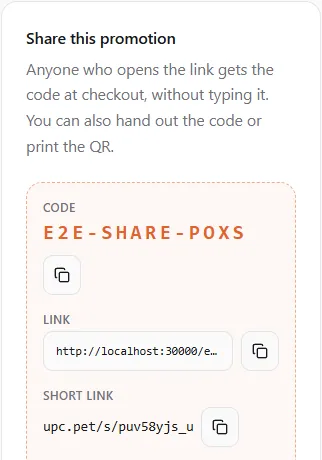
Section titled “Share a promotion”On the promotion’s page, the Share this promotion card turns a code into ways to hand it out. It works for a published promotion (Active, or Scheduled: The link works now, and the discount applies once it starts.); paused and ended promotions can’t be shared.
- If the promotion has several codes, pick one under Code to share.
- Copy code gives the code itself, for a counter sign or a message.
- Copy link gives a link to your public profile page with the code attached. Anyone who opens it gets the code at checkout without typing it, for 30 days on that browser.
- Create a upc.pet short link makes a short address for a flyer or a text message. It opens the same link, and it stops working when the code expires. Creating it again gives the same short link.
- Share on Facebook, WhatsApp, LinkedIn, Telegram or Email, or More ways to share on a phone.
- Download QR saves a QR code to print: a phone camera opens the link.
A personal reward code (one issued to a single customer by a referral) is never offered here.
Automatic discounts
Section titled “Automatic discounts”With Apply automatically at checkout on, every store cart that has your items gets the discount without a code. The buyer’s order summary shows it as Automatic discount, and your promotion’s page shows Applies automatically: Yes. All the promotion’s other rules still count: what it applies to, the minimum cart amount, the dates, the region and the use limits. Each use counts as a claim, with the same per-claim fee.
It works for service and class bookings too. When a signed-in member books one of your services or classes without typing a code, the automatic discount lowers the booking’s price on its own. The deposit and the balance are then worked out from the lower price. The confirmation shows Automatic discount with the amount saved, next to the new total and the price before it.
- It counts as your one code on the order: if the buyer types another code of yours, the typed code takes its place. This is the same for a booking.
- Guests who book without signing in don’t get it. Neither do sessions paid with a package, or services that have no online price.
- If a booking with an automatic discount is cancelled before anything is paid, the discount is released and nothing counts as used. A paid booking counts as a claim, the same as a code.
Results
Section titled “Results”Each promotion’s page shows Results: Claims (paid orders that used it), In carts now, and per currency the Discount given, Claimed sales, Fees and Fees returned. Each order counts in the currency it was paid in.
Claims lists every paid order that used the promotion, with its Source (Promotion, or Referral for one of your referral rewards), Claimed sales, Discount, Fee, Returned and Status (Charged, Partly returned or Returned).
Discount your membership dues
Section titled “Discount your membership dues”If your profile runs a membership organization (a club, society or association with membership tiers on United Pet Club), your promotion can lower the dues new members pay when they join, and what current members pay when they move to another tier or renew by hand.
- Create the promotion as above. Under Applies to, choose One listing and pick a tier under Membership tiers, or choose All my listings to cover all your tiers along with everything else you sell.
- Set Membership terms covered: how many terms the discount lasts, counting the first payment, from 1 to 36.
- 1 (or empty): only the payment a member makes when they join or change tier.
- 3 on monthly dues: the first payment and the next two automatic renewals are discounted; from the fourth month on, the member pays your regular dues.
- Publish it and share the code. Members type it under Have a promo code? when they join your program or change tier, and see the saving before they pay.
Things to know:
- Discounted terms are promised when the member pays: if you pause or end the promotion later, members who already joined with it keep their discounted terms.
- United Pet Club’s own memberships never take your code, and your code never lowers another organization’s dues.
- Each discounted term is a claim: the per-claim fee is charged on the first payment and again on each discounted renewal. The Claims list on your promotion shows each one as Membership dues, term N.
How your codes work at checkout
Section titled “How your codes work at checkout”- Your code only takes money off your own listings. If a customer’s cart has nothing of yours, the code is refused. It never applies to other sellers’ items, to United Pet Club plans or fees, to gift cards or to donations.
- Customers enter store codes at checkout on the United Pet Club store. For a service or class booking, they enter your code when they book: the discount lowers the booking’s price, so the deposit and the balance are lower too. Only your own codes apply to bookings; United Pet Club codes do not. If an unpaid booking is cancelled, the code is released. With an automatic discount on, a booking doesn’t need the code at all.
- A customer can use one code of yours per order. Entering a second one of yours replaces the first.
- Your discount comes first. If the customer also has a United Pet Club code, it applies after yours, to what is left. United Pet Club pays for its own discount: you still receive your full price for it.
- A code counts as used when the order is paid, not when it is entered.
The per-claim fee
Section titled “The per-claim fee”| Running a promotion | free |
| When you pay | each time a customer uses your promotion (or one of your referral rewards) on an order they pay for, and for membership dues, on each discounted term (the first payment and every discounted renewal) |
| How much | 2 % by default, of the items your promotion lowered, at their price after your discount and before tax. Your other items on the order, shipping, and any United Pet Club discount don’t count |
| Currency | the order’s currency, the one you sell in, like the Commission |
| How it is paid | from your earnings, like the Commission: platform credit first, then your next payout, or your card on file |
| Taxes | GST/HST is added if you are in Canada, at your province’s rate |
| Refunds | a refund gives the fee back in proportion; a full refund or a cancellation gives all of it back |
Your statement shows it as Promotion claim fee. Codes that sit unused, carts that are never paid and referral rewards nobody uses cost nothing.
Example. A customer uses your 10 % code on one of your services priced 100 in your currency, and also buys another item of yours that the code doesn’t cover, plus shipping. The service costs them 90; the fee is 2 % of 90, which is 1.80. The other item and the shipping don’t count. If you later refund half of the order, half of the fee comes back.
It works the same for a booking with your code, and for a referral reward of yours that a customer uses.
The Commission on that order is also charged on the 90, not on the 100.
Something went wrong?
Section titled “Something went wrong?”- “This profile can’t run promotions any more.” Your profile is no longer an approved seller or a verified organization or shelter. Apply to sell, or finish your organization’s verification.
- “This listing isn’t sold by this profile.” Pick another listing of yours, or choose All my listings.
- The code is already in use. Choose another code; codes are unique across United Pet Club.
- A customer says your code was refused. Check that the promotion is Live, within its dates and limits, and that their cart holds your listings (and the listing you chose, for a one-listing promotion).