

Media library
Your dashboard’s Media section is where every file you upload lives — photos, videos, documents and more. It’s organized per profile: switch profiles in the sidebar and you’ll see that profile’s library.
Tools → Media → My Media (/dashboard/files). The page shows how much storage the profile has used, a search
box, the filters and your files.
My media
Section titled “My media”Open Tools → Media → My Media to browse your files.
- Upload a file with the Upload button. Give it a title, alt text, a caption, a visibility, an optional folder and any labels before it’s added. Tick I own this or have permission to use it for each file: Upload stays off until you do (see The “I own this” upload checkbox).
- Search by name, title, alt text, caption or ID (see Find a file), filter by folder, and switch the type tabs (Images / Videos / Documents / Audio / Other).
- Sort by most recently updated, newest, oldest, name or size.
- Toggle between grid and table views.
- The grid shows your files as cards and loads more as you scroll to the end (or select Load more).
- The table shows one page at a time. Use Previous, Next or a page number under the table, and pick how many rows per page (10, 25, 50 or 100). The line beside it says which files you are looking at, for example 26–50 of 197 files. Long names wrap onto a second line so every column fits; if the table is still wider than the screen, scroll it sideways with the bar above or below the rows.
Each file shows its type, visibility (Private, Unlisted or Public), size, folder and labels. A video link shows where it lives (YouTube, Vimeo…) instead of a size.
File actions
Section titled “File actions”Use the ⋮ menu (File actions) on any file to:
- Edit Details — title, alt text, caption, credit, and the SEO title/description. This is also where you replace the file with a new one, or change a video link.
- Move to Folder — place the file in one of your folders (or none).
- Labels — tick the labels to apply or remove.
- Visibility — make the file Private, Unlisted or Public.
- Create Share Link — generate a shareable code for the file.
- Share to public library — offer an image to the shared media library for everyone to use (images only). See Shared media.
- Delete — remove the file from your library. The space it used goes back to your profile.
Find a file
Section titled “Find a file”The search box at the top of My Media reads Search by name, title, alt text, caption or ID…. Start typing and the list updates as you go.
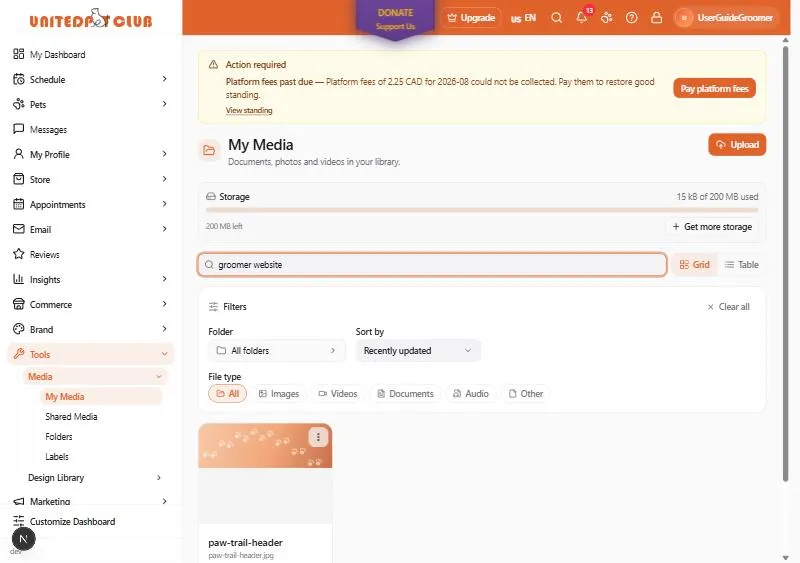
A file is found when your words appear in any of these:
- its file name (for example
paw-trail-header.jpg); - its title, alt text or caption, in your main language and in every translation you added;
- the short code and name in its web address.
How the words work:
- Every word must match.
groomer websitefinds files that have groomer somewhere and website somewhere — not necessarily next to each other, and not necessarily in the same field. A file whose title says “groomer” and whose caption says “website” is found. - Capitals don’t matter.
Poodle,poodleandPOODLEfind the same files. - Part of a word is enough.
poofinds poodle and shampoo. - Up to 8 words are used; extra words are ignored.
- An ID finds exactly one file. Paste a file’s whole ID (for example one support gave you) and you get that file and nothing else.
The same search works in the image picker you open from other parts of the Dashboard, for example when you add a picture to your website or a blog post: its search box says the same thing and finds files the same way.
Replace a file
Section titled “Replace a file”Replace a file when you have a better version of it: a sharper photo, a corrected PDF, a re-cut video. The file keeps its place everywhere you used it — your website, your UPC.pet page, blog posts, listings — and those places show the new file. Its title, alt text, caption, folder and labels stay as they are.
- In My Media, open the file’s ⋮ menu and choose Edit Details.
- The Edit file window opens. At the top, above the Details and SEO tabs, you see the current file: its name, its size and its type (for example “12 KB · Image”).
- Select Replace file and choose the new file on your device. The file chooser offers files of the same type only: an image for an image, a video for a video, a document for a document, and so on.
- Check what you chose. The window shows the new file’s name and size, and says: “Everywhere this file is used will show the new one. The title, alt text and caption stay as they are. The current file is deleted.”
- Select Replace file to go ahead, or Keep current file to change your mind (nothing is changed).
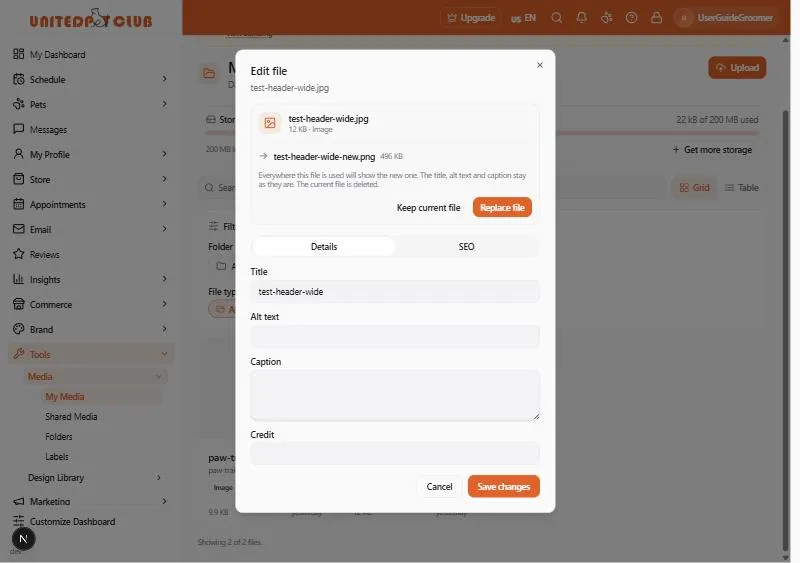
When it’s done you’ll see File replaced, and the new picture appears in your library without reloading the page. The window stays open, so you can also change the title, alt text or caption and select Save changes.
What to know before you replace:
- The old file is gone. The current file is deleted once the new one is in place. If you might want it back, make sure you still have a copy on your device.
- The new file uses storage, and the old file’s space comes back. The new file has to fit in the space you have left before the old one’s space is returned: to replace a 5 MB photo with a 6 MB one you need 6 MB free. See Storage space.
- Links keep working. The file’s web address changes so that every page shows the new file at once rather than a saved copy of the old one. Anyone who opens the old address is taken to the new file.
- The type must stay the same. You can’t turn an image into a PDF. Upload the PDF as a new file instead.
- Video links have no file to replace. A video you added as a link (for example from YouTube) isn’t stored with us, so it has no Replace file button. Change its link instead.
Video links
Section titled “Video links”Some of your videos live on YouTube, Vimeo, Dailymotion or Twitch and are only linked from your library. Each one shows the video’s own cover picture, with a play button on top.
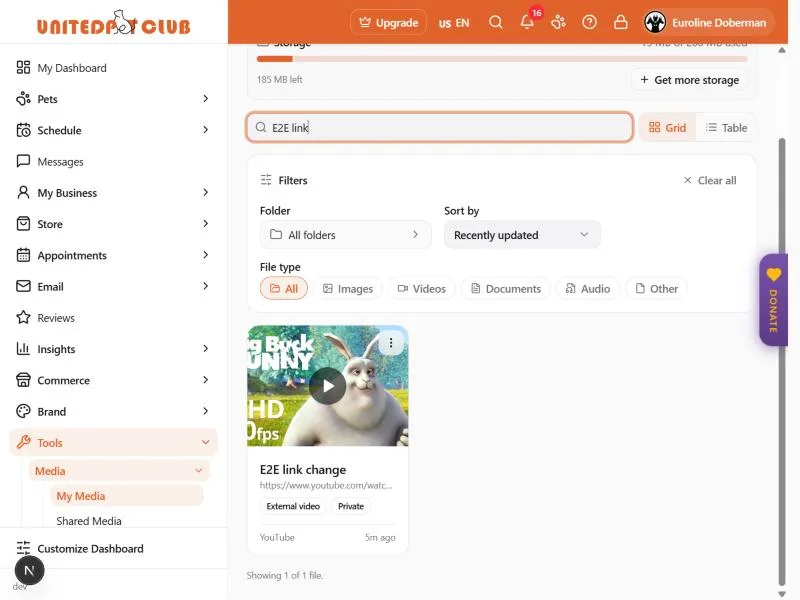
- Select the cover to watch the video right there in the card. It plays in the site’s own player, so you can pause it, change the volume or go full screen as usual.
- A link to any other web page has no player we can show. Selecting it opens the page in a new tab.
- No cover? Some sites don’t share one (Twitch, or a video that was removed or made private). The card then shows a video icon; the video still plays.
Change a video link
Section titled “Change a video link”Point a video link at a different video, for example a new cut you uploaded to YouTube. It keeps its place everywhere you used it, and those places play the new video. Its title, alt text, caption and credit stay as they are, so update them too if they describe the old video.
- On the video, open ⋮ → Edit Details.
- The Edit file window shows the current link, with its cover and where it lives. Select Change link.
- Paste the new address in New link: a YouTube, Vimeo, Dailymotion or Twitch link, or any web address.
- Select Change link to save it, or Keep current link to change your mind.
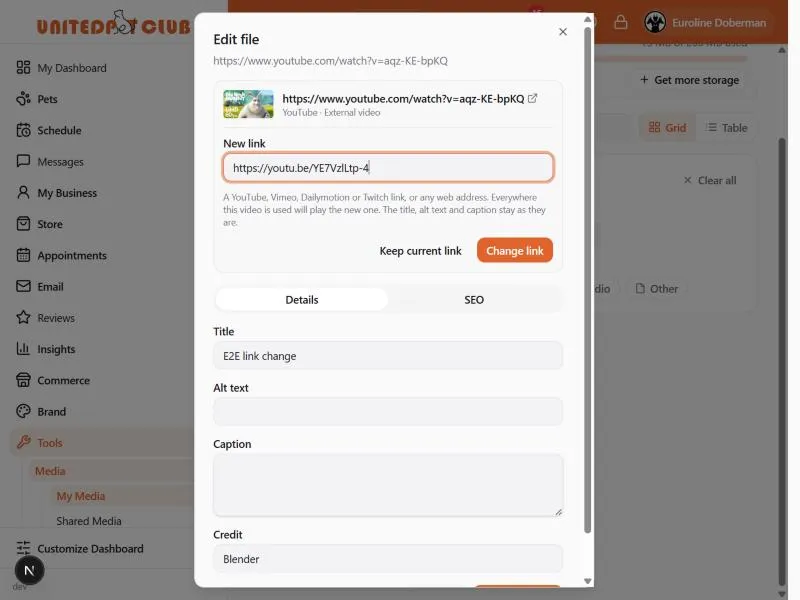
The new video’s cover appears straight away, and the video goes back for a quick review like any new file. Pasting
the same video in another form (a youtu.be short link instead of the full address) changes nothing.
Storage space
Section titled “Storage space”Every profile has 200 MB of free storage for its files, and storage add-ons add more. A file that doesn’t fit in the space left is not uploaded. What counts, what happens when you are full and how to get more: Storage space.
Folders
Section titled “Folders”Media → Folders lets you create, rename and delete folders to group related files. Deleting a folder moves its files back to your main library (they are not deleted); a folder that still has sub-folders can’t be deleted until those are removed.
Labels
Section titled “Labels”Media → Labels lets you create colour-coded labels, rename or recolour them, and delete them. Deleting a label removes it from any files it was on — the files themselves are kept. Apply labels to files from the file’s ⋮ → Labels menu, or when you upload.
If something went wrong
Section titled “If something went wrong”| You see | What to do |
|---|---|
| No matching files | One of your words isn’t in any file. Remove a word, check the spelling, or select Clear filters: a folder or type tab may also be narrowing the list |
| A message like “Choose a video file. photo.jpg is image.” | You picked a file of another type. Choose a file of the type shown in the Edit file window |
| A window offering more storage | The new file doesn’t fit in the space you have left. Free some space or add storage, then replace the file again. Nothing was changed |
| ”This file is in the shared media library” | The file was approved for the shared media library and other members may be using it, so it can’t be replaced. Contact support |
| File not replaced | The file wasn’t replaced and your current file is untouched. Try again in a moment |
| No Replace file button | The file is a video link, not a stored file. Use Change link |
| ”Link not changed. Another file already uses this video.” | The video is already in the media library as another file. Use that file instead |
| Change link stays greyed out | The address isn’t a full web address. Paste the whole link, starting with https:// |
A file taken down after a copyright notice
Section titled “A file taken down after a copyright notice”If a rights holder reports one of your files and it is taken down, only you still see it. Everywhere else it is used, it stops showing. While it is taken down you can’t replace the file, but you can delete it. The notice and what you can do about it are under Settings → Copyright notices. See Copyright notices about your content.