

Offering services
If you groom, train, board, walk, treat or transport animals, you don’t have to describe your services from scratch. United Pet Club keeps a service catalog — a few hundred services with one agreed name each, from “Full groom” to “Puppy class” to “International pet relocation”. You pick the ones you provide and set your price. Customers then find every provider of a service on one page, and your storefront lists it under the name they searched for.
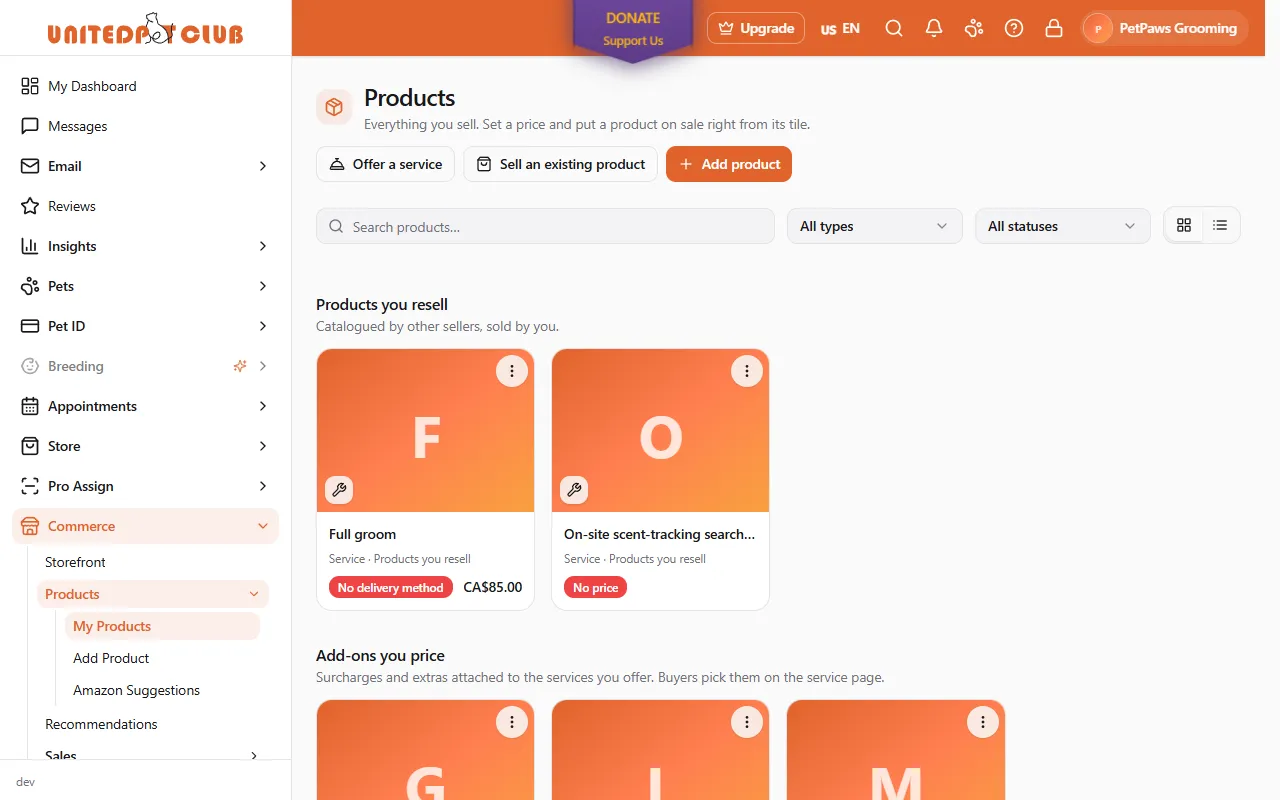
Commerce → Products → My Products (/dashboard/commerce/products). The Offer a service
button sits beside Sell an existing product and Add product. If your profile is a
groomer, trainer, veterinary, pet-care or shelter profile and you have nothing on sale yet, the
page opens on an Offer your first service card with the same button.
Selling is available to professional profiles: the Commerce section unlocks once your profile declares what you do under My Business → Specializations (My Profile on a personal profile).
Pick a service
Section titled “Pick a service”- Choose Offer a service. The catalog opens grouped by category.
- If your profile lists specialties (for example Grooming – General), the picker opens on Suggested for you — the services that match those specialties, your own line of work first. Switch to All services to browse every category, or pick one category chip.
- Type in Search services… to search the whole catalog by name, code or category — typing always searches everything, whichever chip is selected.
- Choose the service. The Sell dialog opens for it.
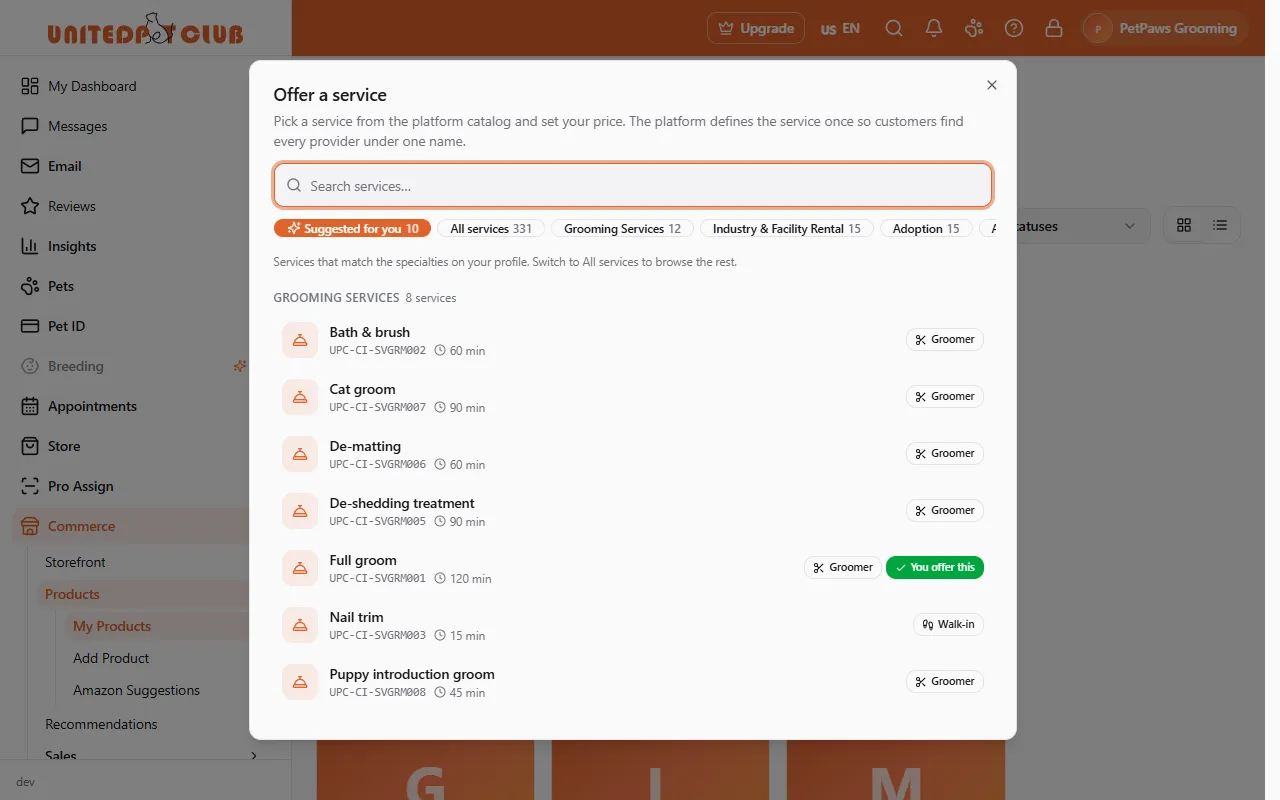
Each row shows the service’s public code, its typical duration, and badges that tell you who the service is meant for:
| Badge | Meaning |
|---|---|
| Vet only | A veterinary service. Listing one signals that a veterinarian provides it. |
| Groomer | A professional grooming service. |
| Trainer | A professional training service. |
| Walk-in | No appointment needed — customers can simply turn up. |
| You offer this | Your storefront already has an offer on this service. Choosing it again reopens that offer. |
The badges are information, not a lock: the picker never stops you from choosing a service. Whether a listing is allowed is decided when the offer goes on sale, the same way it is for products (see Selling permits if an offer is refused).
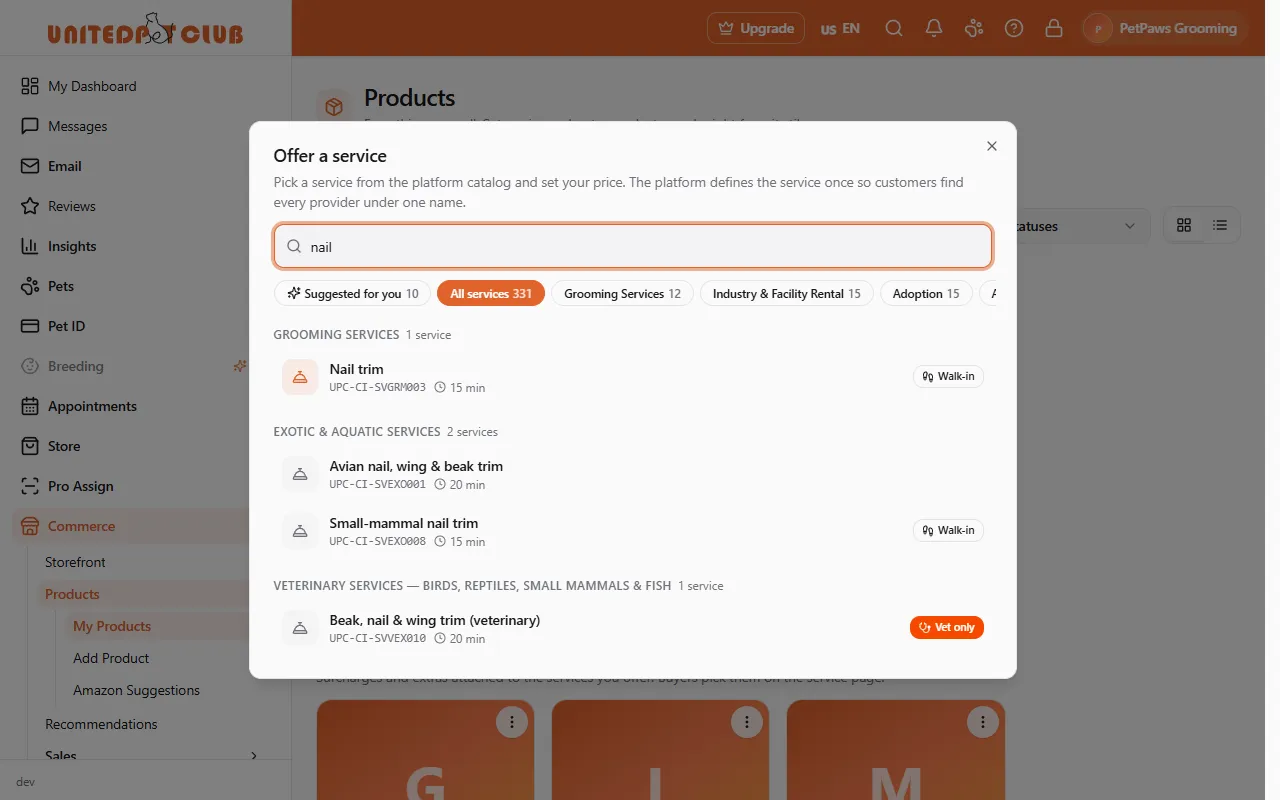
Set your price
Section titled “Set your price”The Sell dialog is the same one products use: enter a Price in your storefront’s currency, leave Unlimited stock on (a service has no stock to count), and choose Put on sale. Open Advanced to change the pricing mode, accept quote requests, or pick the account that receives the money.
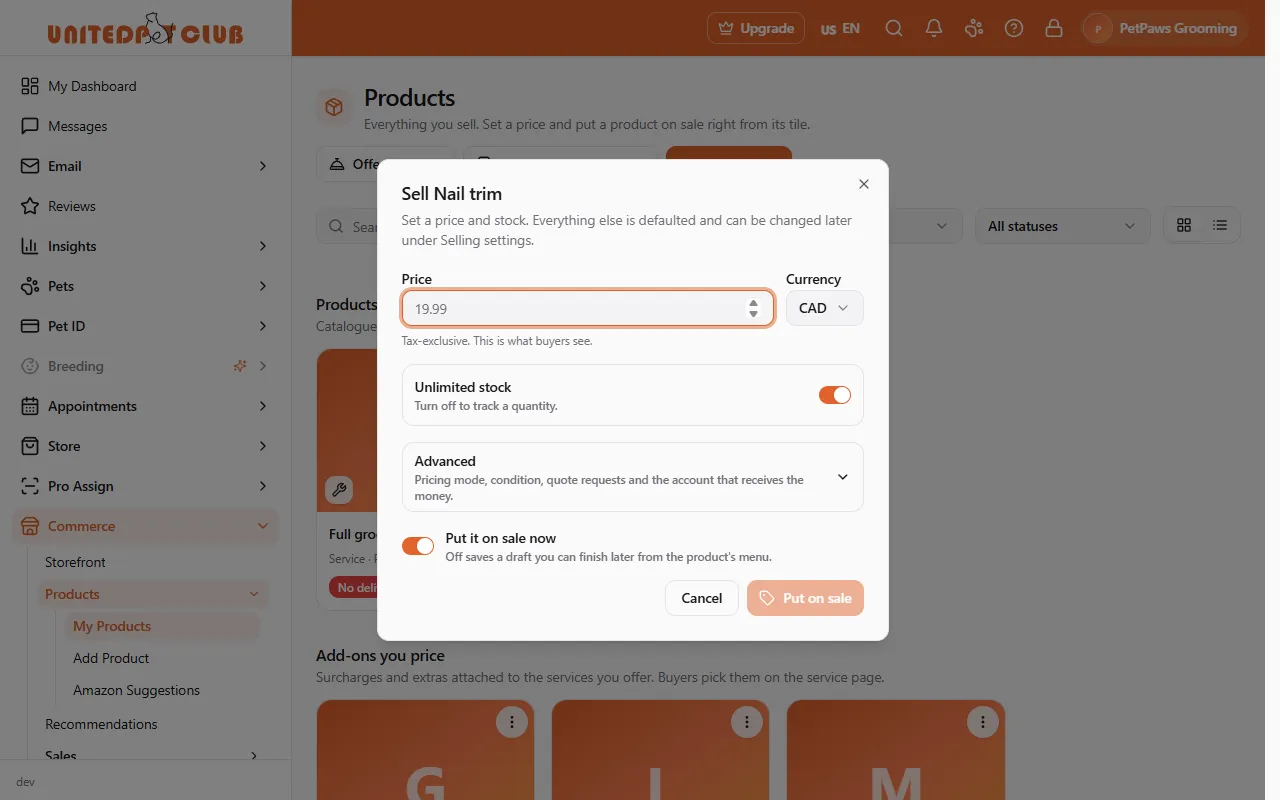
If you haven’t set up a storefront yet, the dialog asks for a display name, type (choose Service provider) and default currency first, then continues to the price. A nudge to set up Receive payments appears until payouts are configured — it doesn’t stop the sale.
Once on sale the service appears on your Products page under Products you resell (“resell” because the platform, not you, catalogued the item). The tile shows your price and its selling status. No delivery method means the offer has no fulfilment method yet — open Selling settings from the tile’s menu and choose how the service is delivered (in your salon or clinic, at the customer’s home, online…). Customers can already see and price the service; the method is asked for at checkout.
Price the add-ons
Section titled “Price the add-ons”Many services come with options the customer picks on the service page — a Pet size band on grooming and boarding, Grooming add-ons such as teeth brushing, Transport extras like a crate rental. Each paid option is priced by you, separately, so a large-dog surcharge can be $15 at one salon and $25 at another.
Right after a service goes on sale, the dashboard opens Price the add-ons for … with every add-on that still has no price, grouped the way the customer will see them:
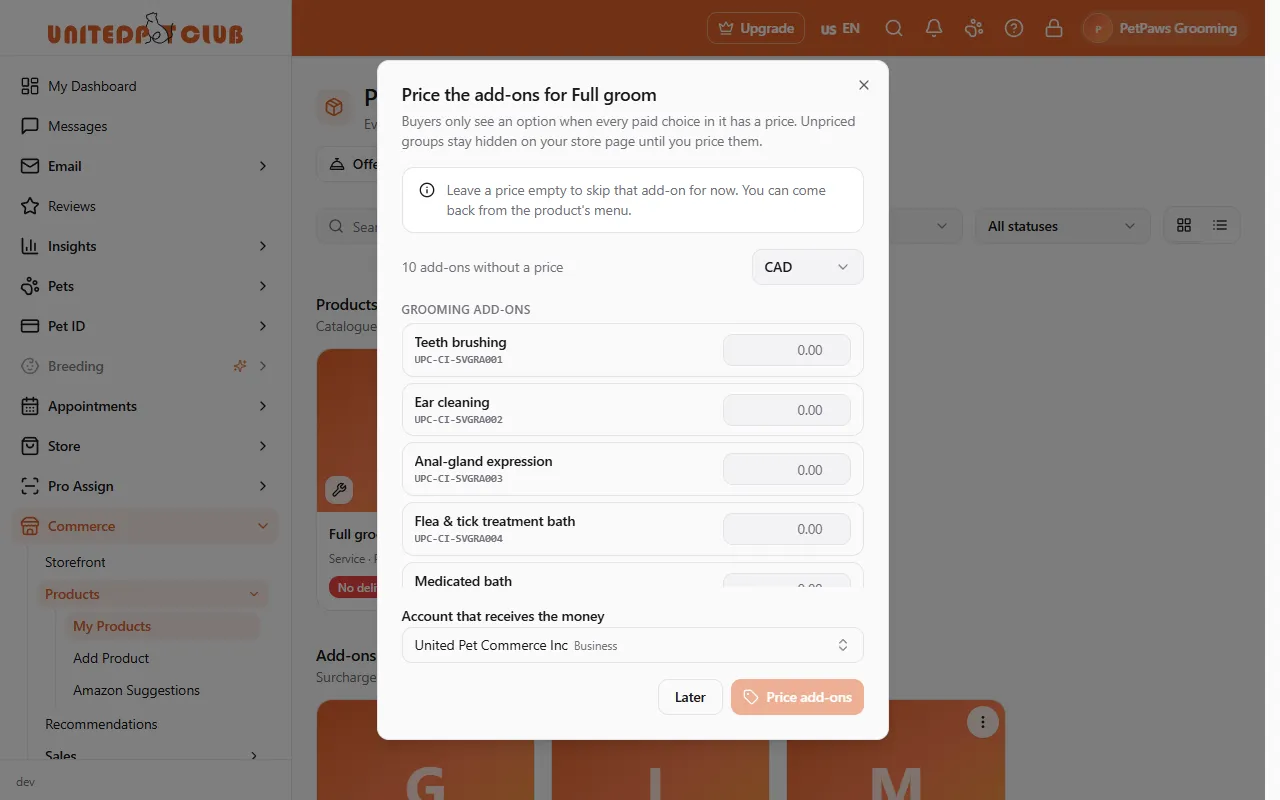
- Enter a price beside each add-on you offer. Leave the ones you don’t offer empty — they are skipped, not blocked.
- Check the currency (it defaults to your storefront’s) and, if asked, the account that receives the money.
- Choose Price N add-ons. Each add-on is put on sale in turn; Later closes the dialog without pricing anything.
To come back later, open the service tile’s menu (⋮) and choose Price add-ons. The dialog shows only the add-ons still without a price; when everything is priced it says so.
Priced add-ons appear in their own section, Add-ons you price, under your products. They are never sold on their own — customers pick them on the service page — but you can change their price from their tile menu like any other item.
What customers see
Section titled “What customers see”On the store, the service page shows Sold by your storefront, your price, and the option groups you have fully priced — for a groomer who priced the three size bands, a Pet size selector with the surcharge shown beside each band. Customers pick a band, add the service to their cart, and the surcharge is added as its own line.
After a customer buys
Section titled “After a customer buys”A service bought through the store arrives as a sale under Commerce → Sales, like a product. It has nothing to ship: you deliver it in the customer’s home or at your clinic. Once the customer has paid, the sale shows Mark as done; press it when the work is finished, and the sale and the customer’s order show as complete. A digital item (a download) needs nothing from you: it counts as delivered the moment the buyer pays.
A service bought this way, with no appointment, pays the same Commission as a booking: 1.25%, minimum $0.50, plus the Platform Processing Fee, not the store rate on products. If the same customer also bought a product from you in that order, the product and the service show as two parts of the sale, each with its own fee. See Fees.
Reference
Section titled “Reference”| Where | What |
|---|---|
| Offer a service (Products page header, and the empty-state card for service-provider profiles) | Opens the catalog picker |
| Suggested for you | Services whose specialties match the ones on your profile; shown only when there is a match |
| Tile menu → Price add-ons | Reopens the add-ons dialog for a service that is on sale |
| Tile menu → Change price | Changes the service’s own price (or an add-on’s, from its tile) |
| Tile menu → Selling settings | Fulfilment method, regions, availability and everything else about the offer |