

Certificates
The Certificates group under Paperwork in your dashboard menu lets you issue fun keepsake certificates to your customers — a “First Groom” for a puppy’s big day at your salon, a “Training Graduate” diploma, an “Adoption Day” certificate from your rescue, a “Brave Patient Award” after a check-up, and more. Each certificate is a printable, frameable letter-size PDF with your logo at the top and the United Pet Club seal at the bottom.
Issue a certificate
Section titled “Issue a certificate”- Open Paperwork → Certificates → Issue Certificate.
- Pick what you’re celebrating — first groom, first bath, puppy-school graduation, gotcha day, birthday honors, and more.
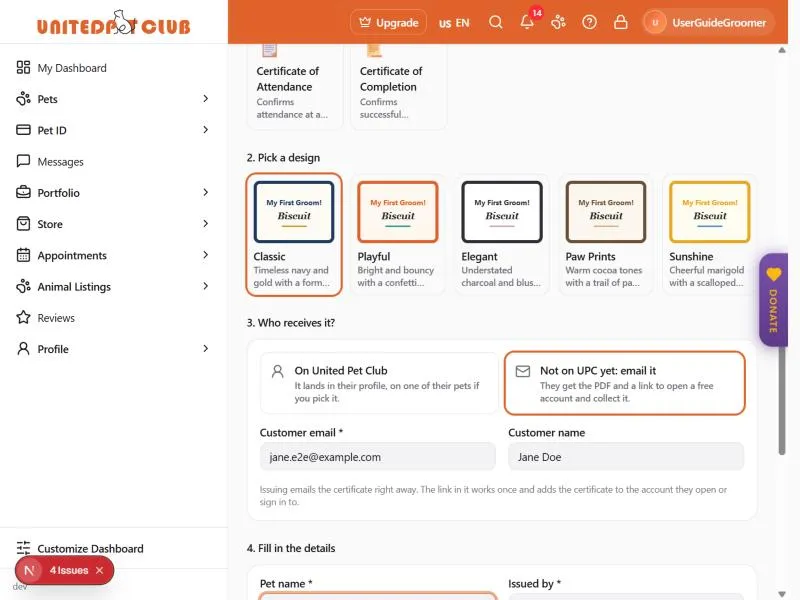
- Pick a design — Classic, Playful, Elegant, Paw Prints, or Sunshine. The little thumbnail shows each design’s colors with your pet’s name.
- Choose who receives it (see Who receives it below):
- On United Pet Club — search your customer by name or @handle. Their pets appear underneath: tap one and its name fills in, and the certificate is linked to that pet.
- Not on UPC yet: email it — enter your customer’s email (and name, if you like).
- Fill in the details — the pet’s name (required), the date to print, and an optional personal message (“What a good boy! See you next month.”).
- Add a photo (optional) — pick a picture of the pet from your Files library and it prints in a framed circle in the middle of the certificate. Took a photo after the groom? Upload it in Files, then choose it here. If you leave it empty and the certificate is linked to a pet on United Pet Club, that pet’s own photo is used.
- Press Preview to see the real certificate at full page size, exactly as it will be printed (the certificate number reads PREVIEW until you issue it). Happy with it? Press Issue Certificate right there in the preview, or close it and keep editing.
- Press Issue Certificate.
Who receives it
Section titled “Who receives it”- A customer on United Pet Club. The certificate goes straight into their profile: it appears in their notifications and under Pets → Certificates, where they can view and download it any time. If you picked one of their pets, it is linked to that pet and prints the pet’s photo when you don’t add one.
- A customer who isn’t on United Pet Club yet. Issuing emails them the certificate as a PDF right away, together with a Collect your certificate button. It opens a free account (or signs them in) and adds the certificate to their profile, so it is kept with their pets’ other certificates. The link is personal and works once; if you email the certificate again, only the newest email’s link works. In your list the certificate shows “Emailed · not collected yet” until they collect it, then “Collected into their profile”.
Each certificate also carries a little illustration that matches the occasion — grooming shears and a comb for a groom, a mortarboard for a graduation, a house for an adoption day — so it looks the part whichever design you chose.
The Issued by line is prefilled with your profile’s name and is printed on the signature line. If your profile has a logo, it appears at the top of the certificate automatically.
View, download or email it
Section titled “View, download or email it”Right after issuing (or later, from Paperwork → Certificates → Issued Certificates → Actions):
- View full size — opens the certificate at full page size in the dashboard.
- Download PDF — a letter-size PDF, ready to print or attach anywhere.
- Email to customer / Email again — sends the PDF to your customer’s inbox (you can change the address when sending). For a customer who hasn’t collected it yet, the email carries a fresh collect link.
Proving a certificate is genuine
Section titled “Proving a certificate is genuine”Every certificate carries a certificate number and a small QR code in the bottom corner. Scanning the QR (or entering the number on the website) opens a page that confirms the certificate is genuine, and shows the pet, the business that issued it, and the date — so it stays meaningful even printed and framed years later.
If you later revoke a certificate, that page says so straight away.
Fixing mistakes
Section titled “Fixing mistakes”Typo in the pet’s name? Revoke the certificate from the list (Actions → Revoke) and issue a fresh one — revoked certificates can no longer be downloaded or emailed.