

Contracts in the Android app
The United Pet Club app for Android has the same Contracts as the Dashboard on the website: the contracts you create and send, the ones other members send you to sign, and your contract templates. It uses your United Pet Club account, so everything you do in the app shows on the website and the other way round.
What the app does and does not do with contracts:
| In the app | On the website only |
|---|---|
| Read every contract you own or are a party to, with its document | Designing a contract with formatting, pictures or a page layout (the eSign editor) |
| Send a draft for signature, edit it until someone signs, void it | Changing a template’s document text or its fields |
| Sign or decline your part | The page an outside signer opens from their signing link |
| Create a contract by writing it (headings, paragraphs and fields), from a template or from a PDF | Forms and certificates (the rest of Paperwork) |
| Browse, use, share and publish templates; create a template and rename it | |
| Buy more contracts when you run out |
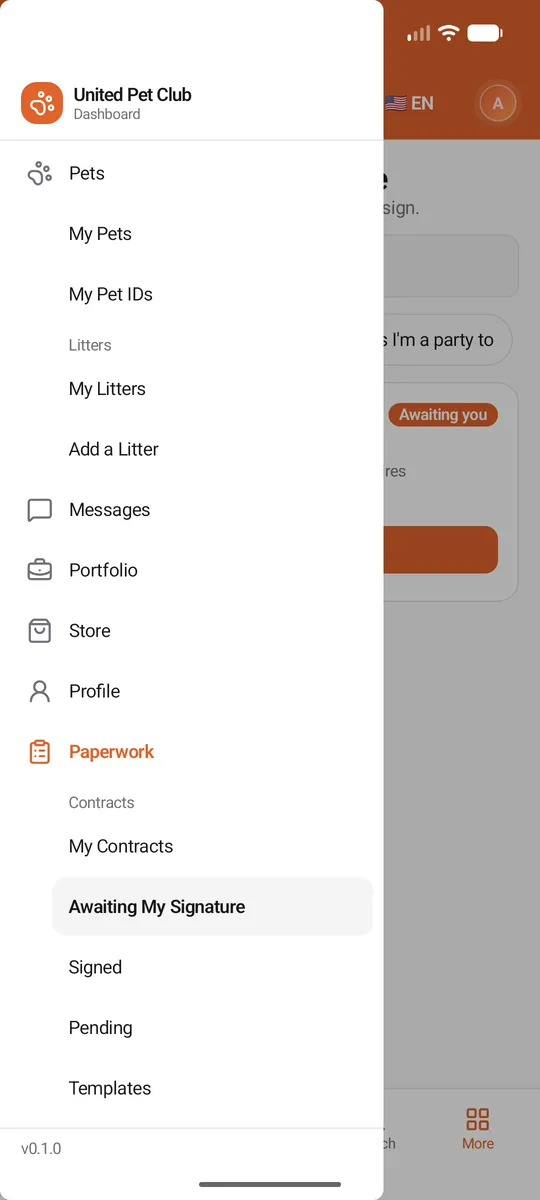
Contracts live under Paperwork in the app’s menu, like on the website. Open the menu (☰, top left) and scroll to Paperwork → Contracts:
- My Contracts — everything you own or are a party to;
- Awaiting My Signature — contracts other members sent you to sign;
- Signed — contracts every party has signed;
- Pending — contracts sent and still waiting for a signature;
- Templates — your templates, the ones shared with you, and the catalog.
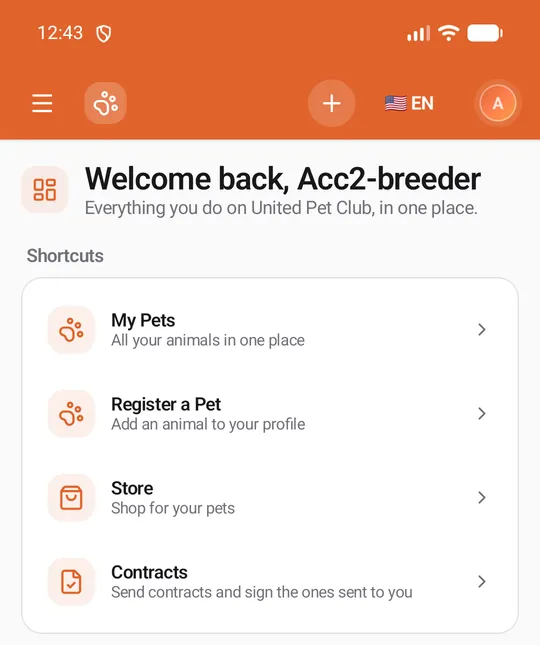
Two shortcuts take you there faster:
-
Home → Contracts. Under Shortcuts on your Home page, the Contracts row (“Send contracts and sign the ones sent to you”) opens My Contracts.
-
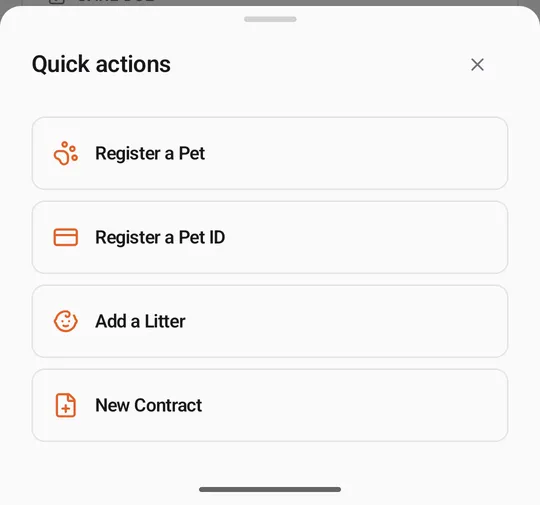
The + button → New Contract. On Home, My Pets and the other pages with a + in the orange top bar, the Quick actions sheet lists New Contract next to Register a Pet, Register a Pet ID and Add a Litter. It opens a new contract straight away (see Creating and editing a contract).
The contract lists
Section titled “The contract lists”Every list shows the page title and what it holds, a Search by title… box, and filters as chips you tap. A list reads your contracts again whenever you come back to it, so a contract you just signed or sent shows its new status.
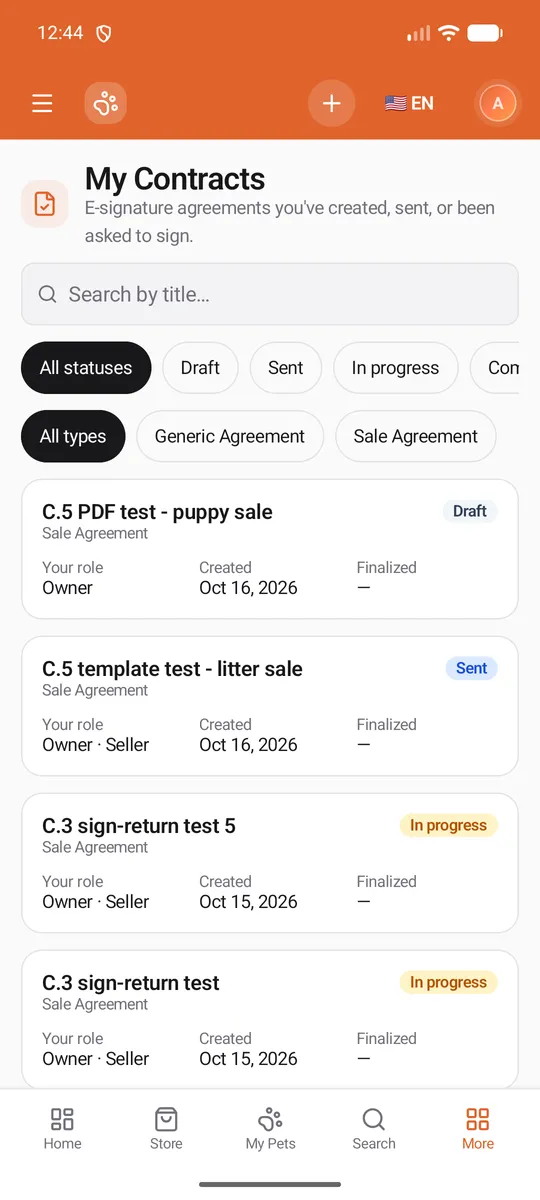
My Contracts, Signed and Pending show one card per contract: its title, its type (for example Sale Agreement), its status, Your role (Owner, the role you sign as, or both, such as Owner · Seller), Created and Finalized. The chips narrow the list:
- All statuses and one chip per status the list can hold (My Contracts has every status; Pending only Sent and In progress). Status chips show only when the list holds more than one status.
- All types and one chip per contract type in the list, shown when the list holds two types or more.
The newest contract comes first; on Signed the most recently finished one does. Tap a card to open the contract page.
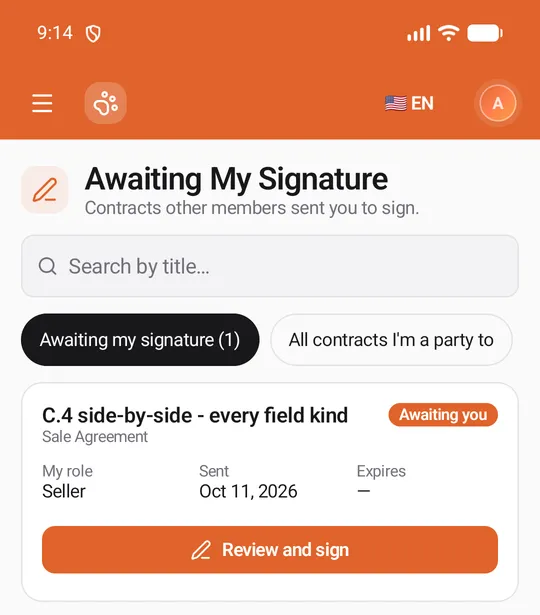
Awaiting My Signature opens on Awaiting my signature (n), the contracts where it is your turn now. Each card shows My role, Sent and Expires, an Awaiting you badge, and a Review and sign button that opens the contract. All contracts I’m a party to shows the others too: ones you already signed, ones where an earlier party signs first, and voided ones.
Statuses
Section titled “Statuses”| Status | What it means |
|---|---|
| Draft | Created, not sent yet. Only you see it, and you can still change everything. |
| Sent | Sent for signature; nobody has signed yet. |
| In progress | At least one party has signed, others have not. |
| Completed | Every party has signed. |
| Sealed | Completed, and the signed original has been sealed as a PDF. |
| Declined | A party declined to sign. Nobody can sign it any more. |
| Voided | The owner withdrew it. Nobody can sign it any more. |
| Expired | Its signing deadline passed before every party signed. |
Empty lists
Section titled “Empty lists”An empty list says so and offers one next step: New Contract on an empty My Contracts, All contracts on Signed and Pending, and My contracts on Awaiting My Signature. When your search or chips hide everything, the list says No contracts match your filters. — clear the search or tap All statuses / All types.
If a list can’t be read (for example with no connection), it shows Couldn’t load this section with Try again. A list that was already showing keeps what it had, under a note that it couldn’t refresh.