

Inventory
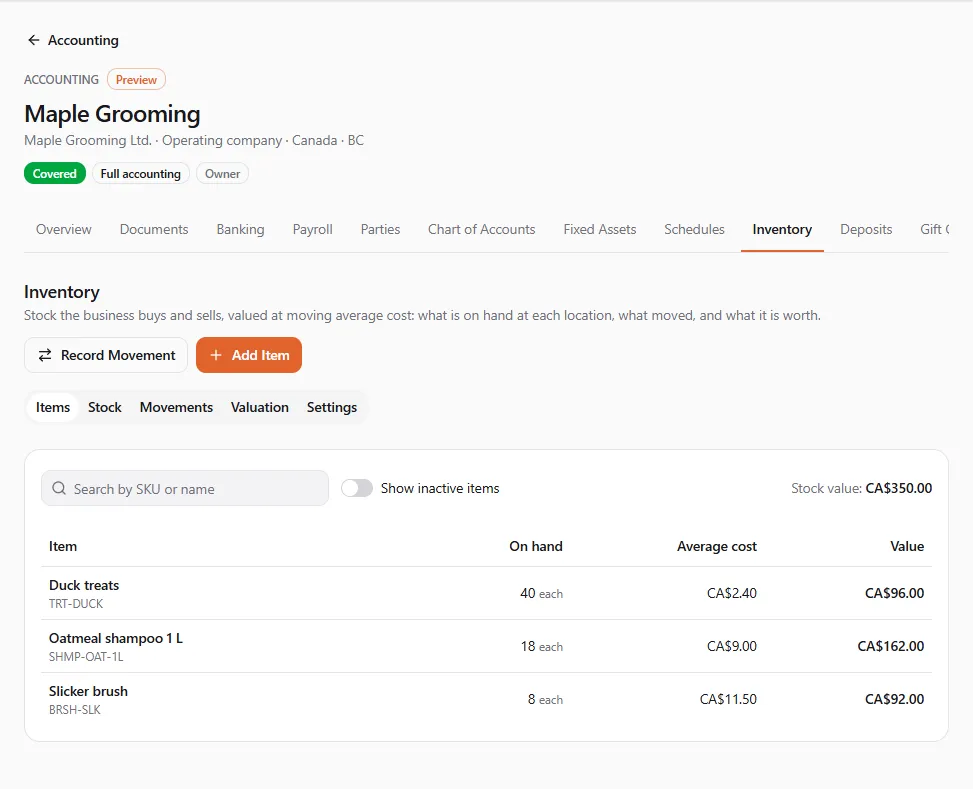
Inventory keeps track of the stock your business buys and sells: shampoo, food, medications, toys. Each movement posts to your books at the item’s moving average cost, so you always know what is on hand at each location and what it is worth.
Finances → Accounting, then the entity, then the Inventory tab
(/dashboard/finances/accounting/{entity}/inventory). It has five tabs: Items, Stock, Movements,
Valuation and Settings.
| To do this | You need |
|---|---|
| See items, stock and movements | access to the books |
| Add or edit an item | Draft documents (choosing its accounts also needs Manage the chart of accounts) |
| Record a movement | Post documents: each movement posts at once |
| See the valuation report | View reports |
| Allow stock below zero | Change settings |
Stock items
Section titled “Stock items”- On Items, choose Add Item.
- Enter the SKU, the Name and the Unit it is counted in (“each, bag, kg, ml, dose”).
- Under Accounts, leave the defaults (“Its movements post to your chart’s inventory, cost of goods sold and sales accounts.”) or choose the Inventory account, Cost of goods sold account and Sales account.
- Keep Active (offered when recording movements) ticked, and save.
Once stock has moved, the inventory account of the item stays as it is. The Items list shows each item’s quantity On hand, Average cost and Value, with the total Stock value at the top. Stock shows it per location: the entity itself (Main) or one of its locations.
Recording a movement
Section titled “Recording a movement”-
Choose Record Movement.
-
Pick What happened:
Movement When to use it Opening stock stock the business had when the books started Bought stock received; it adds to the average cost Sold stock sold; it leaves at the average cost and posts the cost of goods sold Used in the business stock used in services, like shampoo in a groom; expensed at the average cost Adjustment units found or missing, with the reason Stock count what you counted on the shelf; the difference posts as an adjustment Moved between locations stock moved from one location to another, at its cost -
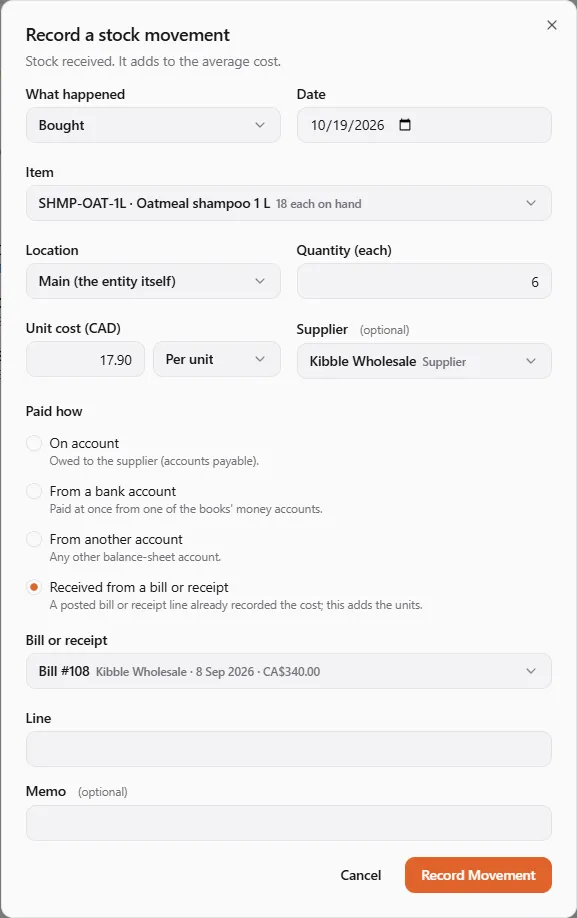
Enter the Date, the Item, the Location (or From and To) and the Quantity.
-
Fill in what the movement needs:
- Bought: the Cost (In total or Per unit), the Supplier, and Paid how: On account (owed to the supplier), From a bank account, From another account, or Received from a bill or receipt (a posted bill line already recorded the cost, so this adds only the units);
- Adjustment: Missing or Found, the Reason (Shrinkage, Damaged, Expired, Theft, Found, Sample given away, Correction, Other) and the account;
- Used in the business: the Expense account (the item’s cost of goods sold by default);
- Opening stock: the cost and the account it is Balanced against (opening balance equity by default).
-
Choose Record Movement.
Movements are recorded in date order: one dated before an item’s latest movement at that location is refused, so record an adjustment instead. A wrong movement can’t be voided; correct it with an adjustment or a count.
Stock below zero
Section titled “Stock below zero”By default, you can’t sell or use more than you have. On Settings, Allow stock to go below zero lets units leave before the purchase is recorded: “Units sold short leave at the last known average; the next purchase books the difference to cost of goods sold.”
Sales in your UPC store
Section titled “Sales in your UPC store”When a customer pays for a store order on United Pet Club, and the listing is linked to one of your stock items, the books take the units out of stock at the average cost and post the cost of goods sold. The sale itself (the revenue) is posted by the order, as it always is.
The valuation report
Section titled “The valuation report”Valuation gives, on an As of date, every item’s quantity, average cost and value by location, then compares the total with each inventory account’s balance. A difference means something was posted to an inventory account without a stock movement, such as a bill line or a journal entry.
Pet business starter categories
Section titled “Pet business starter categories”Your chart of accounts already has standard categories for pet businesses, each mapped to the tax forms. The starter sets group them by kind of business so the ones you use come first.
- Open the Chart of Accounts tab, then Pet Business Starters.
- Pick your Business: Grooming, Boarding and daycare, Breeding, Veterinary, Pet store or Training.
- Choose List These First. When you record a document, its categories appear first, under “Suggested for {business}”.
“This choice is kept in this browser only.” Choose Stop Listing First to undo it.
If something went wrong
Section titled “If something went wrong”A sale or usage is refused because there isn’t enough stock. Record the purchase first (dated on or before the sale), or allow stock below zero in Settings.
A movement is refused because of its date. It is dated before the item’s latest movement at that location, or in a locked period. Record an adjustment dated today instead.
“This movement was already recorded. Nothing posted twice.” The same movement was sent twice; only one posted.
A movement in another currency is refused. Inventory is kept in your books’ own currency for now.