

Posting in the feed
The feed is the middle column of your Dashboard home. It shows posts from the profiles you follow, newest first, then posts we think you’ll like, marked Suggested for you. You post as the profile you’re acting as, and your followers see your posts in their feed.
My Dashboard (/dashboard/home), under your reminders. On a phone it’s the main column of the page.
Writing a post
Section titled “Writing a post”- Select What’s new, <your name>? at the top of the feed, or one of the three kinds of post under it: Text, Media or Template.
- Create post opens. Your name is at the top, and under it a pill that says who will see the post (Public unless you change it; see Who can see your posts). To post as another profile, close the box and switch profile first (your photo at the top right).
- The three tabs under your name switch between Text, Media and Template. What you wrote stays when you switch.
- Write your post, then select Post. To publish it later instead, select Schedule for later (see Scheduling a post).
You see Posted, and your post appears at the top of your feed straight away. If you close Create post without posting, what you wrote is still there the next time you open it, until you post it.
| Kind of post | What it is | Limits |
|---|---|---|
| Text | Words with #hashtags, @mentions and simple styles. A short post can sit on a colour. Verified profiles can add a link card. | Up to 5,000 characters; a colour only up to 150 |
| Media | Photos with an optional caption. Verified profiles can add a link card. | Up to 10 photos; caption up to 5,000 characters |
| Template | A ready-made design you fill in: a headline, details, photos and colours. See Posting with a template. | Depends on the template |
Every kind of post can also tag up to 4 of your pets, be scheduled, and have its own audience.
The counter under the text box shows how many characters you’ve used (for example 28 / 5,000). If something stops the post, Post stays greyed out, and a short line under it says why: Keep it to 5,000 characters., Add at least one photo. or Fix the link address, or clear it.
Write with RetrieverAI
Section titled “Write with RetrieverAI”On a Text or Media post, Write with RetrieverAI under the text box drafts the post for you:
- Say what it’s about (Rex went home with his new family today after three months with us) and pick a Tone: Friendly, Informative, Excited, Heartfelt or Funny.
- Pick a Model, or keep the one marked Recommended. Each model shows what a draft is likely to cost (About 0.8¢ a draft); bigger models write more carefully and cost more. The Dashboard remembers your pick.
- Select Write it. If you already wrote something, the button says Improve my draft and RetrieverAI works from your words. On a Media post it writes a caption for your photos.
- The draft lands in the text box (Draft added. Edit it before you post.). Change anything you like, then post as usual. Nothing is posted until you select Post.
Each draft is paid from your RetrieverAI balance, which shows under the box with Add funds. If the balance is used up, the box says so and Add funds opens the AI credit packs. RetrieverAI writes in your Dashboard’s language, keeps to the post’s length limit, and adds at most three hashtags; it doesn’t invent prices, dates or claims you didn’t give it, so check the facts before posting.
The list of models and the recommended one are chosen by United Pet Club and can change. If a model you picked is no longer offered, the box says That model isn’t offered for posts anymore. Pick another one. and nothing is charged.
Add a reward
Section titled “Add a reward”A Text, Media or interactive post can carry a reward: a code or a link that only the first people who claim it get. See Rewards on posts.
Bold, italic, underline and strikethrough
Section titled “Bold, italic, underline and strikethrough”Four buttons sit above the text box: Bold, Italic, Underline and Strikethrough. Select some words, then a button; select it again to take the style off. The keyboard works too: Ctrl+B, Ctrl+I, Ctrl+U and Ctrl+Shift+S (Cmd on a Mac).
That’s all the editor does: there are no headings, lists or links in the text. Pasting from another page keeps the words and drops any links and pictures. The styles show wherever your post shows, in the app and on your public profile.
A colour behind a short post
Section titled “A colour behind a short post”A Text post can sit on a colour, in big letters, like a poster. The colours are under the text box: No colour first, then Sunrise, Ocean, Meadow, Berry, Blush, Midnight, Sunshine, Forest and Paw prints. Select one and your text moves onto it.
A colour fits posts up to 150 characters (A colour fits posts up to 150 characters.). If you keep writing past 150, the colours dim and the hint changes to Too long for a colour. Shorten it to 150 characters, or it posts as plain text. Nothing stops you posting: a longer post simply goes out as plain text, and the colour comes back if you shorten it again.
A colour post can carry the same things as any text post: hashtags, mentions, styles, a link card (verified profiles) and tagged pets.
Photos
Section titled “Photos”On the Media tab, select Choose up to 10 photos and pick from your media library or your device, then Add to post. The photos show as a grid: the × on a photo removes it, Add more adds more. Write a caption in the box under them if you like (Say something about your photos, <your name>); a Media post can be photos alone.
Only photos can go in a post for now (Only photos can be added to a post for now.), and at most 10 (A post can have up to 10 photos.). With two or more photos you can pick a photo layout.
A poll, a quiz, a this-or-that or an event is on the Interactive tab: Polls, quizzes and events.
Photos are shared publicly
Section titled “Photos are shared publicly”Photos in a post can be seen by everyone who sees the post (Photos you post can be seen by everyone who sees the post.). If a photo you pick from your media library is private, posting shares it publicly first. If that fails, the post isn’t published (Your photos couldn’t be shared. Try again.).
Links are for verified profiles
Section titled “Links are for verified profiles”Only profiles with a verified identity or business can share links, whether as a link card or a web address typed in the text. Links in posts are for profiles with a verified identity or business. It keeps the feed free of spam.
If your profile is verified, a Text or Media post has an Add a link (optional) box. Type a full web address (you see Enter a full web address, like https://example.com if it isn’t one) and three more boxes open: Title (optional), Picture address (optional) and Description (optional), with a Preview of the card under them. The link card shows under your post, under a colour too. Template posts don’t have a link card.
If your profile isn’t verified, the link box is a locked line with that explanation and Verify your profile. A web address typed into the text (or into a template’s fields) shows Only verified profiles can share links — Remove the link from your post, or verify your profile to share links., and Post stays greyed out until you remove it.
Hashtags
Section titled “Hashtags”Words starting with # become hashtags (#dogs, #adoptdontshop) and are highlighted in your post. Hashtags
help the feed show your post to members who care about the same things, and members who follow a hashtag as a topic
(below) can see your post in their feed. Numbers alone (#1) aren’t hashtags. While you write, the hashtags in your
post show as chips under the text box.
Hashtag suggestions as you type
Section titled “Hashtag suggestions as you type”Type # and a Hashtag suggestions list opens under the cursor:
- Right after
#, with nothing else typed: the hashtags members use most this week, under Trending this week. - As you type more letters: hashtags that start with them. The tag you typed exactly comes first, then hashtags several members used this week (marked Trending), then the ones used most. Each row shows how many posts use it, for example 12 posts. The letters you typed are in dark text and the rest of the tag is lighter.
- At the end of the list, the tag exactly as you typed it, marked New hashtag, when nobody has used it yet.
Use the arrow keys to move through the list, and Enter or Tab to put the highlighted hashtag in your post (with a space after it, so you can keep typing). You can also click a row. Esc closes the list and leaves what you typed.
You can always write a brand-new hashtag yourself. If no hashtag starts with what you typed, the list doesn’t open, and Enter and Space work as usual. Suggestions only count posts everyone can see; a hashtag used only in posts for followers or for yourself never shows up in anyone’s suggestions.
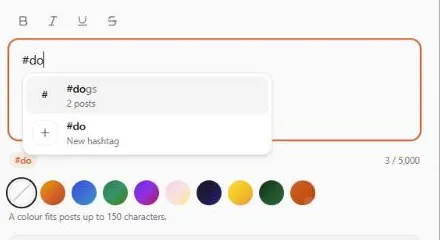
The same suggestions work in comments, in the words you add when you share a post, in the text boxes of a template, and in your blog posts and website pages.
Mentions
Section titled “Mentions”Type @ to mention a profile, one of its pets, or a breed (Type @ to mention a profile, one of its pets, or a
breed.). Each mention becomes one link in your post, and opens on the United Pet Club website.
| You write | It mentions | Selecting it opens |
|---|---|---|
@handle | A profile | The profile’s public page |
@handle:Rex or @handle:Pet:Rex | A pet of that profile, by its name | The pet’s public page |
@handle:Pet:Code:RX123 | A pet of that profile, by its UPC code | The pet’s public page |
@handle:User:Name | A person at that profile | The profile’s public page |
@Breed:Labrador-Retriever | A breed | The breed’s page |
@Species:Cat | A species | The species’ page |
@Condition:Bloat | A health condition | The condition’s page |
@Medicine:Amoxicillin (or @Med:) | A medicine | A search for it |
Write a space in a name as - (@Breed:Labrador-Retriever, @handle:Rex-the-Dobie). If we can’t find the pet,
breed, species or condition a mention names, it opens the profile, or a search for the words, instead.
Suggestions as you type
Section titled “Suggestions as you type”A Mention suggestions list opens under the cursor while you type a mention:
- Right after
@: Your pets (it writes@<your handle>:so you can pick one of your pets next), and Breeds, Species, Health conditions and Medicines. - After two letters: also the profiles whose handle or name match.
- After
@Breed:,@Species:,@Condition:or@Medicine:and two letters: matching entries, names that start with what you typed first. - After
@<a handle>:: that profile’s pets, each marked Pet of @<handle>. After your own handle, your pets.
Use the arrow keys to move through the list and Enter or Tab to pick, or click a row. Esc closes the list. You can always type a whole mention yourself.
The Mention guide
Section titled “The Mention guide”Not sure what you can write after @? The mention list always ends with Mention guide, even when there is nothing
to suggest yet. Select it and the list turns into What you can mention: Type @ and a handle. To name something
inside it, add a colon and its name. Write spaces as hyphens.
| Pattern | It mentions | Example |
|---|---|---|
@handle | A profile | @VanBreeder |
@handle:pet-name | One of that profile’s pets | @VanBreeder:Rex-the-Dobie |
@handle:Pet:Code:tag-number | A pet by its tag or microchip number | @VanBreeder:Pet:Code:RX123 |
@Breed:breed-name | A breed | @Breed:Labrador-Retriever |
@Species:species-name | A species | @Species:Dog |
@Condition:condition-name | A health condition | @Condition:Hip-Dysplasia |
@Medicine:medicine-name (or @Med:) | A medicine | @Medicine:Amoxicillin |
The words in italics in the guide (handle, pet-name …) are where your own words go, and they’re shown in your
language. The words Breed, Species, Condition, Medicine, Pet and Code are part of the mention itself:
always write them in English, as shown.
- Select the row for a breed, a species, a health condition or a medicine and the guide starts that mention for
you: what you typed after
@becomes@Breed:(and so on), the cursor waits after the colon, and the list of matching breeds appears as you type. - Back to suggestions returns to the list. Esc closes the guide first, then the list.
- Opening the guide doesn’t move your cursor, so you can carry on typing where you were.
The guide is in the post editor’s Text box. Comments, the words you add when you share a post and the text boxes of a template don’t show mention suggestions, but you can type a whole mention there and it works the same.
Tags show in colour as you type
Section titled “Tags show in colour as you type”As you type, every @mention and #hashtag takes its colour straight away, the same colours it will have once the
post is published: mentions in blue, hashtags in orange. If a word stays the colour of the text around it, it isn’t a
tag yet. For example, a hashtag needs at least two letters or numbers after #, and a # right after a letter doesn’t
start one.
- On a colour post, where the text sits on a coloured background, tags keep the text’s colour and are underlined instead, as they will be in the feed.
- The colours show in the post’s Text box, in comments, in the words you add when you share a post, in the text boxes of a template, and in your blog posts and website pages.
- Colour is only how the editor shows a tag. It changes nothing in what you write or publish.
Tagging your pets
Section titled “Tagging your pets”Under Pets in this post, select Tag a pet. The list shows the pets of the profile you’re posting as, with Find a pet to search them. Pick up to 4 (A post can tag up to 4 pets.); each shows as a chip with its photo, and the × on a chip removes it. Tag another adds more.
- If the profile has no pets yet, the list says Add a pet in My pets to tag it here.
- You can tag only pets your profile owns. Anything else is refused (A pet can’t be tagged — You can tag only pets your profile owns. Remove it and try again.).
Tagged pets show as chips under the post (on a template post, inside the design). Each chip opens the pet’s public page on the website. A pet without a public page opens a “not found” page instead.
When a post can’t be published
Section titled “When a post can’t be published”Every post is checked against our community rules as you publish it. A post that breaks them isn’t published (This post can’t be published — It breaks our community rules. Change the text and try again.). Some posts are held back instead: you still see them, marked Only you can see this post.
Your posts on your public profile
Section titled “Your posts on your public profile”Your posts also appear on your profile’s public page on United Pet Club, the page anyone can open at
/accounts/<your handle>, whether they’re signed in or not. They’re in the Posts section beside your menu, newest
first, each with its styles, photos, template design, link card, hashtags, mentions, tagged pets, reaction count and
its newest comments.
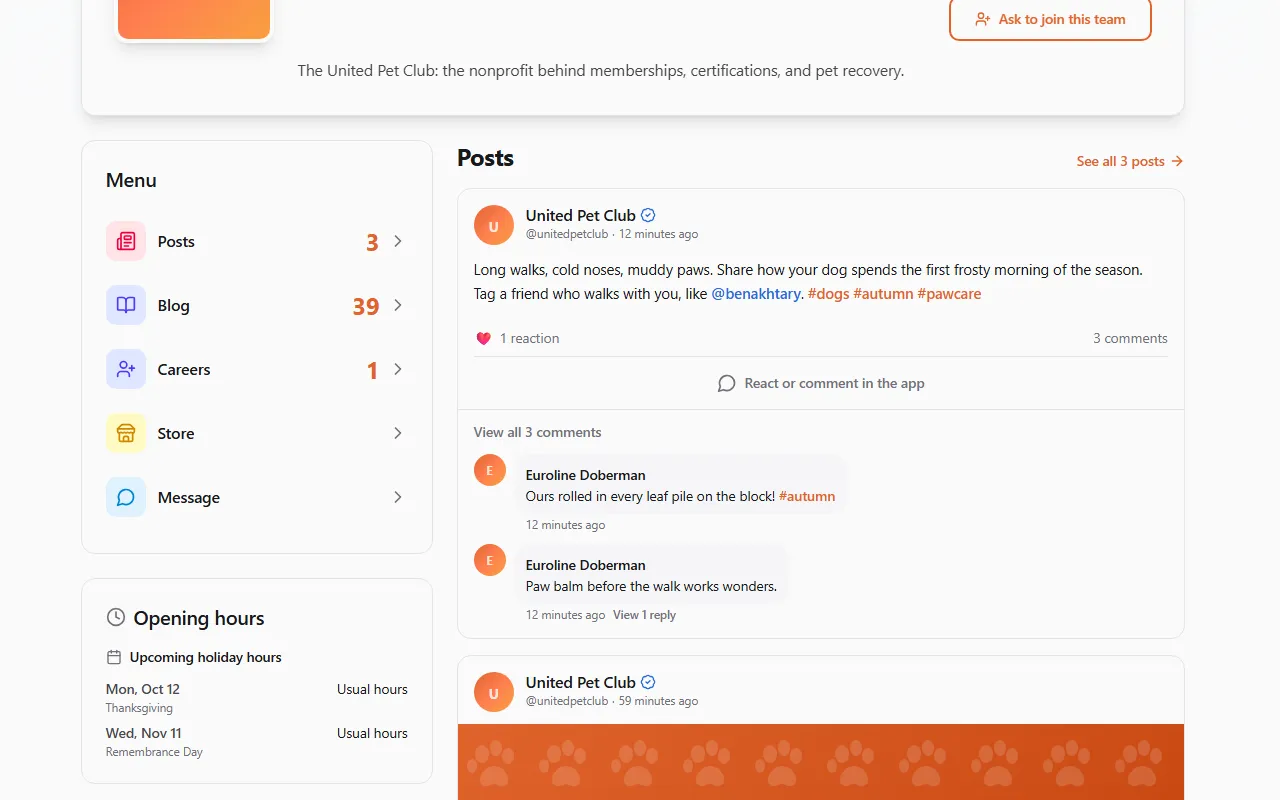
- Show more posts under the list loads older posts. See all <n> posts, or Posts in the profile’s menu, opens a page with every post.
- View all <n> comments and View <n> replies open the post’s own page, which shows every comment with the replies under it. The time on a post links there too, so it’s the link to share for one post.
- Visitors can’t react or comment on the website. React or comment in the app takes them to the member app, where they sign in first.
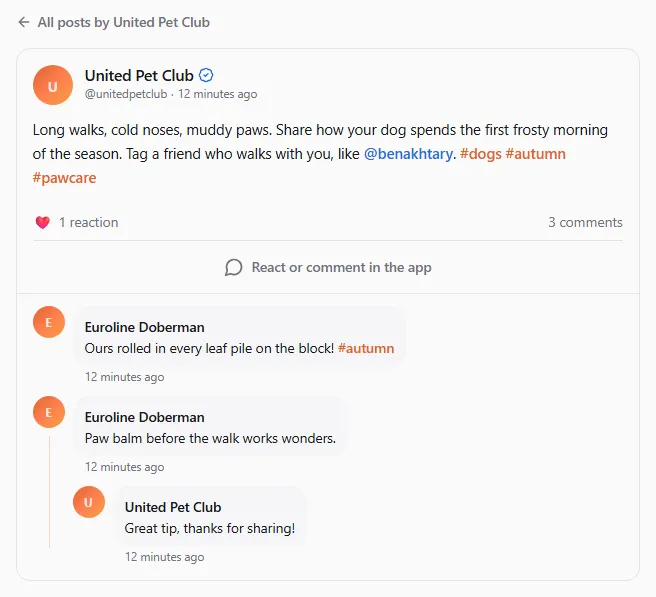
Only Public posts appear there (see Who can see your posts). A post for Members, Followers or Only me, a scheduled post that hasn’t gone out yet, a post marked Only you can see this post., a post taken out of suggestions after reports, and a post hidden or removed by moderators never show on your public profile. Comments on your public posts are public in the same way: they appear on your profile page with the commenter’s name, linked to their own profile.
Editing and deleting your posts
Section titled “Editing and deleting your posts”Open Post options (the ⋯ at the top right of your post):
- Edit post opens the post in Edit post. You can change its text and styles, its link card, its tagged pets and who can see it; on a template post, also its fields, colours and logo. The kind of post, its photos, its colour and its template stay as they are. Select Save changes; you see Changes saved and the post is marked Edited.
- Delete post removes it from every feed, with its reactions and comments. You can’t undo this.
A post that’s still waiting to go out is edited from the Scheduled panel instead, and isn’t marked Edited: see Scheduling a post.
Reacting
Section titled “Reacting”Select Like under a post to like it; select it again to take your like back. For another reaction, open Choose a reaction (the arrow next to Like) and pick Like, Love, Haha, Insightful, Celebrate, Sad or Angry. You have one reaction per post; picking another replaces it.
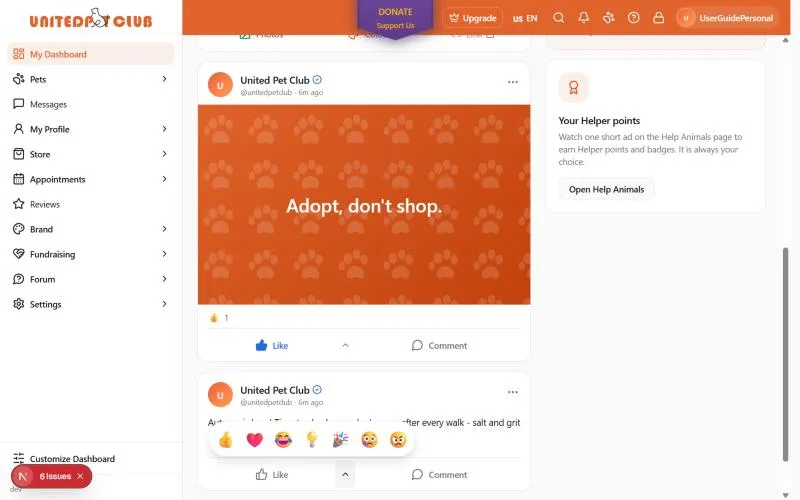
Reactions are counted under the post. Likes, loves, insightful and celebrate reactions also add to the author’s reputation on United Pet Club.
Commenting
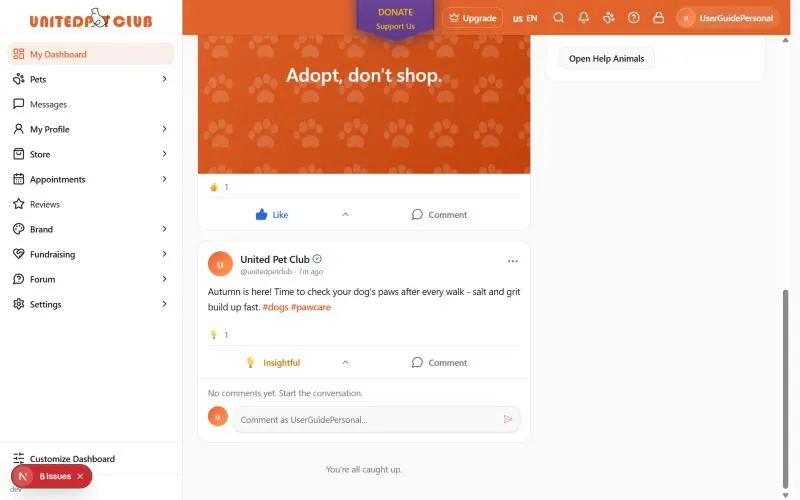
Section titled “Commenting”Select Comment under a post to open its comments. Write in Comment as <your name>… and send. The latest two comments show under the post; View <n> more comments opens the rest.
Type # in a comment to get hashtag suggestions. While the list is open, Enter
puts the highlighted hashtag in your comment instead of sending it; once the list is closed, Enter sends.
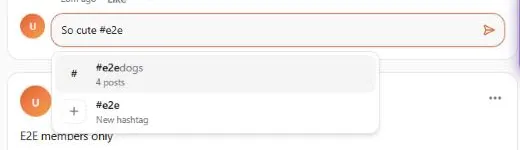
Comments are public: they also show under the post on its author’s public profile page (above), with your name linked to your profile. Comments can be liked and reported: Sharing posts, and liking and reporting comments.
Sharing a post
Section titled “Sharing a post”Share under a post shares it to your feed with your own words, copies its link, or sends it to Facebook, WhatsApp, LinkedIn or email. Only public posts can be shared: Sharing posts.
Reporting a post
Section titled “Reporting a post”If a post breaks the rules, open Post options (⋯) beside it. The menu lists the most common reports straight away: Report copyright, Report impersonation, Report spam, Report a scam and Report harassment. Select one and the report opens on that reason, asking for the details we need. For any other reason, select Something else… and pick from the full list, then Next. You can go back with Choose a different reason. Add a note if it helps, and select Send report. The author isn’t told who reported it.
You can also report a post you see on a profile’s page on the website. Its Post options (⋯) beside the author has the same items. Choosing one opens your Dashboard with the report already started on that reason, and the post you’re reporting shown at the top. Sign in first if you aren’t. If it’s your own post or you’ve already reported it, the Dashboard tells you instead.
What each report asks for:
| Report | What we ask |
|---|---|
| Copyright or Trademark | What of yours it copies (or which trademark it uses), a link to the original if you have one, who owns the rights, whether you own them or act for the owner, and where the rights are held (Canada, the United States or another country). Then your contact details: your full name and e-mail (filled in from your account), a phone number if you like, and your postal address. You confirm three statements, type your full name as a signature, and select Send notice. |
| Impersonation | Who the post pretends to be (you, someone you represent, or someone else), their name, and how you can tell it isn’t really them. |
| Something else | What’s wrong with the post. |
| Any other reason | Nothing more. A note is optional. |
Only send a copyright or trademark notice if you own the rights or act for the owner. A false notice can have legal consequences.
A copyright or trademark report is a formal notice. It goes to our copyright team, not to the usual report queue. The post comes down right away while we review it, and we forward the notice to its author with your name (not your e-mail, phone or address). You get a message with your notice reference, and we e-mail you what happens. See Report copyright or trademark infringement. If someone reports your post, see Copyright notices about your content.
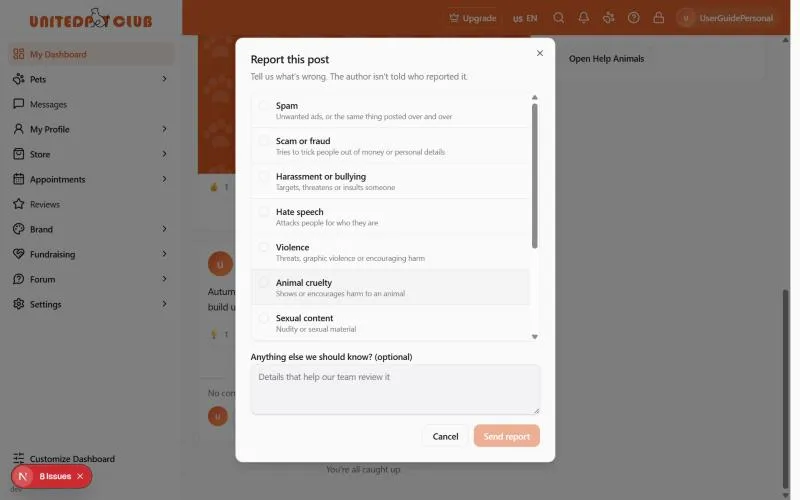
| Reason | When to use it |
|---|---|
| Spam | Unwanted ads, or the same thing posted over and over |
| Scam or fraud | Tries to trick people out of money or personal details |
| Harassment or bullying | Targets, threatens or insults someone |
| Hate speech | Attacks people for who they are |
| Violence | Threats, graphic violence or encouraging harm |
| Animal cruelty | Shows or encourages harm to an animal |
| Sexual content | Nudity or sexual material |
| False information | Misleading claims, for example about animal health |
| Private information | Shares someone’s address, phone number or other personal details |
| Illegal activity | Offers or promotes something against the law |
| Copyright | Uses a photo, video, text or artwork without the owner’s permission |
| Trademark | Uses a brand name or logo in a way that could mislead people |
| Impersonation | Pretends to be you, someone you represent, or someone else |
| Something else | Tell us what’s wrong in the note |
You can report a post once; the post then shows You reported this post. Our team reviews reports. When several members report the same post, it stops being suggested to others while we review it, and a post reported for a serious reason (hate speech, violence, illegal activity or animal cruelty) is hidden until we decide.
What happens to your post when it’s reported
Section titled “What happens to your post when it’s reported”You see a note on your own post while it’s being looked at:
| Note on your post | What it means |
|---|---|
| Shown to your followers only. | Several members reported it, so it isn’t suggested to others while our team reviews it. |
| Under review. | It’s hidden from others while our team looks at reports about it. |
| Removed. | Our team removed it for breaking the community rules. Only you can see it. |
A post taken down after a copyright or trademark notice is hidden from everyone but you, and you can’t edit it until the notice is settled (you can still delete it). We e-mail you, and the notice, with how to answer it, is under Settings → Copyright notices. See Copyright notices about your content.
How the feed is ordered
Section titled “How the feed is ordered”- The newest few posts from profiles you follow come first.
- After those, posts are ordered by what you’re likely to want: how recent they are, how many reactions and comments they have, and how often you react to and comment on that profile’s posts.
- About one post in four can be a Suggested for you post from a profile you don’t follow yet, picked from the hashtags and kinds of profiles you engage with. Follow the profile to see all its posts.
- Posts with a topic you follow are ordered with the posts of profiles you follow.
- Posts you’ve already seen move further down.
- When you reach the end you see You’re all caught up.
Following topics
Section titled “Following topics”A topic is a hashtag. Follow one and posts using it appear in your feed, even from profiles you don’t follow. They are marked Because you follow #<topic>.
- Select a hashtag in any post to open the topic’s page (
/dashboard/feed/topics/<topic>). It shows how many posts used it this week and how many members follow it, then every post with it, newest first. Select Follow there. - Your topics in the right column of your Dashboard home lists the topics you follow; select one to open it. Under Topics to follow are hashtags used most this week, each with Follow.
- Select Following to stop following a topic.
You can follow up to 200 topics. Topics are followed by the profile you’re acting as.
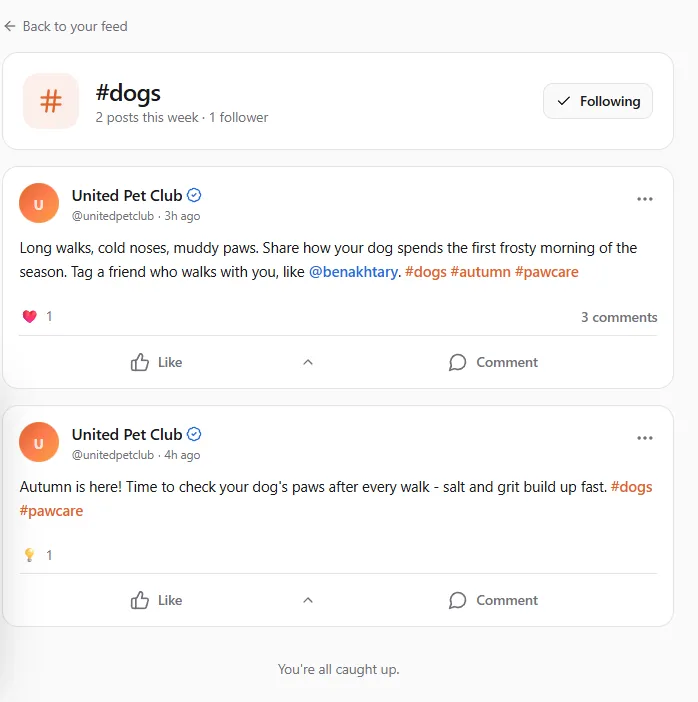
Searching the feed
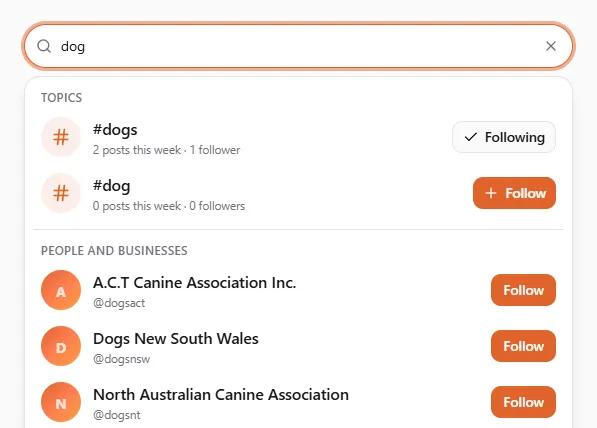
Section titled “Searching the feed”The Search #topics and people box sits above What’s new. Type to search:
| You type | You find |
|---|---|
#dog | Topics starting with “dog” |
@maple | People and businesses |
maple | Both |
Select a topic to open its page, or a person or business to open their public profile with their posts. Each result has Follow, so you can follow it straight from the search. What you search for also helps the feed suggest posts you may like.
Ads in the feed
Section titled “Ads in the feed”A few ads appear between posts, marked From United Pet Club or Sponsored (a paid partner): never as the first post, and at most three as you scroll. Loading more posts doesn’t swap the ads you’ve already seen.
Sponsored ads may also come from an advertising network. We ask the network for the ad ourselves and show it in the same card, with the advertiser’s name under it. No code from the network runs in your Dashboard. The network gets what every ad network needs to pick an ad (your device’s internet address, browser type, country and language) but never your name, profile or account. Clicking the ad goes through United Pet Club first, then to the advertiser’s page. Use Report ad under any sponsored ad that seems wrong to you.
Some cards show a pet product from a retailer such as Chewy, Petco or PetSmart, marked Affiliate link, with the retailer’s name under it. If you buy something after clicking one, the retailer pays United Pet Club a small commission; the price you pay is the same. We pick the product ourselves from the retailer’s catalog, so nothing from the retailer runs in your Dashboard and the retailer learns nothing about you until you click. The click goes through United Pet Club first, then to the product on the retailer’s site.
Your public profile’s posts on the website have a few ads between them too: after the 3rd post, then every 7th, at most three on a page, and one under a single post’s page. Those can also be Google ads. If your profile is on a plan without ads, visitors see none on your page.