

Shared media
Shared media is a library of free images everyone on United Pet Club can use: grooming-style photos, icons, illustrations, backgrounds and patterns for your website. Some come from United Pet Club, others were shared by members. You can use them on your United Pet Club pages, and you can share your own images for others to use.
Tools → Media → Shared Media (/dashboard/files/shared). The page has two tabs: Browse, the shared
libraries, and My submissions, the files you have shared.
If your sidebar has no Tools section, switch it on in Customize Dashboard. Your own files are in the same place, under Tools → Media → My Media.
How you may use each file
Section titled “How you may use each file”Every shared image shows a badge with its license. There are two:
| Badge | Who made it | What you may do |
|---|---|---|
| UPC sites only | United Pet Club | Use it on United Pet Club sites: your website, your UPC.pet page, your blog. Not anywhere else, so there is no download button |
| Public domain (CC0) | A member | Anything, anywhere, for any purpose. No credit needed. You can download it from the Free media page |
The page says it in one line: “Files from United Pet Club may be used only on United Pet Club sites. Files shared by members are public domain (CC0): anyone may use them for anything, no credit needed.”
Browse shared media
Section titled “Browse shared media”On the Browse tab each library is a card with its name, a short description, how many files it has and, when members may add to it, Open to submissions. United Pet Club’s own libraries carry an Official badge.
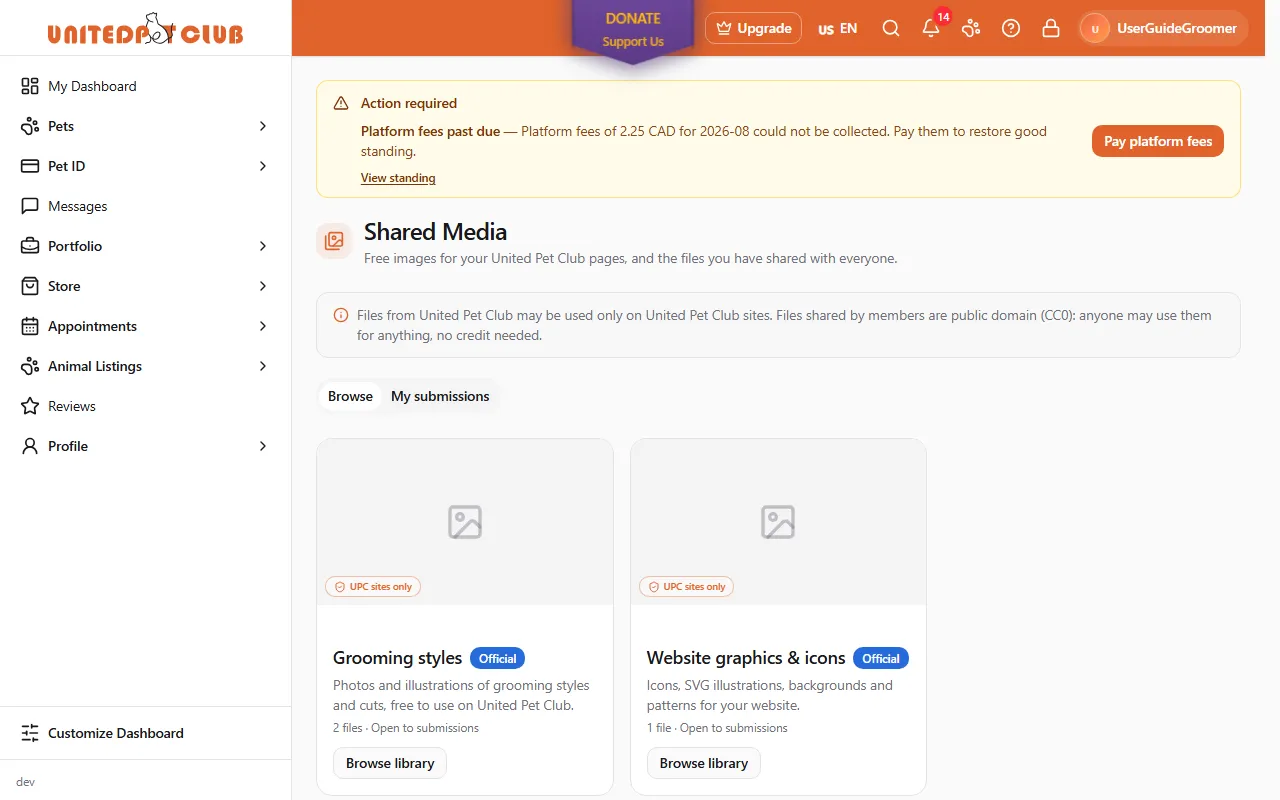
- Select Browse library on a card, or Browse all shared media to see every library at once.
- Narrow the list:
- Library — one library or All libraries;
- the category buttons — All or one category, such as Dogs or Icons;
- Search shared media… — finds files by file name, title, alt text or caption, in any language. Every word you type must match, capitals don’t matter and part of a word is enough, the same way as searching your own media.
- A star marks a Featured file; featured files are listed first.
To download a Public domain (CC0) file, use the Free media page of the public site; the Dashboard shows the images without a download button.
The All libraries button at the top takes you back to the cards.
Use a shared image on your pages
Section titled “Use a shared image on your pages”Shared images appear in the image picker where the result stays on a United Pet Club site:
- the website editor for your website;
- the Logo, the Share image and the item images of your UPC.pet page;
- the cover image of a blog post.
- Open the image picker the usual way, for example when you add or change an image in the website editor.
- Select the Shared media tab, between Library and Upload.
- Pick the image, the same way as one of your own, and confirm.
The image is not copied into your media and does not use any of your storage.
Share your own image
Section titled “Share your own image”You can offer any image of yours to a library that is Open to submissions. A United Pet Club team member looks at it first; once approved, everyone can use it.
- Go to Tools → Media → My Media.
- On the image you want to share, open the ⋯ menu and choose Share to public library. The option is there for images only.
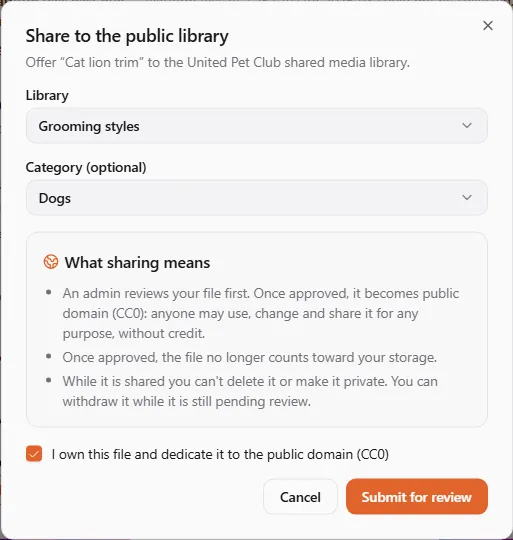
- In Share to the public library:
- Library — choose where your image belongs. When only one library is open, it is chosen for you.
- Category (optional) — pick one, or leave No category.
- Read What sharing means:
- “An admin reviews your file first. Once approved, it becomes public domain (CC0): anyone may use, change and share it for any purpose, without credit.”
- “Once approved, the file no longer counts toward your storage.”
- “While it is shared you can’t delete it or make it private. You can withdraw it while it is still pending review.”
- Tick I own this file and dedicate it to the public domain (CC0). Submit for review stays greyed out until you do.
- Select Submit for review. You’ll see Submitted for review.
Follow your submissions
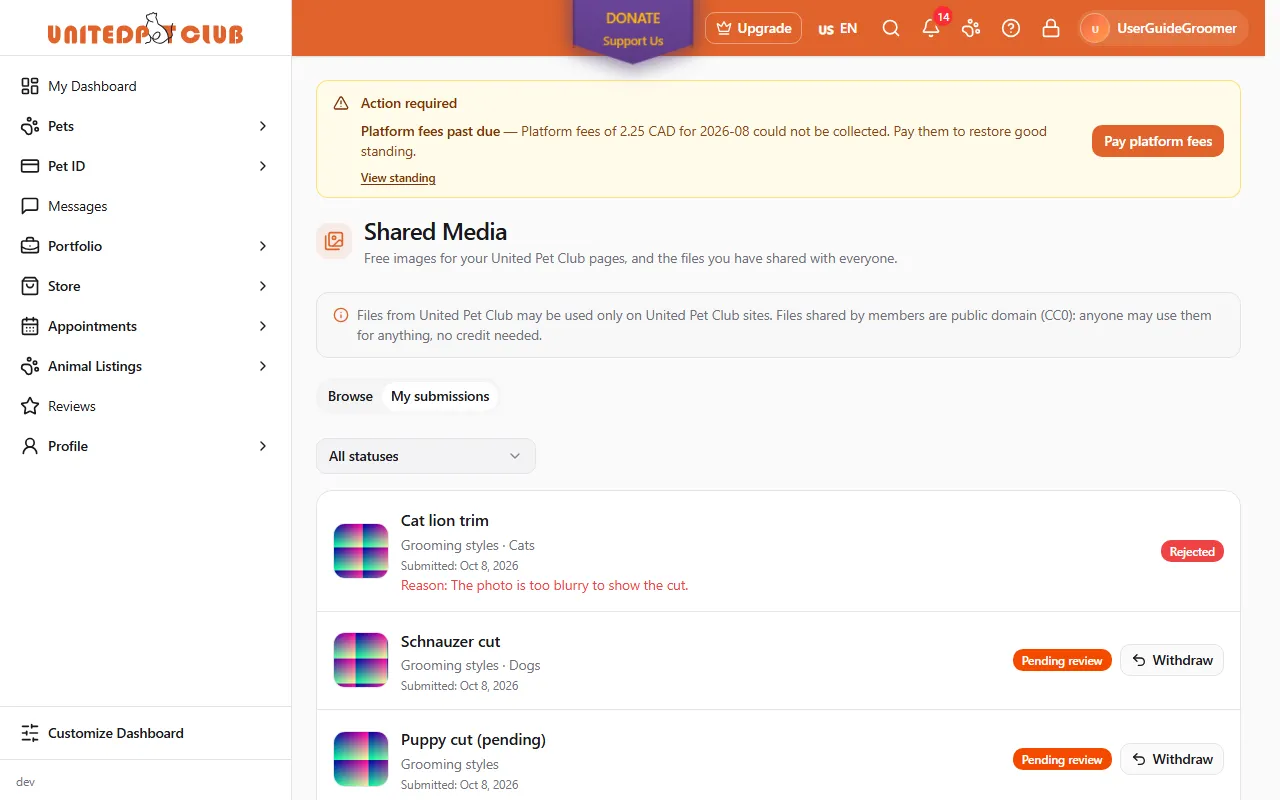
Section titled “Follow your submissions”Open the My submissions tab. Each file shows its library and category, when you submitted it and its status. Use Filter by status to see one status at a time.
| Status | What it means |
|---|---|
| Pending review | Waiting for the team. Only you can see it. Withdraw takes it back |
| Approved | In the library for everyone. Public domain (CC0). No longer counts toward your storage |
| Rejected | Not accepted. The reason, when the team gave one, is shown under it. You can share it again, and the team may still approve it later |
| Withdrawn | You took it back while it was pending (deleting the file does the same) |
| Removed | The team took it out of the library after approving it. You can delete it or make it private again |
You are not sent a message when the status changes, so check this tab.
After your image is approved
Section titled “After your image is approved”- It no longer uses your storage. Its size goes back to your storage space.
- You can’t delete it or make it private while it is in the library, because other members may be using it. If you try, you’ll see “This file is in the shared media library”. To have it taken out, contact support; once it is removed you can delete or hide it as usual. Its size is not taken from your storage again.
Free media on the public site
Section titled “Free media on the public site”Anyone can browse shared images on the Free media page of the United Pet Club website: Free Media, in the Support column at the bottom of every page.
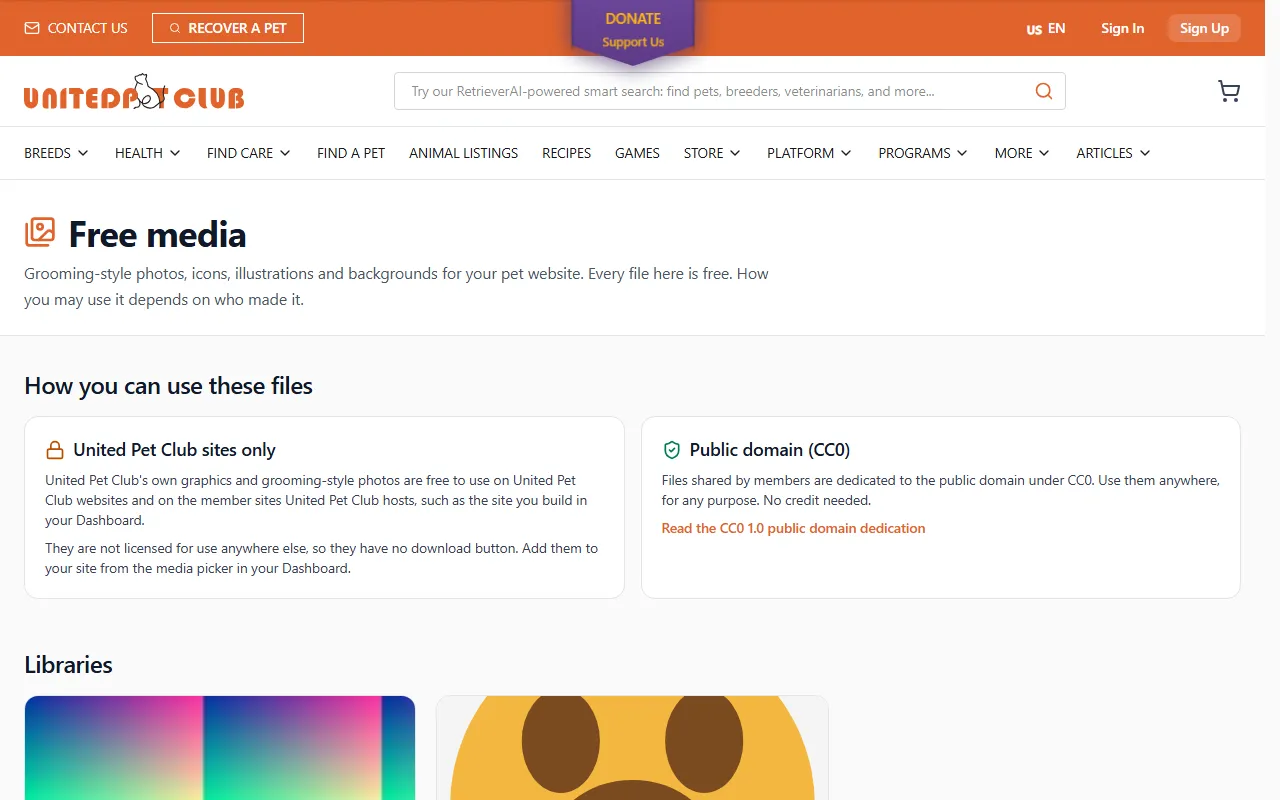
- How you can use these files explains the two licenses.
- Libraries lists every library that has files; Newest files shows the latest additions.
- In a library, use the category buttons and Search this library (it finds files the same way as Search shared media… in the Dashboard), and Previous / Next to page through.
- A United Pet Club sites only file has a Use it on your United Pet Club site link instead of a download. Add it to your website from the image picker in your Dashboard.
- A Public domain (CC0) file has a Download button that saves the file to your device.
- Share your media takes you to Shared Media in your Dashboard.
A file the team has just approved can take a few minutes to appear on this page.
If something went wrong
Section titled “If something went wrong”| You see | What to do |
|---|---|
| ”No library is accepting submissions right now.” | No library is open to new files at the moment. Try again later |
| ”This library isn’t taking submissions” | The library closed while you were sharing. Choose another library |
| ”Confirm the public domain dedication” | Tick I own this file and dedicate it to the public domain (CC0), then submit again |
| ”This file is in the shared media library” | The file is approved and in use. Contact support to have it removed first |
| Share to public library is missing from the ⋯ menu | It is offered for images only, and not for files in the trash |
| No Shared media tab in the image picker | That picker is for something that can leave United Pet Club, or must be your own photo. See Why the tab is not everywhere |
| ”The download didn’t work. Please try again.” | On the Free media page: try again in a moment |