

Quotes for your clients
Any business on United Pet Club can write a quote for a client: a full groom, a training package, a kennel build, a van conversion. You price it, offer the client a few ways to do it, and send it. The client compares the options, picks what suits them and sends their choices back. You check them and send the final quote, which the client accepts. If you asked for a deposit, the client pays it by card through UPC when they accept; the rest, the balance, they pay to you directly.
There is no Commission on quotes you write for your clients. A deposit paid through UPC carries the usual Platform Processing Fee; a quote without a deposit costs you nothing.
Commerce → Quotes in the Dashboard:
| Menu item | Page | What it’s for |
|---|---|---|
| All quotes | /dashboard/commerce/quotes | Every quote you’ve written, newest first. |
| New quote | /dashboard/commerce/quotes/new | Start a quote. |
| Quote settings | /dashboard/commerce/quotes/settings | What every new quote starts with. |
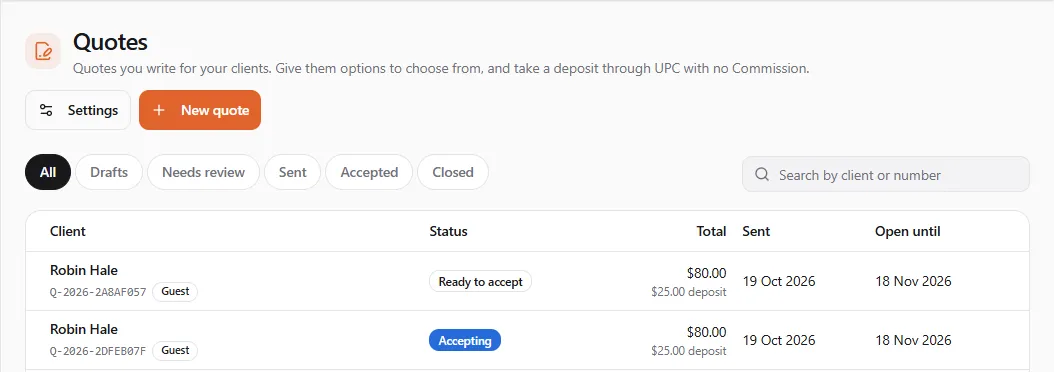
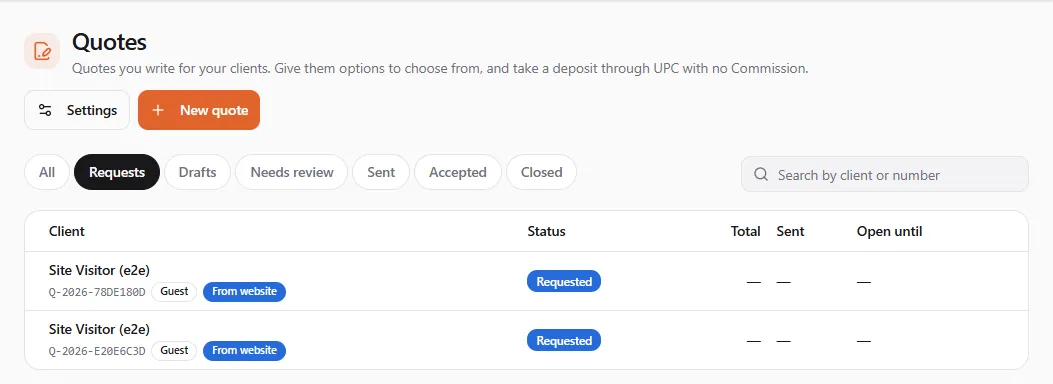
The list has tabs: All, Requests (quote requests visitors sent from your website, see below), Drafts, Needs review (with a count when clients have sent choices back), Sent, Accepted and Closed (declined, expired or withdrawn). Search by client or number narrows the page you’re on.
| Column | What it shows |
|---|---|
| Client | The client’s name, the quote number, a Guest badge for a client who isn’t a member, and how many options the quote has. |
| Status | Where the quote stands (see Statuses). |
| Total | The total of the option the client sees first, and the deposit under it. |
| Sent | When you sent it. |
| Open until | The last day the client can accept it. |
Write a quote
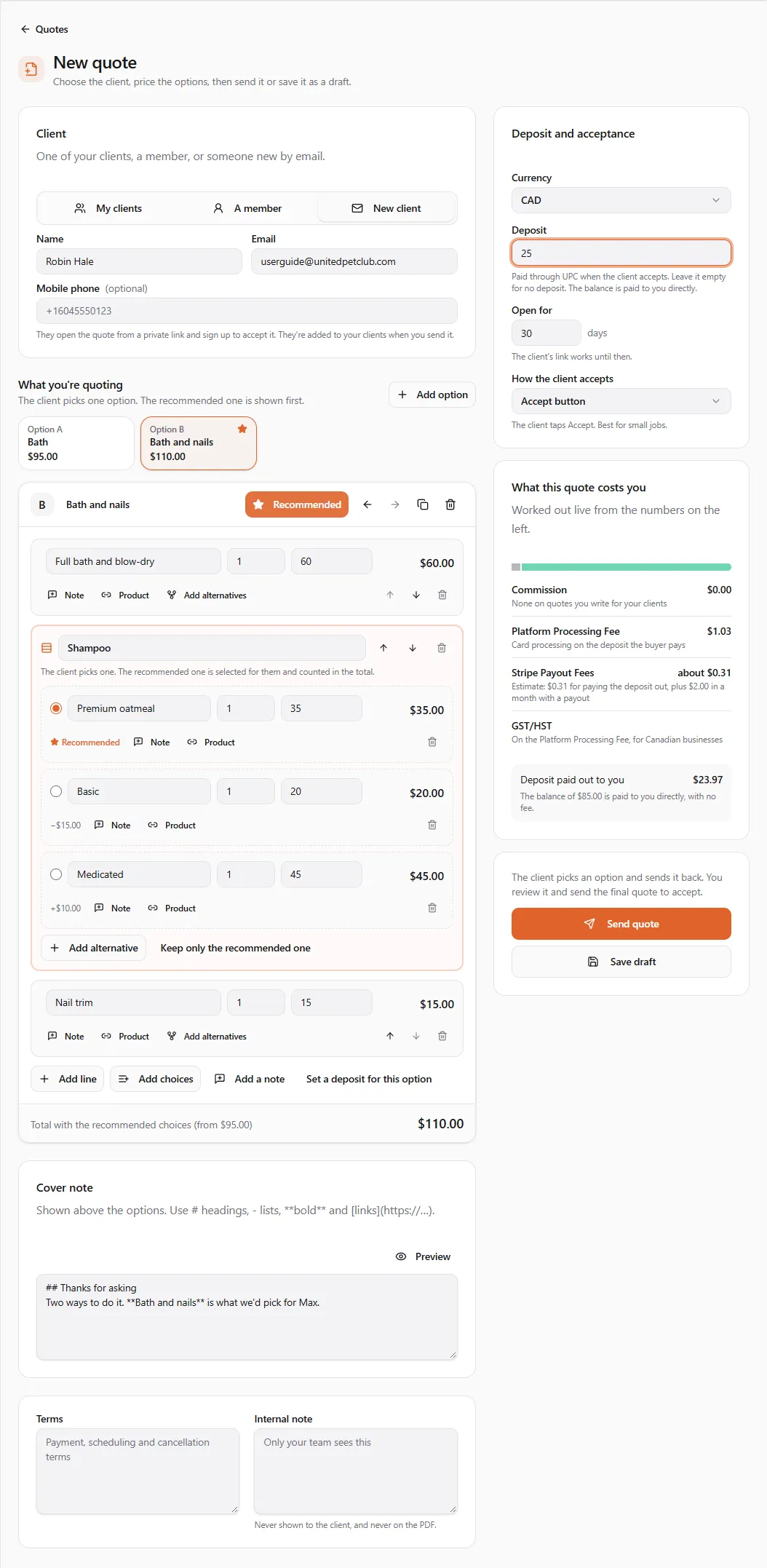
Section titled “Write a quote”Select New quote. The page has the quote on the left and Deposit and acceptance on the right.
1. Choose the client
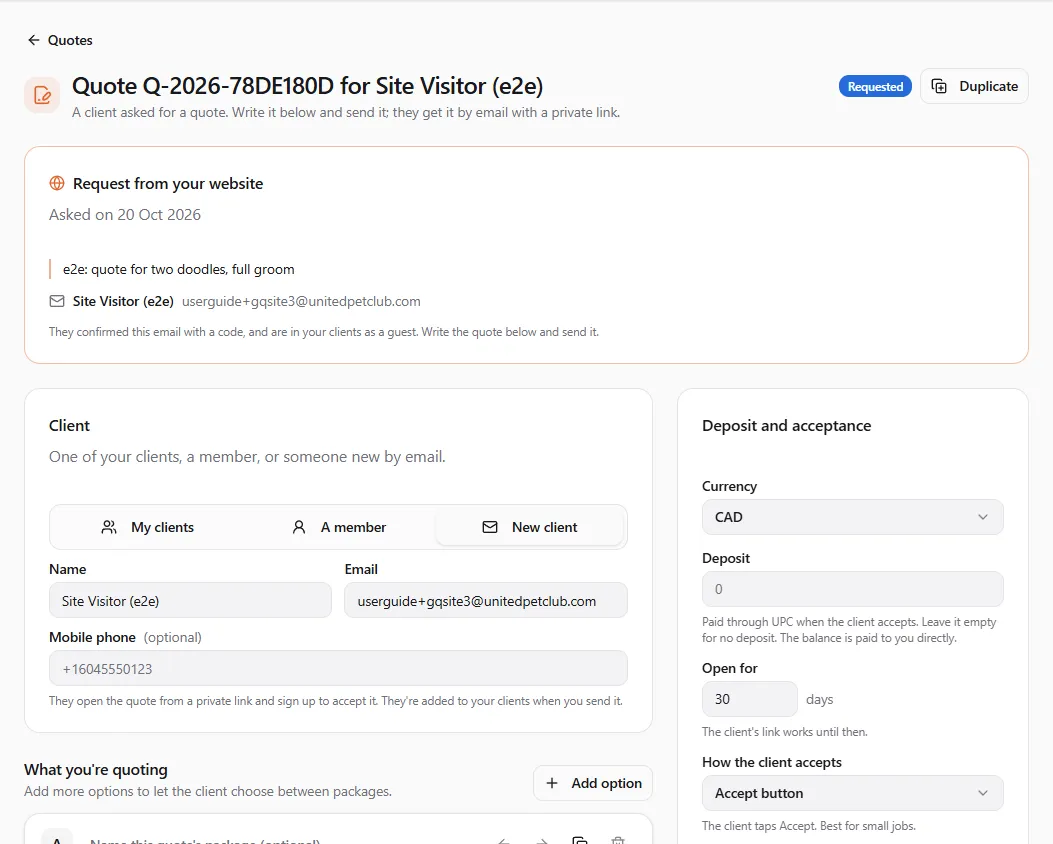
Section titled “1. Choose the client”Under Client, pick how you reach them:
- My clients: search your clients by name. A client who is a member reads the quote in their account; a guest client gets the quote by email address. A client without an email can’t be picked.
- A member: search members by name or @handle. They see the quote in their account.
- New client: type their Name, Email and, if you like, a Mobile phone. They open the quote from a private link and sign up to accept it. They’re added to your clients when you send it.
2. Price what you’re quoting
Section titled “2. Price what you’re quoting”Under What you’re quoting, each option is one way of doing the job. A quote with one option reads as a plain quote. With two or more, the client picks one.
- Lines. Each line has a description, a quantity and a unit price; the line total follows. Note adds a line the client reads under it. Product links a product from the marketplace: one of yours (its price is filled in) or any seller’s by its product code. You sell a linked product at the price on your line.
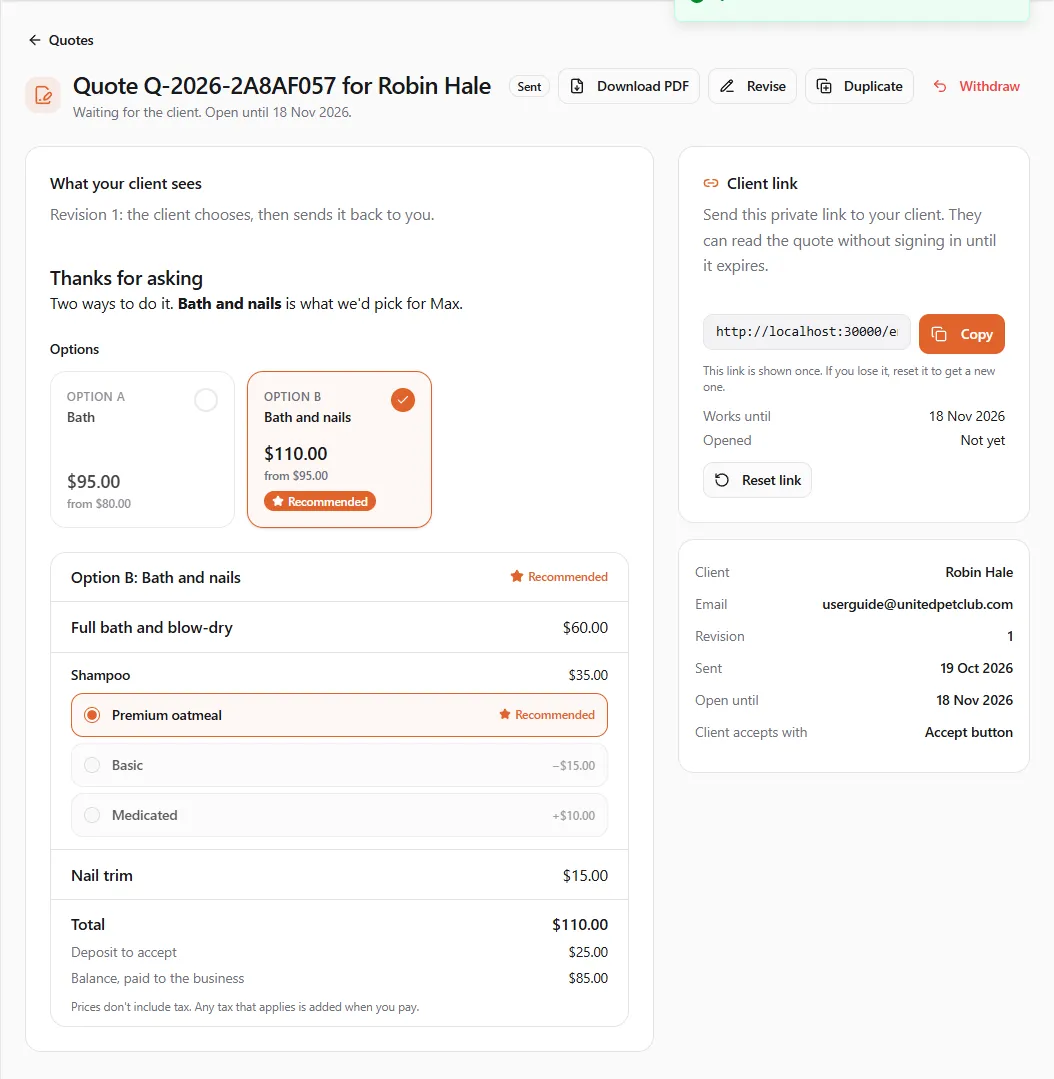
- Choices. Add choices (or Add alternatives on a line) turns a line into a choice between 2 to 10 alternatives under one title, for example Shampoo: Premium oatmeal, Basic, Medicated. Mark the recommended one with its round button. The client sees it selected and counted in the total, and each other alternative shows its difference, for example −$15.00 or +$10.00. Keep only the recommended one turns the choice back into a single line.
- Options. Add option adds a blank one; the copy button in an option’s header copies it, so a richer package is quick to build from a basic one. Name each option (for example Bath and Bath and nails), move it left or right, and mark one Recommended. With more than one option, a strip at the top shows each option with its live total; select one to edit it.
- An option can have its own note (Add a note) and its own deposit (Set a deposit for this option).
Each option’s footer shows its total with the recommended choices, and from the lowest total its choices allow.
3. Notes and terms
Section titled “3. Notes and terms”- Cover note: shown above the options. You can use
#headings,-lists,**bold**and links; Preview shows how it reads. - Terms: payment, scheduling and cancellation terms. The client accepts them with the quote.
- Internal note: for your team only. It’s never shown to the client and never printed on the PDF.
4. Deposit and acceptance
Section titled “4. Deposit and acceptance”| Field | What it does |
|---|---|
| Currency | The quote’s currency. It starts with your country’s. |
| Deposit | Paid through UPC when the client accepts. Leave it empty for no deposit. It can’t be more than any option’s lowest total. |
| Open for | How many days the client’s link works, 1 to 180 (30 unless you change it). |
| How the client accepts | Accept button: the client taps Accept, best for small jobs. Typed name: the client ticks the terms and types their full name. Signature: the client signs a contract holding the quote. Accept and book: the client accepts, then books one appointment from your online booking. See How the client accepts. |
What this quote costs you works the fees out as you type: Commission None on quotes you write for your clients, the Platform Processing Fee on the deposit, an estimate of the Stripe Payout Fees for paying it out to you, and Deposit paid out to you.
5. Choose how your client gets it
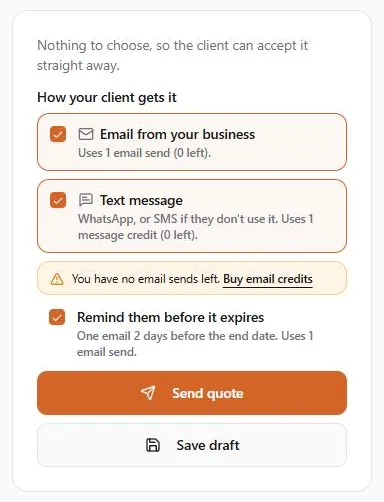
Section titled “5. Choose how your client gets it”Under How your client gets it, above the send button:
| Choice | What happens | What it uses |
|---|---|---|
| Email from your business (ticked to start with) | The client gets an email from your business with a button that opens the quote. It comes from your own mailbox if you’ve connected one, otherwise from UPC with replies going to you. | 1 email send from your monthly allowance, once per revision. |
| Text message | A short message with the link, on WhatsApp, or by SMS if the number isn’t on WhatsApp. Needs the client’s Mobile phone. | 1 message credit. |
| Neither ticked: link only | Nothing is sent. You copy the client link after sending and share it yourself. | Nothing. |
| Remind them before it expires | One more email 2 days before the end date, while the quote is still open. | 1 email send. |
Each choice says how many sends or credits you have left, for example Uses 1 email send (312 left). If you have none left, it says so before you send, with Buy email credits or Buy message credits.
A member always gets a notice in their UPC account (the bell and an email), free, so the card shows Notice in their UPC account instead of the email choice. You can still text them.
6. Send it
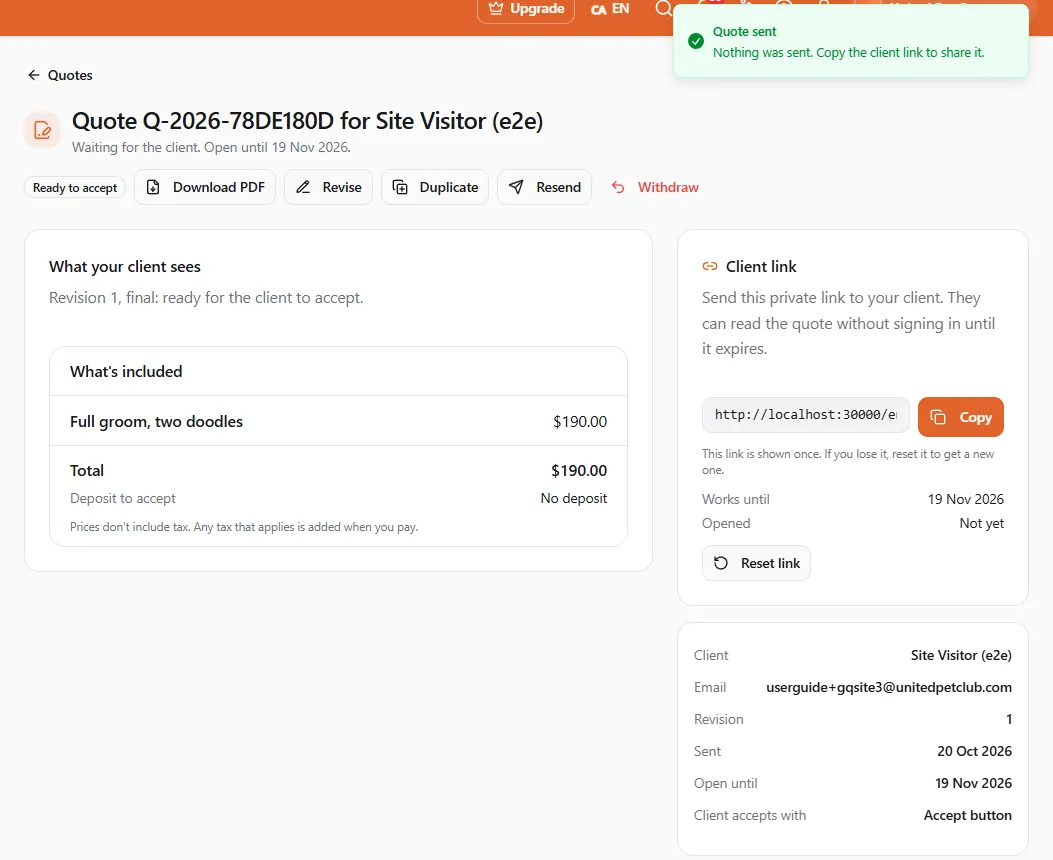
Section titled “6. Send it”- Send quote saves it and sends it the way you chose. Quote sent says what went out, for example Emailed to your client. or Nothing was sent. Copy the client link to share it.
- Save draft keeps it as a Draft: the client sees nothing until you send it. Open a draft from the list to carry on, or Delete draft to remove it.
If something is missing the quote isn’t sent, and the box above the buttons says what to fix, for example Option B: Every line needs a price. A quote with a deposit needs your payout account to be ready: if it isn’t, you see To take a deposit through UPC, set up payouts first. Or send the quote with no deposit. with a link to Set up payouts (see Receive payments).
If the quote can’t be delivered, nothing is sent and the quote stays as it was (a new quote stays a draft). The box says why and what you can do:
| You see | What to do |
|---|---|
| Your email sends are used up, so nothing was sent. | Buy email credits, See plans for a bigger allowance, or Send link only and share the link yourself. |
| You have no message credits, so nothing was sent. | Buy message credits, or untick Text message and send again. |
| This quote has no mobile number for the client, so it can’t be texted. | Untick Text message and send again. |
| The quote wasn’t sent: we couldn’t check your email and message allowance just now. | Try again in a moment. |
Preliminary quotation, for review only
Section titled “Preliminary quotation, for review only”For a large or still-open job (a van build, a kennel, anything where the specs aren’t settled yet) you can send a preliminary quotation first. It lets the client see the prices and options and talk them through with you, without committing either of you.
Turn on Preliminary quotation – for review only at the top of Deposit and acceptance before you send. The client then sees this notice on the quote, its private link and its PDF, with your business’s name in it:
This quotation is provided for review and discussion purposes only. It is not a final offer and cannot be accepted to place an order or initiate production. Pricing, specifications, and terms remain subject to review and written confirmation by your business. No deposit or payment is due under this preliminary quotation. A final quotation will be issued for approval before any deposit is requested or production is authorized.
What changes on a preliminary quotation:
- The client can’t accept it, even when it has only one option. There is no Accept button, and the PDF says it can’t be accepted.
- No deposit is asked. You can still type the deposit you have in mind: it’s asked for on the final quote, not now, and the client doesn’t see it yet. Because nothing is paid, you don’t need payouts set up to send it.
- The client can send choices and questions back, as with any quote. You see them under Review the client’s choices.
- The email or notice your client gets says it’s a preliminary quote for review.
- In your list it shows Preliminary.
Send the final quote when everything is agreed:
- Issue final quote on the quote’s page opens it in the composer with the switch off. Change anything that was agreed, then Send final quote. Your client gets the final quote to accept, and the preliminary notice is gone.
- Or, if the client sent their choices back, Send final quote in the review card does the same.
The final quote is a normal quote: it asks for the deposit (so payouts must be ready if there is one), and the client accepts it the way you chose under How the client accepts. Duplicate keeps a copy preliminary.
How the client accepts
Section titled “How the client accepts”Pick one under How the client accepts on each quote (or set the one every new quote starts with in Quote settings). The client sees the same quote whatever you pick; only the last step changes.
| Choice | What the client does |
|---|---|
| Accept button | Ticks the terms and taps Accept quote (or Accept and pay with the deposit). Best for small jobs. |
| Typed name | Ticks the terms, types their full name, then accepts. |
| Signature | Signs a contract holding the quote, signed in with UPC. |
| Accept and book | Accepts as with the Accept button, then books one appointment from your online booking. |
Signature: the client signs a contract
Section titled “Signature: the client signs a contract”The composer’s hint says it: The client signs a contract holding the quote, signed in with UPC. It uses one of your contract credits, like any contract you send.
When the client accepts the final quote, UPC makes a contract from it for the client to sign: the option they chose, its lines, the total, the deposit and your terms, with Name, Signature and Date for the client to fill in. The contract is in your business’s name and uses one contract credit (contract packs are under Add-ons). If the client accepts the same final quote again before signing, they get the same contract, so it never uses a second credit.
Once the client signs, the quote is accepted exactly as with the Accept button: Accepting while they pay the deposit (if there is one), then Accepted. If the contract isn’t signed (the client declines it, or it expires or is cancelled), the quote stays open and the client can try again.
A client you sent the quote to by email signs in to UPC (or signs up) before signing: a contract is never signed anonymously.
Accept and book: the client books a time
Section titled “Accept and book: the client books a time”The composer’s hint: The client accepts, then books one appointment from your online booking. The quote pays for it, so the booking takes no deposit or charge.
Once the quote is Accepted (after the deposit, if you asked for one), the client picks one of your services, a day and a time from your online booking, and books it. The appointment is booked with you like any other booking, but with no deposit, no charge and no booking fee: the quote already covers it. A quote books one appointment.
For this to work:
- Your online booking is set up, with at least one active service clients can book. Services you only do at the client’s address (mobile only) aren’t offered here, because the quote has no address for them.
- Your business is ready for bookings: payouts connected, the service fees agreed and a card on file (see the Schedule setup checklist).
If you take no online bookings, the client is told you aren’t taking online bookings right now and is asked to contact you to set a time.
Requests from your website
Section titled “Requests from your website”This section is about the website you made on United Pet Club. To take quote requests on a website you run yourself, see Put your forms on your own website.
Add the Request a quote block to your website (it’s one of the editor’s “Your data” blocks, see Your website), and visitors can ask you for a quote without signing in. You can change the block’s Heading and Intro text.
The visitor types their name, email, a phone number if they like, and what they need. UPC emails them a 6-digit code to confirm the address is theirs; once they enter it, the request is sent and they’re told you’ll email them a quote with a private link.
On your side:
-
The visitor is added to your clients as a guest.
-
The request appears under Commerce → Quotes on the Requests tab, marked From website, with the status Requested. It’s in the currency set in Quote settings, else your country’s.
-
You get a notice in the bell and by email: New quote request from your website, with the quote number, the visitor’s name and your website’s address. It opens the request. The visitor’s email address is on the request itself, never in the notice. The email goes to your profile’s own email address; without one you get the bell notice only.
Answer a request
Section titled “Answer a request”- Open the request from the Requests tab.
- Request from your website shows when they asked (Asked on …), their message, their name and email, and They confirmed this email with a code, and are in your clients as a guest. Write the quote below and send it.
- Write the quote in the composer below it, as for any quote: options, lines, deposit, how the client accepts.
- Choose how your client gets it, then send it. They get it by email with a private link, or you share the link yourself.
Once sent, the request is an ordinary quote: it shows Ready to accept (or Sent, when the client has options to choose from) and has its client link. A request has no PDF until you send it.
Limits on requests
Section titled “Limits on requests”- 3 requests a day from one email address to your business. A fourth is refused until the next day.
- The emailed code works for 10 minutes, and a request must be confirmed within 30 minutes of starting it; after that the visitor starts again.
- Only a published website takes requests.
The client link
Section titled “The client link”After you send a quote, its page shows Client link: a private link that opens the quote without signing in until it expires. The email and text your client gets carry it; Copy it to share it yourself as well, or when you sent the quote as a link only.
Every email or text to a guest client makes a new link, and the one before stops working: after a revision, a final quote or a resend, share the link the page shows now, not an older one.
The link is shown once. If you lose it, or think someone else has it, select Reset link: you get a new link, and the old one stops working right away. The card also shows when the link stops working and how often it was Opened.
Review the client’s choices
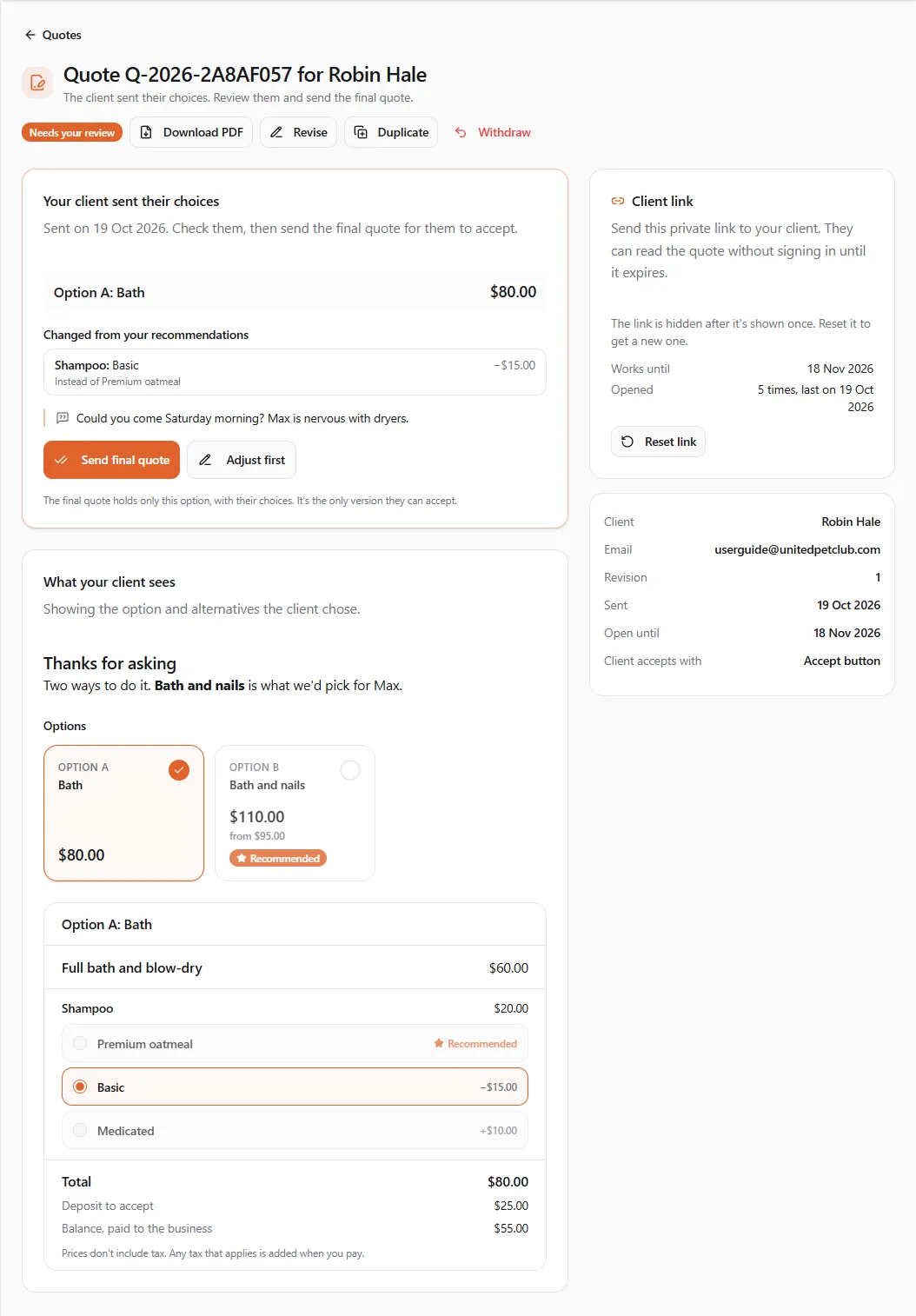
Section titled “Review the client’s choices”When the client sends their choices back, the quote shows Needs your review and the Needs review tab counts it. Open it: Your client sent their choices shows the option they picked and its total, every choice they changed from your recommendation (Shampoo: Basic, Instead of Premium oatmeal, −$15.00) and their message.
- Send final quote sends exactly what they chose as the final quote. How your client gets it sits above it, as when you sent the quote: email, text, or link only.
- Adjust first opens the chosen option, with each choice already set to the client’s pick, so you can change prices, lines or notes, the deposit, or keep the quote open longer, then Send final quote.
Final quote sent. The final quote holds only that option with their choices, and it’s the only version the client can accept. In the list it shows Ready to accept.
A quote with only one option and no choices is final as soon as you send it: the client can accept it straight away.
Revise, resend, withdraw, duplicate
Section titled “Revise, resend, withdraw, duplicate”- Revise opens the quote in the composer. The client gets the new revision, the way you choose under How your client gets it (Send revision as link only when nothing is ticked); any choices they sent are cleared and they choose again. The client stays the same.
- Resend sends the current version again, by email, text or both, for a client who lost it. It makes a new client link and the old one stops working. If this version was already emailed or texted, resending uses no extra email send or message credit. For a member, who already has the quote in their account, it offers a text only. With your email sends used up, Send link only in the box just makes a new link for you to share.
- Withdraw takes the quote back: the client can no longer accept it, and the link stops working.
- Duplicate copies the quote into a new draft, for the same client.
- Download PDF saves the quote as the client sees it (never with your internal note).
When the client accepts
Section titled “When the client accepts”The client accepts the final quote in their account (with Signature, by signing the contract: see How the client accepts).
- No deposit: the quote is Accepted at once. The client pays you directly.
- With a deposit: the quote is Accepting while the client pays the deposit by card, then Accepted. The deposit is paid out to you on your usual schedule, less the Platform Processing Fee; the balance is paid to you directly. The quote page then shows the deal: the deposit, refunds, and Refund Deposit, as for quote requests.
- Accept and book: once the quote is Accepted, the client books their appointment, and it shows with your other bookings.
Quote settings
Section titled “Quote settings”Quote settings sets what every new quote starts with: Open for (days), How the client accepts (any of the four: Accept button, Typed name, Signature, Accept and book), Currency, a Deposit and Terms. Quotes you’ve already written don’t change. A request from your website starts in the Currency set here.
Statuses
Section titled “Statuses”| Status | What it means |
|---|---|
| Requested | A visitor asked for a quote from your website. Write it and send it. |
| Draft | Saved, not sent. Only your team sees it. |
| Sent | The client is choosing. |
| Preliminary | A preliminary quotation is with the client, for review only. Send the final quote when it’s agreed. |
| Revised | You sent a new revision; the client chooses again. |
| Needs your review | The client sent their choices. Review them and send the final quote. |
| Ready to accept | The final quote is with the client. |
| Accepting | The client accepted and is paying the deposit. |
| Accepted | Done. |
| Declined | The client declined the quote. |
| Expired | The last day passed. Duplicate it to send a new one. |
| Withdrawn | You took it back. |