

Parties, accounts and categories
Three lists sit behind every document: the parties you deal with, the accounts the books post to, and the categories (entry types) you pick on each line.
Parties
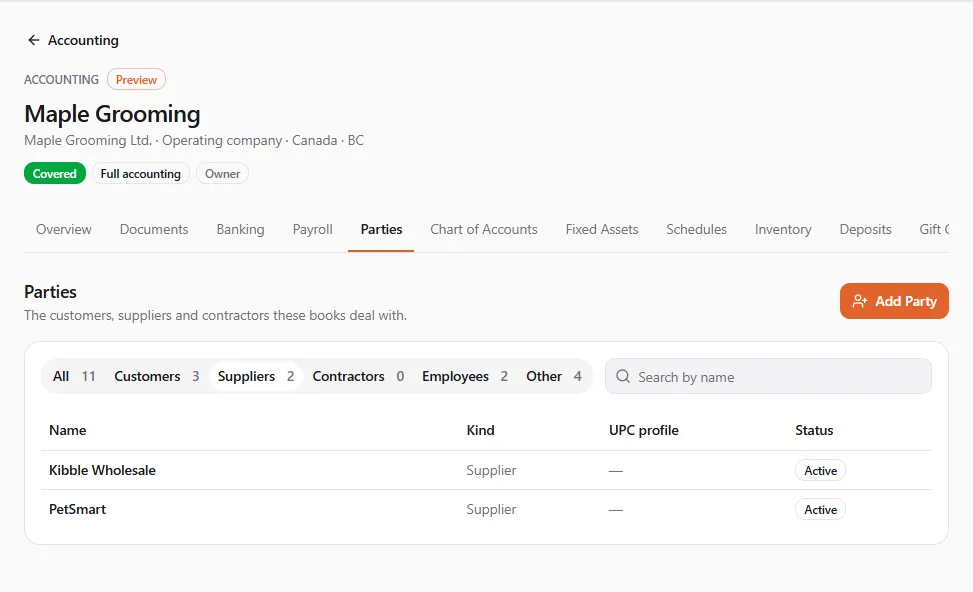
Section titled “Parties”The entity’s Parties tab (/dashboard/finances/accounting/{entity}/parties): The customers, suppliers and
contractors these books deal with. Filter by All, Customers, Suppliers, Contractors, Employees
(only with payroll access) and Other, or search by name. Each row shows the Name, Kind, UPC profile and
Status.
Parties UPC adds for you
Section titled “Parties UPC adds for you”When UPC activity posts into the books, the other side is added as a party automatically, once per entity: the buyer of something you sold, the seller of something you bought on UPC, the organization whose dues you paid, the member who paid you dues, the recipient of a donation, and United Pet Club itself for the UPC fees you pay.
Adding a party
Section titled “Adding a party”- Choose Add Party. Find their UPC profile by name or @handle, or type a name.
- Pick the Kind: Customer, Supplier, Contractor, Employee (needs the Manage employees permission) or Other.
- Optionally find their UPC profile. Their name starts as the profile’s.
- Check the Name, and add an Email if you like.
- Choose Add Party. You see Party added.
Adding parties needs the Manage customers and suppliers permission.
Chart of accounts
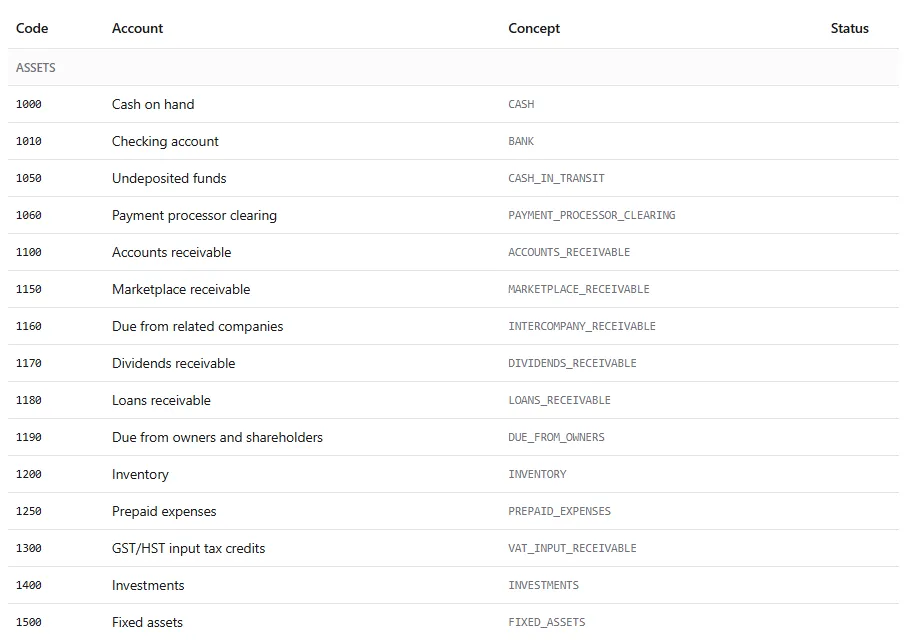
Section titled “Chart of accounts”The entity’s Chart of Accounts tab (/dashboard/finances/accounting/{entity}/accounts), Accounts: The
accounts these books post to, and the categories documents use. Each account shows its Code, Account name,
Concept and Status. Tick Show inactive accounts to see those too.
The chart is set up from your country’s standard chart when the books are set up (Canada, the United States, the United Kingdom, Germany, France, Spain, Italy, the Netherlands, Poland and Iran have their own; other countries get a general one). Account names show in your language.
Bank, card and cash accounts you add under Banking use the matching account, or get one of their own.
Categories (entry types)
Section titled “Categories (entry types)”Chart of Accounts → Entry Types. These are the categories you pick on a document line (“Phone and internet”, “Grooming supplies”). Each posts to an account, and each knows where its amounts go on the tax forms. Search categories, or tick Only our own to see the ones you made. The Tax form codes column shows where a category’s amounts go.
Making your own category
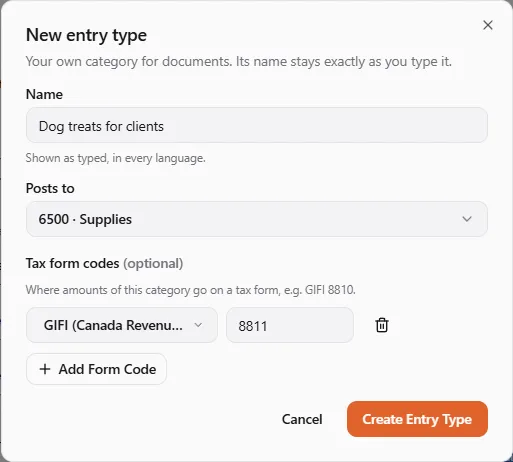
Section titled “Making your own category”- Choose New Entry Type. Your own category for documents. Its name stays exactly as you type it.
- Enter the Name. It is Shown as typed, in every language: it is never translated.
- Pick the account it Posts to.
- Optionally add Tax form codes: Where amounts of this category go on a tax form, e.g. GIFI 8810. Choose the form and type the code; Add Form Code adds another.
- Choose Create Entry Type.
Making categories needs the Manage the chart of accounts permission. Your own form codes are used in the tax form report for your categories; check them with your accountant.
Pet business starters
Section titled “Pet business starters”Chart of Accounts → Pet Business Starters: Standard categories grouped for a groomer, a boarding or daycare business, a breeder, a clinic, a pet store or a trainer. Each one already maps to the tax forms.
- Pick your Business: Grooming, Boarding and daycare, Breeding, Veterinary, Pet store or Training.
- Choose List These First. Those categories then appear first when you record a document (Listed first when you record).
This choice is kept in this browser only. Stop Listing First undoes it. See also Inventory for stock-keeping businesses.