

Your website
Every United Pet Club profile can have its own website. You start from a free template made for what you do, edit every page in the website editor, and publish it on a free address. Everything you already keep up to date on United Pet Club — services and prices, team, gallery, reviews, hours, animals and litters — shows on your website by itself, with online booking for services.
Website → My website (/dashboard/site). The first visit explains what a website includes and
shows a Create my website button. After that the page shows your websites, their address, status
and setup fee, with buttons to Edit website, Change template, open Address & domain, and
Take website offline.
What kind of website
Section titled “What kind of website”When you create a website you first say what it is for. Each kind comes with two free templates:
| What it is for | Good for | Templates |
|---|---|---|
| Pet services | Grooming, training, walking, sitting — with online booking | Fresh, Bold |
| My professional portfolio | Your résumé and your work as a vet, groomer, trainer and more | Clean résumé, Warm portfolio |
| Breeder | A kennel or cattery — your animals, litters and waitlist | Heritage, Modern |
| Rescue or organization | Adoptable animals, your mission and ways to help | Hope, Community |
| My pet | Your pet’s own website — for proud owners and pet stars | Pet star, Pet diary |
You can change everything later, including the template.
Create your website
Section titled “Create your website”Go to Website → My website and press Create my website (/dashboard/site/new). A short
wizard walks you through it. Use Next and Back at the bottom, or click a finished step at the top to go back to it.
-
Purpose. Pick one of the five kinds above. We suggest one that fits your profile.
-
Template. Each template card shows its home page with your name on it. Point at a card to scroll through the whole page. The buttons above the cards switch to another kind of website. Press Preview on a card to look at it closely.
-
Preview. The full template, page by page:
- Use the page tabs, or the template’s own menu, to visit each page.
- Switch between desktop, tablet and phone to see how it looks on each screen.
- Use full screen for a bigger view, and Esc to leave it.
- Switch between the category’s templates at the top.
Boxes that show your services, reviews, animals and so on fill with your real information once the website is published. When you like it, press Use this template.
-
Address (your first website, or one you add). Choose the free address visitors will use. See Your address below. For an extra website you can also give it a name that only you see, such as “Grooming salon” or “Puppy page”.
-
Create. Check the summary and press Create my website. The website opens in the editor as a draft. Nobody can see it until you publish.
Your address
Section titled “Your address”Every website gets a free address, in one of two forms:
| Address | For |
|---|---|
yourname.upc.pet | Businesses and professionals |
yourname.petme.vip | Personal and pet websites |
We pick the usual one for you — upc.pet for a professional profile, petme.vip for a personal or pet
profile and for every My pet website — and you can switch. The first part is up to you: use
lower-case letters, numbers and hyphens. As you type, the page checks the address and tells you
whether it is available or already taken.
If your website’s address changes, the old address keeps sending visitors to the new one for 90 days.
Editing your website
Section titled “Editing your website”Edit website opens the website editor (/dashboard/site/editor). In it you can change every
page, the menu at the top and the footer at the bottom: text, pictures, colours, sections and
the pages themselves.
- Changes save automatically. The editor shows Saving…, then Saved.
- Nobody sees your changes until you publish. Your live website stays as it was while you work.
- Preview shows the draft exactly as visitors will see it.
- Publish (or Publish changes once the website is live) puts your changes online.
Blocks that use your United Pet Club information
Section titled “Blocks that use your United Pet Club information”The editor’s toolbox has a group of “Your data” blocks:
| Block | Shows |
|---|---|
| Services | Your services, with prices if you show them |
| Booking | A button that opens your live calendar so visitors can book |
| Team | Your team members and their photos |
| Reviews | Reviews your clients left on United Pet Club |
| Hours | Your opening hours |
| Gallery | Your public photos |
| Contact | A way to message you. Visitors signed in with United Pet Club chat with you; others send a short form. Both land in your United Pet Club inbox |
| Applications | Your open applications (puppy, adoption, waitlist…). Visitors sign in with United Pet Club and apply right on your website |
| Litters | Your current and upcoming litters |
| Animals | Your animals |
| Shop products | Products from your United Pet Club store. Visitors add them to a cart and pay on United Pet Club. Hidden when you sell nothing |
| Request a quote | A form visitors use to ask you for a quote, without signing in: they confirm their email with a code, and the request lands in Commerce → Quotes → Requests. See Requests from your website. |
You place the block where you want it; its content comes from your profile each time someone visits, so it is always up to date. Change a price or add a photo on United Pet Club and your website follows.
Already have a website somewhere else? You can put your contact, quote, booking and application forms on it: see Put your forms on your own website.
What visitors can do on your website
Section titled “What visitors can do on your website”Your visitors don’t need a separate account for your website. They sign in with United Pet Club: the website sends them to United Pet Club, where they sign in (or create a free account), confirm Continue, and come straight back to the page they were on. Their password is only ever typed on United Pet Club, never on your website.
Once signed in, a visitor can, without leaving your website:
- Apply — fill in one of your applications in a window on the page. It arrives in Dashboard → Paperwork → Forms → Responses like any other application, from their United Pet Club profile.
- Chat with you — the Contact block becomes a conversation. Their messages and your replies are in your United Pet Club inbox (Dashboard → Messages), and in theirs.
- Shop — add your products to a cart. To pay, they continue to the United Pet Club store, where the cart is waiting and Apple Pay, Google Pay or a card can be used. A Back to link returns them to your website.
Visitors who don’t sign in can still send you a message with the short contact form.
Publishing your first website
Section titled “Publishing your first website”Editing and previewing are always free. Publishing your first website needs a one-time US$50 setup fee. The first time you press Publish ($50 setup), a payment window shows Website setup $50; it is charged to the card on file for the account that owns your profile. Once it is paid your website goes live, and you never pay the setup fee again for that website.
The setup fee includes an SSL certificate for your website: it opens with https:// and shows the
padlock, so visitors can trust it, and search engines rank secure websites higher. It renews
automatically. See Your security certificate (SSL).
The setup fee is waived — the button simply says Publish — if you are on a paid plan or have Partner status.
Any kind of website can go live once the setup fee is paid (or waived): you do not need to verify your business first. A verified business shows a Verified badge on its website, which helps visitors trust it. Taking payments and deposits online still needs verification.
Free websites may show ads.
Take website offline turns a live website back into a draft at any time. Nothing is deleted; publish again to bring it back.
More than one website
Section titled “More than one website”You can run several websites from the same profile — for example a grooming salon site and a separate page for a litter. On My website, press Add another website. You go through the same steps: what it is for, a template, and its own address.
- Each website after your first costs US$15 a month once it is published, charged to the card on your account. There is no setup fee for it, and the monthly price is never waived. Editing and previewing it are free.
- When you publish an extra website, the button says Publish ($15/month).
- Your websites on My website lists them all. Your first website is marked First website; the others show $15 / month. Press Manage to work on one of them.
If a monthly payment does not go through
Section titled “If a monthly payment does not go through”- The website stays online for 7 days and shows Payment due. Update your card to keep it running.
- After 7 days it goes Offline: visitors can no longer open it. Nothing is deleted — once you pay, it comes back.
Only your extra websites can go offline this way. Your first website never does: if you leave your paid plan or Partner status later, it simply may show ads again.
Your own domain
Section titled “Your own domain”Instead of the free address you can use a domain you own, such as www.sarahsgrooming.com.
- Connecting a domain costs US$10 a year.
- The first year is included with your website, counted from the day you first publish it. The Domain page shows Your domain is included until and the date.
- You keep paying your domain provider for the domain itself. The domain stays yours.
- Your free address keeps working as well.
Connect your domain
Section titled “Connect your domain”Open Website → Domain (/dashboard/site/domain), or Address & domain on My website.
-
Enter the address you want visitors to type — usually
www.yourdomain.com— and press Connect. -
Sign in where you bought your domain and open its DNS settings (often called “DNS”, “Manage DNS” or “Advanced DNS”). Add the two records shown on the page:
Type Name (or Host) Value (or Points to) TXT _upc-verifythe code shown on the page — it proves the domain is yours CNAME wwwthe address shown on the page (for example edge.upc.pet)If there is already a record named
www(an A record or another CNAME), delete it first — a name can only have one of them. -
Optional: at your provider, forward
yourdomain.comtowww.yourdomain.com, so visitors who skip “www” still find you. -
Save, then press Check DNS.
The page has short instructions for GoDaddy, Cloudflare, Namecheap, Squarespace / Google Domains and Other providers. DNS changes usually show within an hour, but some providers take up to 48 hours.
Reading the DNS check
Section titled “Reading the DNS check”Check DNS looks at your domain right away and shows each record: what it should be, what we found, and a status with a tip on how to fix it.
| Row | What it checks |
|---|---|
| TXT | The _upc-verify code is there and matches |
| CNAME | www points to the address shown |
| Conflicts | No old A record is in the way, and Cloudflare is not proxying the record |
| Forwarding | Your bare domain forwards to www (optional) |
| CAA | If your domain has CAA records, one of them allows letsencrypt.org |
| SSL (https) | Your security certificate is ready |
| Status | Meaning |
|---|---|
| Correct | This one is right |
| Missing | We could not find it yet |
| Needs a fix | It is there, but with the wrong value |
| Conflict | Something else is in the way — the tip says what to remove or change |
| Optional | Nice to have, not required |
| In progress | We are working on it (for example, the certificate) |
You do not need to stay on the page: we check again every 15 minutes and connect your domain as soon as everything is right.
Your security certificate (SSL)
Section titled “Your security certificate (SSL)”SSL is what makes your website open with https:// and show the padlock. It is free and automatic:
as soon as your DNS is right we get a certificate for your domain (from Let’s Encrypt), usually within a
few minutes, and renew it before it expires. There is nothing to buy or upload. Until it is ready, your
website keeps working on its free address.
After the first year
Section titled “After the first year”From the second year the domain costs US$10 a year. If it is not paid, the Domain page shows Expiring with a date; after that date the domain stops pointing to your website. Your website itself stays online on its free address.
Disconnect removes the domain from your website at any time; visitors on the domain no longer reach it, and the free address becomes the main one again. You can connect it again later.
Buy a domain through United Pet Club
Section titled “Buy a domain through United Pet Club”If you don’t have a domain yet, you can buy one on the Buy tab of Website → Domain. We register it in your name, set up its DNS records for you and connect it to your website, so there is nothing to configure.
What it costs
Section titled “What it costs”- US$25 for one year, or US$200 for 10 years (US$20 a year). Prices are in US dollars for everyone. A few premium names cost more; the search shows the price before you buy.
- The price covers the domain and its connection to your website, so there is no extra US$10 connection fee.
- Members in Canada also pay GST/HST.
How you pay
Section titled “How you pay”You pay before the domain is registered:
- If your United Pet Club balance covers the price (for example, money from your sales or platform credit), it is taken from your balance.
- Otherwise your card on file is charged right away, in US dollars. If your business is paid out in Canadian dollars, your card’s bank converts the amount.
- If you have no card on file and your balance is too low, the page asks you to add a card first. Nothing is charged and nothing is bought.
If the domain could not be registered after you paid, the money goes back to your United Pet Club balance and pays your next fees.
Renewal
Section titled “Renewal”- Your domain renews automatically one month before it expires, paid the same way.
- You can turn Renew automatically off on the Domain page. The domain then stays yours until the end of the time you paid for, and then it expires.
- If the renewal can’t be paid (no card, or the card is declined), we try again every day and let you know 30 days and 7 days before the domain expires. If it still can’t be paid, the domain expires and is disconnected. Your website stays online on its free address.
- At the end of a 10-year registration, we remind you 60 days before so you can choose 1 or 10 more years. If you don’t choose, it renews for one year.
Refunds
Section titled “Refunds”Once a domain is registered it can’t be refunded, because we have already paid the registry for it. If you want to move the domain to another provider later, contact us and we will help you transfer it.
Websites made before the website builder
Section titled “Websites made before the website builder”Websites created before the builder use the older, simpler setup: one of three looks (Classic, Bold or Minimal), your colours and fonts, and switches for what to show. They keep working as they are.
On their My website page you see Try the new website builder — press Choose a template to move to the editor. Your current website stays live until you publish the new one, and it keeps its address and domain. A website that was already live before the builder does not owe the setup fee when it switches.
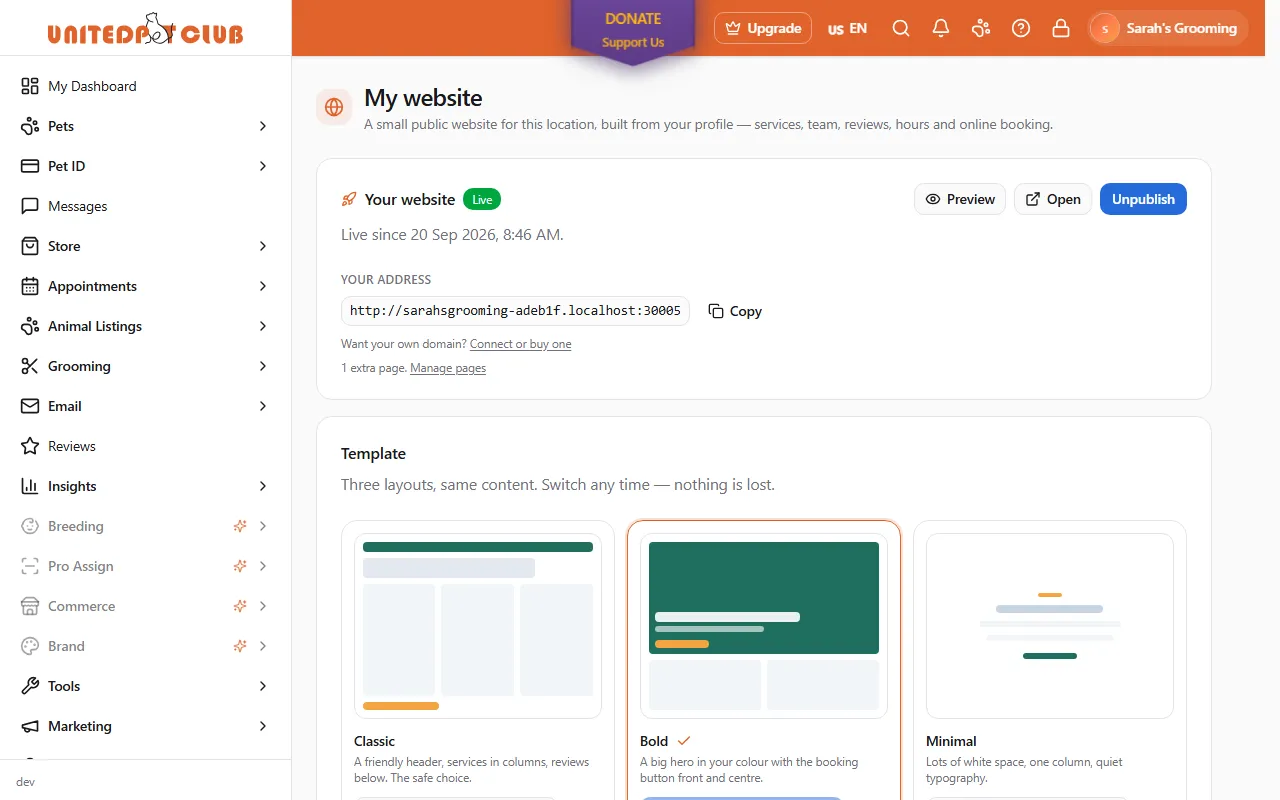
For these older websites:
- Look and settings. Pick a template, set a main and an accent colour and a font pair, optionally
paste your Google Analytics measurement id (
G-…; visitors get a cookie banner and analytics run only after they accept), choose what to show — prices, reviews, team, gallery, online booking — and Save. - Address. The site lives at your handle on
upc.pet(dots and underscores become hyphens:mrgroomer.vancouver→mrgroomer-vancouver.upc.pet). Changing your handle moves it; the old address keeps redirecting for 90 days. - Publishing needs a verified business.
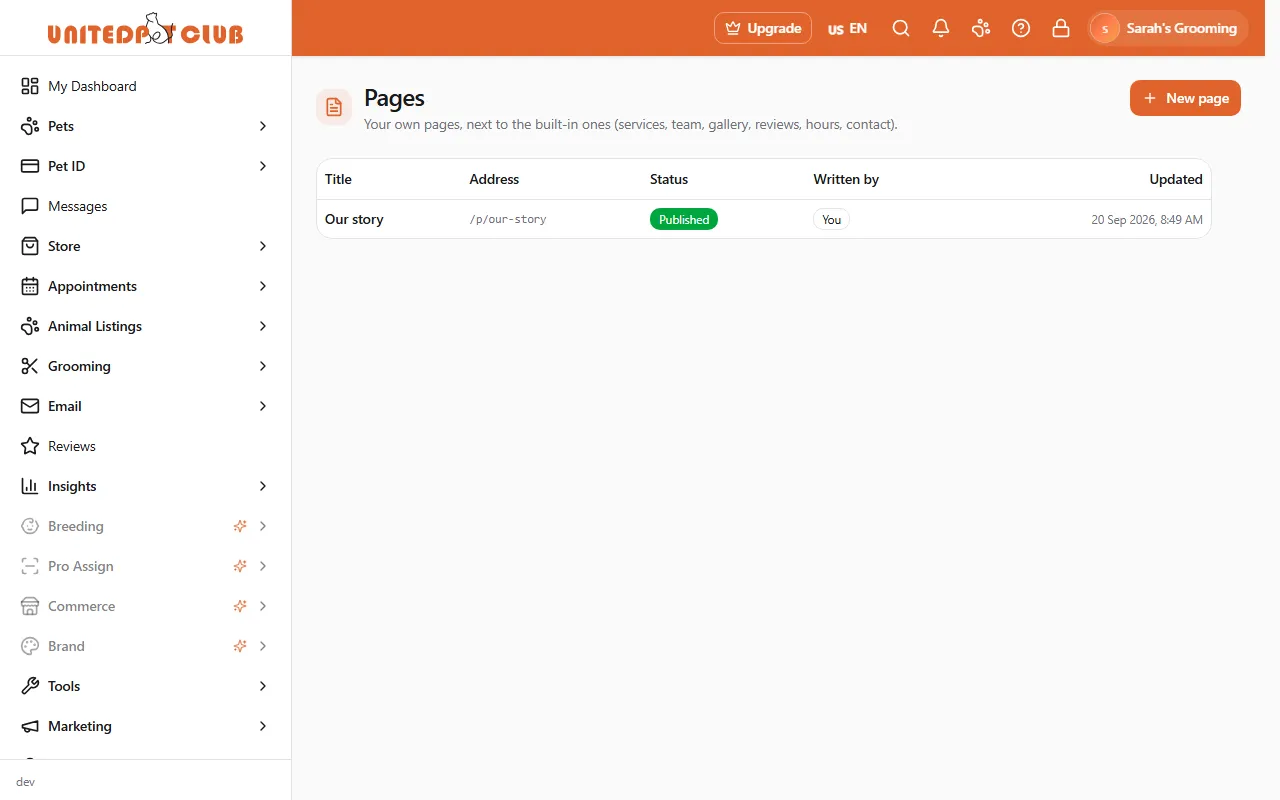
- Footer and own pages. The site shows a small “Powered by United Pet Club” line. With Partner status or the Pro plan it is removed, and you can write your own pages under Website → Pages (an “Our story”, an FAQ, your policies), optionally drafted with RetrieverAI. If Partner status ends, the footer comes back and your own pages stop showing (they are kept).
- Pausing. If the location has no confirmed or completed appointment for 90 days, the older website pauses: visitors are sent to your United Pet Club profile, where they can still book, and your next booking brings the website back by itself. Partner and Pro websites never pause, and websites made with the builder never pause.
- Your own domain works the same way as for every website — see Your own domain.
Reference
Section titled “Reference”| Website status | Meaning |
|---|---|
| Draft | Only you can see it, through Preview |
| Live | Public |
| Offline | An extra website whose monthly payment did not go through for 7 days — pay to bring it back |
| Paused | Older websites only: no appointment for 90 days; visitors go to your United Pet Club profile until your next booking. Websites made with the builder never pause |
| Setup fee | Meaning |
|---|---|
| $50 due before publishing | Pay once when you first publish |
| Paid | Done — never charged again for this website |
| Waived | Included with your paid plan or Partner status |
| Not required | An extra website (billed monthly instead), or a website from before the builder |
| Domain status | Meaning |
|---|---|
| No custom domain | Your website uses its free address |
| Waiting for DNS | Add the records, then Check DNS |
| Verified | Records found; your certificate is being issued (usually a few minutes) |
| Connected | Your domain is your website’s main address |
| Connection failed | The reason is shown; fix it and check again |
| Expiring | The yearly domain fee is unpaid; the domain stops working on the date shown |