

Schedule availability
Availability decides which times clients are offered when they book you. It has three parts: your team’s weekly hours, time off and extra hours on single dates, and when each type of service is offered. A time is offered only when it fits both: someone who does the service is working, and that service’s type is offered then.
Schedule → Availability (/dashboard/schedule/availability). Under the page title it says:
When clients can book you: your team’s weekly hours, time off, and the days and times each type of
service is offered.
All times are in your business’s time zone, shown at the top of the page (Times are in your business’s time zone (America/Toronto). Changes apply from today.).
Team hours
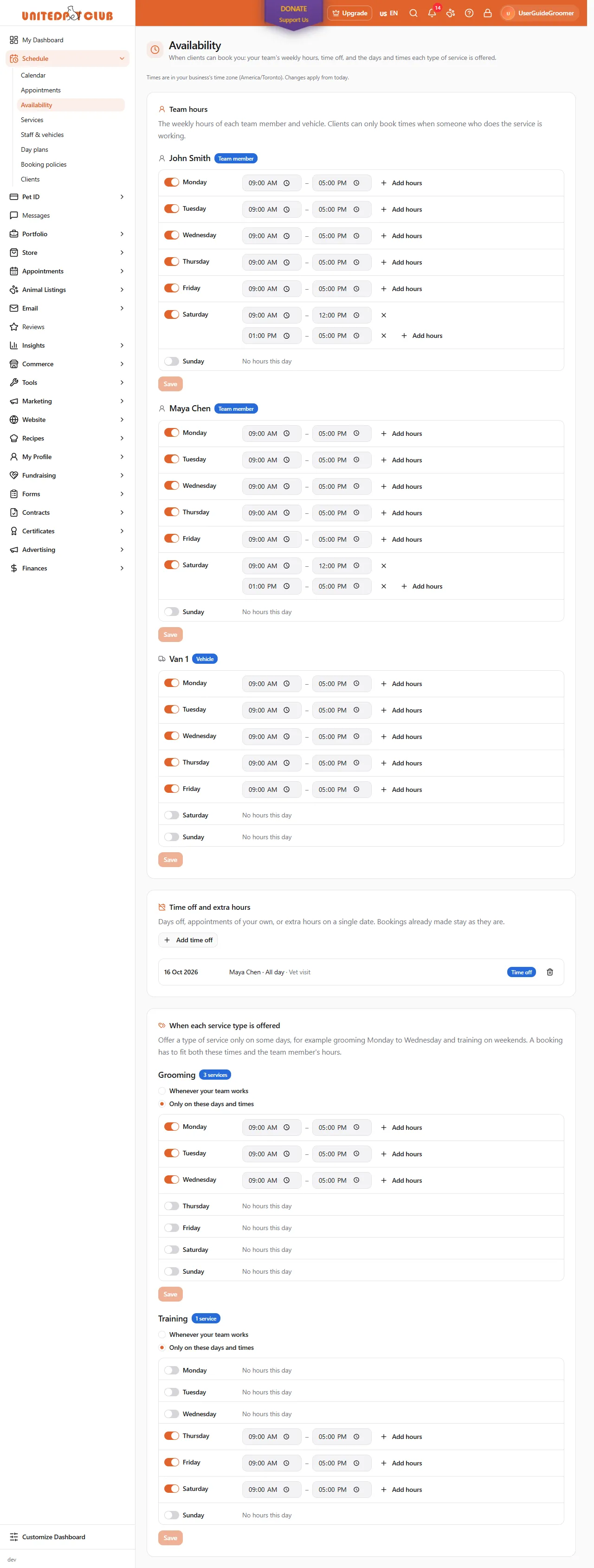
Section titled “Team hours”The Team hours card has one week per team member and per vehicle: The weekly hours of each team member and vehicle. Clients can only book times when someone who does the service is working.
- Find the person or van. A badge says Team member or Vehicle; No hours yet means nobody has set their week.
- Switch a day on (Open on Monday, and so on). It starts at 09:00–17:00; change the times.
- For a split shift, select Add hours on that day and add the second range (for example 09:00–12:00 and 13:00–17:00). Remove a range with the remove button next to it. A day that’s switched off shows Closed.
- Select Save. You’ll see Availability saved. Undo changes puts back what was saved.
A new week applies from today. Bookings already made stay where they are, even if they now fall outside the hours. If you’ve already planned a change for a later date, the card says Another change is already scheduled from ….
A mobile van has hours too. For a visit at the client’s address, a time is offered only when a team member and a van that covers the address are both working and free.
Time off and extra hours
Section titled “Time off and extra hours”The Time off and extra hours card lists what’s coming up, by date: Days off, appointments of your own, or extra hours on a single date. Bookings already made stay as they are.
- Select Add time off.
- Under Who, pick the team member or vehicle.
- Choose Time off (blocks new bookings) or Extra hours (opens times outside the usual week).
- Pick the Date (today or later).
- For time off, leave All day on, or switch it off and set From and Until. Extra hours always need a From and an Until.
- Add a Note (optional), for example Vet visit, and select Save.
Each entry shows the date, who, the times (or All day) and a Time off or Extra hours badge. Select the bin to remove one; you’ll see Removed.
When each service type is offered
Section titled “When each service type is offered”Every service you offer has a service type: Grooming, Training, Pet sitting and walking, Boarding and daycare, Veterinary care, Wellness and therapy, Transport, Photography, End-of-life care, Classes and education, Breeding, Rescue and adoption, Farm services or Other services. You see and change it on Schedule → Services (see Services and service types).
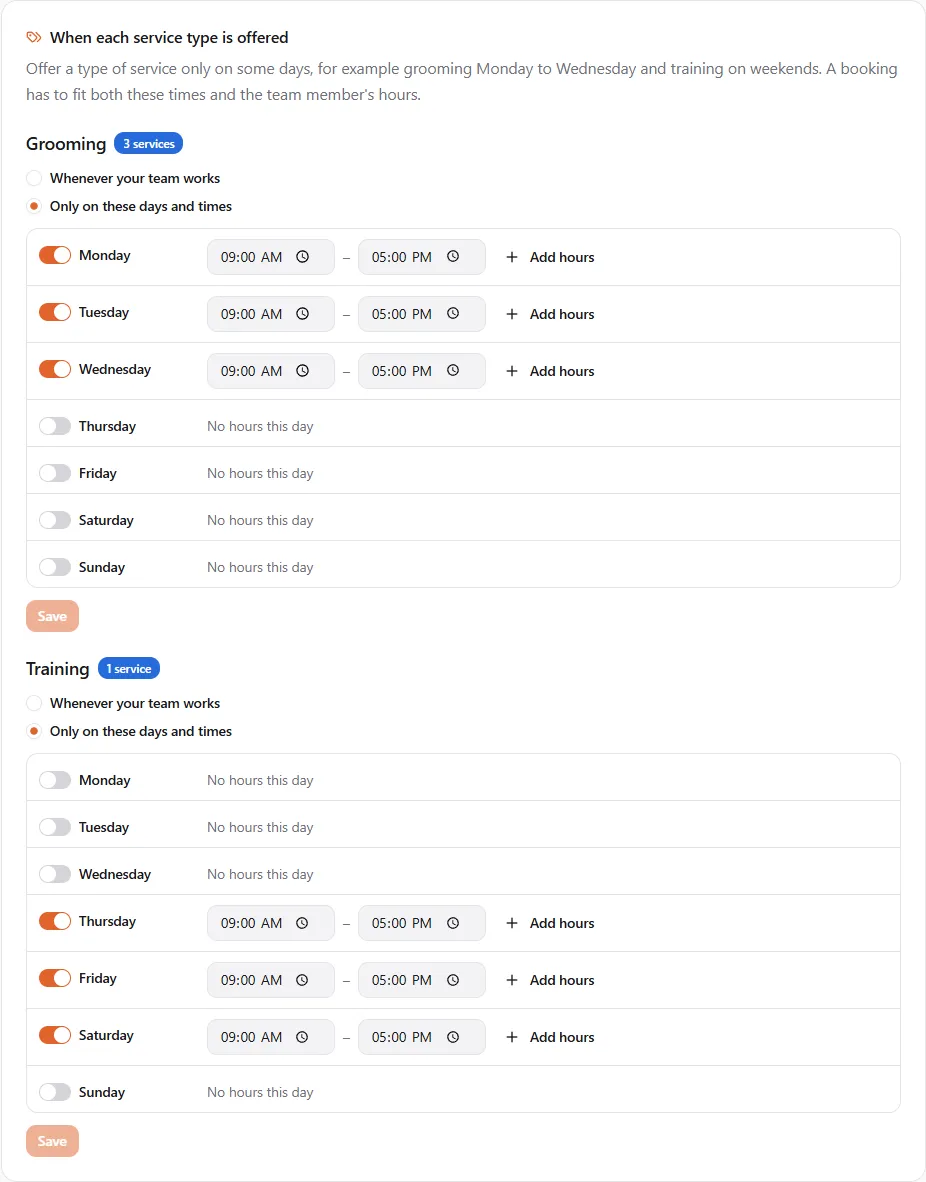
The When each service type is offered card lists each type you have services in, with how many (3 services). For each one, choose:
- Whenever your team works — the type can be booked any time a team member who does the service is working. This is where every type starts.
- Only on these days and times — set the days and hours, the same way as team hours. The type can then be booked only inside them, and only when a team member is working.
Select Save under the type. You’ll see Availability saved.
An example. You groom and you train. Your team works Monday to Saturday, 9 to 5. Set Grooming to Only on these days and times, Monday to Wednesday 09:00–17:00, and Training to Thursday to Saturday. A client booking a full groom is offered Monday to Wednesday only; a client booking a puppy class, Thursday to Saturday only. Nobody needs a second calendar.
Good to know:
- Choosing Only on these days and times needs at least one day. With none, the page says Open at least one day, or choose “Whenever your team works”.
- Switching back to Whenever your team works removes the limit from today.
- No services yet? The card says Add a service first. Its type appears here.
- Changes apply from today, like team hours; existing bookings never move.
If something went wrong
Section titled “If something went wrong”“Each time range has to end after it starts.” One range on that day ends at or before its start. Fix the times, then save.
“Two time ranges overlap on the same day.” Two ranges on one day overlap. Merge them into one, or move one.
“Couldn’t save your availability. Try again.” Nothing was saved. Try again in a moment. If your Schedule setup checklist is showing, finish it first: changes to hours are paused until it’s done.
Clients can’t book a time my team is free. Check that the service’s type isn’t limited to other days (above), and that the team member does that service and has hours that day. Your booking policies (lead time, how far ahead clients may book) also narrow the times offered.
The page shows “No team members yet”. Add yourself and your team under Staff & vehicles, then come back to set their hours.
Related
Section titled “Related”- Schedule — calendar, staff, vehicles & text reminders
- Schedule setup checklist
- Bookings from Google — Google offers the same times.