

Members and invitations
An account can be shared. A family account, a business, a rescue — each can have several people, and every member can manage the profiles the account owns. This page covers who is on your account and how to bring someone in or take them off.
| Role | What it means |
|---|---|
| Owner | Full control, including closing the account and promoting other owners. Every account has at least one. |
| Admin | Manages members, invitations, billing and profiles — everything except closing the account. |
| Member | Sees account-level information; profile access is granted separately under Profile access. |
What you can do on Members follows your own role on the account:
- Owners can change anyone’s role, suspend, resume and remove anyone.
- Admins can do the same for Admins and Members — but never for an Owner. An Admin can propose making someone an Owner; it waits for an Owner’s approval.
- Members only see the list and their own details.
- Nobody can act on their own row — ask another Owner or Admin to change your role or take you off the account.
- The last active Owner can never be demoted, suspended or removed. Promote someone else to Owner first.
Account Settings → Members (/account/account-settings/members) and Account
Settings → Invitations (/account/account-settings/invitations). If you belong to more
than one account, a Select account drop-down at the top picks which one you are
looking at. Under the account’s name you also see your own role (You · Owner).
See who is on the account
Section titled “See who is on the account”Members lists each person with their name and @handle (from their United Pet Club profile), their role badge, when they Joined, the email they were invited as (if they came in by invitation), and whether they receive Billing or Admin alerts emails. Your own row is marked You. A person who has not created a profile yet shows as User followed by the start of their user ID.
- The counter above the list shows how many people are on the account.
- Search by name or handle narrows the list.
- Show former members also lists people who left or were removed, greyed out with a Former member badge and the date they Left.
Member details
Section titled “Member details”Click a member’s name, or choose View details from the ⋯ menu, to open the details panel:
- Membership — role (with a one-line description), status, when they joined, when they left (and why), the email they were invited as, and the last change.
- Suspension — while someone is on hold: since when, until when (or Until resumed), who did it and the reason.
- Notifications — two switches, Billing notifications (invoices, failed payments, renewals) and Admin alerts (member changes, verification and closure notices). You can change your own; Owners and Admins can change anyone’s.
- Identifiers — the membership, user and profile IDs with a copy button each. Handy when support asks for them.
- History — every recorded change to the membership, newest first: role changes, holds, removal, who made each change and when. Owners and Admins see everyone’s history; a Member sees their own.
Change someone’s role
Section titled “Change someone’s role”Open the ⋯ menu on their row and pick Change role → Owner, Admin or Member. You will see Role updated.
Making someone an Owner may need a second Owner’s approval:
- If you are the only Owner, the promotion happens immediately.
- If there is already another Owner — or you are an Admin — you will see Sent for approval — another owner must approve an Owner promotion. The request appears in a Pending role changes card at the top of the page, where a different Owner can Approve or Reject it. Requests expire after 14 days.
Suspend someone (temporarily disable)
Section titled “Suspend someone (temporarily disable)”A suspension keeps the person’s seat and role but removes their access to the account and to every profile the account gave them access to, until the hold ends. Nothing is deleted, and their invitations, policies and history stay.
- Open the ⋯ menu on their row and choose Suspend….
- Pick How long: 24 hours, 7 days, 30 days, Until a date I choose, or Until I resume them (open-ended).
- Optionally give a Reason (up to 500 characters). Other Owners and Admins of the account can read it.
- Click Suspend member.
The row shows a Suspended badge (with the end date when there is one), a note On hold since … until … · by … and the reason. The suspended person no longer sees the account in their account switcher and every request they make to it is refused. While the hold lasts they also get nothing new: a location the account adds, a profile-access policy you create for them, or a role change you make waits until the hold ends.
A timed suspension ends by itself: their access returns the moment the end date passes, and the hold is cleared within the hour. To end it earlier — or to end an open-ended one — choose Resume from the ⋯ menu and confirm. Their access and profile permissions are restored right away with the role they had before, or the one you gave them during the hold, and they also get the locations the account added and the policies you created meanwhile.
Remove a member
Section titled “Remove a member”Open the ⋯ menu on their row and choose Remove…. A dialog asks you to confirm — They lose access to this account and to every profile it gave them access to. You can invite them again later. — and nothing happens until you click Remove member. You will see Member removed, and the person moves to the former members (turn on Show former members to see them).
Invite someone
Section titled “Invite someone”- Open Invitations and click Invite Member.
- Choose how to add them:
- Email invite — type their Email address. They get an email with a link.
- Direct add — for someone who already has a United Pet Club account: paste their User ID (and optionally their Handle). They get the invitation by email, at the contact address of their profile, in their own language.
- Pick a Role — Admin or Member (Owner cannot be given this way).
- Optionally add a Welcome message (up to 2,000 characters).
- Click Send Invitation.
You will see Invitation sent (or Member invited for a direct add). The invitation appears in the list with a Pending badge, the date it was Issued and the date it Expires — an invitation is valid for 14 days. Nobody joins until the invited person accepts it.
The email is titled Invitation to help manage an account on United Pet Club. It names the account, who invited them and the role, says what that role can do, and carries your welcome message and a Review the invitation button. An email invitation is written in your account’s language; a direct add in the invited person’s own.
Resend or revoke
Section titled “Resend or revoke”Next to a Pending invitation:
- Resend invitation (circular-arrow icon) sends the email again and restarts the 14-day clock. It happens immediately. The new email has a new link: the link in the earlier email stops working.
- Revoke invitation (ban icon) asks you to confirm — The invitation link will stop working. You can send a new invitation afterwards. — then marks it Revoked.
Use the All / Pending tabs to hide finished invitations. Other badges you may see: Accepted, Declined, Expired.
An email invitation shows the address you sent it to. A direct add shows the person’s name with their @handle beside it; someone who has not created a profile yet shows as User followed by the start of their user ID.
Accept an invitation to an account
Section titled “Accept an invitation to an account”If someone invited you, open the email and click Review the invitation. The page opens on unitedpetclub.com.
- If you are not signed in, the page asks you to. Click Sign in to continue and sign in. If you don’t have a United Pet Club account yet, create one from the same window, with the email address the invitation was sent to.
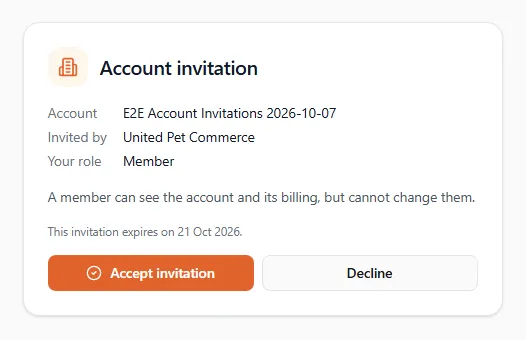
- The page shows the Account, who Invited by, Your role and what that role can do, and when the invitation expires.
- Click Accept invitation, or Decline if you don’t want to join.
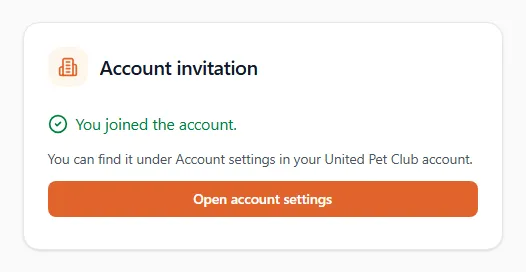
After you accept, the page says You joined the account. Open account settings takes you to the account; if you belong to more than one, switch to it first.
Only the invited person can accept. An email invitation can be accepted only while you are signed in with that email address, and the address has to be verified on your sign-in. A direct add can be accepted only by the person it was sent to. Someone who receives a forwarded email sees who it was meant for instead of the Accept invitation button.
What the page may tell you instead:
| Message | What it means |
|---|---|
| This invitation was sent to … which is not a verified email address of the login you are signed in with. | Sign out and sign in with the address the email went to. |
| This invitation was sent to someone else. | A direct add for another person. |
| This invitation has expired. | More than 14 days passed. Ask for a new one. |
| This invitation was withdrawn. | The account revoked it. |
| This invitation could not be found. | The link is wrong or old: a resent invitation replaces the earlier link. Use the newest email. |
| You are already a member of this account. | Nothing to do. |
Requests to join a business team
Section titled “Requests to join a business team”Account members share a whole account. A business profile — a clinic, salon, kennel or shop — also has its own team: the people who can work as that business, each with their roles. You see it in the Team card on the business’s page under My Account → Profiles → All Profiles (pick the business).
People can ask to join that team themselves, in two places:
- At sign-up. A professional who picks your business while signing up, and sees that it’s already on United Pet Club, can ask its team to add them instead of creating a second page.
- On the business’s public page. Anyone signed in as themselves can click Ask to join this team.
Ask from a business’s page
Section titled “Ask from a business’s page”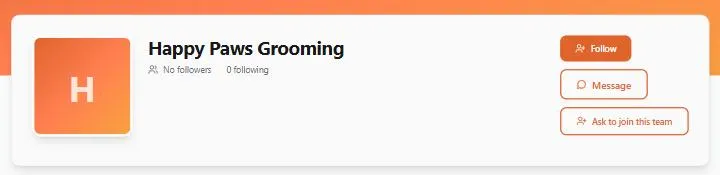
Every business and place page on unitedpetclub.com shows Ask to join this team under Follow and Message. Click it:
- Not signed in? You go to sign in first (or create an account from there), then come back to the same page with the request form already open.
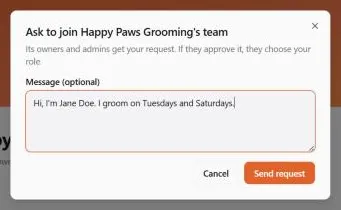
- Write a short Message (optional) — who you are and what you do there helps the team recognise you — and click Send request. You see Request sent to …‘s team.
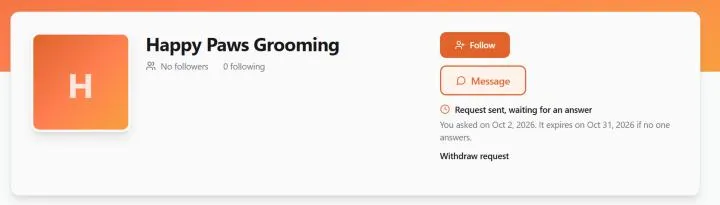
The page then shows Request sent, waiting for an answer, with the day you asked and the day it expires if no one answers. Withdraw request takes it back.
What else you may see instead of the button:
| You see | Why |
|---|---|
| No button at all | It’s your own business, or you’re already on its team. |
| The button greyed out, This team declined your last request. You can ask again on … | The team declined you less than 30 days ago. |
| The button greyed out, You already have 10 requests waiting for an answer… | You can have 10 requests waiting at a time. See your requests opens the list, where you can withdraw one. |
| A team is made of people: switch to your personal profile to ask. | You’re working as one of your businesses. Click Switch to … to ask as yourself; the page reloads with the form open. |
| You’re already on this team, or it has already invited you. Check your invitations. | The business has already invited you: accept that invitation instead. |
Answer a request
Section titled “Answer a request”When someone asks, the business gets an in-app notice: Request to join your team: …. Its link opens the business’s page. In the Team card, Requests to join lists each person waiting for an answer: their name and @handle, when they Asked, when the request Expires, and their message if they wrote one. Only people who can manage the business’s team see this list.
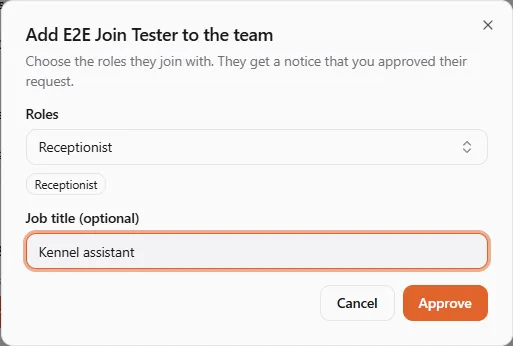
- Approve opens Add … to the team. Pick one or more Roles (the first one is their main role) and, if you like, a Job title. Click Approve. You see … joined the team, and they appear on the team with those roles. Owner is never offered here, and you can only give roles within your own access.
- Decline opens Decline …‘s request?. You can add a Note they’ll see with the notice (up to 500 characters are kept). Click Decline request.
Either way the person gets an in-app notice with your answer. A request nobody answers expires after 30 days. After a decline, the same person can ask again 30 days later.
Your requests to join
Section titled “Your requests to join”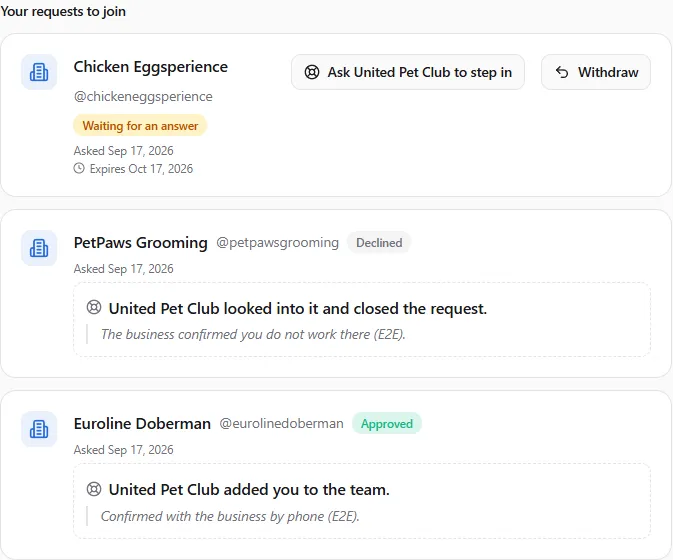
The teams you asked to join are listed under Your requests to join on the Invitations page
(the last item in the sidebar, /invitations), newest first. Each card shows the business’s name
and @handle, when you asked and its status:
| Status | What it means |
|---|---|
| Waiting for an answer | The team hasn’t decided yet. The card shows when the request expires. |
| Approved | You’re on the team. Switch to the business from the profile switcher to work as it. |
| Declined | The team said no. Their note, if they left one, is shown on the card. |
| Withdrawn | You took the request back. |
| Expired | Nobody answered within 30 days. |
To take back a request that’s still waiting, click Withdraw. You see Withdrew your request to join …. The team isn’t told.
You can have up to 10 requests waiting at a time. If the business has already invited you, accept that invitation on the same page instead. All of these screens follow the language you picked for United Pet Club.
Ask United Pet Club to step in
Section titled “Ask United Pet Club to step in”Sometimes the team never answers, or says no although you really do work there (a new owner, a manager the previous owner never added). Then you can ask us to look at it. The card offers Ask United Pet Club to step in when the request is:
| The request | When the button appears |
|---|---|
| Waiting for an answer | once it is 14 days old. |
| Declined | for 90 days after the team declined. |
| Expired | for 90 days after it expired. |
Click it and tell us, in What happened, who you are at the business and what happened with your request. The note is required, and our team is the only one who reads it. Click Send to United Pet Club. You see Sent. United Pet Club will look at your request to join ….
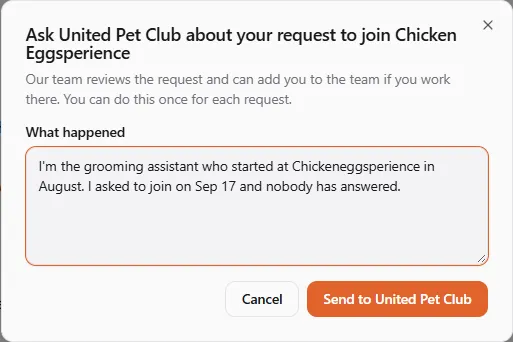
The card then says Sent to United Pet Club on …. When we have decided, you get an in-app notice and the card shows the outcome with our note:
- United Pet Club added you to the team. You’re on the team with the role we gave you; the business’s owners are told and can change it.
- United Pet Club looked into it and closed the request. A request that was still waiting is then closed as declined, so the usual 30 days apply before you can ask that business again.
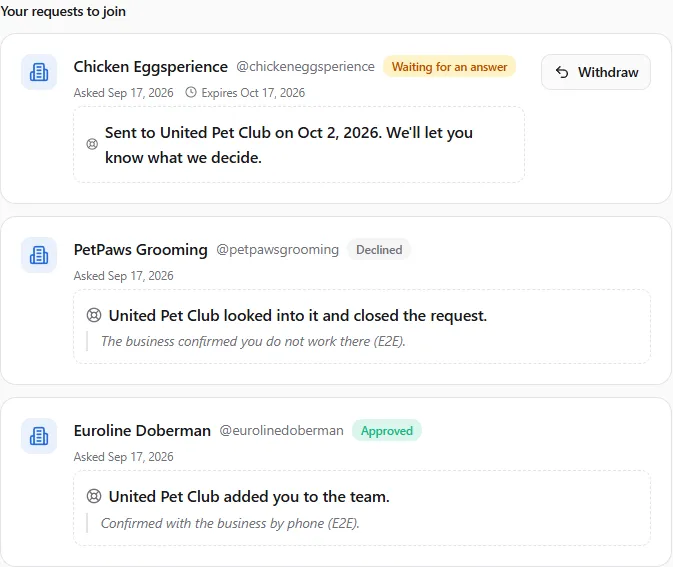
You can ask us once for each request, and have up to 3 waiting for us at a time. If the team approves you, or you withdraw the request while we look at it, we close it without a decision.
Give someone creative access: the Designer role
Section titled “Give someone creative access: the Designer role”On a business’s Team, each person holds one or more roles. Designer is the role for someone who helps with your content, website and branding: a graphic designer, a writer, an agency, a helper who keeps the blog and the product pages fresh. A person whose only role on your business is Designer can:
- write, translate, publish and delete your blog posts and categories, and use the AI writing tools (they use your RetrieverAI credits);
- edit, preview, publish and unpublish your website and its pages, its theme and sections;
- edit your brand kits (logos, colours, fonts, voice) and designs;
- read and answer the mailboxes you share with them;
- change your products’ names, descriptions and search fields, and their photos;
- build and publish forms, and make short links;
- work in your media library and change your profile photos.
They cannot see or change your sales, orders, payouts, prices, stock, billing, team, settings, analytics or ads, or read your forms’ responses. They can’t create a website, change its address, template or domain, or decide whether it shows prices and takes bookings. Mailboxes stay yours to connect, set up and share.
To make someone a designer:
- Open the business under My Account → Profiles → All Profiles.
- In the Team card, find the person and choose + Add role → Designer. For someone not on the team yet, click Invite and give the invitation the Designer role.
- If they hold any other role there, remove it (the × on the role). Designer only limits someone when it is their only role: next to any other role, they get that role’s access.
A role you give through a Profile access policy works the same way, so you can make someone the designer of every location at once.
Good to know:
- Each business is separate. Someone can be a designer on your salon and the owner of their own shop. Each profile follows the role they hold there.
- It takes effect within the hour, or straight away when they switch to your business or sign in again. Taking the role away works the same way.
- They publish. A designer publishes posts and the website like you do, so their work goes live without you. Editing a published post’s text sends it back to draft until it’s published again, the same rule you work with.
- Share a mailbox with them on purpose. A designer sees the mailboxes shared with everyone on the profile, plus any you share with them or with the Designer role (see Email).
What your designer sees is described in Working as a designer.
If something went wrong
Section titled “If something went wrong”- Couldn’t send the invitation — check the email address, or for a direct add that the User ID is a complete ID copied exactly.
- Give the team time to answer: you can ask us 14 days after you sent the request. — the request is not 14 days old yet.
- This request can’t be sent to us: … — you already asked us about it, it closed more than 90 days ago, you’re already on the team, or 3 of your requests are waiting for us.
- Couldn’t approve the request — check you picked at least one role, and that none of them gives more access than you have yourself. A request that was withdrawn or expired a moment ago can’t be approved: refresh the page.
- The Invite Member button is missing, or the ⋯ menu only offers View details — you are a Member, not an Owner or Admin; or the row is your own, or it belongs to an Owner and you are an Admin.
- Suspend… and Remove… are greyed out with This is the last active owner — promote another member to Owner first.
- Couldn’t suspend the member with a chosen date in the past — the end of a timed suspension must be in the future.