

Running a forum group
Any profile can start a forum group for a breed club, a rescue network, a neighbourhood or a class, and run it from the Dashboard. You own the group and choose its moderators.
Forum → My groups in the Dashboard sidebar (/dashboard/forum/groups) lists the groups you own, moderate, belong
to or asked to join, with your role (Owner, Moderator, Member) or status (Waiting for approval,
Banned). Each group opens at /dashboard/forum/groups/<address>. Create a group on the forum’s Groups page
brings you here too.
Creating a group
Section titled “Creating a group”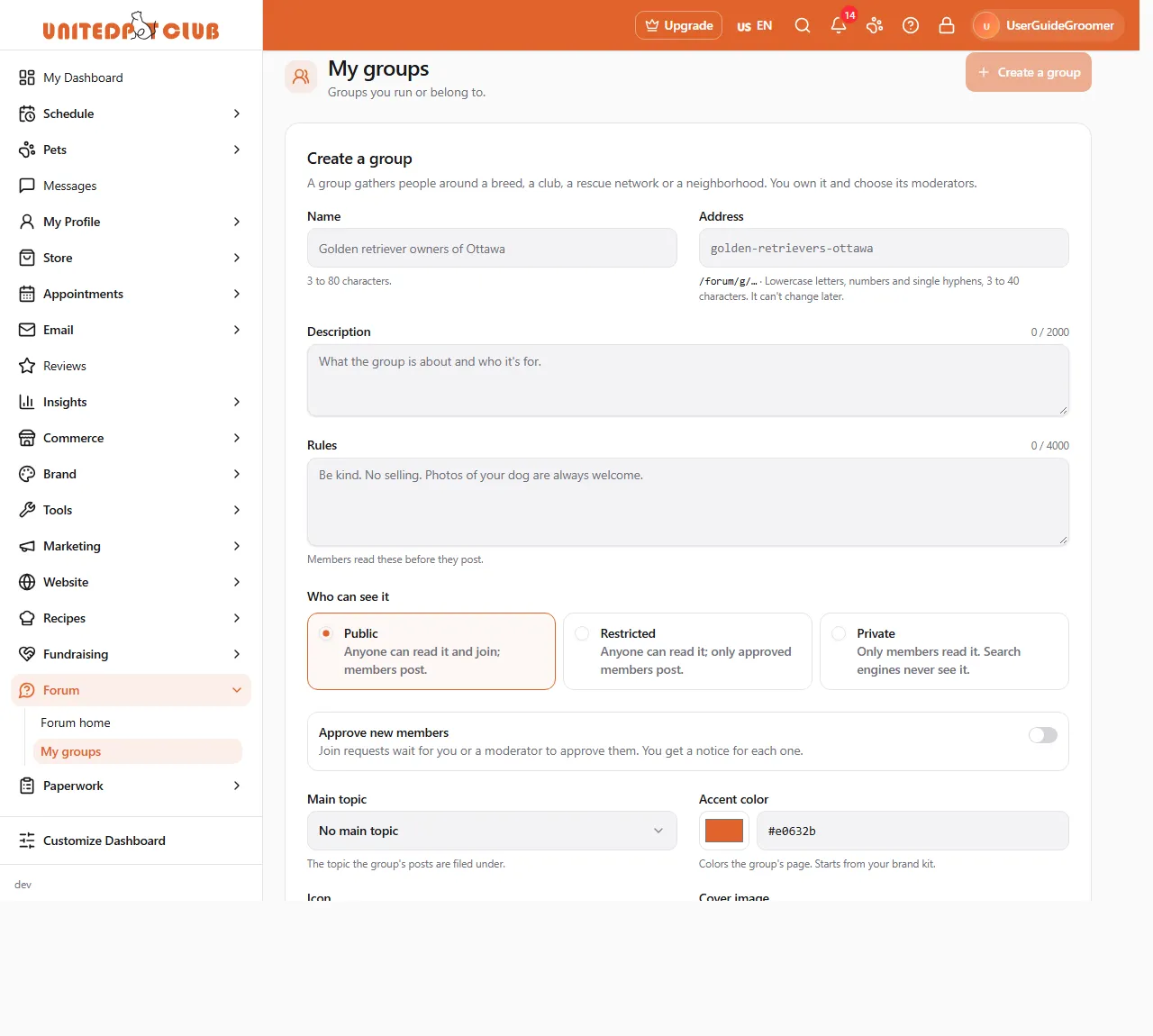
-
Click Create a group.
-
Fill in the form:
Field Notes Name 3 to 80 characters, for example Golden retriever owners of Ottawa. Address The end of the group’s link, /forum/g/<address>. Lowercase letters, numbers and single hyphens, 3 to 40 characters. It can’t change later. A few words are reserved for the forum.Description What the group is about and who it’s for (up to 2,000 characters). Rules Members read these before they post (up to 4,000 characters). Who can see it Public: anyone can read it and join; members post. Restricted: anyone can read it; only approved members post. Private: only members read it; search engines never see it. Approve new members Join requests wait for you or a moderator. You get a notice for each one. Main topic The topic the group’s posts are filed under (optional). Accent color Colours the group’s page. Starts from your brand kit. Icon and Cover image Choose a public image from your media, or paste a link that starts with https://. Private images can’t show on a group page. -
Click Create group. The group’s page opens.
A profile can own up to 10 groups (You already own 10 groups, the most one profile can.). If some words break the content policy, the form tells you which field to edit.
Running the group
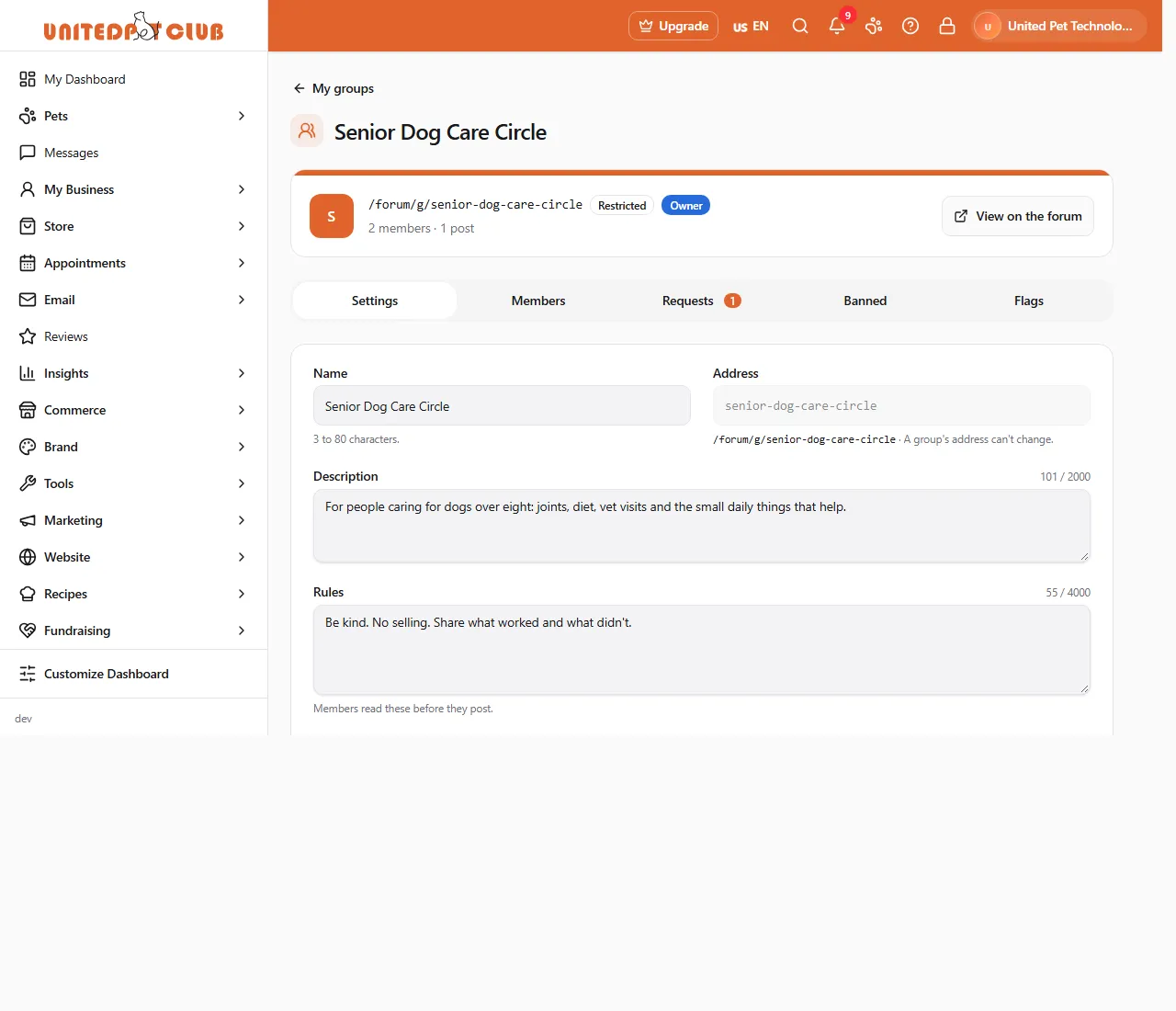
Section titled “Running the group”Owners and moderators see the group with five tabs. Everyone else sees a read-only card with the group’s rules and moderators, and members can Leave group there.
Settings
Section titled “Settings”The same fields as when you created it, except the Address, which never changes. Only the owner changes who can see the group (Only the owner changes who can see the group.). View on the forum opens the group’s public page.
Requests
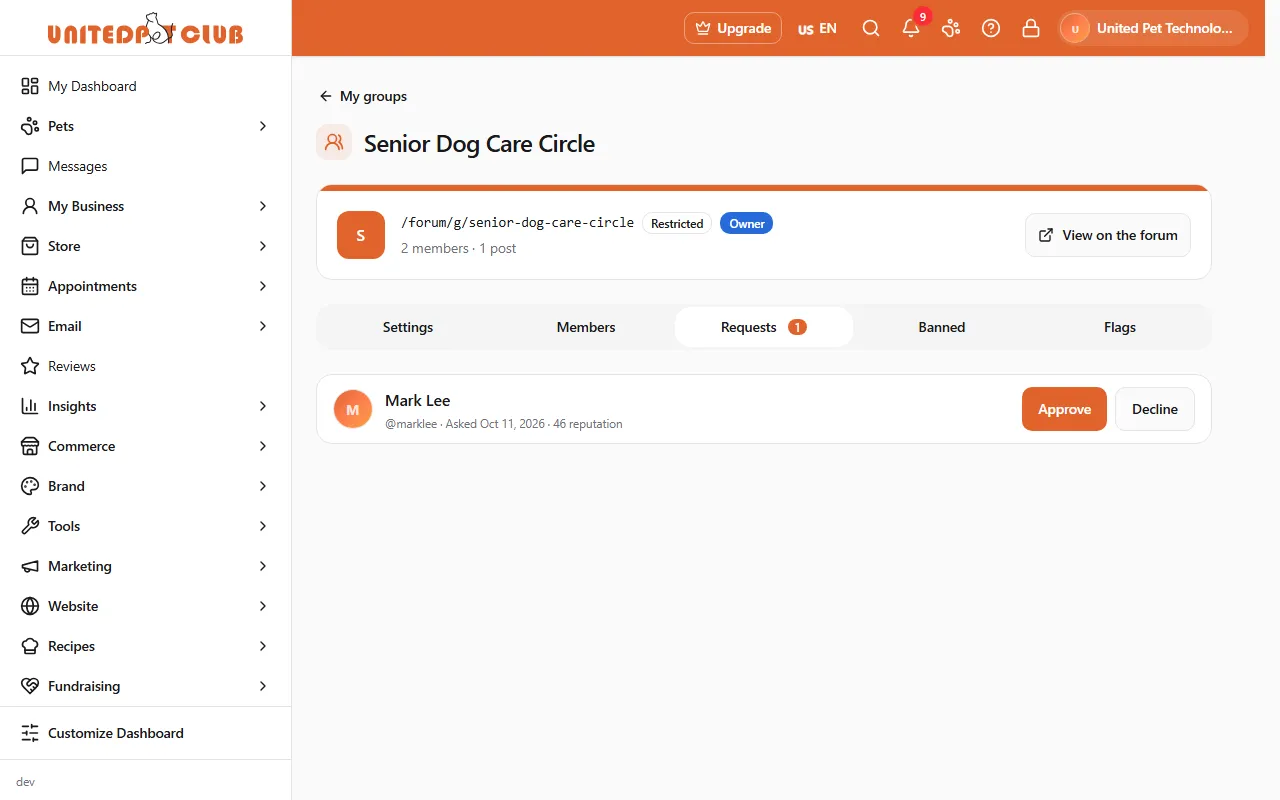
Section titled “Requests”When the group approves new members, each request waits here (the tab shows how many) and in your bell. Click Approve or Decline.
Members
Section titled “Members”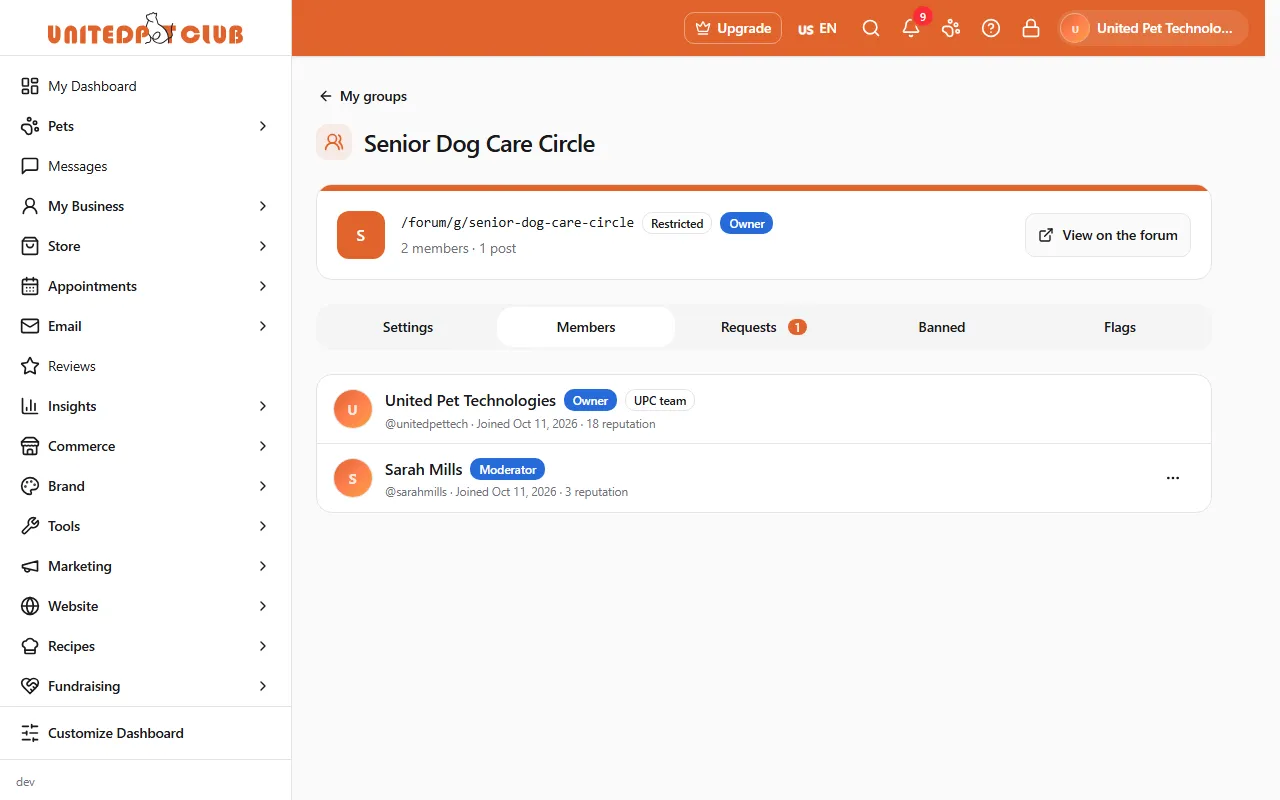
Each member’s row has an actions menu:
| Action | Who can | What happens |
|---|---|---|
| Make moderator / Make member | Owner | Gives or takes away moderator rights. |
| Remove from group | Owner, moderators | They leave the group and can ask to join again. |
| Ban from group | Owner, moderators | They leave and can’t join again until someone unbans them. |
| Make owner | Owner | They get full control, including who can see the group. You stay on as a moderator, and only they can hand it back. |
Remove, ban and make owner ask you to confirm first.
Banned
Section titled “Banned”Everyone banned from the group, with Unban.
When members flag a post, answer or comment in your group, it lands here for you and your moderators to decide (N open flags). Each item shows what was flagged, who wrote it, the reasons and who flagged it.
- Hide it: the item stays hidden. If it was flagged as spam, rude or unsafe advice, its author loses reputation.
- Keep it: the flags close and the item stays (or comes back) in view.
Add a Note for the record (optional) saying why you decided that way. Switch Show flags between Open, Hidden and Kept to see past decisions. Three open flags hide an item automatically until someone decides.