

Contract templates
A contract template is an agreement you write once and turn into a contract whenever you need it: its document, its contract type and its signing roles. In the app you can find and use templates, share and publish your own, and create new ones, writing the document on your phone.
Paperwork → Contracts → Templates (Contract Templates). The + in the top bar is New template.
The three tabs
Section titled “The three tabs”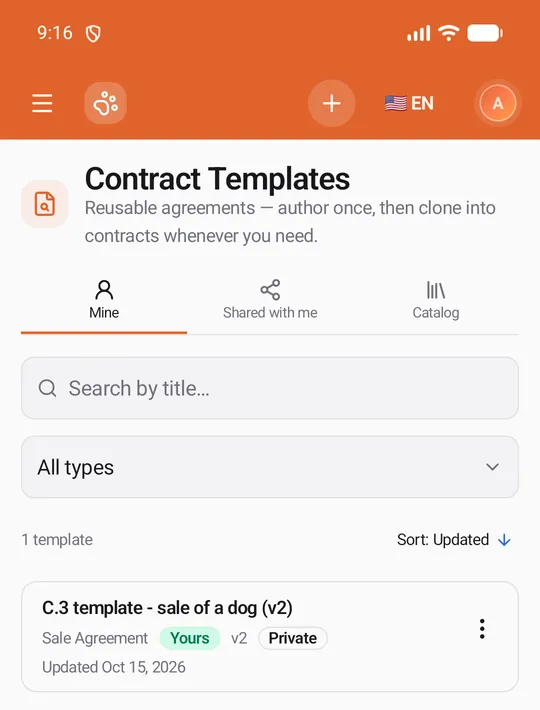
| Tab | What it lists |
|---|---|
| Mine | Templates your profile owns. |
| Shared with me | Templates other profiles granted to you. |
| Catalog | Templates published for everyone: Official ones from United Pet Club and Community ones from members. |
Each tab has Search by title…, a Type filter (All types or one type) and, on Catalog, a Source filter (All sources, Official, Community). The count says how many templates match; Sort: (Title, Type, Version or Updated) opens the sort choices — pick the same one again to reverse the order.
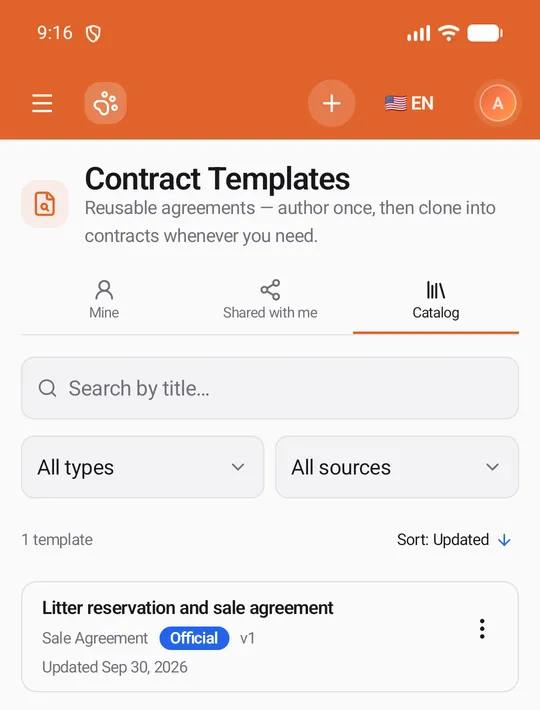
Each card shows the title, the contract type, a source badge (Official, Community, Shared with you or Yours), the version, whether it is Private, Shared or Published, and when it was last updated. The ⋮ menu on a card has Open and Use this template, and on your own templates Edit, Share and Archive.
A template’s page
Section titled “A template’s page”Tap a card to open it: the title, its type and visibility, its source badge, Use this template, and for your own templates Edit, Share and Archive.
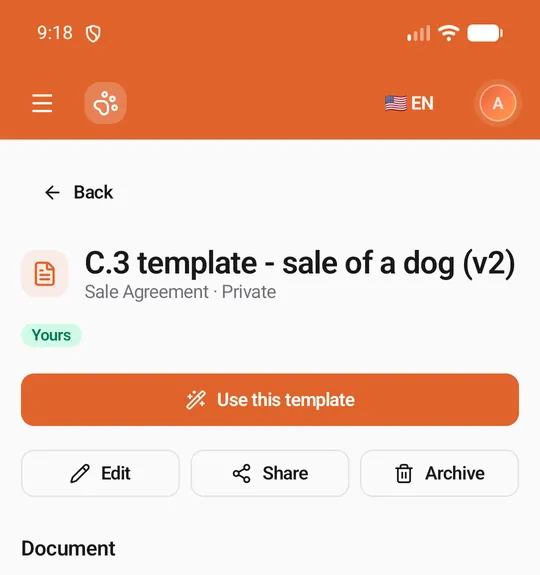
Below come:
- Document — the template’s text, with each role’s fields in its colour.
- Details — version, created, last modified and the rating.
- Roles — the signing roles a contract made from it starts with.
- Ratings & reviews — the average and the reviews. Tap the stars under Your rating, add an optional title and text, and Post review (or Update review to change yours). An owner’s reply to a review shows under it.
- Discussion — questions and notes about the template: write one and tap Post.
Using a template
Section titled “Using a template”Use this template opens a sheet with the template’s document and Roles. Tick I have reviewed this template and understand I am responsible for its contents before sending. and tap Use this template.
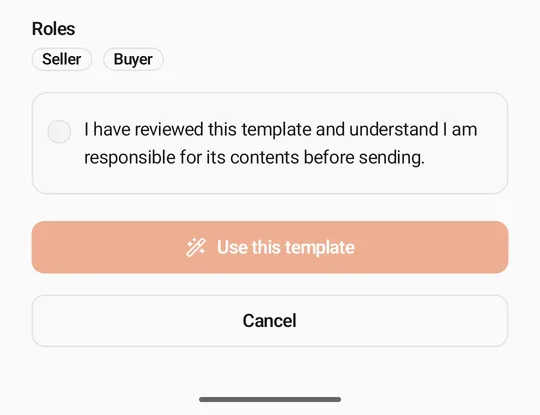
The app creates a draft contract from it — nothing is sent — and opens it for editing, so you can add the parties and send it (see Creating and editing a contract). The new contract keeps the template’s wording even if the template changes later. Creating it uses one contract credit; with none left the app offers a pack first (see Running out of contracts).
Sharing and publishing
Section titled “Sharing and publishing”Share on your own template opens Share ”…”:
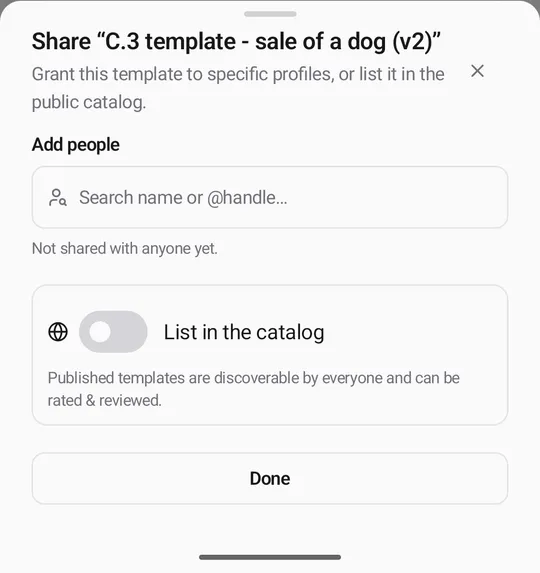
- Add people — search a profile by name or @handle and pick it. The profile gets the template under Shared with me. Each profile you shared with shows as a chip with its name; remove the chip to take the template back.
- List in the catalog — turn on to publish it for everyone (Published templates are discoverable by everyone and can be rated & reviewed.); turn off to take it out of the catalog.
Tap Done when finished. The template’s page then reads Shared or Published instead of Private.
Creating a template
Section titled “Creating a template”New template (the + on Contract Templates, or the button on an empty Mine tab) takes three steps:
- Settings — the Title (e.g. Standard Puppy Sale Agreement) and the Contract type. Both are required.
- Roles — the type’s usual roles to start with. For each: Role (or Custom… with a Custom role key), Display label, Default party kind (Profile (member) or Anonymous (external)), Signer constraint, and the Qualification when the constraint asks for one. Add role and Remove change the list. A template stores roles only; the actual signers are chosen in each contract.
- Document — write the template’s document (next section).
Save template creates it and opens its page. Saving a template doesn’t use a contract credit; only a contract made from it does.
Writing the document
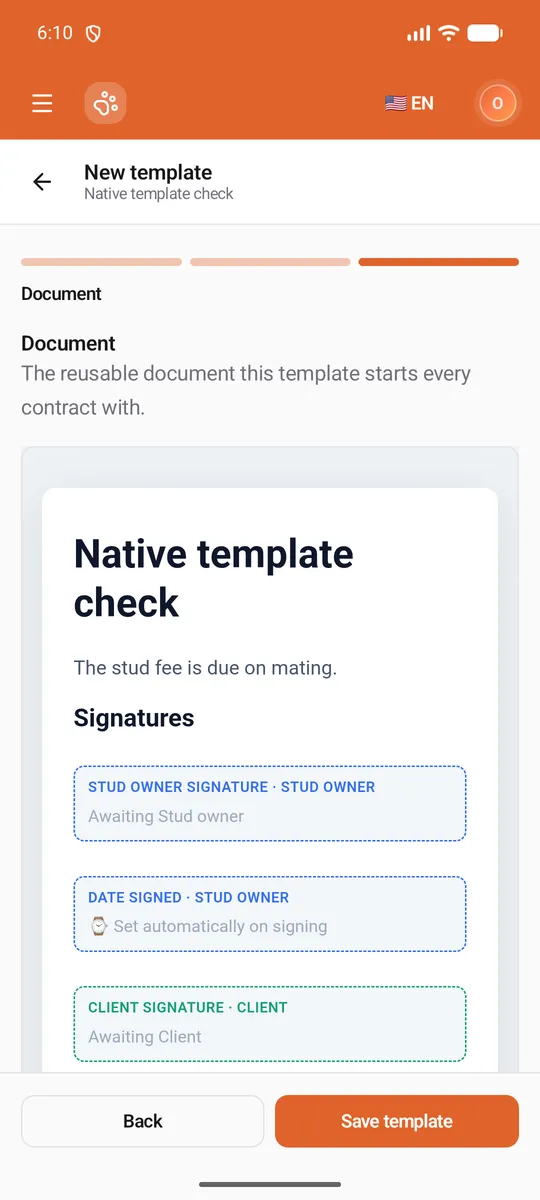
Section titled “Writing the document”The Document step starts you off with the template’s title, an empty paragraph, and a Signatures heading with each role’s Signature and Date signed fields, in signing order. If you go back and change the roles before you’ve touched it, it’s drawn again for the new roles.
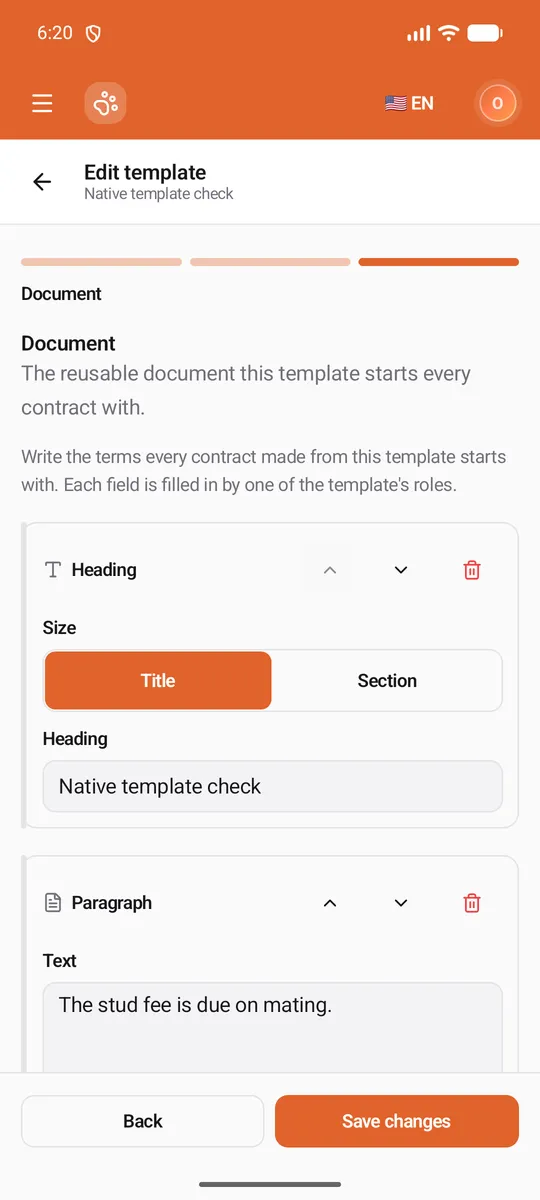
You write it the same way as a contract’s agreement (see Writing the agreement): a list of Heading, Paragraph and Field cards, Add at the end, arrows to move a card and the bin to remove it. Each field is Filled in by one of the template’s roles, shown in the role’s colour; when you use the template, the contract’s party in that role fills it in.
If a field belongs to no role (you removed the role it used), the step says which. Give it a role before you save: a contract made from the template can’t be sent while a field has nobody to fill it in.
Preview shows the document as the signers will see it, each role’s fields in its colour; Back to Editing returns to the cards. A document with nothing in it can’t be saved.
Editing a template
Section titled “Editing a template”Edit opens the same three steps. In the app you can change the title and the document; the contract type and the roles stay as created. Save changes returns to the template’s page, and the template’s version goes up when its document changed. Contracts already made from it keep their own copy.
- A document written in the app, or with plain text on the website (headings, paragraphs and fields): you edit it on the Document step as above.
- A document designed in the website’s eSign editor, with its own layout, formatting or pictures: the step shows it to read, with a note, and the app saves it exactly as it is. To change it, edit the template on the website (Paperwork → Contracts → Templates) on a computer.
Archiving a template
Section titled “Archiving a template”Archive asks Archive this template? — It will be removed from your list. Contracts already created from it are unaffected. Tap Archive to confirm.