

Entities and access
Before you can keep books you create an entity: the company or household the books belong to. Then you decide who else may open them. The owner always has full access; everyone else gets access through a role you give their profile.
- Finances → Accounting → Entities (
/dashboard/finances/accounting), New Entity — create an entity. - An entity’s Access tab (
/dashboard/finances/accounting/{entity}/access) — share its books. - Finances → Accounting → Clients (
/dashboard/finances/accounting/clients) — books shared with you.
Who can do what
Section titled “Who can do what”- Creating entities, editing them and sharing their books is for the owners and admins of your account. Other members of the account see Only owners and admins of your account can create entities.
- To work in any books you act as a profile on which your role includes finance. A team member whose role includes finance but not team management gets the bookkeeping permissions on the owner’s books, without payroll, access, settings or billing.
Creating an entity
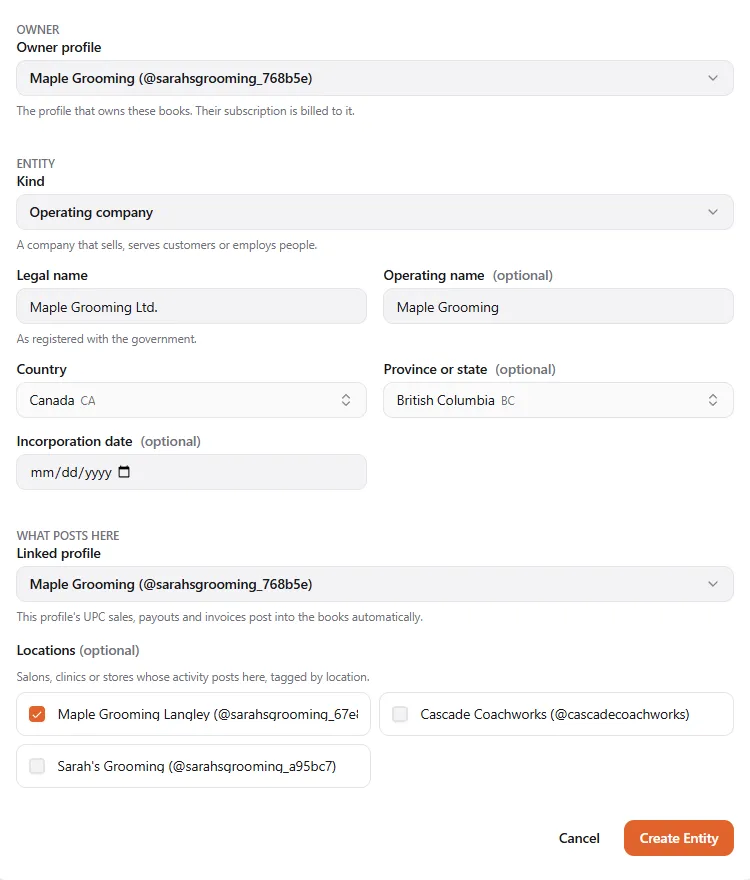
Section titled “Creating an entity”- Choose New Entity.
- Under Owner, pick the Owner profile: The profile that owns these books. Their subscription is billed to it. It can be any profile of your account, a personal profile included.
- Under Entity, pick the Kind (see the list of kinds).
- A personal profile keeps Personal books only: A personal profile keeps personal books. To keep a business’s books, create a business profile.
- A business profile keeps every other kind.
- Enter the Legal name (As registered with the government; for personal books, usually your own name or your household’s), and if you like the Operating name.
- Choose the Country and Province or state. They decide the chart of accounts, the tax forms and the payroll rules the books use. Add the Incorporation date if there is one; it can’t be in the future.
- Under What posts here:
- Linked profile — This profile’s UPC sales, payouts and invoices post into the books automatically. Pick None: I’ll enter records by hand to keep everything manual. A holding company never has one: A holding company’s books are kept by hand, so it has no linked profile.
- Locations — Salons, clinics or stores whose activity posts here, tagged by location. Only your other business profiles can be locations.
- Choose Create Entity. You see Entity created. Next, set up its books.
A new entity takes a few seconds to reach the books: the page says Getting the books ready and updates by itself. Then set up its books.
Editing or closing an entity
Section titled “Editing or closing an entity”On the entity’s Overview, owners and admins have three buttons:
- Edit Details — correct the names, province or state, or incorporation date. The books show the change in a few seconds.
- Manage Locations — choose the business profiles whose activity posts here. New activity is tagged from now on; earlier entries keep their tags.
- Close Entity — Its books stay readable and exportable, its locations end, and nothing new can be recorded. People with access keep it.
Sharing the books
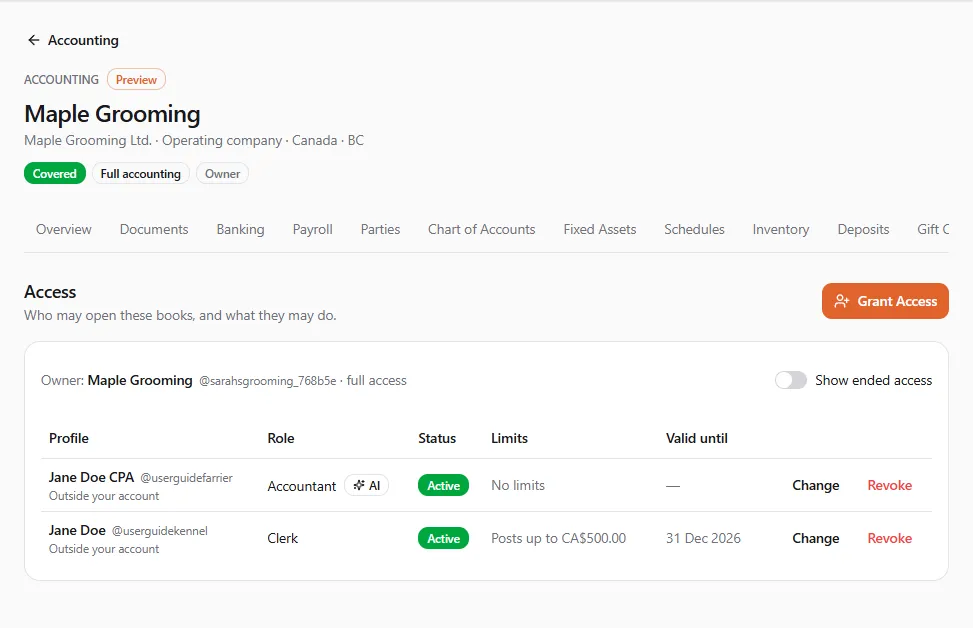
Section titled “Sharing the books”Open the entity’s Access tab. The owner is listed with full access; below are the people you shared the books with, their Role, Status, Limits and Valid until date.
Granting access
Section titled “Granting access”- Choose Grant Access.
- Under Profile, find the person’s profile by name or @handle. An accounting firm’s profile works too: its staff open the books through it.
- Pick a Role. Includes lists exactly what it allows.
- Switch Use RetrieverAI on or off: Lets them use RetrieverAI in these books, such as scanning receipts. Each use spends credits.
- Optionally set Limits (below).
- Choose Grant Access.
A profile your account owns gets access at once (Access granted.). A profile outside your account is invited and gets access only once it accepts (Invitation sent. Access starts when they accept.). Its row shows Outside your account and Invitation expires with a date: an invitation not answered within 30 days expires.
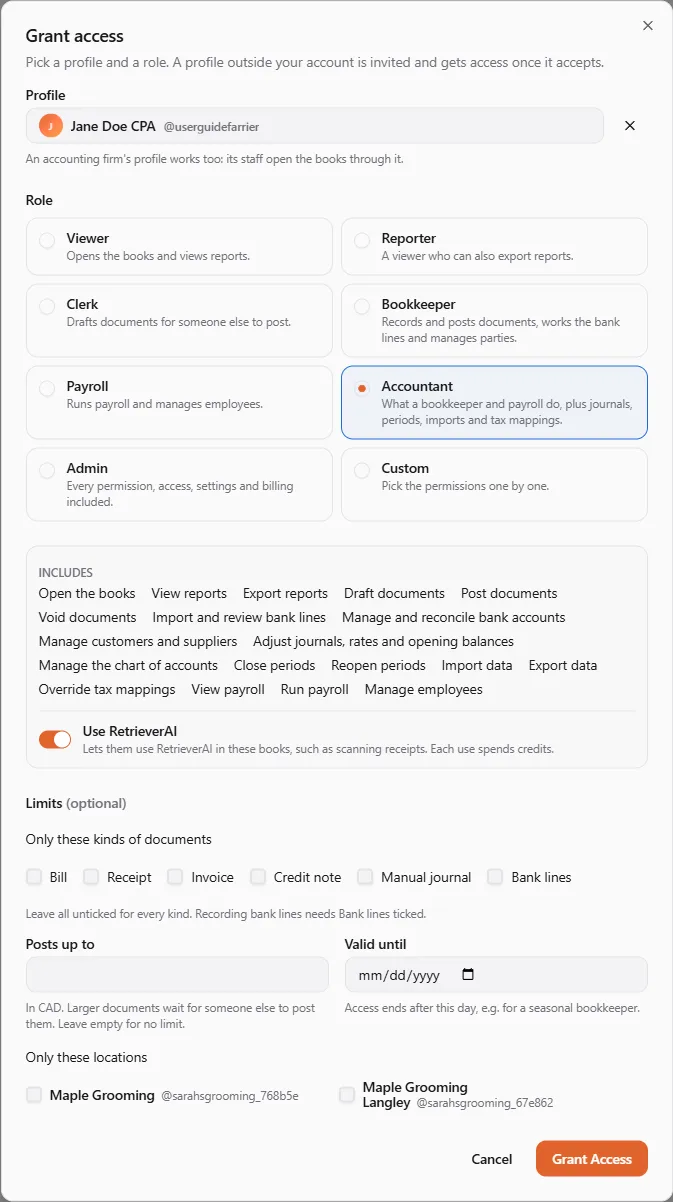
| Role | What it allows | RetrieverAI on by default |
|---|---|---|
| Viewer | Opens the books and views reports. | no |
| Reporter | A viewer who can also export reports. | no |
| Clerk | Drafts documents for someone else to post. | no |
| Bookkeeper | Records and posts documents, works the bank lines and manages parties; views and exports reports. | yes |
| Payroll | Runs payroll and manages employees; views reports. | no |
| Accountant | What a bookkeeper and payroll do, plus journals, periods, imports, exports and tax mappings. | yes |
| Admin | Every permission, access, settings and billing included. | yes |
| Custom | Pick the permissions one by one. | as you pick |
The permissions behind the roles, as the Custom role lists them: Open the books, View reports, Export reports, Draft documents, Post documents, Void documents, Import and review bank lines, Manage and reconcile bank accounts, Manage customers and suppliers, Adjust journals, rates and opening balances, Manage the chart of accounts, Close periods, Reopen periods, Import data, Export data, Override tax mappings, View payroll, Run payroll, Manage employees, Use RetrieverAI, Manage access, Change settings, Manage billing.
Limits
Section titled “Limits”Any grant can be narrowed further:
- Only these kinds of documents — for example receipts only. Leave all unticked for every kind. Recording bank lines needs Bank lines ticked.
- Posts up to — the largest document they may post, in the books’ currency. Larger documents wait for someone else to post them. Leave it empty for no limit.
- Valid until — Access ends after this day, e.g. for a seasonal bookkeeper.
- Only these locations — they see and record only the entity’s chosen locations.
Changing or ending access
Section titled “Changing or ending access”Use Change on a row to pick another role or limits, Revoke to end active access (They can no longer open the books of …), or Withdraw to cancel an invitation that was not accepted yet. Tick Show ended access to see revoked, declined and expired grants.
Books shared with you
Section titled “Books shared with you”When someone shares their books with a profile you act as, the invitation appears under Finances → Accounting → Clients, under Invitations.
- Switch to the profile that was invited (an accounting firm’s profile, for example). Your role on it must include finance, else you see This profile can’t hold client books.
- Choose Accept (or Decline). Accepted books move to Your clients, with your Role and its end date.
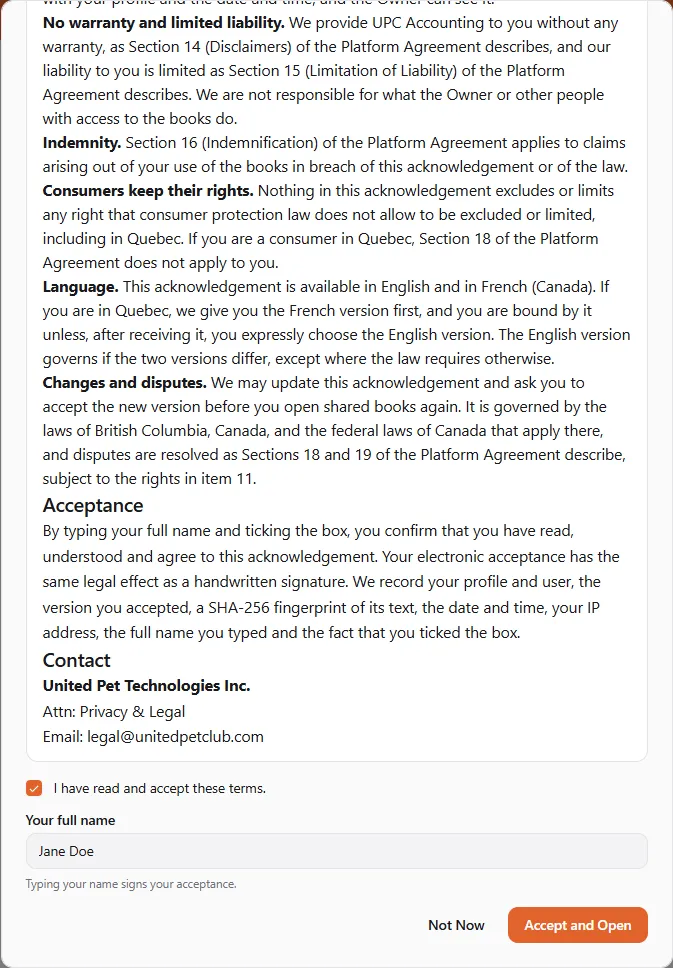
- Choose Open Books. The first time, you see Before you open …: read the accounting user terms, tick I have read and accept these terms, type your full name (Typing your name signs your acceptance.) and choose Accept and Open. Not Now leaves the books closed.
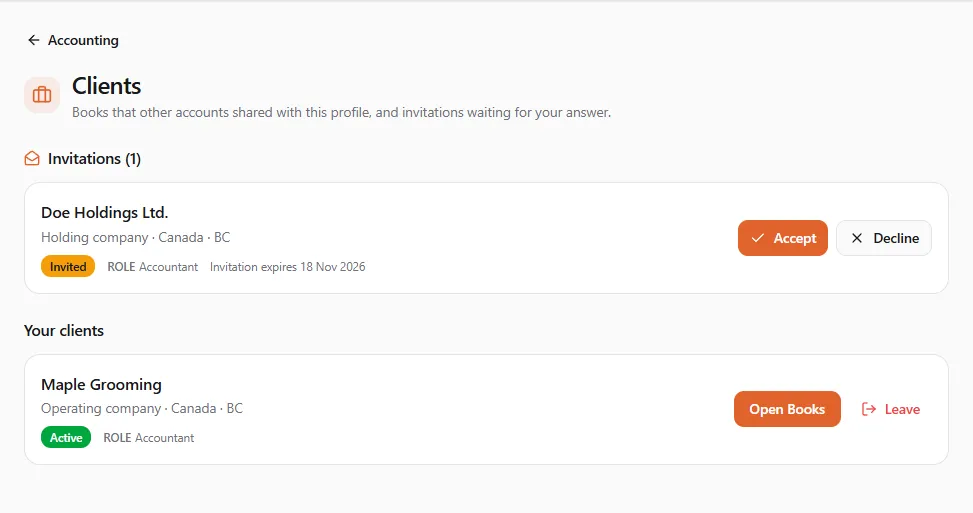
To stop working on someone’s books, choose Leave. The owner can invite you again later.
Shared books also appear in your Entities list, marked Shared with you. If the user terms are updated later, you are asked to accept the new version before you keep working.
If something went wrong
Section titled “If something went wrong”- “This profile already has access, or an invitation waiting.” — change the existing grant instead.
- “Pick a day after today.” — the Valid until date must be in the future.
- “Managing access isn’t part of your access” — ask the owner of the books.
- An invitation disappeared — it expired after 30 days or was withdrawn. Ask the owner to invite you again.