The contract page
Tap a contract in any list to open its page. It shows where the contract stands, who signs it, the document itself and everything that happened to it, and the buttons for what you can do next. The page reads the contract again every time you come back to it, so it always shows the current status.
Paperwork → Contracts → My Contracts (or any other contract list) → a contract. Back at the top returns to where you came from.
The header
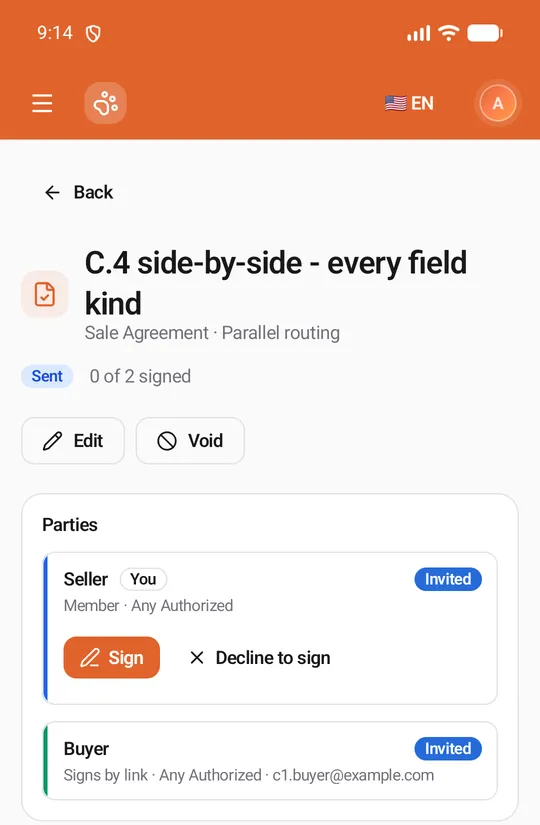
Section titled “The header”The title, then the contract’s type and how it is signed (Parallel routing: everyone at once, or Sequential routing: one after another), the status badge and how many parties have signed, for example 0 of 2 signed. The statuses are listed on the Contracts page.
Sending a draft for signature
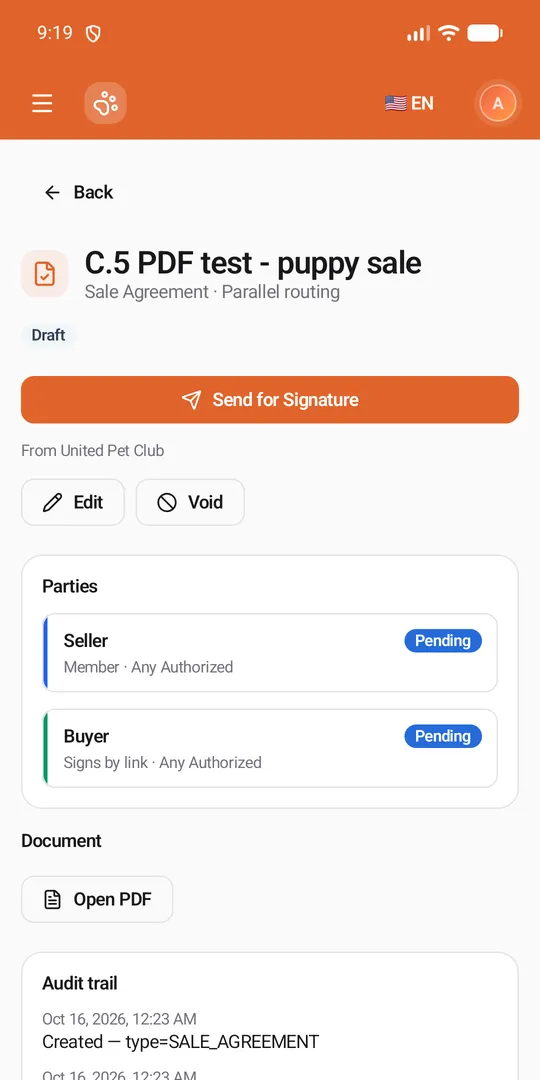
Section titled “Sending a draft for signature”A Draft you own shows Send for Signature, with the sender under it: From United Pet Club, or From one of your connected mailboxes.
- Check the sender. When you have connected a mailbox, Change opens Send from: United Pet Club (“Our address, on your business’s behalf”) and each of your mailboxes, the default one marked Default. If your default mailbox can’t send right now, the sheet says so and the contract goes from United Pet Club unless you pick another.
- Tap Send for Signature. The status becomes Sent and every party is invited.
Members find it in their Awaiting My Signature list and get an email and a notification. People outside United Pet Club sign from a link, which is emailed from the sender you chose.
Signing links (shown once)
Section titled “Signing links (shown once)”After a send, the page shows Signing links (shown once): one link per party who signs by link. Copy them now: they aren’t shown again. Each link has Copy and Share (share it in a message, an email or any app). Under a link, Emailed from names the mailbox that sent it, or Not emailed: copy the link and send it yourself. tells you the email didn’t go out.
Editing and voiding
Section titled “Editing and voiding”- Edit opens the contract’s settings and parties (see Creating and editing a contract). It is there for the owner until the first party signs. Editing a sent contract takes it back to Draft: send it again when you are done, and every party gets a new invitation.
- Void withdraws the contract for everyone. The app asks first — Void this contract? Voiding withdraws it for everyone: nobody can sign it after that, and it can’t be undone. — with an optional Reason, which is kept in the contract’s audit trail. Tap Void contract to confirm, or Keep it. Void is there until the contract is completed, declined, voided or expired.
The parties
Section titled “The parties”Parties lists every signer in signing order, each in its role’s colour: the role (Seller, Buyer…), a You badge on your own part, Member (signs in United Pet Club) or Signs by link (someone outside United Pet Club), who may sign for it, and the outsider’s email. Each party has a status:
| Party status | Meaning |
|---|---|
| Pending | Not invited yet: the contract is a draft, or it’s an earlier party’s turn |
| Invited | Sent; they haven’t opened it |
| Viewed | They opened it (with the time) |
| Signed | Signed (with the time) |
| Declined | They declined to sign |
Signing or declining your part
Section titled “Signing or declining your part”When it is your turn on your own part, it shows Sign and Decline to sign.
- Sign opens the signing pages — see Signing a contract.
- Decline to sign asks Decline this contract? Declining ends the contract for everyone: nobody can sign it after that. Add an optional Reason (the contract’s owner can read it) and tap Decline.
A part another profile of yours signs for shows no buttons: switch to that profile first. A part signed by link is signed from the link, not in the app.
Signing one after another
Section titled “Signing one after another”On a Sequential contract each party waits for the one before: later parties stay Pending, with no Sign button, until the earlier party has signed. They are invited the moment it is their turn, and the contract appears in their Awaiting My Signature list.
The document
Section titled “The document”Document shows the contract as written, on white paper like a printed page, with every field in its signer’s colour: Awaiting Seller, Awaiting Buyer, or what was filled in once that party signed. Scroll the page to read it all.
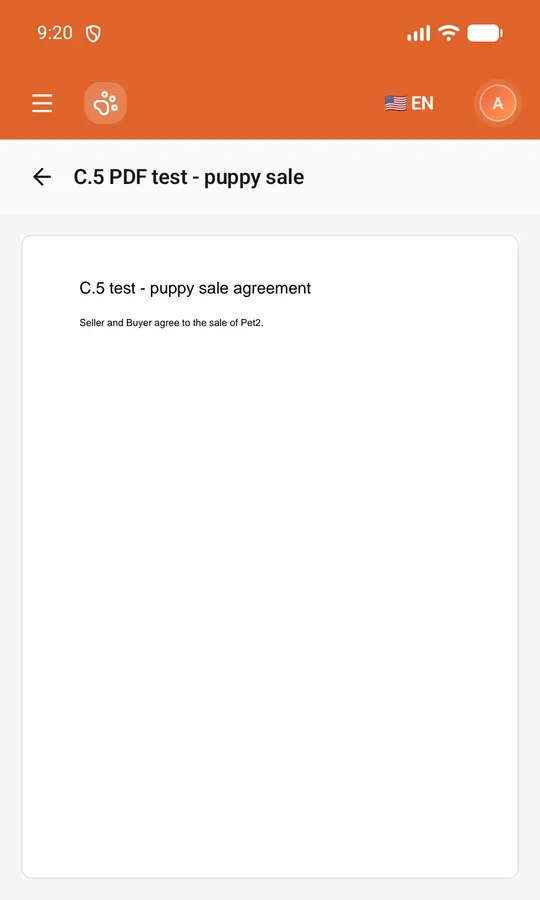
A contract made from an uploaded PDF shows Open PDF instead. It opens the PDF full screen, one page under the other.
If the contract came from a template that has changed since, a note says so: The template this was created from has been updated (now v2; this used v1). This contract keeps the original wording. View the template opens it.
Signatures, the seal and the audit trail
Section titled “Signatures, the seal and the audit trail”- Signatures lists each signature: the signer’s name and email, how they proved who they are, and when they signed.
- Sealed appears once every party has signed and the original is sealed: the Document hash and the Seal manifest hash that prove it hasn’t changed, and Open sealed PDF. Only the contract’s owner can open the sealed PDF; other parties are told Only the contract’s owner can open this PDF.
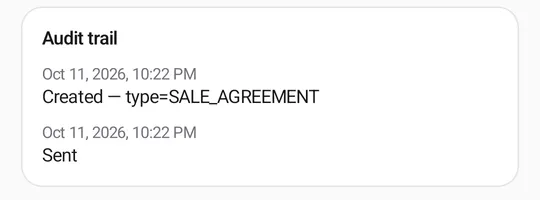
- Audit trail lists everything that happened, newest last, each with its date and time: created, sent, viewed, signed, declined or voided (with the reason given).