

Messages
Messages is your profile’s inbox. Everything sent to your profile lands here: enquiries from site visitors who used the Message button or contact form on your public profile, and messages from other members. You can read, reply, and see what you have sent — all under Dashboard → Messages.
Your inbox belongs to the profile you are acting as. If you run an organization (a clinic, a rescue, a kennel), switch to that profile with the profile switcher to see its inbox — every teammate with access to the profile shares the same one.
The inbox
Section titled “The inbox”Each row shows who the conversation is with, the subject if there is one, a preview of the latest message, how long ago it moved, and its categories. Unread conversations are bold with a dot and an unread count; a red flag marks a flagged one.
- Inbox — every conversation you have not archived or deleted.
- Unread — only conversations with messages you have not seen, or that you marked as unread.
- Flagged — conversations you flagged, archived ones included.
- Sent — conversations where your profile wrote the latest message.
- Archived — conversations you archived (archiving hides a thread from your view without deleting anything; the other side is unaffected).
- Deleted — conversations you deleted. See Delete and restore.
Next to the tabs, All categories narrows the list to one category, and — if you use contact topics — All topics narrows it to one topic.
Search
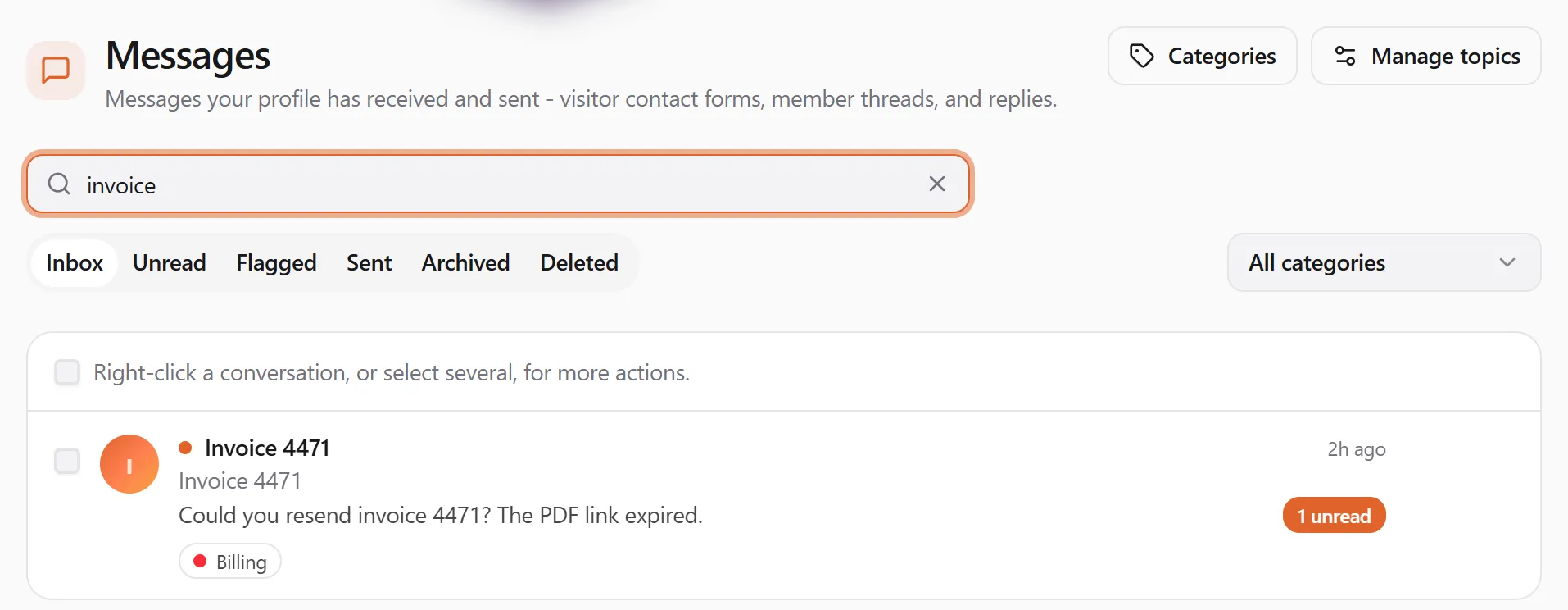
Section titled “Search”Type in Search names, subjects and messages above the tabs. The list shows the conversations whose sender’s name, subject or any message contains what you typed, in the tab and filters you have chosen. Upper and lower case don’t matter. Press Esc or the × in the box to clear it.
Act on a conversation
Section titled “Act on a conversation”Every conversation has the same actions, reachable three ways:
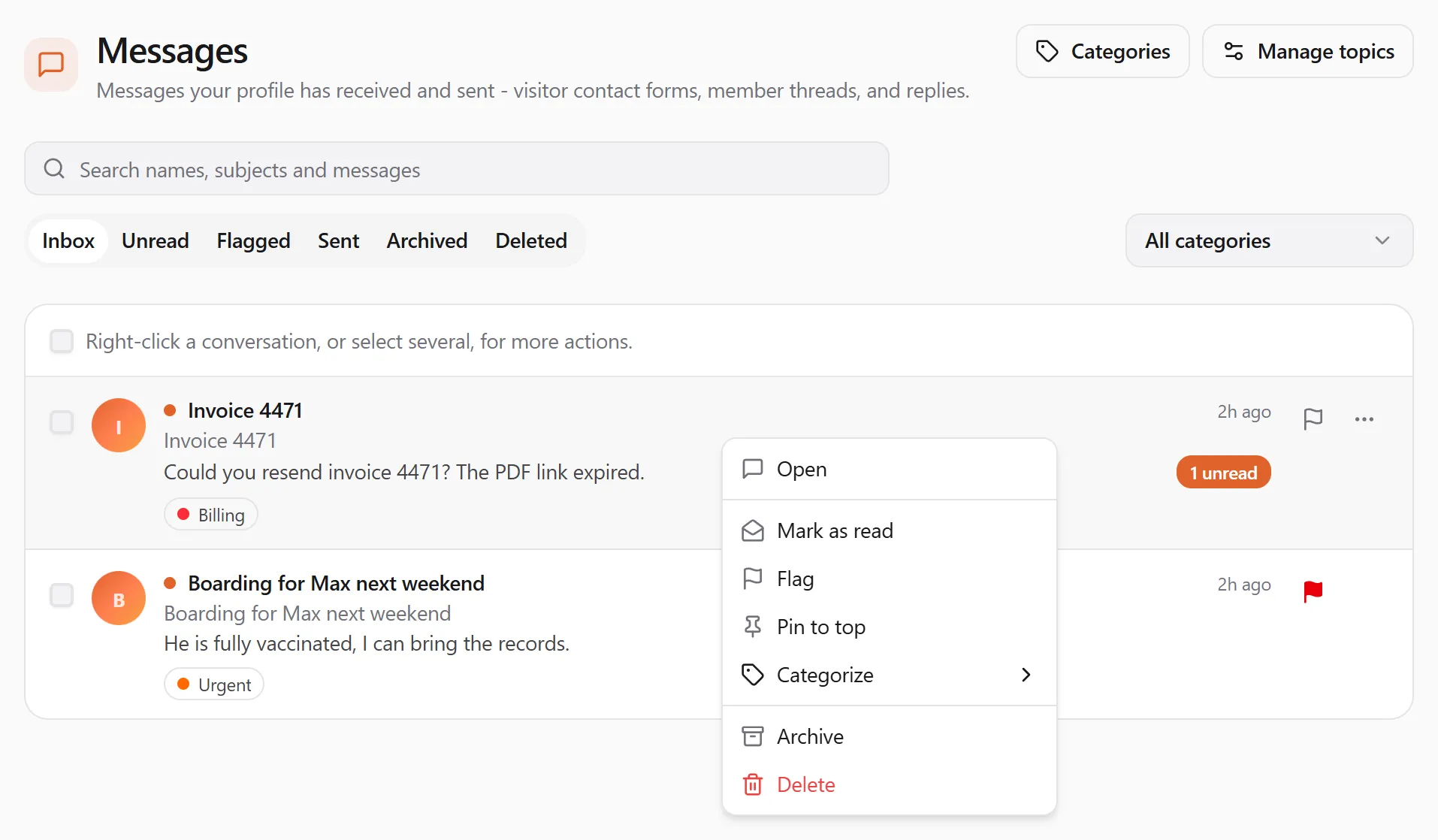
- Right-click the row (on a phone or tablet, press and hold it).
- Choose ⋯ (More actions) at the end of the row.
- In an open conversation, choose ⋯ next to its title.
| Action | What it does |
|---|---|
| Open | Opens the conversation. |
| Mark as read / Mark as unread | Clears the unread marker, or shows the conversation as unread again until you next open it. |
| Flag / Remove flag | Marks the conversation for follow-up (see below). |
| Pin to top / Unpin | Keeps the conversation at the top of the list. |
| Categorize | Files it under one or more of your categories, or creates a new one. |
| Archive / Move to inbox | Hides it from the inbox without deleting it, or brings it back. |
| Delete | Moves it to Deleted (see Delete and restore). |
Everything you do here changes only your profile’s view. The other people in the conversation see no difference.
Several at once
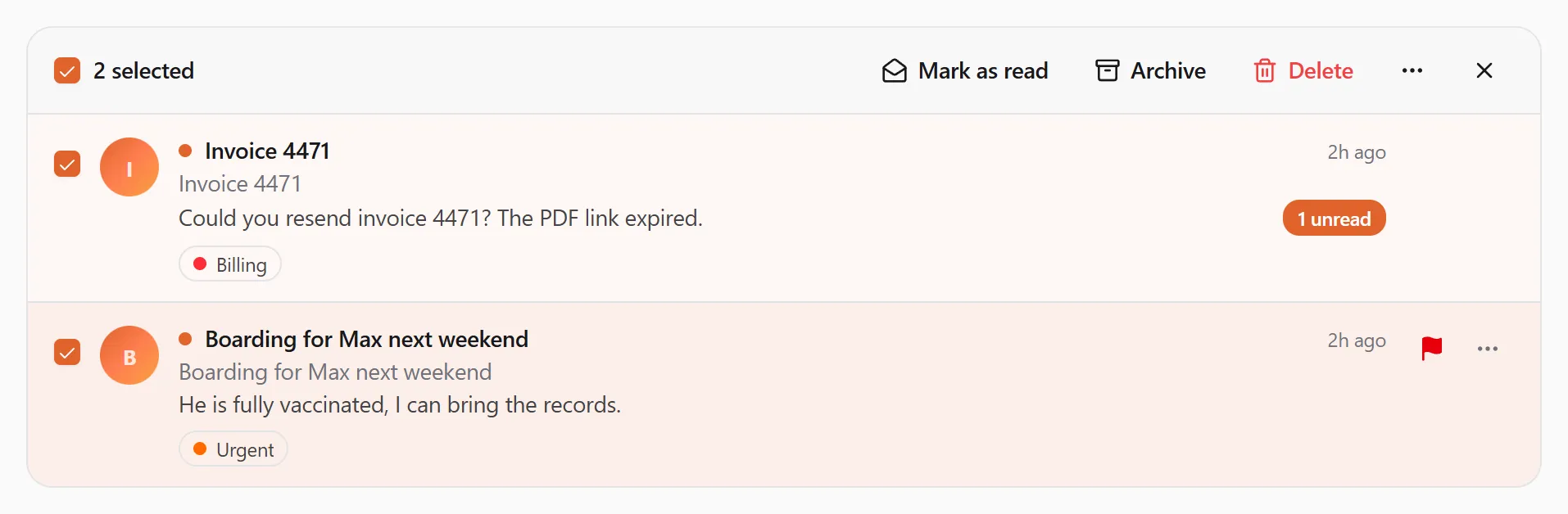
Section titled “Several at once”Tick the box at the start of each row you want, or the box above the list to select them all. A bar shows how many you selected, with Mark as read, Archive and Delete; ⋯ in the bar has every other action. Right-clicking one of the selected rows acts on all of them. × clears the selection.
Flag a conversation
Section titled “Flag a conversation”A flag is a reminder to come back to a conversation. Choose the flag at the end of the row (it shows when you point at the row), Flag in its menu, or the flag next to the title of an open conversation. Flagged conversations show a red flag and are all in the Flagged tab. Choose the flag again, or Remove flag, when you are done.
Categories
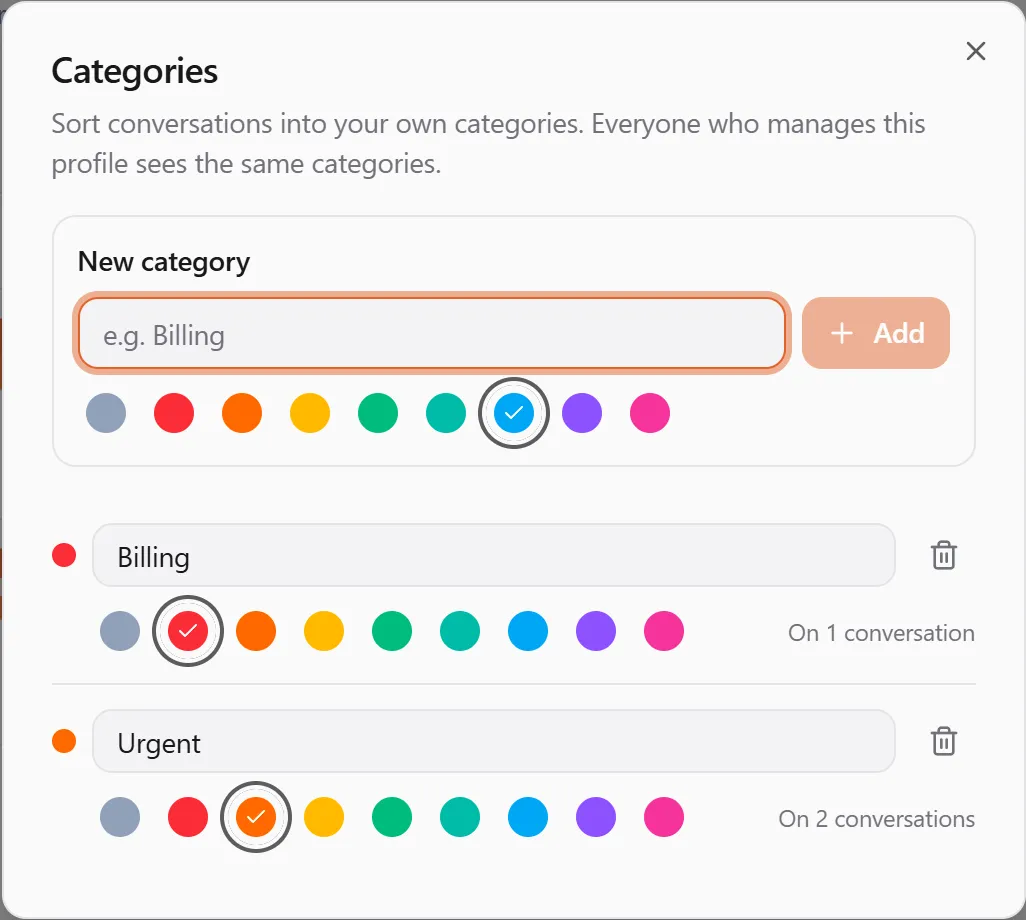
Section titled “Categories”Categories are your own coloured labels for sorting conversations — for example Billing, Bookings or Urgent. A conversation can be in several. They show under the row and under the title of an open conversation, and All categories filters the inbox by one.
Everyone who manages your profile shares the same categories, and sees which conversations are in which.
- File a conversation: Categorize in its menu, then tick a category. Tick it again to take the conversation out. With several conversations selected, a category that only some of them are in shows a dash; ticking it puts all of them in it.
- Create one while filing: Categorize → New category…, type a name, pick a colour and choose Create and add.
- Manage them: choose Categories at the top of Messages. Add a category, rename one (type the new name and press Save or Enter), choose another colour, or delete one with the bin. Deleting a category takes it off its conversations; the conversations themselves stay.
Category names are unique to your profile: you see You already have a category with this name. if you reuse one.
Delete and restore
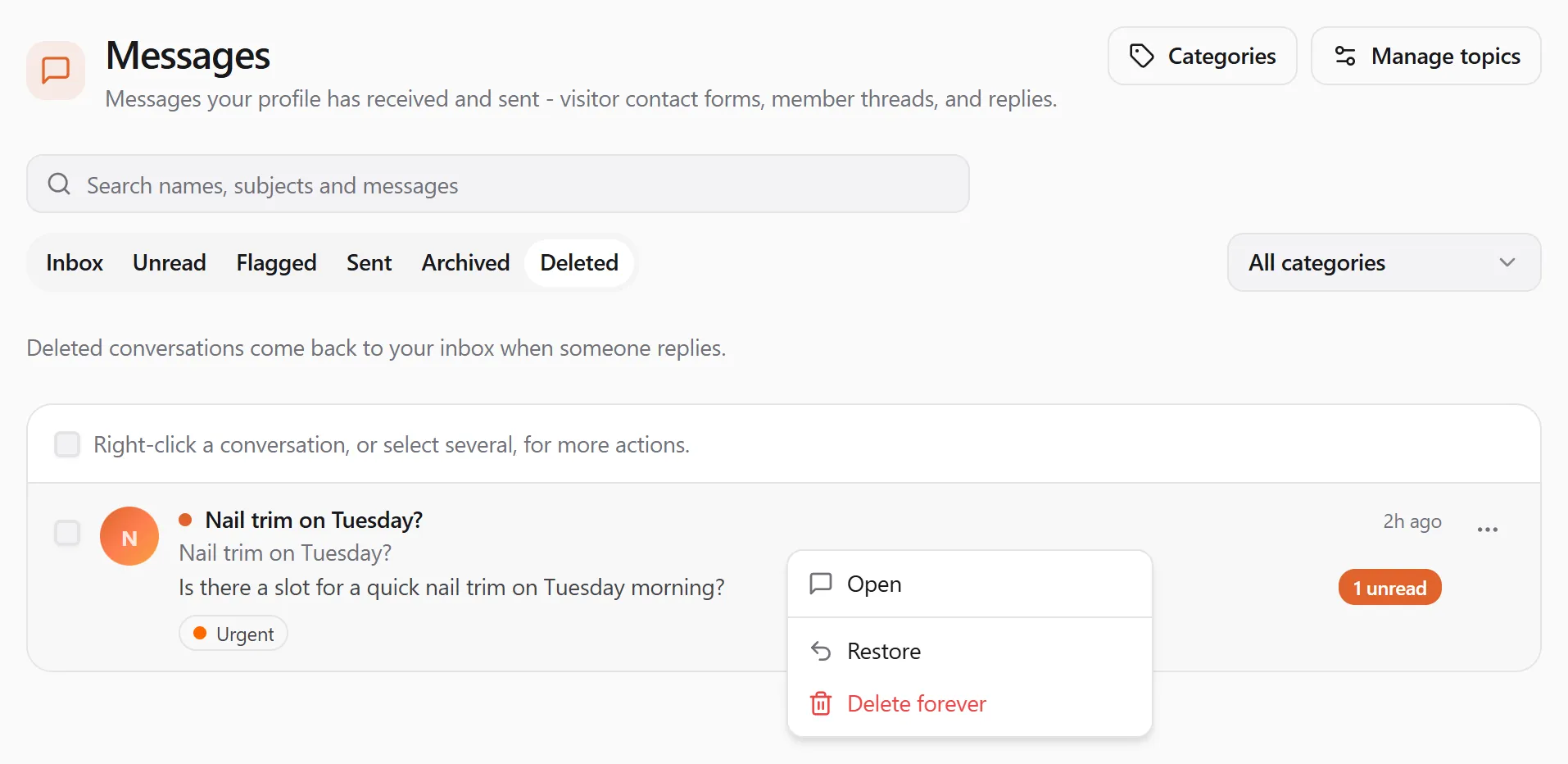
Section titled “Delete and restore”Delete moves a conversation to the Deleted tab and shows Conversation deleted with an Undo button for a few seconds. Nothing is lost:
- In Deleted, right-click a conversation (or use ⋯) and choose Restore to bring it back to the inbox. An open conversation that is in Deleted says so, with a Restore button.
- If someone replies to a deleted conversation, it comes back to your inbox by itself.
- Delete forever (in the Deleted tab) removes the conversation from your messages for good, after you confirm. The other people keep their copy. If they write again, the conversation starts afresh in your inbox, showing only the new messages.
Reading and replying
Section titled “Reading and replying”Open a row to see the whole conversation. Your profile’s messages sit on the right; the other side on the left. In a shared organization inbox, each message also names the person who wrote it — replies show as, say, Happy Paws Rescue · Riley — so your team always knows who said what. Opening a thread marks it as read. The flag and ⋯ next to the title have the same actions as the inbox; marking the conversation unread, archiving or deleting it takes you back to the inbox.
Type in the box at the bottom and press Send (or Ctrl+Enter / ⌘+Enter). The reply is delivered to the other member’s Messages immediately and they get a notification.
Contact topics
Section titled “Contact topics”Contact topics are the “What is this about?” choices people see when they message you — for example Account, Billing, Sales, Support, Other. The sender picks one, it shows as a badge on the inbox row, and you can filter your inbox by it.
Set yours up under Messages → Manage topics: type a name and Add topic. Hide takes a topic off your public form without touching old conversations; Show brings it back. If you have no topics, your message form simply shows no dropdown.
Messages from visitors
Section titled “Messages from visitors”By default anyone can write to your profile from its page on United Pet Club, including people who aren’t signed in. If you would rather hear only from members:
- Open Settings → Privacy in your profile section (
/dashboard/settings/privacy). - In Messages from visitors, turn off Let visitors who aren’t signed in message this profile.
You see Visitors now sign in to message this profile. From then on, a visitor who opens your message form on United Pet Club is asked to sign in (or create a free account) before they write. Members can still message you as before. Turn the switch back on at any time; you see Visitors can message this profile.
Writing to a profile that asks you to sign in
Section titled “Writing to a profile that asks you to sign in”When you open someone’s message page on United Pet Club without being signed in, you may see Sign in to message followed by their name instead of the message form. That profile takes messages from signed-in members only.
- Choose Sign in to send a message.
- Sign in, or create a free account. You come back to the same page.
- Write your message and send it. It goes straight to their inbox.
If you had already typed a message when the page asked you to sign in, you see Your message wasn’t sent. Sign in, then send it again. Sign in and send it once more.
Broadcasts
Section titled “Broadcasts”A broadcast is one message a profile sends to many people at once: its followers, its team members, or (for a business) clients who agreed to receive its offers inside United Pet Club. A broadcast arrives in your Messages like any other conversation, one thread per broadcast.
There are limits that keep broadcasts from turning into noise:
- You get at most one broadcast a week from the same profile, and at most three a day from everyone together.
- A business can only broadcast to you as a client if you agreed to its offers. Your last completed booking with them counts as agreeing for 24 months, unless you said no.
- Profiles you blocked never reach you.
Stop or report a broadcast
Section titled “Stop or report a broadcast”When you open a broadcast, a box at the top says who sent it: {name} sent this broadcast to their followers, members or clients. It has three buttons:
| Button | What it does |
|---|---|
| Stop broadcasts from name | You won’t get broadcasts from that profile again. Your other messages with them are not affected. |
| Stop all broadcasts | You won’t get broadcasts from anyone again. |
| Report | Tells United Pet Club the broadcast was unwanted. We review it. The button then shows Reported. |
After you stop broadcasts, the box says so (You won’t get broadcasts from {name} again. or You won’t get broadcasts from anyone again.). Stopping and reporting both count against the sender: a profile whose broadcasts many people stop or report has its broadcasts paused.
Notifications
Section titled “Notifications”When your profile receives a message you get a notification in the bell at the top of the Dashboard — and a toast if you are online at that moment.
A broadcast brings a quieter notification: Broadcast from {name} in the bell’s Other tab, no toast. Clicking it opens that broadcast in Messages. It reaches your phone or browser only if you let the Offers topic through in Choose what reaches your devices. Stopping broadcasts from a profile also stops these notifications, because nothing more arrives from it.
See Notifications for how notification delivery works.