

Turn on notifications on your phone or computer
United Pet Club can send notifications to your phone or computer. If someone finds your pet or scans its microchip or tag, you hear about it right away, even when the Dashboard is closed.
You turn notifications on separately on each device: your phone, your laptop, your work computer. Turning them on is free.
Turn notifications on
Section titled “Turn notifications on”You can turn them on in two places in the Dashboard.
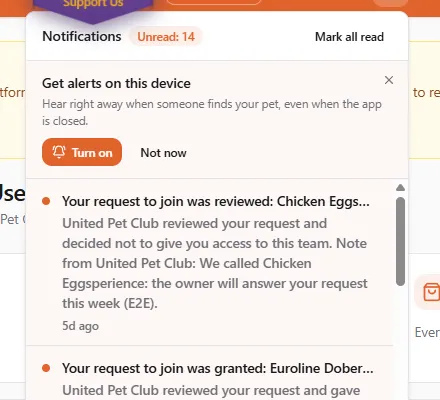
From the bell. Open the bell at the top of the Dashboard. As long as notifications are off on this device, a card at the top asks Get alerts on this device. Choose Turn on.
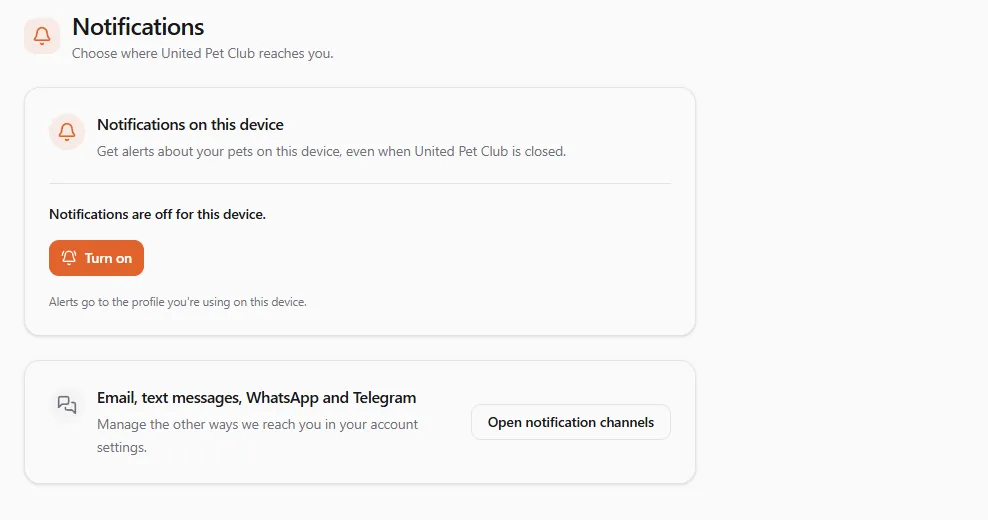
From the settings. Open Notifications in your profile section (My Profile, My Business or My Place) and choose Turn on.
Your browser then asks whether United Pet Club may show notifications. Choose Allow. United Pet Club never asks on its own when a page opens: the browser asks only after you choose Turn on.
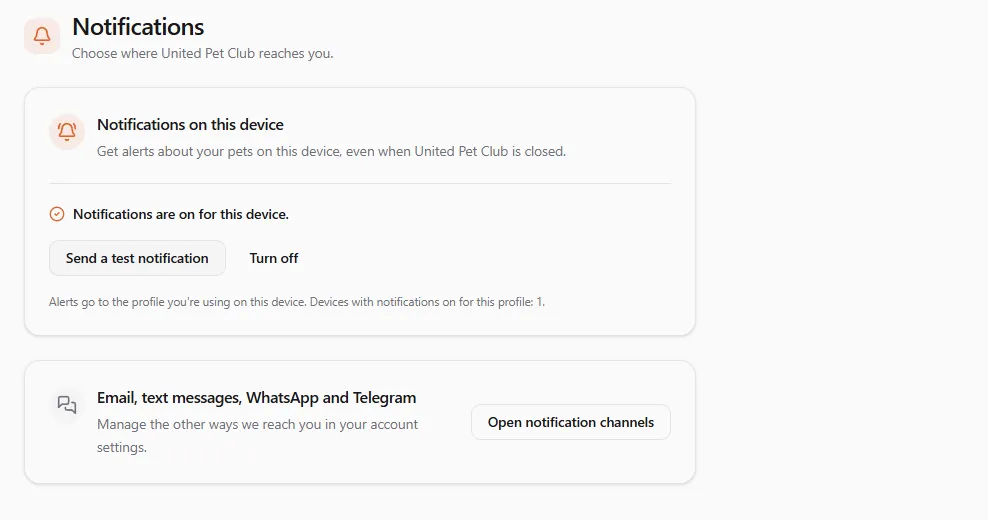
A test notification, Notifications are on, arrives within a minute. Selecting it opens the Notifications page.
If you are not ready, choose Not now on the bell’s card. It won’t ask again for 30 days, and you can still turn notifications on from Settings → Notifications at any time.
On an iPhone or iPad
Section titled “On an iPhone or iPad”On an iPhone or iPad (iOS or iPadOS 16.4 or later), notifications work only in the installed Dashboard app, not in a Safari tab.
- Install the Dashboard on your phone.
- Open it from your home screen and sign in.
- Go to Settings → Notifications and choose Turn on, then Allow.
In a Safari tab, the Notifications page explains this and links to Get the app.
Which alerts you get
Section titled “Which alerts you get”Notifications go to the profile you are using on this device. If you switch to another profile (your business, say), this device follows it the next time you open the Dashboard.
Alerts about your pet (someone found it, or searched its microchip or tag number) come as notifications when the pet’s recovery plan is Complete, the plan that reaches you on every channel. Other plans reach you by email (and text messages on Deluxe). Email, text messages, WhatsApp and Telegram are set up in your account: on the Notifications page, choose Open notification channels.
Choose what reaches your devices
Section titled “Choose what reaches your devices”Everything still arrives in the bell. You decide which topics also send a notification to the phones and browsers where you turned notifications on.
Until you choose, only urgent notices reach your devices: sign-in and security, important alerts, and anything marked urgent. A sale, a new message or a newsletter stays in the bell.
To choose:
-
Open Settings → Notifications in your profile section.
-
Under Choose what reaches your devices, find the topic. Topics are grouped by what they are about: Your account, Care and appointments, Messages and memberships, News and offers (and Other, for a topic that is new on United Pet Club).
-
Pick one of the choices next to it:
- All — every notice on this topic also comes to your devices.
- Urgent only — only the urgent ones do. This is where every topic starts.
- Off — none do. They still arrive in the bell.
Sign-in and security and Important alerts are always urgent, so they offer just On and Off.
Your choice is saved right away (you see Saved) and applies to every device where this profile has notifications on. Like the device switch, it belongs to the profile you are acting as: your business profile keeps its own choices.
Send a test
Section titled “Send a test”With notifications on, choose Send a test notification. It arrives within a minute. If it doesn’t, see the checklist below. You can send one test a minute.
Turn notifications off
Section titled “Turn notifications off”- On this device: Settings → Notifications → Turn off.
- On any device: in your account, open Notifications → Notification channels. Under Devices with notifications on you see every browser and installed app where you turned them on, and when each was last used. Choose Turn off next to the one you want to stop.
- When you sign out, notifications on that device turn off too, so a shared phone or computer stops getting your alerts. Turn them on again after you sign in. (Being locked out for inactivity does not turn them off.)
If notifications don’t arrive
Section titled “If notifications don’t arrive”- “Notifications are blocked for this site.” You chose Block when the browser asked. Open your browser’s site settings for dashboard.unitedpetclub.com (the padlock or settings icon left of the address), set Notifications to Allow, then reload the page.
- “This browser can’t show notifications.” Use Chrome, Edge, Firefox or Safari. Some in-app browsers (inside Instagram or Facebook) can’t show notifications.
- Do Not Disturb or Focus is on for your phone or computer: the notification waits silently in the notification list.
- The device was off or offline: United Pet Club’s notifications wait up to a day for your device to come back online.
- Still nothing? Turn notifications off and on again on that device.