

Schedule — calendar, staff, vehicles & text reminders
Schedule is the part of the Dashboard where your business takes bookings. It is one scheduler for every kind of service you offer: grooming, training, pet sitting and walking, boarding and daycare, vet visits, therapy, transport, photography and more. You set your team’s hours once, and decide per service type when each kind of service can be booked.
Schedule in the left menu. It has eight pages:
| Page | Address | What it’s for |
|---|---|---|
| Calendar | /dashboard/schedule | One row per team member and per vehicle, day by day |
| Appointments | /dashboard/schedule/appointments | Every booking for your services, week by week: confirm, start, complete, mark a no-show or cancel |
| Availability | /dashboard/schedule/availability | Your team’s weekly hours, time off, and when each type of service is offered. See Schedule availability |
| Services | /dashboard/schedule/services | What clients can book, where it happens, and each service’s type |
| Staff & vehicles | /dashboard/schedule/resources | Everyone and everything that can be booked |
| Day plans | /dashboard/schedule/routes | A van’s day in driving order (the route optimization add-on) |
| Booking policies | /dashboard/schedule/policies | Reminders, cancellation and reschedule windows, lead time and the other booking rules |
| Clients | /dashboard/schedule/clients | Everyone who has booked with you |
Opening an appointment from any of these pages shows it at /dashboard/appointments/{id}; its
Back button returns you to Schedule.
Who has Schedule
Section titled “Who has Schedule”Schedule is for business profiles: a business, a place, or a personal profile with a profession. A pet family’s profile never has it, not even in Customize Dashboard.
It is in your sidebar from the start, right under Home, if your profile is a groomer, kennel or cattery, trainer, pet care provider, behaviorist, rehab therapist, nutritionist, farrier, show handler, pet transporter, aftercare provider, photographer, vet practice, veterinarian or vet tech. Any other business finds it switched off and can switch it on in Customize Dashboard.
Before you take bookings: the setup checklist
Section titled “Before you take bookings: the setup checklist”Schedule needs three things from your business: payouts connected so clients can pay you, the service fees agreed to, and a card on file. Until all three are done, every Schedule page shows the Set up your Schedule checklist. Each step has its own button, and you can do them in any order. See Schedule setup checklist for what each step asks and what happens if one of them lapses later.
Start taking bookings
Section titled “Start taking bookings”The first time you open a Schedule page, you’ll see Start taking bookings. Select Set up bookings: your Schedule is created in your computer’s time zone, and you’ll see Bookings are on. Add your services and staff next. Then:
- Add yourself and your team under Staff & vehicles (and your vans, if you visit clients).
- Add the services clients can book under Services.
- Set your team’s hours under Availability. If a type of service is only offered on some days, set that there too.
Services and service types
Section titled “Services and service types”Services lists what clients can book, and whether it happens at your place, at their door, or both. Each service also has a Service type, chosen for you from the kind of service it is:
| Service type | For example |
|---|---|
| Grooming | Full groom, bath and brush, nail trim |
| Training | Puppy class, obedience, agility, horse training |
| Pet sitting and walking | Dog walking, drop-in visits, exotic pet care |
| Boarding and daycare | Overnight boarding, daycare, livery |
| Veterinary care | Exams, vaccinations, telehealth, equine and large-animal vet visits |
| Wellness and therapy | Physiotherapy, hydrotherapy, behavioural therapy, nutrition consults, farrier, saddle fitting |
| Transport | Pet taxi, pet ambulance, international pet relocation |
| Photography | Pet photo sessions, portraits |
| End-of-life care | Cremation, in-home euthanasia, hospice, grief support |
| Classes and education | Courses, riding lessons, breeding education |
| Breeding | Stud service, insemination, whelping, DNA and pedigree services |
| Rescue and adoption | Adoption, intake and rehoming, foster |
| Farm services | Farm consulting, shearing and hoof trimming |
| Other services | Anything else |
To change a service’s type, pick another one in its Service type list. You’ll see Service type updated. The type decides two things:
- When the service can be booked. If a service type is only offered on some days, a client can book that service only then. See When each service type is offered.
- Whether the grooming questions are asked. Clients booking a Grooming service answer the coat, clip and style questions and see an estimate. Other service types skip them: a client booking a training session isn’t asked about the coat.
A service you added before October 2026 may show Not typed yet for a short while, until its type is worked out. It books as before in the meantime.
Staff and locations are free
Section titled “Staff and locations are free”There is nothing to unlock. Add as many team members, rooms, vans, services, locations and clients as your business has; no seat is billed, no plan is required and no page is a preview of a paid feature. United Pet Club earns a small fee on each booking instead (see Fees). That fee is what you agree to in the setup checklist.
You will only ever meet a limit if a single location grows past what a real business needs (50 staff, 20 vehicles, 200 services per location; 100 locations per brand; 50,000 clients). That is an abuse ceiling, not a quota — if you hit it legitimately, contact support and it is raised.
The one Add-on badge you will see is on the Route optimization switch of a vehicle: planning a van’s day in the best driving order, and its zone days, are sold per van (see Day plans and zone days). Everything else on these pages simply works.
Vehicles and mobile visits
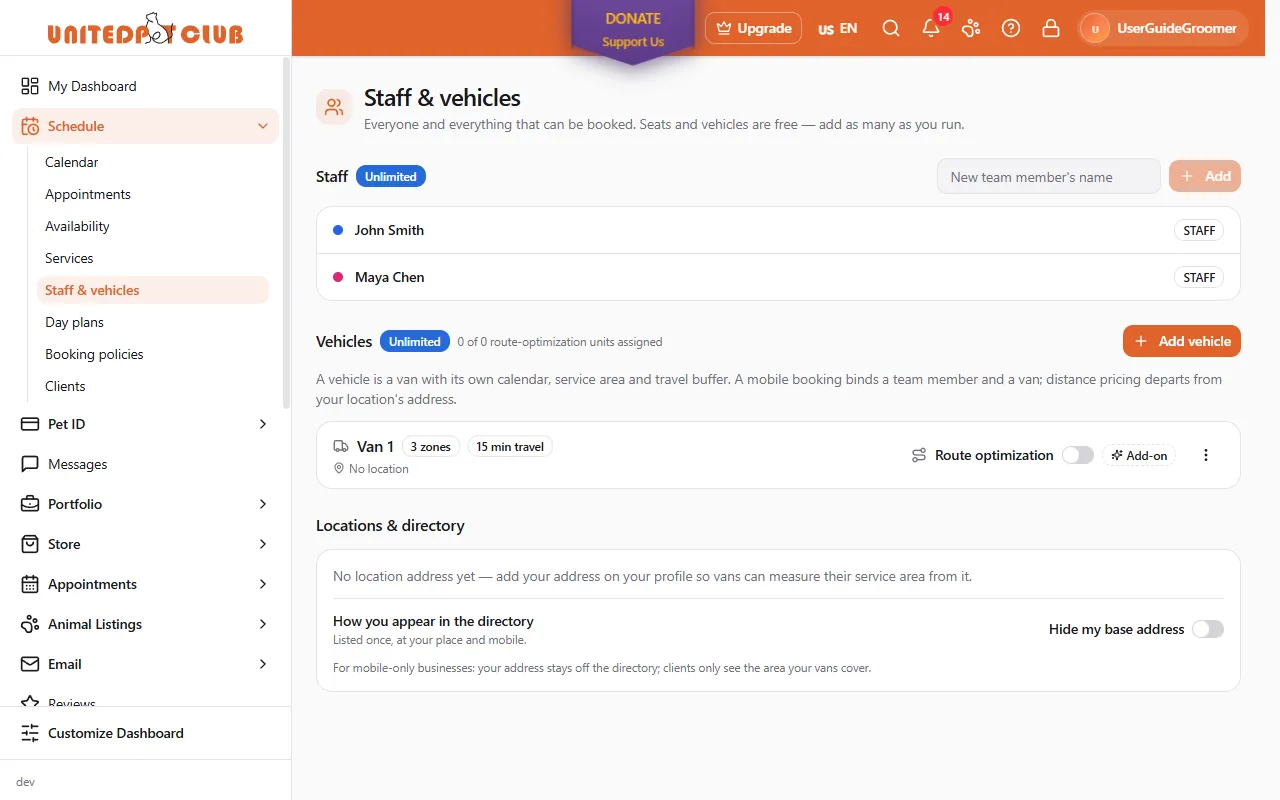
Section titled “Vehicles and mobile visits”If you visit clients at home (a mobile groomer, a pet taxi, a mobile vet), add each van under Schedule → Staff & vehicles → Add vehicle:
- Service area — a radius in kilometres around your location’s address, or a list of postal
code prefixes (for example
V6B,V6C). Bookings outside the area are refused before a time is even offered, so you never get a request you cannot serve. - Travel buffer — minutes kept free around each visit for driving. The van’s calendar is spaced by it automatically.
- Capacity notes — free text for the team (“no dogs over 40 kg”, “one large tub”).
A mobile appointment is bound to both a team member and a van. When a client books a service that you deliver at home (Services shows each service as In store, Mobile or Both), the calendar offers only the times when a team member and a van that covers the client’s address are free. The van is picked for the client; you can change it from the appointment. A solo mobile business without a registered van keeps booking exactly as before.
Hide your base address. Mobile-only businesses can flip Hide base address. Your listing then says mobile service available with an approximate service area instead of a pin on your home, and “mobile grooming near me” searches still find you — the platform checks the client’s address against your area without revealing it.
Moving a van to another location. A van belongs to one location. If a van (and the team members who ride in it) has become a location of its own, use Promote to location: pick the new location’s timezone and address, choose who moves with it, and the Dashboard creates the location under your brand, moves the van and the staff, copies the services they need and moves their upcoming bookings. Past appointments stay in the history of the location where they happened. Move to another location does the reverse, or moves a van between two existing locations of the same brand. Vans never leave your brand.
Day plans and zone days (route optimization)
Section titled “Day plans and zone days (route optimization)”Route optimization is the add-on for mobile vans: US$49 a month per van. Buy units on Pro plan & add-ons, then switch Route optimization on for the vans that should use them under Staff & vehicles. A van with a unit gets a Day plan and Zone days; a van without one simply books as before.
Day plans
Section titled “Day plans”Schedule → Day plans (or Day plan on the van) shows one van’s day:
- As booked — the visits in time order, the drive before each one (minutes and km), when the van leaves its home location and when it gets back, and any visit the van would reach late.
- Shorter order — when there is one, the same visits in a better driving order, with each visit’s new time and what it saves (“Saves 31 min and 18 km”).
Plan the day asks a road-time service for real drive times and the shortest order in which every visit still starts within its allowed time. A visit may move by up to the amount you pick in Visits may move by up to (60 minutes unless you change it), or within the arrival window the client was given. Some visits never move and carry a badge: one that is under way, one starting within the next hour, and one with no map point for its address.
Try your own order with the up and down arrows: the page checks it at once (times, late visits, drive) without using a road plan. Apply this order puts it on the calendar. Every visit whose time changes is rescheduled, the client is told as with any reschedule, and its three texts start over. If the day changed in the meantime (a visit booked, moved or cancelled), nothing is applied: plan again.
What planning costs you. Nothing beyond the add-on. Each van can make 20 road plans a day, and the platform spends at most $10 a month of road-time service on it, spread over the month. Opening the page never uses a road plan; only Plan the day does, and re-planning a day that has not changed within 24 hours reuses the road times already fetched. When a van’s plans are used up, or the road-time service does not answer, the page says so and falls back to estimated drive times (straight-line distance × a road factor). Bookings are never blocked or slowed by any of this.
Open in Google Maps opens the day as a driving route from the van’s home location (up to nine visits as stops).
Zone days
Section titled “Zone days”A mobile groomer often works one area per day — the north side on Mondays, downtown on Tuesdays. Zone days (on the van, or on Day plans) shows a map of hexagons around the van’s home location. Pick a day of the week and click hexagons to add them to that day or take them off; choose large, medium or small hexagons. The van needs a home location with an address first.
At booking sets what zone days do when clients book:
- Ignore zone days — nothing changes.
- Flag other days (the default) — clients can still book any day. When two vans cover the address, the one working that area that day is picked first; a visit booked outside its van’s zone for that day is recorded in the appointment’s history and marked Off its zone day on the day plan.
- Zone days only — clients see this van only on the days its zones cover their address. You can still book any day yourself; the appointment’s history records that it is off its zone day.
Near a zone (2 km unless you change it) counts an address just outside a hexagon as inside. These two settings are shared by all your vans that have zone days, and are listed under Booking policies. A van with no zone days, or without the add-on, is never limited by them.
Calendar
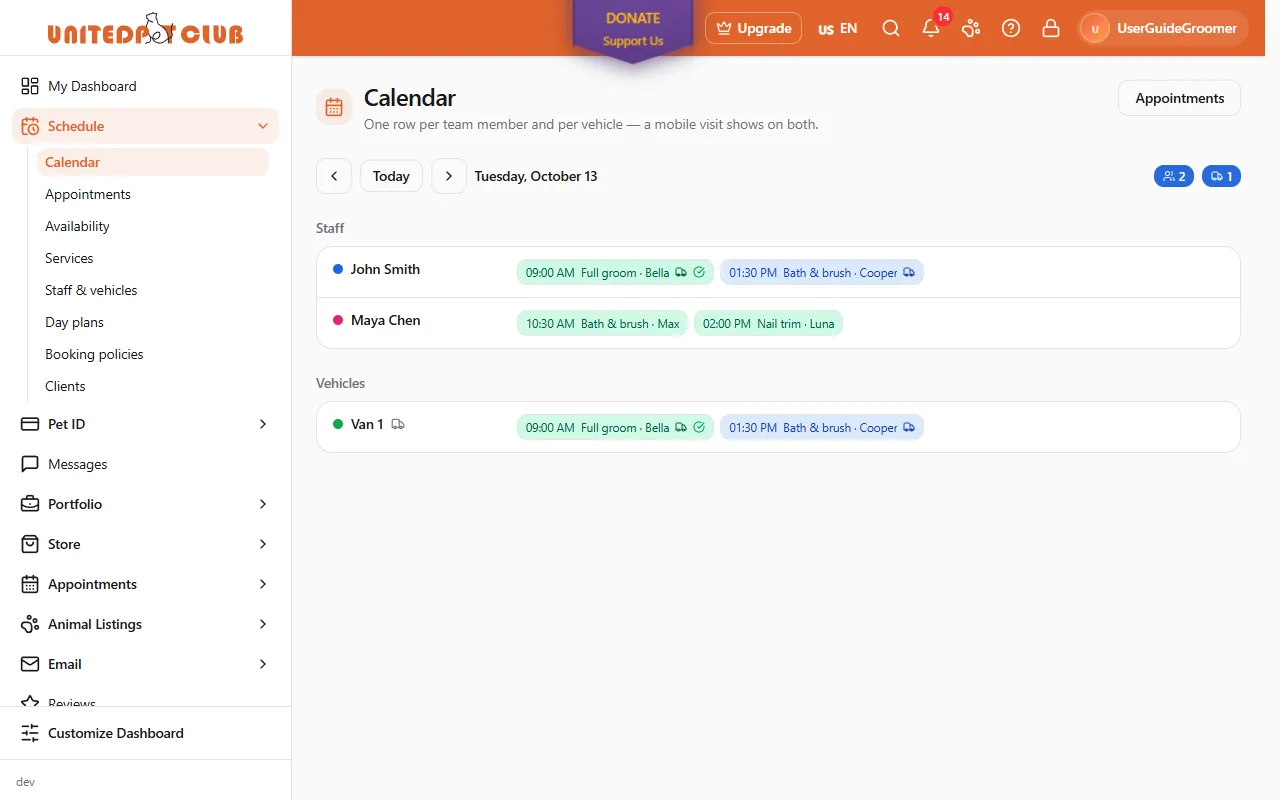
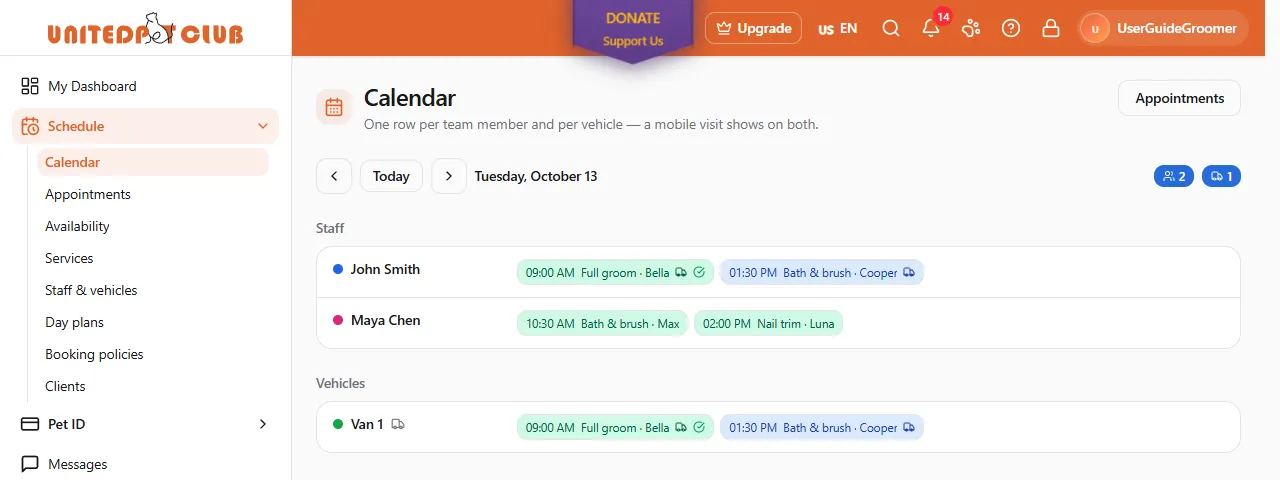
Section titled “Calendar”Schedule → Calendar shows one row per team member and one per vehicle, day by day: every booking for every service type, grooming or not. Mobile appointments appear on both the team member’s and the van’s row. Appointments at the top opens the week list.
Appointments
Section titled “Appointments”Schedule → Appointments lists the bookings for your services week by week (Bookings for your services, week by week.). Use the arrows to move a week, and the state filter (All states by default) to narrow the list. Each row’s menu has Confirm, Start, Complete, Mark no-show and Cancel, depending on where the appointment is. Select an appointment to open it: the Payment, Text reminders, Messages to the client and visit cards are there.
Existing appointments always keep working: even if a step of the setup checklist lapses, you can still confirm, start, complete, cancel, move and get paid for what is already booked.
Text reminders
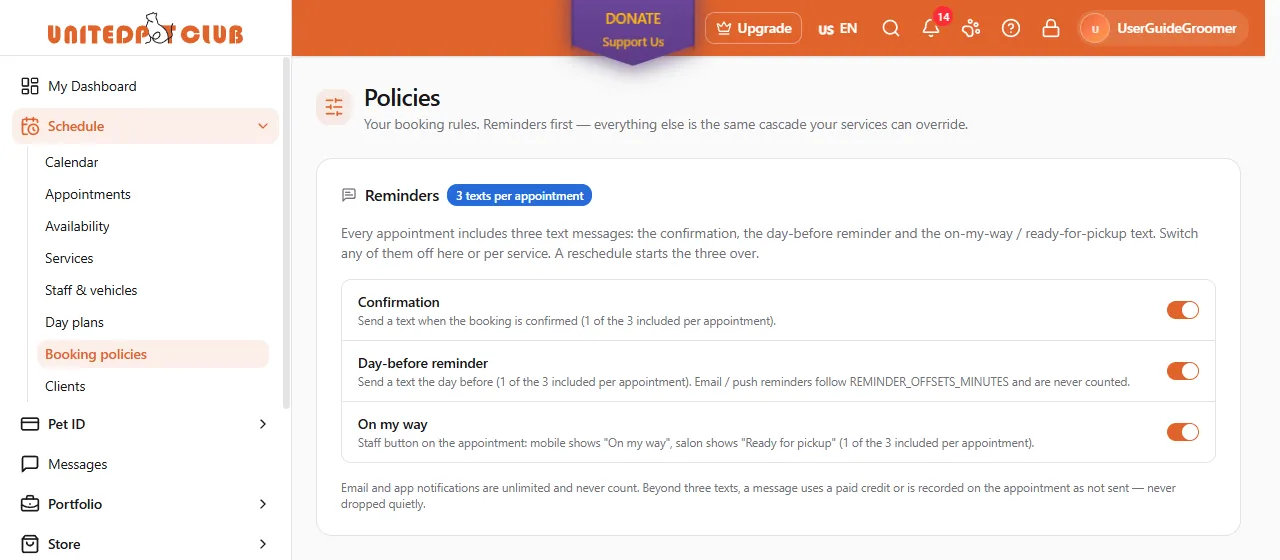
Section titled “Text reminders”Each appointment can send the client three text messages, over WhatsApp when the client has opted in and by SMS otherwise:
- a confirmation when the booking is confirmed,
- a reminder 24 hours before the start,
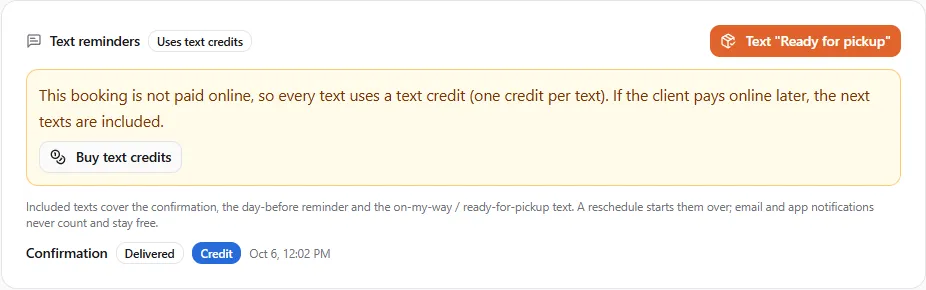
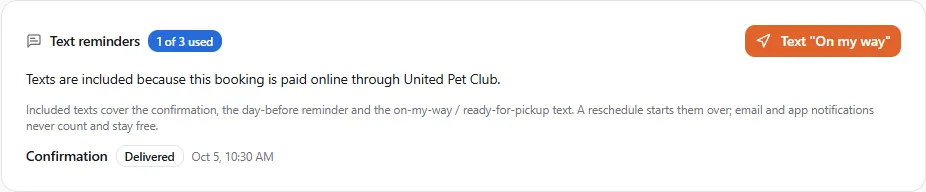
- an “On my way” (mobile) or “Ready for pickup” (at your place) that a team member sends with one tap from the appointment: the Text “On my way” or Text “Ready for pickup” button on its Text reminders card.
When the three texts are included
Section titled “When the three texts are included”The three texts are included (free) when:
- the client paid online through United Pet Club: a deposit paid online is enough; or
- your business is on Pro; or
- your business is a Partner in good standing (no platform fees past due, no unpaid dispute fee, no open issue such as spam or abuse, not suspended or under review; see Your standing).
A booking paid in cash (or by your own terminal or e-transfer, or not paid yet) gets no included texts: every text uses one text credit, from the first one. This is because we can only be sure to collect our fee on bookings paid through us. A deposit you took in cash counts as cash, and so does a booking paid with a package.
It is decided each time a text is sent. If the client pays online later, the next texts are included; texts already sent on a credit stay that way. If your Partner business loses good standing, cash-booking texts use credits straight away, and settling what is owed brings the included texts back.
The allowance is per appointment, never per month — a busy December costs you nothing extra. Emails and app notifications are separate, unlimited and always free. Replies from the client never count. If an appointment is rescheduled, its three texts are restored so the confirmation goes out again for the new time. If a text cannot be delivered, it is given back: the included text, or the text credit it used.
When a text uses a credit
Section titled “When a text uses a credit”A text uses one text credit when the booking is paid in cash, or when a paid-online booking needs a fourth text, say a second “running late”. Credits come in packs of 100 ($10, lasting 6 months) and 1,000 ($90, lasting 12 months); see Pro plan and add-ons. With no credits left, the text is not sent and the appointment’s history records Not sent — limit reached, so you always know the client was not told. Nothing is dropped silently.
The appointment’s Text reminders card says which case applies: Texts are included because this booking is paid online through United Pet Club, …included with your Pro plan, even when the client pays in cash, …included with your Partner status while your business is in good standing, or This booking is not paid online, so every text uses a text credit (one credit per text). with a Buy text credits link.
What your client receives
Section titled “What your client receives”United Pet Club sends the texts and e-mails for you, from its own WhatsApp number and e-mail address, with your business named in each message:
- E-mails, always free: the booking confirmation, a reminder at your reminder times (set under Booking policies, a day and two hours before by default; only the nearest one is sent, and none whose time had already passed when the booking was made), a new-time e-mail when an appointment moves and a cancellation e-mail. They list the service, the pets, the date and time in the appointment’s time zone, where it happens (your location’s address, unless you hide your base address; for a mobile visit, the client’s service address from the booking) and the video link for an online session. The confirmation, reminder and new-time e-mails let the client add the appointment to their calendar (Google Calendar, Outlook, or an .ics file for Apple Calendar and other apps).
- The three texts above, short versions of the same: WhatsApp when the client has messaged United Pet Club on WhatsApp, SMS otherwise. The confirmation, reminder and ready for pickup texts include the address; on my way adds the planned arrival time when the van’s day plan is applied.
Clients read them in their own language: a member’s account language, or the language on the client’s record. A message about a booking that changed in the meantime is not sent (a reminder for a moved or cancelled appointment).
Phone numbers need the country code. Texts go only to a number written internationally, such as +1 604 555 0100. For a number without it, the text is not sent: the Text reminders card shows it as failed and the text is given back. Add the code on the client’s record before the next booking.
Did the client get it, and are they coming? The appointment’s Messages to the client card lists every e-mail and text sent to the client about it, with ticks:
- one grey tick: sent (the e-mail or text left United Pet Club);
- two grey ticks: delivered (the client’s mail server or phone accepted it);
- two blue ticks: probably opened. An estimate: some mail apps open every message automatically, others never report an open, so a missing blue tick does not mean the client did not read it;
- red: failed or bounced, with the reason (for example an address that does not exist).
The confirmation, reminder and new-time e-mails have a Confirm I’ll be there button. When the client presses it, the appointment shows a green Client confirmed badge, on the appointment, in Schedule → Appointments and as a tick on the calendar. If you move the appointment, the badge goes away until the client confirms the new time.
When a text fails. The appointment’s Text reminders card shows each text as delivered or failed, and the history notes that the included text or the credit came back to you. A failed text means the client was not told by text. The usual reasons: no mobile number on file, a number without its country code, a carrier error, or a booking that changed before the text went out. United Pet Club support can see the exact reason.
Switch each of the three off for your whole business or for one service under Schedule → Booking policies (the page is titled Policies): the Reminders card at the top lists Confirmation, Day-before reminder and On my way, each with its own switch.
Clients
Section titled “Clients”The Clients page lists everyone who has booked with you, most recent visit first, with their pets and notes. Client records are free at any count; a search box finds a client by name, phone or e-mail.
If something went wrong
Section titled “If something went wrong”I can’t find Schedule in my menu. Open Customize Dashboard and switch Schedule on. If it isn’t listed at all, you’re acting as a personal profile without a profession: add your profession under My Profile → Specializations, or switch to your business profile.
Every Schedule page shows “Set up your Schedule”. One of the three steps isn’t done yet (or the service fees changed and need a new yes). See Schedule setup checklist.
A client can’t book a time my team is working. Check Availability → When each service type is offered: if that service’s type is set to Only on these days and times, the time also has to fall inside those hours.
My old Grooming bookmark still works. Yes: links to the old Grooming pages open the matching Schedule page.
Related
Section titled “Related”- Schedule setup checklist — payouts, service fees and a card on file.
- Schedule availability — team hours, time off and service-type hours.
- Appointments & Booking — how clients book and what the booking flow asks.
- Offering services — putting a service on your page.
- Fees — the per-booking fee, the only thing you pay.