

Shipping
If you sell anything that goes in a parcel, Shipping is where you decide what buyers pay for delivery and how you get it to them. You’ll find it in the dashboard under Commerce → Shipping, with four tabs: Carrier Accounts, Locations, Shipping Profiles and Platform Labels. The Overview shows your default profile, carrier account health, ship-from locations and platform-label status at a glance.
Shipping belongs to your profile, so every storefront on the same profile shares the same carrier accounts, locations and profiles.
The short version
Section titled “The short version”- Check where parcels leave from: your profile’s default address, or a ship-from location (a warehouse) if you add one.
- Optionally connect a carrier account to quote live rates and buy labels.
- Create a shipping profile: the methods buyers see, where the rates come from, your markup and handling fee, and where you ship.
- Pick that profile on each shipped offer.
You don’t need a carrier account at all — a profile can price shipping from your own rate table.
Where your parcels leave from
Section titled “Where your parcels leave from”You don’t have to add a ship-from location to sell shipped products. Without one, parcels leave from your profile’s default address (the primary address on your profile’s addresses page). The Shipping overview, the Locations page and the Sell wizard say which one is in use:
- Using your default address in Langley, BC, CA. Add a warehouse to ship from somewhere else. — no location yet; rates and labels use your address. Only the place is shown on these screens; buyers never see your address.
- Add a street, city and postal code to your default address… — carriers price by postal code and print the street and city on labels, so a live carrier rate or a label needs all three. Flat rates you set yourself still work.
- Nothing to ship from yet. — no location and no address. Choose Add your address (it opens your profile’s addresses) or Add a warehouse.
Once you add a ship-from location, your default location wins over your address. A shipping profile can also name its own location; that one wins over both.
Add ship-from locations
Section titled “Add ship-from locations”Commerce → Shipping → Locations. Add a location when parcels leave from somewhere other than your profile’s address — a warehouse or a store. Your first location becomes the default; shipping profiles that follow the default ship from it.
Choose Add a Location and fill in the Location name (e.g. Main warehouse), Contact name, Company (optional), Street address, City, Country, State / province, Postal code, Phone and Email. Tick This is a residential address if it is, and Use as the default ship-from location to make it the default. Name, contact, street, city, postal code and country are required.
A location that a shipping profile uses can’t be removed — point the profile elsewhere first.
Connect a carrier account
Section titled “Connect a carrier account”Commerce → Shipping → Carrier Accounts. Connect UPS, FedEx, DHL Express, Canada Post or USPS to quote live rates from your own contract and buy labels. Credentials are encrypted and never shown again — after saving, only the last characters appear.
Choose Connect a Carrier, pick the Carrier, give it a Display name (e.g. Main UPS account), choose the Environment — use Sandbox (test) while testing; switch to Production (live) to buy real labels — and tick My account has negotiated rates if your contract has them, so rates are quoted from your contract instead of the published list. Then enter the Account identifiers and API credentials for your carrier:
| Carrier | What you need | Where to get it |
|---|---|---|
| UPS | Client ID and Client secret; your 6-digit Shipper number | developer.ups.com → My Apps → add an app attached to your UPS account number, with the Rating, Shipping and Tracking products |
| FedEx | API key and Secret key; your 9-digit Account number | developer.fedex.com → My Projects → create a project. Test and production projects have different keys — connect the one matching the environment you chose |
| DHL Express | API key and API secret (your MyDHL API username and password); Export account number, optional Import account number | These are not self-service: request MyDHL API access on developer.dhl.com and a DHL Express consultant issues test and production credentials for your account |
| Canada Post | API username and API password; your 7-digit Customer number, optional Contract ID and Mailed on behalf of number | Canada Post Developer Program (sign in with your business account, Join Now) — you get one development key pair and one production key pair |
| USPS | Consumer key and Consumer secret; your CRID, MID and, for labels, your Enterprise Payment Account | Business account at cop.usps.com → My Apps → create an app. Labels and payments need a service request and USPS Ship enrolment of your MID |
The dialog tells you which fields are missing (Fill in: …). Two carriers are limited by origin: Canada Post ships from Canada only and USPS from the United States only — the account shows Ships from … only and won’t quote for a ship-from location elsewhere.
After saving you’ll see Carrier account connected. Verify it to start quoting.:
- Verify checks your credentials with the carrier. Success sets the status to Active; a failure shows Invalid credentials with the carrier’s message under the account name, and the account won’t quote until you fix it with Edit Account (leave the credential fields blank to keep what’s on file).
- Services opens Services for …: enable the services buyers may be offered and, if you like, rename them under Shown to buyers as. Only enabled services appear in your profiles.
- Retire stops the account for good — shipping methods using it stop quoting live rates.
Build a shipping profile
Section titled “Build a shipping profile”Commerce → Shipping → Shipping Profiles. A profile is a reusable bundle — methods, rates, markup, handling and regions — that you attach to offers. You need something to ship from first: your profile’s default address or a ship-from location.
Details
Section titled “Details”Choose Create a Shipping Profile and fill in:
- Profile name (e.g. Standard parcels) and the Ship-from location. New profiles use Default ship-from: your default location, or your address when you have none, and they keep following it when you change either. Pick a location to pin the profile to it.
- Currency — fixed amounts in this profile are in this currency (your storefront’s).
- Default profile for offers without one — offers that don’t pick a profile use this one.
- Handling fee — Charged as Percent of the base rate or Fixed amount, and the Amount / Percent. Tick Waive handling when shipping is free if a free-shipping band should also drop the handling fee.
- Handling time — Min days / Max days before the parcel leaves.
- Quote valid for — minutes a buyer’s quote stays good before it is re-priced.
The Your surcharge cap card explains the platform limit: Markup and handling together may not exceed {cap} over the base rate. Anything above is trimmed at checkout. If your configuration exceeds it you’ll see Markup plus handling exceeds your cap — buyers will be charged the capped amount. A custom cap agreed with the platform shows here too, with its expiry.
Methods
Section titled “Methods”Open the Methods tab. Each method is one option buyers see at checkout. Add a Method and set:
- Method — Ground shipping, Express shipping, Freight, Courier or Mail-order prescription. Each can be added once.
- Shown to buyers as — the name at checkout.
- Rates from — one of:
- My own rate table — you price it with lanes and bands (below). Set the Transit time min/max days yourself.
- Live rates from my carrier account — pick the Carrier account and the Services to offer (or All enabled services). Show carrier service names to buyers (on by default) lists every enabled service as its own option, e.g. “UPS Ground” and “UPS 2nd Day Air”; off shows only the cheapest under the method name.
- Live rates from the platform account — only after your platform-labels application is approved (see below); otherwise Platform account rates need an approved platform-labels authorization.
- Markup — Charged as percent or fixed, and the Amount; leave it at No markup to pass rates through. Markup and handling together are what the cap limits.
- Order and Active.
Save Methods before editing rates — Save the methods before editing their rates.
Rate tables (lanes and pricing)
Section titled “Rate tables (lanes and pricing)”For a My own rate table method, choose Edit Rates. A lane prices one origin → destination pair.
- Add a Lane. Set the Origin and Destination scope: Everywhere, a Country, a
State / province, a Region set or a Postal code prefix (e.g.
M5V). Start with an Everywhere → Everywhere lane, then add specific destinations with a higher Priority — when several lanes match, the most specific destination wins, then the higher priority. Optionally override Transit (days) for the lane. - Pick the lane’s Pricing:
- One price per shipment — a single Price, however many items ship together. Enter
0for free shipping. - First item + each additional item — the First item price plus Each additional item; a 3-item order pays the first price once and the additional price twice. Fill in Never more than to cap the whole shipment — $5.00 + $2.00 each, never more than $15.00 charges $5.00, $9.00 and $15.00 for 1, 3 and 10 items. Leave it empty for no cap. A preview line under the fields shows what 1, 3 and 10 items would pay as you type.
- Quantity tiers — a small table of From (items) / Up to (items) / Price rows, e.g. 1–2 items $5.00, 3–5 items $8.00, 6 and up $12.00. Choose Add a Tier for the next row; leave the last Up to empty for and up. Typing an Up to moves the next tier’s From along with it, so tiers never overlap.
- Advanced — the full band grid for rates that depend on weight or order subtotal (tick Free on a subtotal band for free over a threshold), or that combine several axes. Bands of different axes add up; bands on the same axis must not overlap, and a range includes its From and excludes its To. Max caps an item-count or weight band’s own total (its price plus whatever accrues per additional unit or kilogram); it is greyed out on flat and subtotal bands, where nothing accrues.
- One price per shipment — a single Price, however many items ship together. Enter
- Save Rates.
Quantity counts across the whole template. Every product attached to the same shipping profile is treated as one shipment, so the quantity a tier or per-item price sees is the sum of those lines in the order — two red passports and one blue passport on the same profile are three items, not three separate shipments. Give products different profiles when they should be priced separately (a bulky item that always ships on its own, for instance).
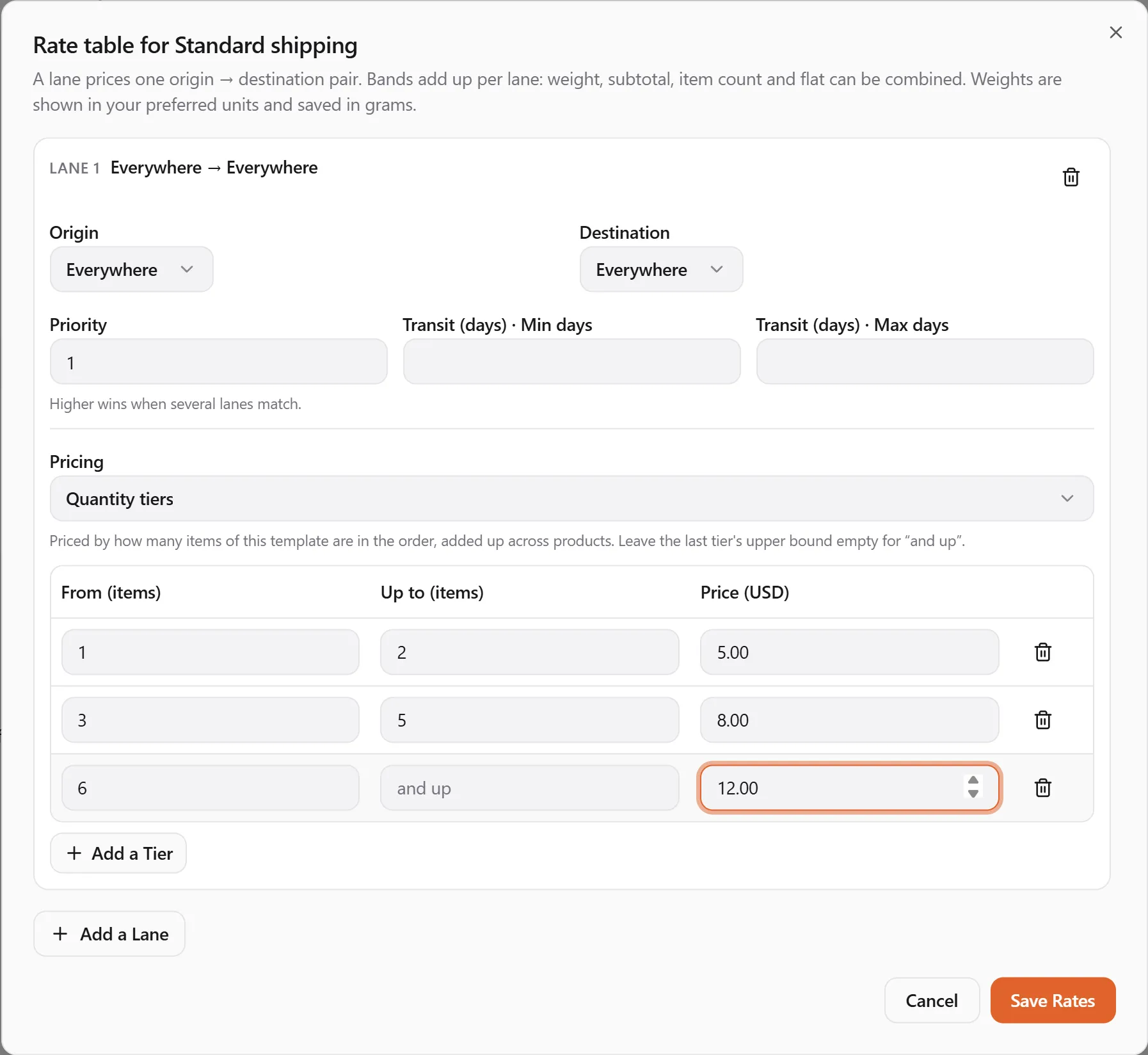
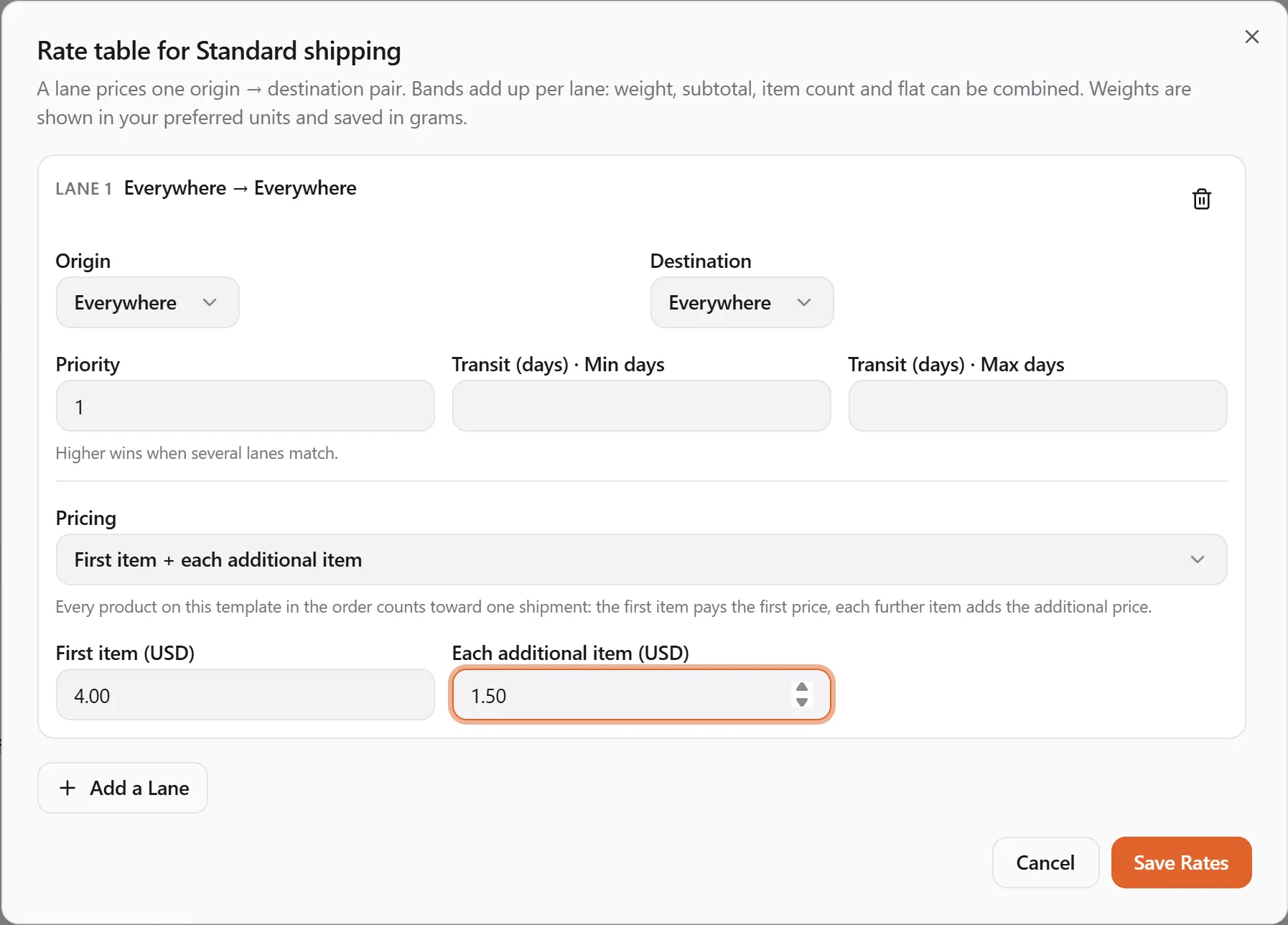
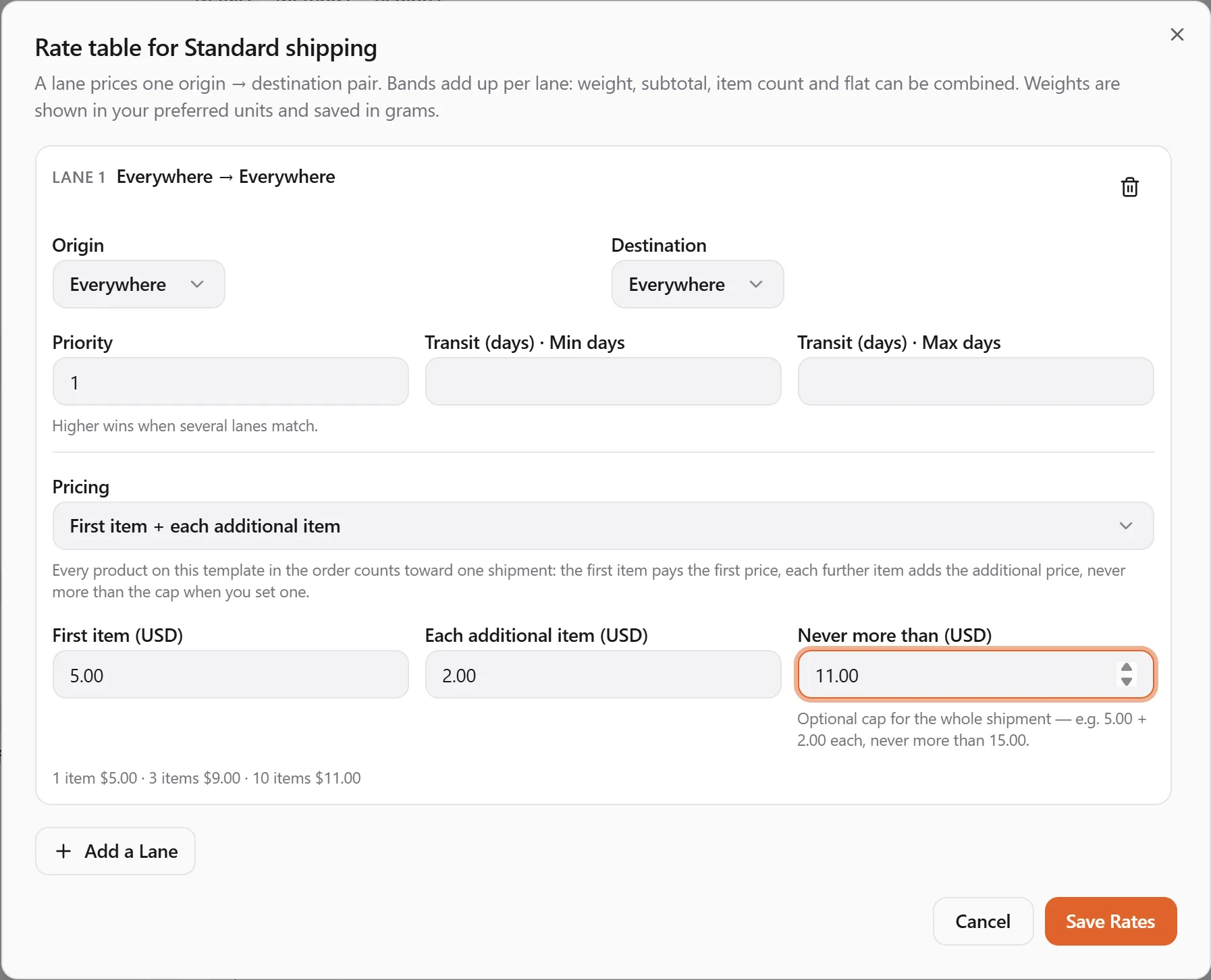
The editor highlights problems — Overlaps band …, “To” must be greater than “From”, Only one flat band per lane, Free applies to order-subtotal thresholds only — and won’t save until they’re fixed. A lane with no bands quotes nothing.
Regions
Section titled “Regions”The Regions tab is where this profile ships. Add a Rule: Allow or Block a scope (country, state/province, region set or postal prefix), applied to the Whole profile or to one method, with an optional note. Blocked destinations never see the option. If you add any Allow rule, everything not allowed is blocked; Block always wins over Allow. With no rules, the profile ships everywhere its lanes and carriers reach.
Manage profiles
Section titled “Manage profiles”Back on the list: Open to edit, Make Default, or Deactivate — It stops quoting immediately. Offers referencing it will need a new profile.
Offer a method only near your warehouse
Section titled “Offer a method only near your warehouse”Give a method an Only within (km) distance and it is offered only to addresses within that many kilometres of the profile’s ship-from location — the usual case is local pickup within 50 km of the warehouse. Two things make it work: the ship-from location needs coordinates (pick it from the address search when you create it), and the shopper’s address must be located too (the store’s checkout does that when the address is chosen from the suggestions). When either side is unknown the method is simply not offered — nobody is promised a pickup three provinces away.
Attach a profile to an offer
Section titled “Attach a profile to an offer”Since 2026-09-21 you attach one shipping template per region to an offer, and that template covers every way the item ships there — pickup, ground, express, freight, courier, mail-order. The Sell wizard’s Delivery step asks for a default template (“everywhere”) before a product can go live, and the offer’s shipping panel lets you add regions: pick Canada and a CAD template, for example, so Canadian shoppers are quoted in their own currency (a template only quotes carts in its currency). Package facts — weight and size, “ships separately” — are entered once on the offer, in your own units (the ones under Account → Preferences → Units).
If the product itself has measurements recorded under Weight & size, the package boxes arrive prefilled from them with a line saying where they came from — Started from the product’s own measurements — add what your packaging weighs and measures before you save. Add your box before saving: the number stored on the offer is what every quote uses, and it should be the parcel you actually post, not the thing inside it.
The United Pet Club store ships with Standard shipping (USD) everywhere and Standard shipping — Canada (CAD) in Canada; pet passports have one template per pack size (single, 8, 10, 20, 50, 100) in each currency so the rate can follow the weight of the pack.
The older per-method picker
Section titled “The older per-method picker”Offers created before templates may still show the per-method form: each shipped method has a Shipping profile picker. Pick one and Rates, handling and regions for this method come from the profile — the fee fields below no longer apply; the method shows Priced by profile. Tick Ships separately if the item should always be quoted as its own package instead of combined with other items.
If the chosen profile has no matching method you’ll see This profile has no {method} method — buyers won’t see this option until you add one. The Legacy fee fields are used only while no shipping profile is selected.
Platform labels
Section titled “Platform labels”Commerce → Shipping → Platform Labels. If you have no carrier account, you can apply to buy labels on the platform’s carrier accounts. Costs are deducted from your payouts; a saved payment method covers anything left over.
- Choose Apply for Platform Labels.
- Pick a Saved payment method — approval needs one that can be charged without you present, so carrier adjustments (wrong weight, address corrections) can be recovered. If none is listed, add one in your account’s payment settings and come back.
- Add a Note for the reviewers (expected volume, carriers you’d use) and send it. You’ll see Application sent. We’ll review it shortly.
The page then shows your Status (Under review, Approved, Declined, Suspended or Revoked), the Exposure cap and Open (unsettled) charges. Platform labels pause when unsettled charges reach your cap, until payouts or your payment method settle them. The Charges table lists every platform label, adjustment and refund and how it was settled — Payout deduction or Saved payment method.
Ship an order
Section titled “Ship an order”You’re told when an order is paid
Section titled “You’re told when an order is paid”When a buyer pays for an order with something of yours in it, we tell you right away: an e-mail, New order to fulfill on United Pet Club, and a notice under the bell in the Dashboard. Both show the order number and how many items to send, and Open the sale takes you straight to it. They’re in the language of your account, and they go to the profile that made the sale (the e-mail to that profile’s e-mail address).
You hear once the buyer has paid, not when they place the order. An order that is never paid never asks you to do anything. Things that need nothing from you, like a digital download that is delivered as soon as it’s paid, or a booking (you get booking messages instead), don’t send this notice.
Ship it
Section titled “Ship it”Open a sale under Commerce → Sales; the Ship panel — Packages, rates and labels for this sale — appears once the order is ready to fulfil.
- Check Packages — weight and dimensions are pre-filled from the offer and shown in your preferred units; add or edit packages, add a Reference, tick Adult signature if needed, then Save Packages. Leave Reference blank to print the order’s offer codes on the label; the empty field shows them.
- Get Rates. Options are grouped under Your carrier accounts and, if approved, Platform account (tick Include platform account rates). Each shows the service, price, transit and estimated delivery. Buyer paid for reminds you what was sold. Rates stay good for a short while (15 minutes by default); if you buy after they expire, or change the packages first, you’re asked to get rates again. A platform-account option only appears while it fits under your open exposure.
- Pick the Label format — PDF label (4 × 6 in) or Thermal printer (ZPL) — and Buy Label. The label appears under Labels with its tracking number; Print opens it.
- Made a mistake? Void before Void until — The carrier refunds the label if it hasn’t been scanned — and give a short reason. DHL Express labels have no carrier-side void: the label is simply discarded on our side and never billed as long as you don’t hand the parcel over.
- Shipped with a label bought elsewhere? Choose I shipped it myself, pick the carrier (or Other carrier and its name), enter the Tracking number and Shipped on, then Save Tracking. The order is marked shipped straight away. Automatic tracking updates for these parcels depend on the platform having an account with that carrier; if it doesn’t (or you picked Other carrier), keep the buyer informed yourself.
- Mark as Shipped tells the buyer it’s on its way.
Tracking lists the carrier’s scan events as they arrive — checked hourly until the first scan, every few hours in transit and every half hour once out for delivery. Shipped and Delivered dates fill in automatically. If the buyer cancels an order that already has a label, we void it with the carrier for you.
Print a packing slip
Section titled “Print a packing slip”Every shipment on the Ship panel has a Packing slip section: Lists each item in this shipment with its offer code as a barcode, its name and quantity, so you can check the box as you pack. Pick the Paper, 4 × 6 in label for the label printer you print shipping labels on or Letter page (8.5 × 11 in) for an office printer, and choose Print Packing Slip. The slip opens as a PDF in a new tab; print it from there at actual size (100 %), so the barcodes keep their width.
For each item the slip prints:
- a barcode of the item’s offer code. It’s a standard Code 128 barcode, so any USB or phone barcode scanner reads it: scan each item as it goes in the box;
- the offer code in plain letters under the barcode;
- the item’s name as the order recorded it, and the Qty.
The top shows the order number (the one on the sale page), the date the order came in and where it ships to: on a 4 × 6 label just the buyer’s name and town, on a Letter page the full address. A long order continues on more pages, four items per label and about eight per Letter page. You can print the slip again whenever you like, also after the parcel has shipped; a cancelled order has none (Couldn’t open the packing slip.).
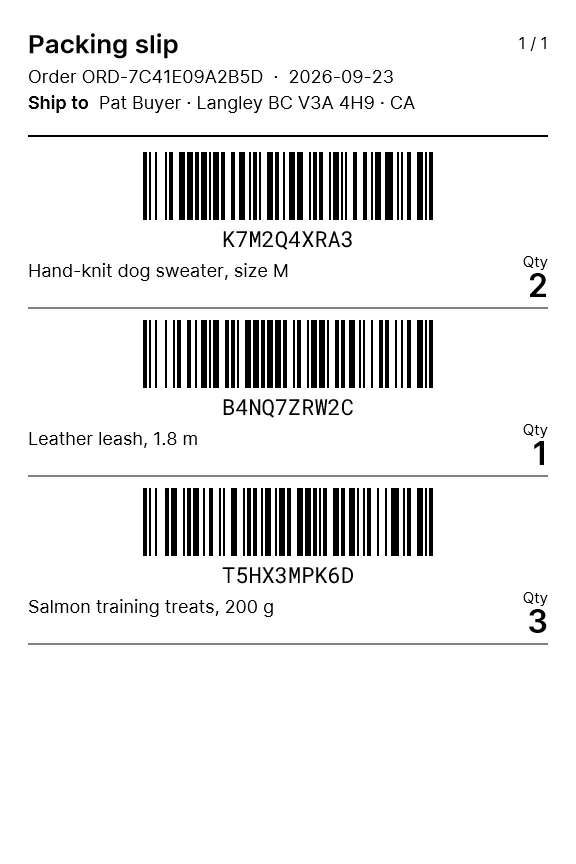
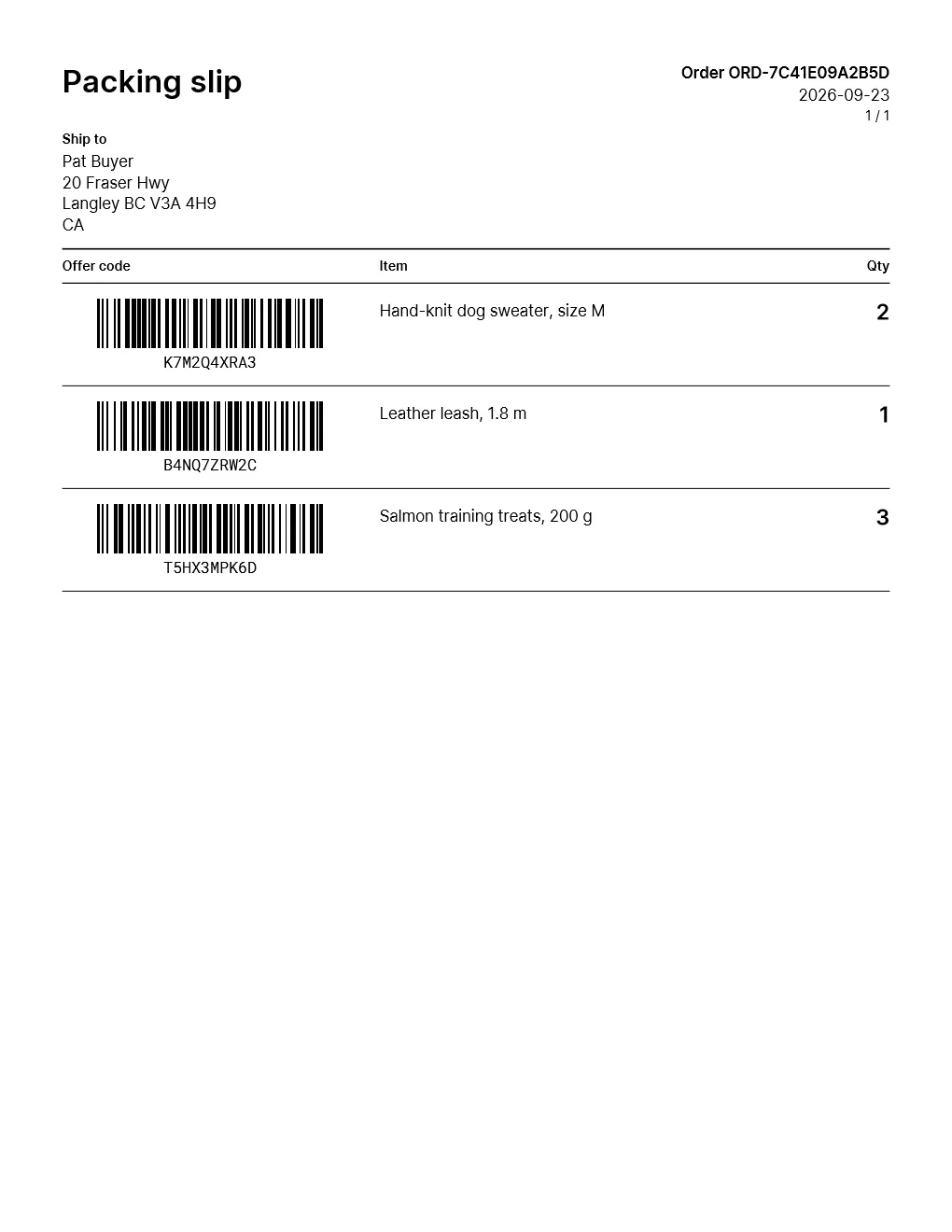
The slip’s own words (Packing slip, Order, Ship to, Qty) follow the language you use the dashboard in. For languages written in scripts other than Latin, Greek or Cyrillic (Arabic, Chinese, Hebrew, Hindi, Japanese, Korean, Thai and a few more) they print in English for now, and item names in those scripts are shortened to ”…”: the barcode and the code still identify every item. Older orders may print without item names, or with No offer code in place of a barcode: the slip only prints what the order recorded.
Hand over a local pickup
Section titled “Hand over a local pickup”A local pickup has no label and no carrier, so nothing scans it as delivered. Open the sale under Commerce → Sales: the Local pickup panel shows once the buyer has paid. When they have collected the order, press Mark as picked up. The sale is then complete and the buyer’s order shows it that way; the panel keeps the date it was picked up. Until the buyer pays, the panel only says you can mark it once they have.
What buyers see
Section titled “What buyers see”- At checkout, each active method of the offer’s profile is a delivery option with its price — named after the carrier service when you show service names, or after the method otherwise. Blocked destinations don’t see the option at all; a method that couldn’t be priced is listed as unavailable with a reason (No rate for this destination, Carrier didn’t respond).
- Your markup and handling fee are inside the price; buyers never see the split, and never more than the platform cap allows.
- Buyers are told when the parcel ships, is out for delivery, is delivered, or hits a delivery problem, and can follow it from their order.
If something went wrong
Section titled “If something went wrong”- A method doesn’t show at checkout — the profile has no method with that code, the method is inactive, the destination is blocked by a region rule, or no lane covers it. Check the offer’s This profile has no … method warning first.
- “Carrier didn’t respond” — the live rate call failed. Your rate-table methods still quote; Verify the carrier account and check its last error.
- Prices lower than you configured — the platform cap trimmed your markup plus handling. The profile’s cap card shows the limit.
- Platform account rates are missing — your platform-labels authorization isn’t approved, is suspended, or this label would take your open charges over the exposure cap.
- A platform label charge shows Failed — your payout balance couldn’t cover it and the saved payment method couldn’t be charged. Check the error on the Platform Labels → Charges table: a card decline means the card itself; a message about the payment method not being resolvable means the method was accepted at approval but can’t yet be charged without you present — set up an off-session payment method in your account’s payment settings, apply again, and contact support to retry the charge.
- Getting rates after voiding a label — voided labels release their package, so just Get Rates again and buy a new label.