

Documents
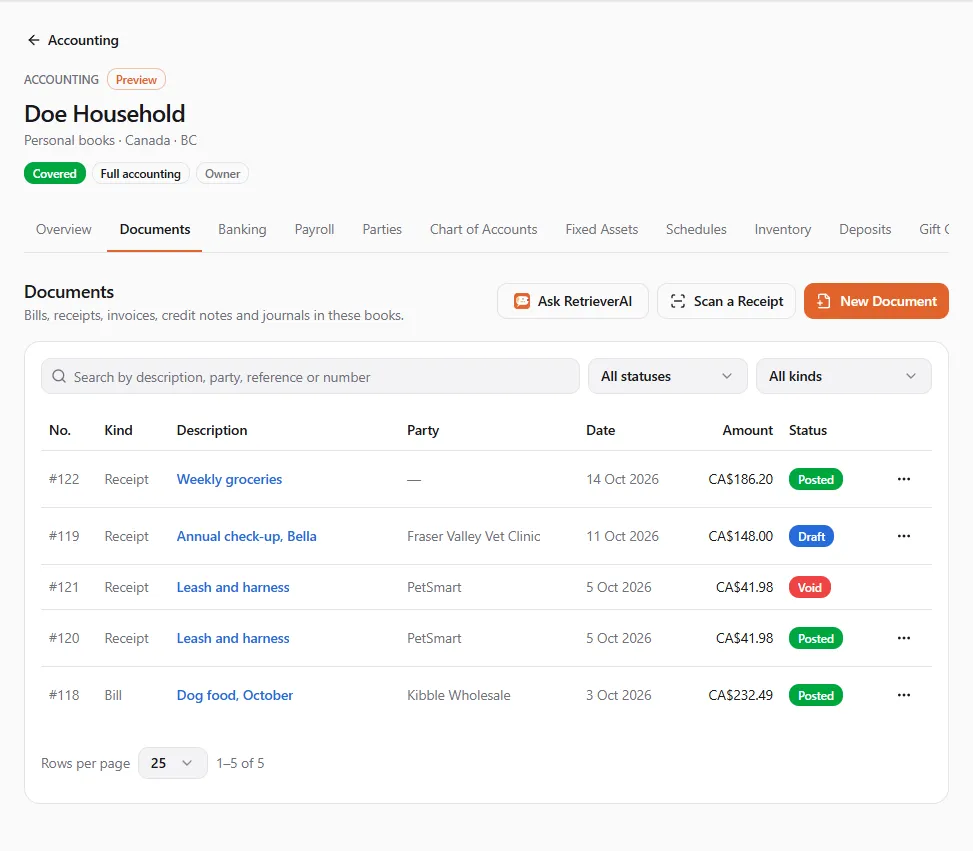
Documents are what you record by hand: what you owe, what you paid, what customers owe you, and journals. A document starts as a Draft; once Posted it is written to the ledger and can no longer be edited, only voided.
The entity’s Documents tab (/dashboard/finances/accounting/{entity}/documents): the list, with New Document,
Scan a Receipt and Ask RetrieverAI. Search by description, party, reference or number, and filter by
Status and Kind.
Kinds of documents
Section titled “Kinds of documents”| Kind | What it is | By default it balances against |
|---|---|---|
| Bill | Something you owe a supplier. It stays payable until you pay it. | accounts payable (choose your bank if you have paid it already) |
| Receipt | Something you have already paid for. | your bank (choose cash or a card if that is how you paid) |
| Invoice | What a customer owes you. | accounts receivable |
| Credit note | Money you give back to a customer, or take off what they owe. | accounts receivable |
| Manual journal | Debits and credits you enter yourself. They must balance. | nothing: its own lines balance |
For a bill, receipt, invoice or credit note you enter only the lines (what it was for); the books add the balancing side. You can change it with Balancing account.
Recording a document
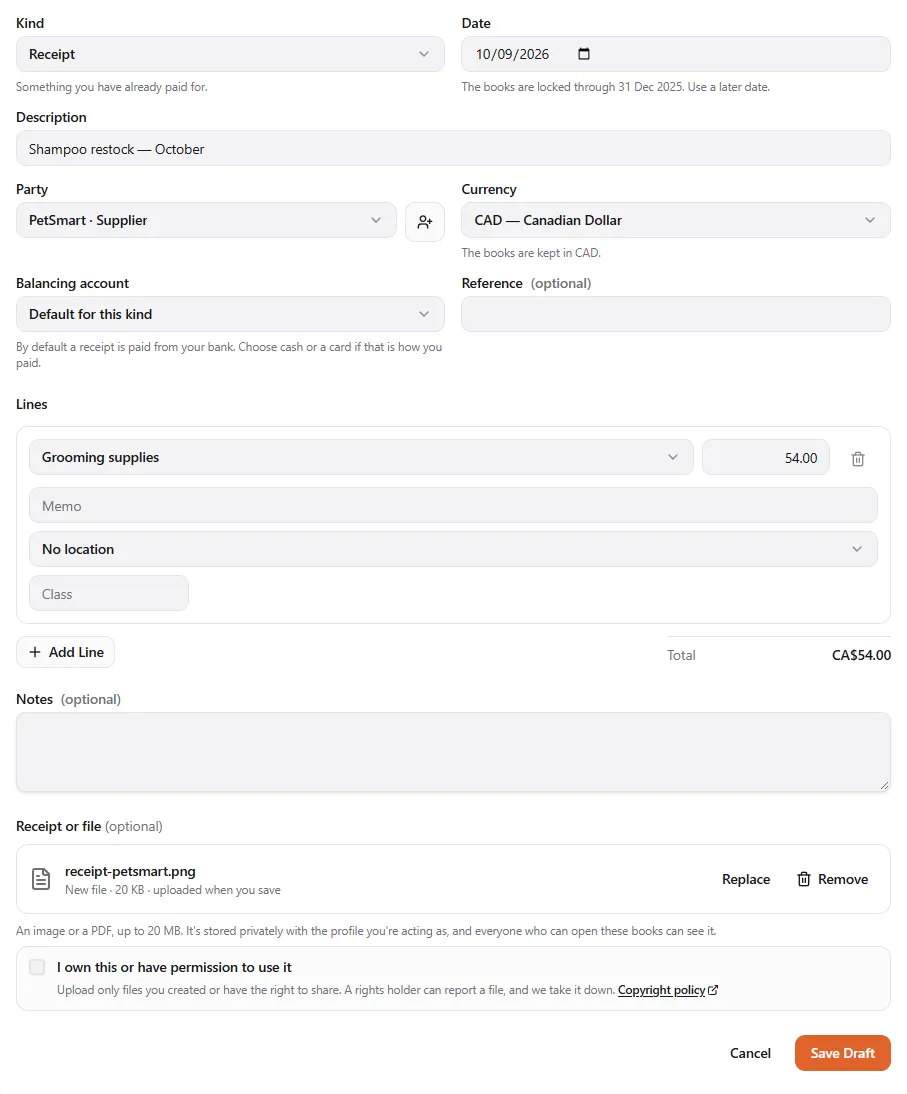
Section titled “Recording a document”- Choose New Document. It is saved as a draft. Someone who may post documents posts it to the ledger.
- Pick the Kind and the Date. A date on or before the lock date is refused: The books are locked through … Use a later date.
- Enter a Description (What this is for, e.g. Shampoo restock — March), and optionally a Party (or Add a party), a Due date and a Reference.
- Currency: the books’ currency by default. For another currency, enter the Exchange rate: How many (books’ currency) one (other currency) is worth on the document’s date.
- Add the Lines: for each, choose a category (Choose a category: an entry type, or an account under Accounts), the amount, and optionally a Memo, a location and a Class. A manual journal line also needs Debit or Credit. Add Line adds more.
- Check the totals. A journal shows Debits and credits balance. or Debits and credits must be equal.
- Optionally attach the receipt or file (below).
- Choose Save Draft. You see Draft saved.
Attaching the receipt or file
Section titled “Attaching the receipt or file”Under Receipt or file, choose Attach a File: An image or a PDF, up to 20 MB. It’s stored privately with the profile you’re acting as, and everyone who can open these books can see it. The file is uploaded when you save. Use Replace or Remove to change it.
On a saved document, View shows a photo in the page and Download saves it; a PDF is always downloaded, never opened as a web page. If your browser can’t show a photo (some HEIC photos), download it.
You can only attach a file you uploaded yourself: Attach a file you uploaded yourself.
Posting, review and void
Section titled “Posting, review and void”Each row’s Actions menu offers what your access allows:
| Action | When | What happens |
|---|---|---|
| Edit | Draft | Change the draft. |
| Post | Draft | Posting writes it to the ledger. A posted document can’t be edited, only voided. |
| Submit for Review | Draft | For people who draft but don’t post (the Clerk role), or a document above your posting limit. It shows In review until someone posts it. |
| Void | Draft or posted | A posted document gets a reversing entry that cancels it in the ledger; the document stays on record as Void. A voided draft is never posted. Give a Reason: Kept with the document, so anyone reading the books knows why. |
| Delete Draft | Draft | The draft is removed for good. Nothing was posted from it. |
If your access has a posting limit, a larger document shows Post (above your limit) and This document is above the amount you may post. Submit it for review instead.
The journal entry behind a document
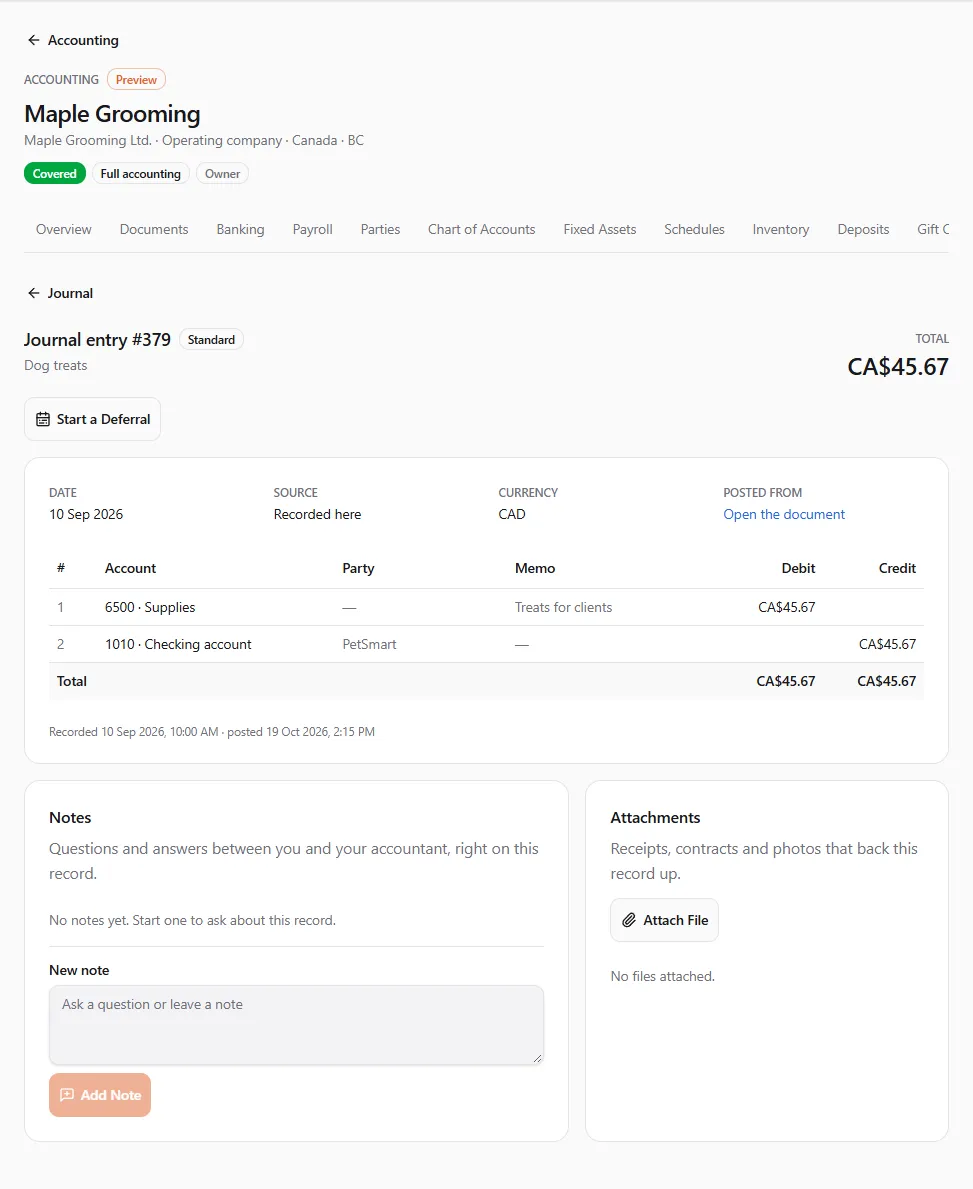
Section titled “The journal entry behind a document”Posting writes a journal entry. Open it from a report row or the general ledger: the page Journal entry #…
(/dashboard/finances/accounting/{entity}/entries/{entry}) shows the date, Source (for example Recorded here,
Store order, Payout, Banking, Payroll), the currency, every line with Account, Party, Memo,
Debit and Credit, and links: Posted from (open the document), Cancelled by, Cancels or Copied
from.
Lines in another currency show their own amount and rate. Without payroll access, payroll lines are Summed into one line per account. Start a Deferral turns a prepaid expense or deferred income on this entry into a schedule (see Schedules), and notes and files can be added below the entry (see Notes and attachments).
Scanning a receipt instead
Section titled “Scanning a receipt instead”Scan a Receipt lets RetrieverAI read a photo and draft the document for you. See RetrieverAI in your books.
If something went wrong
Section titled “If something went wrong”- “You can’t add documents here” — your access doesn’t include drafting documents, or the books are read-only.
- “Fill in the highlighted fields” — every line needs a category and an amount.
- “No … exchange rate is known for this date. Enter the rate on the document.” — type the Exchange rate, or add your own rate under Settings.
- “Your access doesn’t cover documents of this kind” — your grant is limited to other kinds of documents.
- “This file is larger than 20 MB.” / “Choose an image … or a PDF.” — attach a smaller file, or a photo or PDF.