

Security
Everything under Security in the sidebar is about how you sign in and who else might be signed in as you. Each item below is its own page.
Security in the sidebar opens a group: Password, Two-Factor, Passkeys, Screen Lock, Sessions, Trusted Devices, Connected Apps, Linked Accounts, Activity Log, plus API Keys, which is marked Planned and not yet usable. The Security score card on your overview links to whichever of these you have not finished yet.
Change your password
Section titled “Change your password”Security → Password (/account/security/password).
- Enter your Current password.
- Enter a New password — at least 8 characters; the Password strength meter (Weak, Fair, Strong) rewards length, mixed case, numbers and symbols.
- Repeat it in Confirm new password. If they differ you will see Passwords do not match.
- Decide about Sign out everywhere. It is on by default and, as the label says, signs out every device, including this one. Leave it on if you think someone else knows your password; turn it off if you only want to change it and stay signed in.
- Click Update Password.
You will see Password updated. If you left Sign out everywhere on, you are taken straight back to the sign-in page — that is expected, not an error.
Turn on two-factor authentication
Section titled “Turn on two-factor authentication”Security → Two-Factor (/account/security/mfa). Two-factor adds a second step when you
sign in with your password or with Google, Microsoft, Apple or Facebook. The card at the top
of the page tells you where you stand: Two-factor is on as soon as you have an
authenticator app, text-message or email method.
- Click Add Method and pick one:
- Authenticator app — scan the QR code with your app (Google Authenticator, Microsoft Authenticator, 1Password, Authy and similar) or copy the key under Or enter this key manually, type the 6-digit code your app shows into Verification code and click Verify & Enable.
- Text message (SMS) — enter your Mobile number with its country code (for example +1 604 555 1234) and click Send Code. Type the code we text you and click Verify & Enable. Change Number takes you back.
- Email code — click Send Code, type the code we email you and click Verify & Enable. Send a New Code sends another.
- You will see Authenticator added, Text message added or Email code added. With your first method you also see Save your recovery codes: click Copy Codes, store them somewhere safe (a password manager is ideal), then I’ve Saved Them.
A kind you already have is not offered again, and Add Method disappears once you have all three. To change one — a new phone number, say — remove the old method first, then add the new one.
A passkey on its own does not turn two-factor on, but signing in with a passkey counts as both steps — see Add a passkey.
Your methods appear under Authentication methods. Use the pencil icon (Rename method) to name one — for example Personal phone — and the bin icon (Remove method) to delete it. Removing happens immediately, with no confirmation. If it was your last method, two-factor turns off: you are no longer asked for a second step, your unused recovery codes are deleted, and browsers you had told to stop asking forget that choice.
Sign in with two-factor
Section titled “Sign in with two-factor”With two-factor on, signing in with your password (or with Google, Microsoft, Apple or Facebook) brings up Two-step verification:
- If you have an authenticator app, type the 6-digit code it shows and click Verify.
- Try another way lists your other options. Text message and Email send a code to the number or address shown partly hidden (•••• 1234); Passkey or security key asks your device; Recovery code takes one of the codes you saved (each works once).
- A text or email code arrives within a minute. Send a new code becomes available after a minute, up to five codes per sign-in.
- Tick Don’t ask again on this browser for 30 days on a computer only you use. The browser then appears under Trusted devices, where you can revoke it.
- Back to sign in returns to the password.
Signing in with a passkey needs no second step — it already checks your fingerprint, face or device PIN.
The second step lasts 10 minutes; after that you will see This sign-in attempt expired — just start again. After 10 wrong passwords or codes the account locks for 15 minutes (Too many tries); wait, then sign in again.
Add a passkey
Section titled “Add a passkey”Security → Passkeys (/account/security/passkeys). A passkey lets you sign in with
your fingerprint, face, device screen lock or a security key — no password needed.
If you sign in with only a password — no passkey and no two-factor — your Dashboard home shows a Protect your account with a passkey banner; its Create a passkey button brings you to this page. The banner disappears on its own once you add a passkey or turn on two-factor.
- Click Add Passkey. If the button is greyed out you will see This browser doesn’t support passkeys — try a recent Chrome, Safari, Edge or Firefox.
- Give it a Name (optional). The field is pre-filled with a guess for the device you are on (Windows, iPhone, Mac, Android…); tap one of the suggestion chips — iPhone, iPad, Mac, Android, Windows, Security Key — or type your own, such as MacBook Touch ID. Then click Create Passkey.
- Follow your device’s prompt (fingerprint, face, PIN or key). The dialog shows Waiting for device… until you finish.
You will see Passkey added. Each passkey shows when it was added and last used, and whether it is Synced (backed up to your platform account, so it follows you to new devices) or Device-bound. Use Rename passkey to rename it and Remove passkey to delete it — removing asks you to confirm (Remove passkey?) because you will no longer be able to sign in with it.
If the prompt was cancelled or timed out, or the device already has a passkey for this account, you will see a message saying so — just try again. Passkeys aren’t available on this site address right now means the sign-in service is not set up for the address you are using; nothing is wrong with your device — try again later or contact support.
See where you are signed in
Section titled “See where you are signed in”Security → Sessions (/account/security/sessions) lists every sign-in that is still
active on your account: the browser and system it signed in from (for example Chrome on
Windows or Safari on iOS), its IP address and when it was last active. A sign-in from
before 8 October 2026 reads Earlier sign-in (device not recorded); it drops off once it
expires or you revoke it.
The device you are using right now is listed first and marked This device.
- Click Revoke next to any session you do not recognise. That device can no longer renew its sign-in or reach your account and security settings. Pages it already has open elsewhere on United Pet Club can keep working until its current sign-in runs out, which can take up to a few days.
- Sign Out on This device signs you out here, like the menu’s sign-out.
- Sign Out Other Devices ends every session except this one. You stay signed in here.
- Sign Out Everywhere signs out every session, including this one. You will need to sign in again. Both ask you to confirm first.
When you change your password, leave Sign out other devices on to end every other session at the same time. You stay signed in on the device you changed it from.
Trusted devices
Section titled “Trusted devices”Security → Trusted Devices (/account/security/trusted-devices). When you tick Don’t
ask again on this browser for 30 days at the second step of sign-in, that browser skips the
step for 30 days. This page lists those browsers (for example Chrome on Windows); click
Revoke and confirm (Revoke trust?) to make one ask for two-factor again. You cannot add
trust here — only at sign-in. A browser whose 30 days have run out, or that you revoked,
no longer appears. The list is empty if you have never ticked that box, which is normal.
Set a screen-lock PIN
Section titled “Set a screen-lock PIN”Security → Screen Lock (/account/security/screen-lock). After a period of
inactivity, United Pet Club locks the screen and asks for a PIN, your password, a passkey
or an authenticator code before you can continue. It does not sign you out.
All four ways of unlocking only confirm that it is you — none of them starts a new session, so the profile you were acting as is exactly the one you come back to.
The lock card always says whose session it is guarding: under the greeting it shows the
profile you are acting as (@handle) and your username (a User_… placeholder, or your
email address on older accounts, until you choose a username). On a shared or
family computer that is how you tell your lock from someone else’s — if the name on the
card isn’t you, click Sign out instead and sign in as yourself rather than typing your
PIN into another person’s session.
- Enter a PIN of 4–64 letters or numbers and repeat it in Confirm PIN.
- Click Create PIN (or Update PIN if you already have one).
You will see PIN created. Until you set one, the shared default applies and you can always unlock with your password. Remove PIN asks you to confirm. Lock Now at the top locks the screen immediately.
Whether the screen locks itself when left idle, and after how long, is an account-wide setting — see Account settings. The Automatic lock card on this page tells you where your account stands:
- Business, nonprofit, government and every other organization account — the automatic lock is On by default and the screen locks after 10 minutes of inactivity.
- Personal (Solo) and Personal (Family) accounts — the automatic lock is Off by default, so your screen never locks itself unless you turn it on. Lock Now and the Lock item in the user menu still work at any time.
See and disconnect connected apps
Section titled “See and disconnect connected apps”Security → Connected Apps (/account/security/connected-apps) lists the apps a profile
allowed to work with its bookings: a booking app, a website’s booking plugin or an AI
assistant, each connected on the United Pet Club consent page (see
Connected apps for how connecting works and what each
permission means).
Connections belong to a profile, not to your whole account. The Profile box at the top shows whose connections you are looking at, which is the profile you are acting as. Choose another profile there to switch to it and see its connections. Switching here is the same as switching profile anywhere else, so the rest of the site then acts as that profile too.
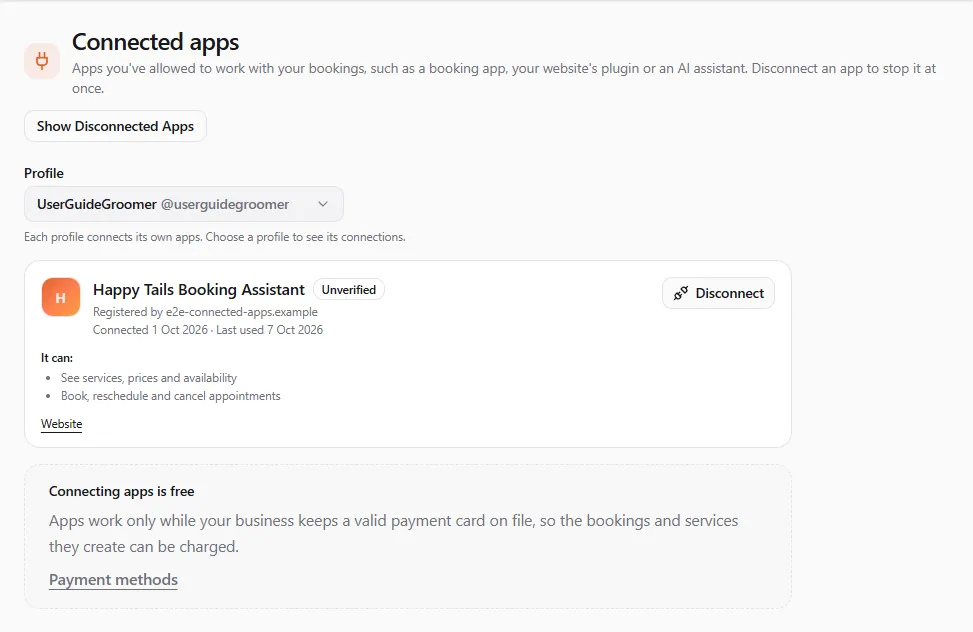
Each app shows:
| What you see | What it means |
|---|---|
| by publisher and Verified publisher | Who made the app, and that we checked who they are. |
| Not reviewed | We have not reviewed this app. It still works; only keep it if you trust it. |
| Unverified and Registered by website | The app registered itself (a website plugin or an AI assistant). It shows the site it came from instead of a publisher. |
| Turned off by United Pet Club | We switched the app off. It can’t work with your bookings until we switch it back on. |
| Connected date · Last used date | When the profile connected the app and when it last worked with the bookings (Not used yet if never). |
| It can: | The permissions the profile gave it, such as See services, prices and availability or Book, reschedule and cancel appointments. |
| Website, Privacy policy | The app’s own pages, opened in a new tab. |
To stop an app, select Disconnect and confirm. It loses access to the profile’s bookings within seconds and stops getting its appointment notices. Appointments it already booked stay on the calendar. You can connect it again later from the app.
Show Disconnected Apps adds the apps disconnected before, each with the date it was disconnected. Hide Disconnected Apps goes back to the connected ones.
Connecting apps is free, but apps work only while the business keeps a valid payment card on
file. The Payment methods link under the list opens Billing → Funding sources
(/account/billing/funding-sources), where you add or check the card (see
Saved cards).
Link a Google, Microsoft, Apple or Facebook account
Section titled “Link a Google, Microsoft, Apple or Facebook account”Security → Linked Accounts (/account/security/linked-accounts). Linking lets you
sign in with that provider as well as your password or passkey. Each row shows the
provider’s logo, whether it is Connected, the email the provider gave us, when you
connected it and when it was last used to sign in.
Connect a provider
Section titled “Connect a provider”- Click Connect next to the provider and approve the request on their site.
- You come straight back here with a Connected badge and the email you linked.
Things that can happen on the way back — each shows a short message and changes nothing:
- You cancelled on the provider’s page.
- That account is already linked to a different United Pet Club account. A Google, Microsoft, Apple or Facebook account can only be linked to one United Pet Club account: sign in to the other account and disconnect it there first, or use a different provider account.
- The provider is switched off for now, or did not return an account identifier — try again later.
A provider marked Not available yet has not been set up on this site.
Disconnect a provider
Section titled “Disconnect a provider”Disconnect asks you to confirm, then removes that provider; your password, passkeys and other connected providers keep working.
If your account has no password and no passkey, the last connected provider is your only way in, so its Disconnect button stays off and the page tells you why. Set a password under Password or add a passkey first, then disconnect. Connecting and disconnecting a provider both appear in your activity log.
Read your activity log
Section titled “Read your activity log”Security → Activity Log (/account/security/activity-log) lists recent security
events — Signed in, Failed sign-in attempt, Password changed, Two-factor
method added, Session revoked and so on — each with its outcome, IP address,
location and time. Filter with the chips All, Sign-ins, Two-factor,
Sessions, Account, Security; Show More loads older events. Opening this page
ticks Recent activity reviewed on your overview’s security score for 30 days.
Anything marked Critical or a sign-in you do not recognise is a reason to change your password with Sign out everywhere on, and to turn on two-factor.
If something went wrong
Section titled “If something went wrong”- Locked out after changing your password? That is the Sign out everywhere default — just sign in again with the new password.
- “Too many tries”? Ten wrong passwords or codes lock the account for 15 minutes. Wait, then sign in again.
- No text or email code? Check the number or address shown (partly hidden), wait a minute, then use Send a new code. After five codes, start signing in again.
- Lost your phone and your recovery codes? You cannot turn two-factor off yourself — see Contact support.
- A message saying Additional verification required means the action needs a two-factor confirmation that this page cannot collect yet; sign out and back in, then try again.