

Customer deposits
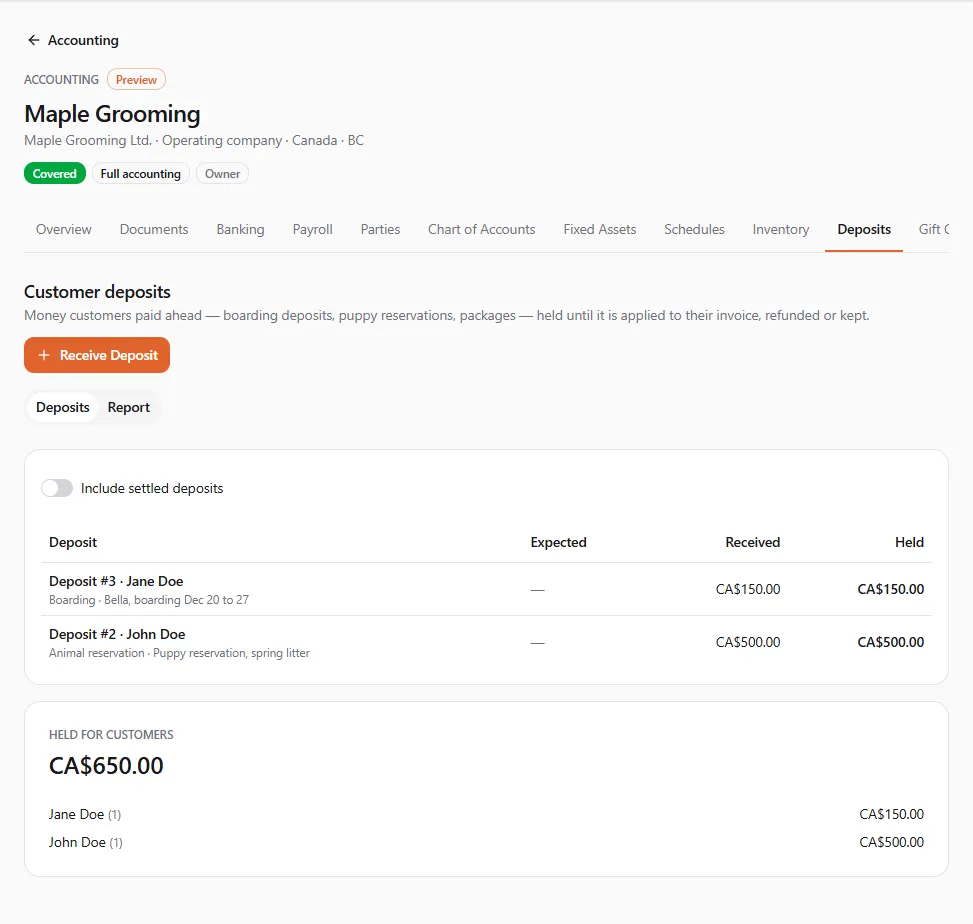
A customer deposit is money a customer paid ahead: a boarding deposit, a puppy reservation, a grooming or training package. It isn’t income yet. The books hold it for that customer, as money you owe them, until you apply it to their invoice, refund it, or keep it under your terms.
Finances → Accounting, then the entity, then the Deposits tab
(/dashboard/finances/accounting/{entity}/deposits). It has two tabs: Deposits and Report. The top shows the
total Held for customers.
Holding-company books have no Deposits tab. Recording deposits needs Post documents; the report needs View reports.
Receiving a deposit
Section titled “Receiving a deposit”- Choose Receive Deposit.
- Pick the Customer and what the deposit is For: Boarding, Animal reservation, Prepaid package, Service or Other.
- Add a Description (“Like Bella, boarding Dec 20 to 27.”), a Reference, and optionally the date it is Expected on (shown only).
- Enter the Amount and the date it was Received on.
- Choose where it was Paid into: A money account, or Another account. It is Held in your chart’s customer deposits account unless you choose another.
- Choose Receive Deposit. You see “Deposit #{no} received.”
“The money is held for the customer until you apply it, refund it, or keep it under your terms.”
Open a deposit to see its History and the actions below. Receive More adds another payment to the same deposit.
Applying a deposit to an invoice
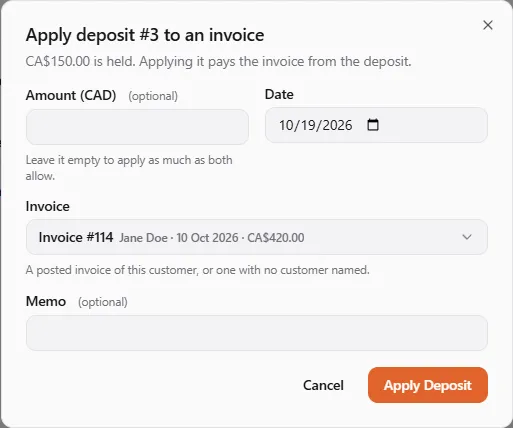
Section titled “Applying a deposit to an invoice”When you invoice the service or sale, use the deposit to pay it.
- Open the deposit and choose Apply to Invoice.
- Pick the Invoice: “A posted invoice of this customer, or one with no customer named.”
- Enter the amount, or “Leave it empty to apply as much as both allow.”
- Choose Apply Deposit.
The invoice now shows as paid by that amount, in the customer’s balance and in your receivables aging. A deposit never applies more than it holds or the invoice still owes. See Documents for invoices.
Refunding or keeping a deposit
Section titled “Refunding or keeping a deposit”- Refund pays it back: enter the amount (or leave it empty to refund everything held), choose where it is Paid back from, and choose Refund Deposit.
- Keep Under Terms keeps it as income where your terms allow: “Keep it only where your terms with {customer} allow; it becomes income.” Enter the amount (or leave it empty for everything held), the account it is Kept as (Other income by default), and choose Keep Deposit.
Quote deposits taken on UPC
Section titled “Quote deposits taken on UPC”When a customer who is a UPC member pays a deposit on one of your quotes through United Pet Club, the books record it here as a Service deposit of that customer. Apply it to your invoice, refund it or keep it like any other deposit. A refund made on UPC shows here as Refunded. See Quotes.
The deposits report
Section titled “The deposits report”Report lists the deposits held on an As of date by customer, then compares the total with each deposits account’s balance. A difference means something was posted to that account outside the deposits list.
If something went wrong
Section titled “If something went wrong”“That’s more than the {amount} held.” Enter at most what the deposit still holds.
The invoice isn’t offered. Only posted invoices of the same customer (or with no customer named), in your books’ currency, can take a deposit.
A deposit in another currency is refused. Deposits are kept in your books’ own currency for now.