

Appointments & Booking
United Pet Club businesses — groomers, trainers, vets, sitters, kennels and many more — take bookings directly on the platform. Mobile businesses come to your address; shop and clinic visits happen at their location; some services are virtual. This page is about booking as a client.
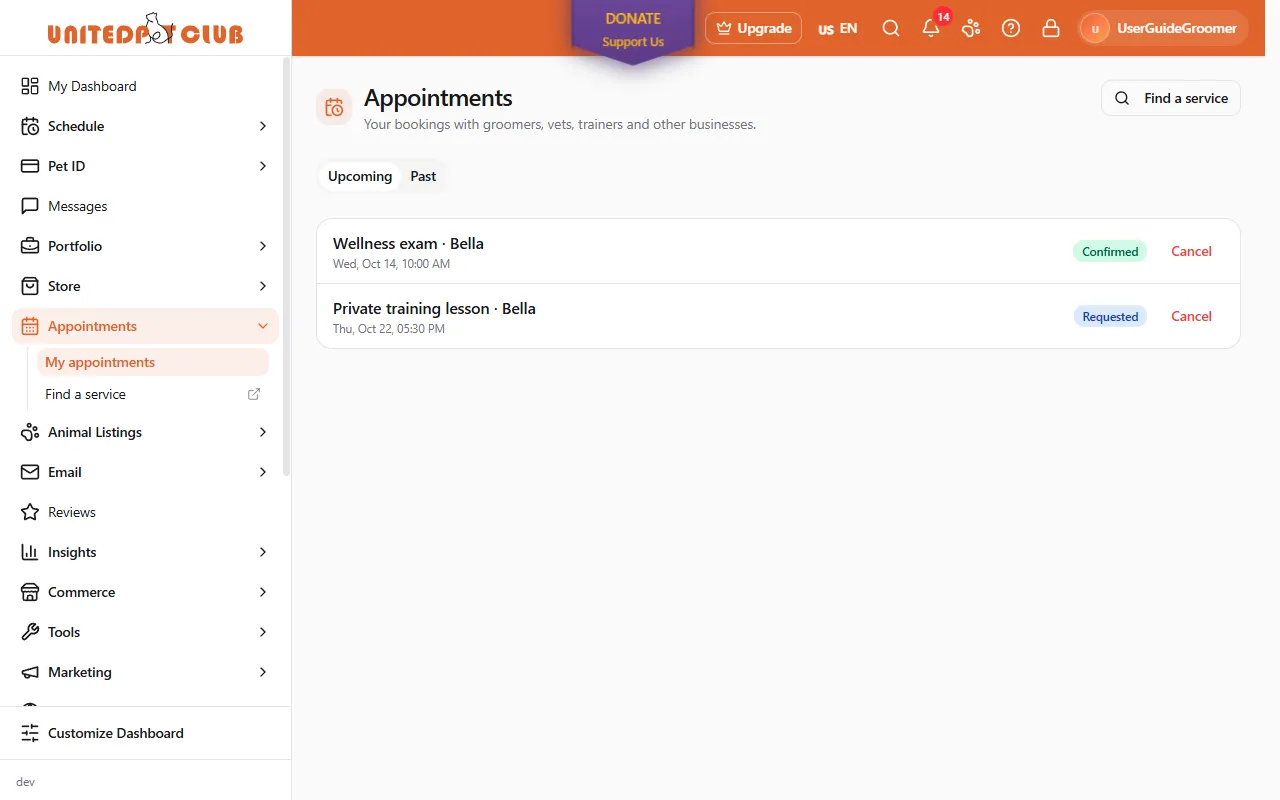
Appointments → My appointments (/dashboard/appointments) — Your bookings with groomers, vets,
trainers and other businesses. (The old My Bookings address still opens it.)
- Upcoming lists what’s coming up, soonest first; Past lists completed and cancelled bookings, latest first. Each row shows the service, the date and time, and its status.
- Select a booking to open it: the details, the Payment card, and the video Join button for an online session.
- Cancel on an upcoming booking cancels it (see Cancelling & fees).
- Book an appointment (on the page and in the menu) books a new visit right here in your Dashboard: see Book an appointment in your Dashboard.
- Book again on a past booking opens the booking form for the same business.
- Find a service (on the page and in the menu) opens the service search on the public site in a new tab.
With nothing booked you’ll see Nothing booked: When you book a groomer, trainer or vet, the appointment shows up here.
Booking with a brand that has many locations
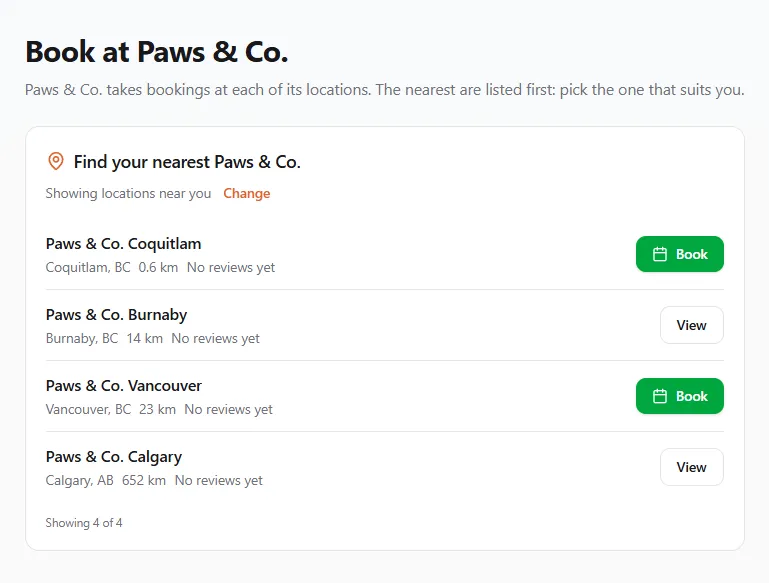
Section titled “Booking with a brand that has many locations”Some businesses trade under one brand with several locations: a grooming chain with a salon in every city, say. The brand itself is a name, not a place, so you always book a location. Instead of making you scroll through every salon, the brand asks where you are and shows the nearest ones first.
On the brand’s public page, the Locations card opens with Find your nearest {brand}. The brand’s Book an appointment button (and Book an appointment in its menu) opens the same finder on its own page, Book at {brand}.
Where the distances start from:
- Your location, if you’ve shared it with United Pet Club (on any of our sites — the answer is remembered). The finder says Showing locations near you.
- Otherwise roughly where your connection is, shown as a city (Showing locations near Vancouver, British Columbia, Canada). Use my exact location asks your browser for your real position instead; nothing is asked until you press it.
- A city or postal code you type. Press Change, type into City or postal code (for example Coquitlam or the first letters of a postal code such as V3K) and press Search. The search matches the cities and postal codes of the brand’s own locations, so it finds the locations in that city and lists the others by distance from it. If nothing matches, you’ll see No {brand} location matches ”…”. Try a nearby city, or use your location.
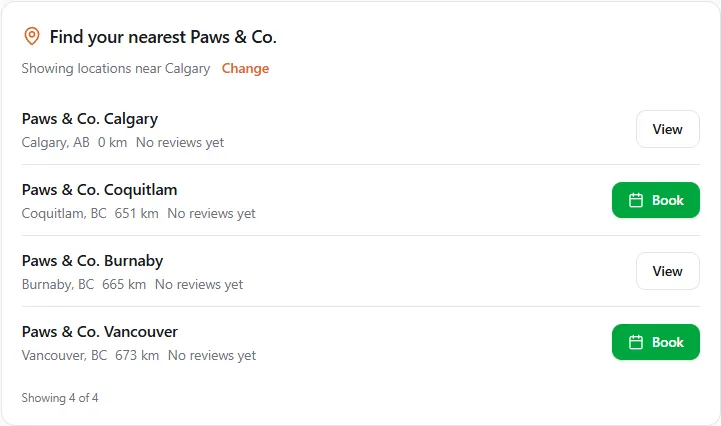
Each location shows its city, its distance, and its own rating (or No reviews yet):
- Book appears only on a location that takes online bookings; it opens that location’s booking page. A location without online booking shows View, its profile, where you’ll find how to contact it.
- Comes to you marks a mobile groomer whose service area covers your address; it’s listed as if it were 0 km away. Mobile service marks one that travels, but not as far as you.
- about 10 km (with “about”) means the location shows only its city publicly, so the distance is rounded on purpose. A location that hides even its city has no distance and is listed last.
- If you’re signed in and have booked one of the brand’s locations before, it comes first with Your usual location.
- Show more loads the next few; Showing 5 of 40 tells you how many there are.
In the groomer directory, a brand shows at most two of its locations, each marked Part of {brand}, with a link such as 14 more Paws & Co. locations that opens the brand’s finder. Searching the brand’s name lists all of its locations.
Book an appointment in your Dashboard
Section titled “Book an appointment in your Dashboard”Appointments → Book an appointment (/dashboard/appointments/book) books as the profile you’re
using, without leaving your Dashboard. You start from one of two places:
- Your places — your favourite businesses and the ones you’ve booked before (see below).
- Find a business or brand — type a name. Brands open the brand’s finder (Book at {brand}, nearest locations first, your usual location on top); Businesses open their booking form. The star next to a business adds it to your favourites.
Your places: favourites and businesses you’ve booked before
Section titled “Your places: favourites and businesses you’ve booked before”Your places keeps the businesses you come back to, in two lists:
- Favorites — the businesses you starred, newest first. A business can be a favourite for a service you book (a groomer, a vet, a trainer) or for a shop you buy from.
- Booked before — every other business you’ve booked with, most recent first, with the date you last booked (Last booked Sep 1, 2026).
Each row shows the business’s city and the services it offers. Book opens its booking form (if the business doesn’t take online bookings, the form says so and tells you to contact it directly); the business’s name opens its public profile in a new tab; and for a location of a brand, Other {brand} locations opens the brand’s finder.
To keep a business as a favourite, press the star next to it: in Booked before, in the Find a business or brand results, or Save to favorites at the top of its booking form. It moves to Favorites straight away. Press the star again (or Saved to favorites) to remove it. Favourites belong to the profile you’re using: your business profile and your personal profile each keep their own list. You can keep up to 200.
To find one of your places, type in Search your places: it matches the business’s name, handle, city and brand, in both lists at once. To see only the places that offer a service, pick it in the row of service buttons under the search (Grooming, Veterinary care, Pet supplies…); All services shows everything again. If nothing matches, Clear search and filter resets both.
A business that closes or is suspended drops out of your favourites; it comes back by itself if it reopens.
The booking form for a location:
- Choose a service — each with its length (90 min).
- Choose a time — free times for the week, a day at a time; Earlier / Later move a week. Times are shown in the business’s own time zone (Times are in America/Vancouver). A service that comes to you asks for Your address and Postal code first: start typing your address and pick it from the suggestions, which also fills in the postal code. If the address is outside the business’s area you’ll see This address is outside the business’s service area.
- Pet (optional) — pick one of your pets, and add Notes for the business (optional).
- Book for {time} books it. You’re booked (or, when the business confirms requests by hand, {business} has your request for {time} and will confirm it) and View appointment opens it. If the business asks for a deposit, the note tells you to pay it from the appointment page.
If the time was just taken, you’ll see The booking didn’t go through. Pick another time and try again. and the times refresh. A location that doesn’t take online bookings says Online booking isn’t open here instead of showing the form.
Booking a time
Section titled “Booking a time”Pick a service and you’ll see the provider’s genuinely available times — their working hours minus existing appointments, prep time between visits, and time off. Some businesses offer each kind of service only on certain days (grooming early in the week, training at weekends, say), so two services from the same business can show different days. On a public holiday a business can be closed or keep special hours: closed holidays have no times, and on a holiday with special hours you only see times inside them. The business’s profile page lists its Upcoming holiday hours for the next month. If you pick a time that has just closed, you’ll see Closed at that time — choose another time. Depending on the provider you can:
- Pick a specific team member (your usual groomer), or
- Take the first available qualified team member, or
- Let the business assign someone before your visit.
You can book for more than one pet in a single visit. For mobile services, the address you pick is saved with the appointment — changing your address book later never moves an existing booking.
On a business’s public booking page, a service that comes to you asks Where should they come?. There too, pick your address from the suggestions rather than only typing it: a picked address tells the booking which province or state the visit happens in, so a promotion or referral offer limited to your region counts it. An address you type without picking still books, but it isn’t placed in a region.
Grooming questions and the estimate
Section titled “Grooming questions and the estimate”These questions are only for grooming services. Booking a training session, a walk or a vet visit skips them.
Grooming prices depend on your pet and on the day, so before you book a groom you’ll see an estimate and a few questions. For a pet on your account most of it is already known — the breed tells us the coat, the record tells us age and size — so you’re only asked what nobody else can know:
-
How is the coat today? No matting, light, heavy, pelted — or kept in cords (a corded coat such as a Puli, Komondor or corded Poodle). Heavily matted coats take longer and usually cost more; a corded coat is never brushed out but takes hours to dry, so some mobile groomers ask you to accept a note about it, or cannot take corded coats at all. The groomer confirms this in person.
-
Does your dog have a double coat? Only for mixed or unknown breeds: not sure / yes / no. Think of shedding: a coat that sheds a lot or “blows coat” each season (husky, pomeranian, golden, shepherd types) is a double coat — answer yes, because shaving it short can leave it patchy and the skin exposed. A coat that keeps growing and is clipped regularly (poodle, bichon, shih tzu, doodle types) is a hair coat — answer no, even with some undercoat. Not sure is fine: the groomer checks at the visit.
-
How short? For body, legs and head (and optionally ears, tail, feet and sanitary): leave natural, long, medium, short, very short, or shaved, or a named style such as teddy bear.
-
Photos of the coat — some groomers ask for a couple of photos so they can confirm the price before the visit; others make it optional.
-
A note for this visit per pet (“hates the dryer”), separate from the standing notes on the pet’s page.
-
The look you want. Depending on the groomer you can pick a named style for the body (puppy cut, teddy bear, lion cut …), head, mustache and beard, tail, feet, legs and ears from the styles they offer, and attach a reference photo: upload one, choose one of your pet’s own photos, pick a photo of another pet, or reuse the after-photo from an earlier visit.
-
Extras. Nails, a medicated bath or a special shampoo, teeth, ears, a de-shed treatment and more, each at the groomer’s own price and added to your estimate. For a medicated bath or a special shampoo you’ll be asked which product or prescription. For nails you can choose a trim, a grind (rotary tool) or a hand file (the quiet option), whichever your groomer offers.
-
Agreements. Most groomers ask you to accept an agreement before they take the booking — a service agreement and release, a matted-coat release, a behavior disclosure, a photo release, and so on. Read it, tick it and, where the groomer asks for it, type your name. Some are asked on every booking, others only once until the groomer changes the wording. Your acceptance is kept with the appointment together with the exact text you accepted; you can find it on the appointment page. If your groomer booked for you, they will ask you to sign at the visit.
Each groomer decides which of these questions to ask. The estimate is confirmed at the visit.
Every grooming price is an estimate. On the public booking page each service shows a from price, the page says so next to the list, and the summary labels it Estimated price. The final price is confirmed once the groomer has seen your pet in person — coat condition, size and temperament can all change it. Nothing is charged for the difference without you being told at the visit.
Show the groomer the look you want
Section titled “Show the groomer the look you want”On the public booking page (…/accounts/their-handle/book-appointment) there is a Show the
groomer the look you want section under your details. Use it to pass along a previous groom
or a sample of the style:
- Share a link — paste the address of a photo you have online (a post, a shared album, a
groomer’s gallery). Anyone can do this, signed in or not. Links must start with
https://(orhttp://); you can add up to five. - Attach a photo — when you are signed in, pick a photo from your phone or computer. It is saved privately in your Files and attached to the booking.
The groomer sees them on the appointment under Visit brief, next to your note. If your pet has a preferred groom style on its profile (see Pets), that is shown there too, exactly as it stood when you booked — you don’t have to describe the cut every time.
Asking for a shave on a double coat. If you ask for a very short body clip on a breed with a double coat (huskies, shepherds, retrievers and many others), on a wire-coated terrier, or on a mixed breed whose coat we can’t tell, you’ll see a warning: clipping these coats short often makes them grow back patchy, soft or a different colour, and in some dogs the coat never fully returns (post-clipping alopecia). Depending on the groomer you may be asked to accept the warning before booking, or the groomer may decline that clip and offer a de-shed instead.
At the visit the groomer records what they found — whether the coat is double, how matted it was, how your pet handled — on the appointment. That finding stays with the visit; it never changes your pet’s page by itself.
Video sessions
Section titled “Video sessions”Some services meet over video. They are marked Online video session when you book. Your confirmation and reminders carry a Join link: open it a few minutes before the start, allow your camera and microphone, and you are in the room — no account or app needed. If the provider uses their own Zoom or Meet link instead, the same button opens that link. Members also find the join page from the booking under Appointments. How providers set this up, and what it costs them, is on Virtual sessions.
Confirmation, holds, and suggested times
Section titled “Confirmation, holds, and suggested times”Some bookings confirm instantly; others wait for the provider to accept. If a business hasn’t finished setting up its payments with United Pet Club yet, it can’t take new bookings and the booking is refused; contact the business, or pick another one. If a deposit is required, your time is held for a short window while you pay — if payment doesn’t complete, the hold lapses and the slot opens up again.
Either side can suggest a different time. The suggested time is reserved while you decide, so nobody can take it out from under the conversation; accept it and the appointment moves, decline it and the original time stands.
Messages about your booking
Section titled “Messages about your booking”United Pet Club sends these on behalf of the business you booked with, in your language:
- an e-mail when the booking is confirmed;
- reminder e-mails before the visit, at the times the business chose (usually a day before and two hours before);
- an e-mail if the appointment moves to a new time, and one if it is cancelled;
- up to three text messages from the business: a confirmation, a reminder the day before, and on my way (for a visit at your home) or ready for pickup (at the salon). They come over WhatsApp if you have messaged United Pet Club on WhatsApp, and by SMS otherwise.
Each message names the business, the service, your pets, the date and time (in the time zone where the appointment takes place), the place (the business’s address, or for a visit at your home the address you gave when booking), and for a video session the Join link. The confirmation, reminder and new-time e-mails also have Add to calendar links: Google Calendar, Outlook, and Other calendars (.ics) for Apple Calendar and other apps. If the appointment moves, use the link in the new-time e-mail; a cancelled appointment’s calendar file shows it as cancelled. To change or cancel, contact the business: replies to these messages do not reach it.
Confirm I’ll be there. The confirmation, reminder and new-time e-mails also have a Confirm I’ll be there button. It opens a page with the appointment; press Confirm I’ll be there there and the business sees that you confirmed. Opening the link alone confirms nothing. If the appointment moves to a new time, the new-time e-mail asks you to confirm again. A cancelled appointment, or one that has started, can no longer be confirmed.
Members get them at the e-mail address and mobile number on their profile, in the language set under Account → Preferences → Language & region. If you booked as a guest, the business’s record of you is used: for texts, ask it to note your mobile number with its country code (for example +1 604 555 0100), or the texts cannot be sent.
Paying a deposit or balance
Section titled “Paying a deposit or balance”Open the appointment under Appointments → My appointments. The Payment card shows the quote, the deposit, any tip and what is still outstanding, with one row per amount the provider has asked for — Deposit, Balance or No-show fee — and a Pay button on each open one.
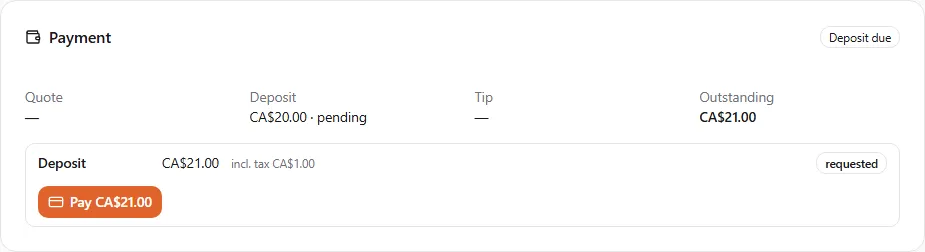
- Choose Pay … on the row. The amount includes the tax for the provider’s location and the kind of service (shown as incl. tax): a groom in British Columbia, for example, carries GST only. Tips are never taxed. The card form opens in place (payment is handled by Stripe; United Pet Club never sees your card number).
- Confirm the amount shown. The row flips to paid once the payment goes through — usually within a few seconds — and a deposit payment releases the hold on your time.
- The Balance is asked for after the appointment is completed; it is the quoted total minus the deposit, plus any tip you leave.
If a payment does not go through, the row stays open and Try again offers a fresh attempt. If you paid the provider directly (cash, e-Transfer), the provider records that on their side and the row shows as paid outside — nothing is charged to your card.
Cancelling & fees
Section titled “Cancelling & fees”Providers set their own cancellation windows and fees (for example: free more than 48 hours ahead, 50% within 48 hours, 100% within 24 hours; a no-show may carry a flat fee). The exact policy is shown before you book. Providers can waive a fee at their discretion. Cancelling because the provider asked never charges you.
Who the booking is for: “Booking as”
Section titled “Who the booking is for: “Booking as””When you book on a business’s page at unitedpetclub.com while signed in, the About you card shows Booking as and the profile the appointment goes on. It appears under that profile’s Dashboard Appointments.
- Normally that’s you, personally: your own profile is picked for you.
- If you’re using United Pet Club as another profile right now (your business, for example), you get both choices: You, personally (picked) and The profile you’re using now. Pick the one the appointment is for.
- Booking as the profile you’re not using switches you to it on United Pet Club, then books. The card says so before you book: Booking switches you to {name} on UnitedPetClub.
- If the switch fails, nothing is booked: try again, or book as the profile you’re using.
The confirmation names the profile: Booked as {name}. Not signed in? You book as a guest with your contact details instead.
Booking from a provider’s own website
Section titled “Booking from a provider’s own website”Many providers embed United Pet Club booking on their own sites. It’s the same engine — your UPC account, pets, and history work there too, and if you book as a guest (no account), the provider keeps your appointment history and you can claim it later by signing up with the same email or phone number.