

Email brings your own mailboxes into the Dashboard. Connect the address you already use for your business — Gmail or Google Workspace, Outlook.com or Microsoft 365, Zoho, Yahoo, or any provider that offers IMAP (including QQ, 163, Aliyun, GMX, Orange, Yandex and many more) — then read, reply, forward and write new messages under Dashboard → Email, without leaving the platform. Everything you send goes out from your address through your mail provider; nothing is sent from a United Pet Club address.
Marketing campaigns are a different tool: they still go through the platform’s own sending service. Email is for one-to-one correspondence — answering a customer, sending a quote, following up after a visit.
Whose mailbox is it?
Section titled “Whose mailbox is it?”A mailbox is connected to the profile you are acting as. When you connect it you choose who can see it:
- Everyone on this profile — every member who acts as the profile sees the inbox and can send from it. Use this for team addresses such as info@ or sales@.
- Only me — only you see it, even when a teammate acts as the same profile. Use this for a personal address you happen to use for the business.
- Selected people and roles — you, plus the roles and people you pick from the profile’s team. Nobody else on the profile sees it. Pick a role such as Manager to include everyone who holds it, including anyone who gets that role later. Pick a person such as Blossom to include just them.
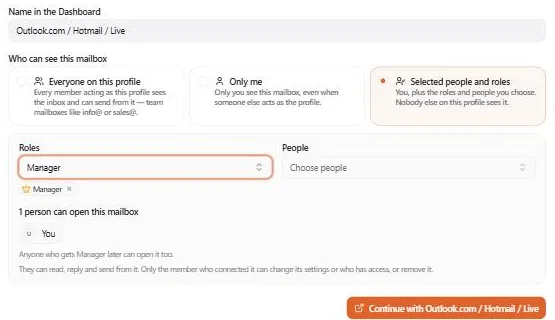
As you pick, the list under the pickers shows exactly who will be able to open the mailbox. You need to pick at least one role or person; if you only want it for yourself, choose Only me.
The people you share a mailbox with can read it, reply, forward and write new messages from it. Only the person who connected it can change its settings, change who has access, reconnect it or remove it. If you take someone off the list, or they lose the role, the mailbox disappears from their Dashboard straight away.
Only the person who connected a mailbox can change who sees it later.
Connecting a mailbox
Section titled “Connecting a mailbox”Go to Email → Connected Mailboxes → Connect a mailbox and pick your provider. Typing your address in the search box suggests the right one from its domain.
Each provider card shows how it connects:
| Badge | What happens |
|---|---|
| Sign in with provider | You sign in on the provider’s own page (Outlook.com, Hotmail, Live and Microsoft 365 always work this way). |
| App password | You paste an app password into a short form. Gmail, Yahoo and Zoho connect this way, as do all the other providers. |
| Coming soon | Listed at the bottom of the picker, greyed out: neither way is switched on for the platform yet. |
Sign in with provider. Give the mailbox a name in the Dashboard, choose who can see it, and press Continue with …. You approve access on the provider’s consent screen and come straight back. United Pet Club never sees your password: the provider gives us a token you can withdraw at any time from your provider’s connected apps page. Microsoft work and school accounts can need an IT administrator to approve the app the first time.
Gmail, Yahoo and Zoho with an app password. These providers won’t take your normal password from another app. Turn on 2-Step Verification in your Google, Yahoo or Zoho account, create an app password (the form links to the provider’s page for it), and paste it in. A Google Workspace account only offers app passwords if its administrator allows them. When a provider also offers sign-in, the form has a link to switch between the two.
Every other provider connects with an app password: your address, the app password, a name for the
Dashboard and who can see it. Most providers require an app password (not your normal password) once
two-factor authentication is on — the card links to the provider’s help page. Test connection checks
both incoming (IMAP) and outgoing (SMTP) before anything is saved. Server settings are pre-filled for
known providers; open them only for a custom mail host. A custom host must be reachable on the public
internet: a server on a private network (an office server with a 192.168… or 10… address, for example) is
refused with is not on the public internet.
The first messages appear within a few seconds; the rest of the sync window fills in over the next minutes.
Zoho Mail. Zoho lets other apps in over IMAP only on its paid plans, and only once IMAP Access is
switched on in Zoho Mail (Settings → Mail Accounts → IMAP). Addresses on your own domain and
@zoho.com addresses use different Zoho servers; the Dashboard picks the right one for you, for every Zoho
data centre (including Canada and Europe).
More than one mailbox. Connect as many as you need (up to 10 per profile): a shop inbox, a personal address, a sales@ mailbox. The Inbox shows them all together, each message tagged with its mailbox; pick one in the left rail to see only that mailbox. When you write, From lets you choose which mailbox sends. The first mailbox you connect is the default sender; change it in that mailbox’s settings.
If a mailbox does not connect
Section titled “If a mailbox does not connect”Nothing is saved when a connection fails, and the reason stays at the top of Connected Mailboxes with a Try again button:
| Message | What to do |
|---|---|
| That account has no mailbox | You signed in to the provider with an account that holds no mail (for example a Zoho account without Zoho Mail). Sign in with the account that owns the mailbox. |
| The mailbox refused an IMAP connection | Switch on IMAP access in the provider’s mail settings. Zoho’s free plan has no IMAP; a paid plan or another provider is needed. |
| Connected as many mailboxes as it can | The profile already has 10 mailboxes. Remove one you no longer use. |
| The provider rejected the sign-in | Start again. If it keeps happening, try the app-password route where the provider offers one. |
The inbox
Section titled “The inbox”The left rail lists your mailboxes (with unread counts) and the folders — Inbox, Sent, Archive, Spam, Trash. All mailboxes merges every inbox into one list. Filter with Unread, Starred or With files, or search by subject, sender or the first words of the message.
Tick rows to act on several at once: mark read / unread, star, Archive, Mark as spam, Move to trash. Every action happens in your real mailbox too — what you archive here is archived in Gmail or Outlook as well.
The message menu
Section titled “The message menu”Every message has a ⋯ button at the end of its row, and right-clicking the row opens the same menu where your pointer is:
| Group | Actions |
|---|---|
| Open | Open, Open in new tab |
| Answer | Reply, Reply all, Forward |
| Mark | Mark as read or Mark as unread, Star or Unstar, Select (ticks the row) |
| File | Move to inbox (from Archive or Trash), Archive, Mark as spam — or Not spam in the Spam folder — and Move to…, which lists every folder of that mailbox |
| Sender | Copy sender address (Copy recipient address in Sent), Show mail from this sender (searches the list for that address) |
| Delete | Delete; in Trash and Spam also Delete forever |
Delete always asks first. It moves the message to its mailbox’s Trash, so you can bring it back with Move to inbox until your mail provider empties the Trash. The Move to trash button for ticked rows asks the same way.
Delete forever appears only for messages that are already in Trash or Spam (and, for ticked rows, as a button in the bar while every ticked message is in one of those two folders). It asks once more, and then the message is erased at your mail provider too — it is gone from Gmail or Outlook as well, and it cannot be brought back. Anywhere else, delete the message first; it goes to the Trash, where you can still change your mind.
Right-click a row you have ticked while other rows are ticked too, and the menu works on all of them: it shows how many are selected, and the one-message actions (open, reply, copy) step aside. Move to… appears when every ticked message is in the same mailbox.
Reading a message
Section titled “Reading a message”Open a row to read it. The message is fetched from your provider when you open it, so you always see the current version. Remote images are hidden until you press Show images (senders use them to track opens). Attachments can be opened in a new tab or downloaded. The Conversation panel on the right lists the other messages of the same thread.
Replying and writing
Section titled “Replying and writing”Reply, Reply all and Forward open the composer with the addresses and subject filled in. Compose starts a new message. Choose the From mailbox (your default sender is preselected), add recipients (separate several with commas), write, attach files (up to 10 MB per message) and Send. Forwarding includes the original attachments unless you untick that option.
The toolbar above the message has the formatting mail apps understand: text style (normal text or headings), font and size, bold, italic, underline and strikethrough, text and highlight colour, sub- and superscript, alignment, bulleted and numbered lists with indent levels, quotes, links, images, tables, dividers and Clear formatting. Fonts are the ones every computer and phone has (Arial, Georgia, Verdana …), so the message looks the same to the recipient. Insert an image with the image button, or paste or drop it into the message (up to 2 MB each): it travels inside the email, so it shows without the recipient having to load remote images. Attach larger pictures as files.
Under the message:
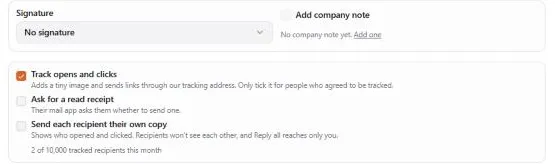
- Signature — the signature to add. It starts on the From mailbox’s signature for new messages, or its signature for replies and forwards; pick another one, or No signature.
- Add company note — adds your company note (for example a confidentiality notice) under the signature. It starts ticked when the From mailbox adds it by default; untick it to leave it off for this message. With more than one note, choose which one.
A preview shows what will be added. Placeholders in a signature or note (such as the sender’s name) are filled in when the message is sent.
Insert template (above the message) adds one of your templates: its text goes into the message with the placeholders already filled in for the recipient, and its subject replaces an empty subject. If a placeholder has nothing to fill it with (for example the recipient’s first name on a brand-new message), the Dashboard tells you which ones to fill in yourself.
Sent messages appear in the mailbox’s Sent folder within a couple of minutes, and the original you answered shows an Answered mark.
Replied and bounced
Section titled “Replied and bounced”Every message you send from the Dashboard is followed up for free, from your own mailbox, with nothing added to the message:
- Replied — a reply to it arrived in the mailbox. The Sent folder shows a green Replied mark, and the message shows how many replies came and when the latest arrived.
- Bounced — the recipient’s mail server sent it back (for example a mistyped or closed address). The Sent folder shows a red Bounced mark, and the message lists each address that did not get it, with the server’s reason. Fix the address and send again, or reach the person another way; the other recipients may still have received it.
A bounce takes priority over a reply: when one recipient answers and another address bounced, you see Bounced. Opens and link clicks are tracked only with email tracking, when you turn it on for a message.
Email tracking
Section titled “Email tracking”Email tracking shows when a message you send from the Dashboard was probably opened, which links people clicked and, on Email tracking Plus, whether a read receipt came back. It is an add-on for your profile:
| Email tracking | Email tracking Plus | |
|---|---|---|
| Probable opens and link clicks | ✓ | ✓ |
| Read receipts | ✓ | |
| A separate copy for each recipient (see who opened and clicked) | ✓ | |
| Links on your own tracking domain (once switched on for the platform) | ✓ | |
| Included with | Audience Insights Pro | the Pro plan |
Buy it under Finances → Billing → Add-ons, or from Add email tracking in the composer. Each profile has a monthly allowance of tracked recipients (shown in the composer and on the Email tracking card); untracked mail is never limited by it.
Turning it on for a message
Section titled “Turning it on for a message”Tracking is off unless you tick it. In the composer, under the signature and company note:
- Track opens and clicks — adds a tiny image to the message and sends its links through our tracking address, which forwards the reader to the real page. The plain-text version of the message keeps the original links.
- Ask for a read receipt (Plus) — the recipient’s mail app asks them whether to send a receipt. Many apps never ask, and many people say no.
- Send each recipient their own copy (Plus) — every recipient gets a separate copy, so you can see who opened and clicked. Recipients no longer see each other, and Reply all reaches only you.
The first time anyone on your profile ticks tracking, the Dashboard shows the consent wording. Accept it once for the profile; anyone who manages the profile’s mailboxes can withdraw it again on the Email tracking card.
What you see afterwards
Section titled “What you see afterwards”The Sent folder and the message show the strongest signal: Bounced, then Replied, then Read receipt, Clicked, Probably opened. Open a tracked message and choose Tracking details to see each recipient’s copy (when sent as separate copies), every link and how often it was clicked, and the activity, newest first.
- Probably opened is a best guess. Some mail apps (Apple Mail) load images on their own, Gmail loads them through its own image proxy, and Outlook often blocks them, so an open can be missed or counted early. A click or a read receipt is a firmer sign.
- Security scanners at the recipient’s company often check every link the moment a message arrives. Those hits are listed greyed out as “Scanner or pre-fetch, not counted” and never raise the counts.
- We keep only when a message was opened or a link clicked and what kind of app did it. We never keep the reader’s IP address.
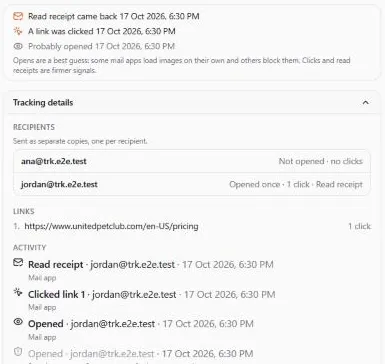
You also get a notice in the bell (the Other tab) the first time a tracked message is probably opened, a link in it is clicked, or a read receipt comes back. A message sent as separate copies names the recipient.
The Email tracking card
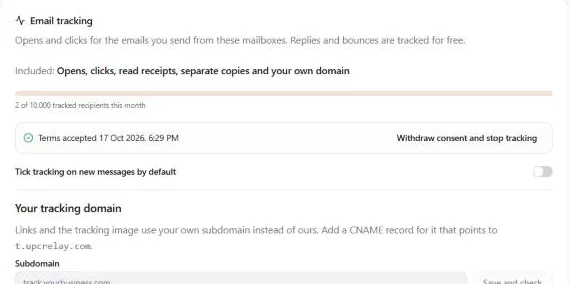
Section titled “The Email tracking card”Email → Connected Mailboxes has an Email tracking card: what your profile’s add-on includes, this month’s
tracked recipients, the consent wording (accept or withdraw), Tick tracking on new messages by default, and on
Plus Your tracking domain: a subdomain you own (for example track.yourbusiness.com) with a CNAME record pointing
to the address the card shows. Save and check looks the record up; DNS changes can take a few hours. Once verified,
new messages use your domain as soon as own tracking domains are switched on for the platform (the card says which).
Customer emails from your own address
Section titled “Customer emails from your own address”The emails United Pet Club sends to your customers for you — a contract to sign, appointment confirmations and reminders, quotes — come from United Pet Club’s own address by default. You can send them from one of your connected mailboxes instead, so customers see your address and their replies land in your inbox.
Set the default. Under Email → Connected Mailboxes, the Who sends your customer emails card lists United Pet Club and each mailbox you can send from. Pick one and press Save. A manager of the profile can change it. A mailbox shared with only some people can be made everyone’s default only by the person who connected it.
Pick it per send. Where you send a contract, the button has a small arrow beside it (Send for Signature ▾, Create & Send ▾). The button sends with the sender shown under it (From …); the arrow lets you pick another one for this send, or jump to the default setting. The choice also covers the later emails about that contract, such as the next signer’s turn.
People outside United Pet Club. When you send a contract from your mailbox, each outside signer with an email address gets their signing link by email from that mailbox right away, and the contract page marks the link Emailed from …. When United Pet Club sends it, copy the links and send them yourself, as before.
The links are shown once. Right after you send — Send for Signature on the contract page, or Create & Send / Save & Send at the end of the new-contract or edit steps — a Signing links (shown once) card lists each outside signer’s link with a Copy link button. Copy them before you leave the page: only a fingerprint of each link is kept, so they can’t be shown again (to get new ones, edit the contract and send it again while nobody has signed). After Create & Send or Save & Send the card stays on screen with Open contract to go on; when every party is a United Pet Club member there are no links and you go straight to the contract.
Editing keeps the document and deadline. Editing a contract before anyone signs keeps the PDF you uploaded and its signing deadline unless you choose a different document.
Signing in order. When a contract is signed one after another, every outside signer’s link is ready when you send it, including the ones whose turn comes later. Send them all at once: someone who opens their link early can read the contract, and the page tells them to come back once the people before them have signed. Their codes (email, text or WhatsApp) are only sent when it is their turn.
Wrong codes. An outside signer gets 5 tries at each one-time code; after that the code stops working and they send themselves a new one from the signing page. After 15 wrong codes in all (access code included) the link is locked for good, and the contract page shows that signer’s link as locked. To let them sign, void the contract and send a new one, or, if nobody has signed yet, edit it and send it again: that makes a new link.
Signatures that need a vet. A party that must be signed by a veterinarian (a health certificate’s issuing vet, for example) is signed in the app by a team member who holds a veterinarian role on the clinic profile they are acting as (Team on that profile). A vet technician or assistant role does not count, and neither does support access.
If your mailbox can’t send. When the mailbox needs reconnecting or was removed, the email still goes out from United Pet Club so your customer hears from you, and the card tells you which mailbox needs attention. Messages sent from your mailbox appear in its Sent folder with the usual Replied and bounced marks.
Templates, signatures and company notes
Section titled “Templates, signatures and company notes”Email → Templates & Signatures is your profile’s email library, in three tabs:
- Templates — text you send often: a booking confirmation, directions, an aftercare reply. A template has a name, an optional subject and the message. Insert it from the composer, or press Use on its card to start a new message from it. A mailbox can also send a template as its auto-reply.
- Signatures — sign-offs to pick per message. Each mailbox chooses the one it starts with.
- Company notes — an optional note any message can carry under the signature, such as a confidentiality notice or your opening hours. Company notes are always shared with everyone on the profile.
Templates and signatures are shared with everyone acting as the profile, unless you turn on Only me when you write one: then only you see and use it. Each card shows how often it was used. Deleting an entry also removes it from any mailbox that used it as a default, and switches off an auto-reply that sent it.
Placeholders
Section titled “Placeholders”Templates, signatures and notes use the same formatting toolbar as the composer, so a signature can carry your logo, colours and a small table for your contact details.
While you write, the Insert a placeholder chips add a field where your cursor is. Each one is filled in for every message when it is sent:
| Placeholder | Filled with |
|---|---|
{{recipient.firstName}}, {{recipient.name}}, {{recipient.email}} | The person you write to (for a reply, the sender of the message you answer) |
{{sender.firstName}}, {{sender.name}}, {{sender.email}} | The name on your outgoing mail (the mailbox’s sender name, otherwise your name) and the mailbox address |
{{mailbox.name}}, {{mailbox.email}} | The mailbox’s name in the Dashboard and its address |
{{original.subject}}, {{original.date}} | The message you are replying to |
{{date.today}} | Today’s date |
Add a fallback after a bar for a value that may be missing: Hi {{recipient.firstName|there}}, reads Hi there,
when the first name is not known. Placeholders work in signatures and notes too, so one signature with
{{sender.name}} serves the whole team. The editor warns you about anything in double braces that is not a
placeholder; it would be sent as typed.
Auto-reply
Section titled “Auto-reply”Mailbox settings → Auto-reply answers new mail in that mailbox automatically with one of your templates — for example while you are on holiday, or outside opening hours.
- Turn on Send an auto-reply and choose the Template to send.
- Optionally set Starts and Ends; with both empty it stays on until you turn it off.
- Reply to the same sender at most once a day, or once every 2 to 30 days (4 by default), so a conversation never turns into a loop.
The reply goes out from the mailbox within a few minutes of the message arriving, threaded on the original, with the template’s placeholders filled in for the sender. It adds the mailbox’s reply signature, and the company note when the mailbox adds it by default. It never answers mailing lists and newsletters, other auto-replies, bounces, no-reply addresses or your own mailboxes, and never mail that arrived before you turned it on. Each auto-reply appears in the mailbox’s Sent folder like any other message.
Shared mailboxes
Section titled “Shared mailboxes”Microsoft 365. A shared mailbox such as info@ or sales@ has no password of its own: people open it with their own Microsoft sign-in. To add one, first connect your Microsoft 365 mailbox with Sign in with Microsoft, then open its Settings → General → Shared mailboxes, type the shared mailbox’s address and choose who on the profile can see it. The Dashboard checks that Microsoft opens it before adding it. It then appears as a mailbox of its own: its inbox, its folders, and sending from the shared address.
Your Microsoft 365 admin must give your account Full Access to the shared mailbox (to read it) and Send As (to send from it). New permissions can take a few hours to apply. The shared mailbox signs in through your mailbox: if you reconnect yours, it reconnects too, and if you remove yours, the shared mailbox is removed with it.
Other providers. Some mail servers show folders that other people shared with you (a colleague’s inbox, a team folder). They are listed under Settings → Sync → Folders shared with you; tick the ones you want and they appear in the inbox rail under Shared folders. Zoho Mail’s shared mailboxes and Gmail’s delegated mailboxes cannot be opened this way: connect such a mailbox with its own address and app password if your provider allows it.
Mailbox settings
Section titled “Mailbox settings”Email → Connected Mailboxes → ⋯ → Settings:
- General — the name shown in the Dashboard and who can see the mailbox (including the roles and people of a Selected people and roles mailbox). When someone shared a mailbox with you, this page is read-only: it shows who has access, but only the person who connected it can change anything.
- Sending — the sender name recipients see, the signature for new messages and the one for replies and forwards, the company note and whether compose adds it by default, and whether this is the default mailbox when composing.
- Auto-reply — see Auto-reply.
- Sync — how far back the Dashboard keeps messages (30 days to a year), which folders are mirrored (including folders shared with you), pause / resume, Sync now, and the recent sync history.
- Connection — the servers in use, Test connection, Reconnect (OAuth mailboxes) or Change password (app-password mailboxes), and Remove mailbox.
When a mailbox needs attention
Section titled “When a mailbox needs attention”A mailbox marked Reconnect needed means your provider rejected the sign-in — typically after you changed your password or revoked the app. Press Reconnect (or Change password) on the mailbox card. Sync problem means the provider could not be reached for a while; the Dashboard keeps retrying by itself and the mark clears on the next successful sync.
Removing a mailbox disconnects it from United Pet Club and deletes the Dashboard’s local copy of its messages. Nothing changes in your mail provider.