

Schedules
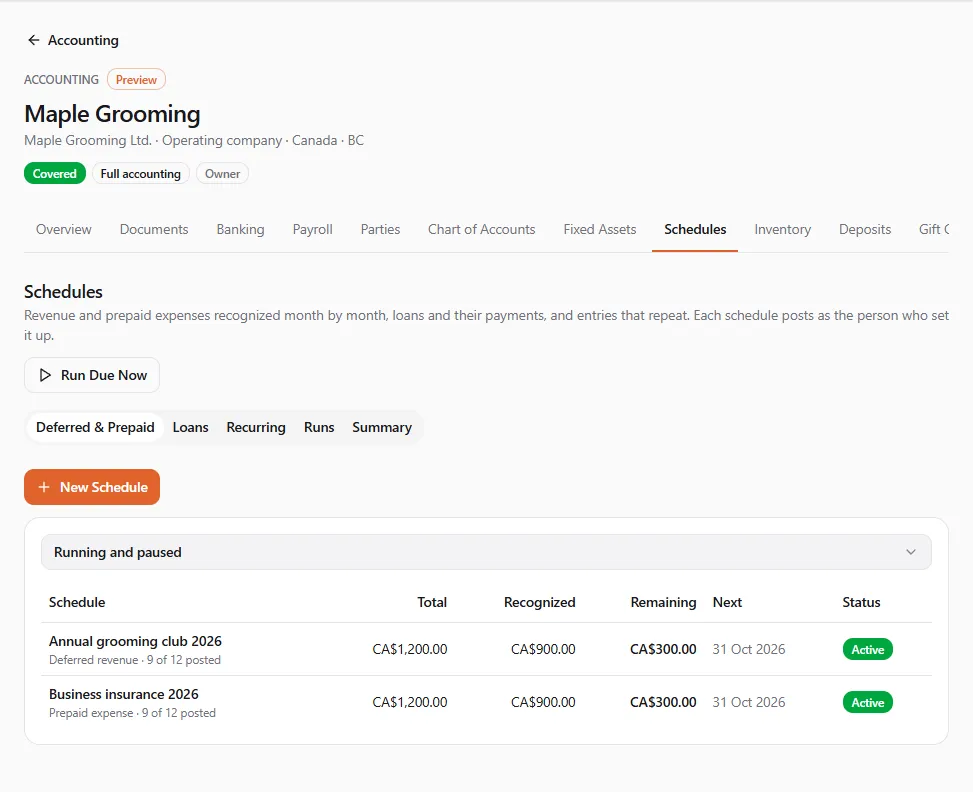
Schedules post the entries that follow a plan: an annual membership earned a month at a time, insurance paid ahead and expensed monthly, a loan’s payments, the rent every month. You set each one up once; the books post its entries on their dates, or make drafts for you to check.
Finances → Accounting, then the entity, then the Schedules tab
(/dashboard/finances/accounting/{entity}/schedules). It has five tabs: Deferred & Prepaid, Loans,
Recurring, Runs and Summary. Each list can Show Running and paused, Completed, Cancelled
or All.
Creating and changing schedules needs the journals permission (Adjust journals, rates and opening balances). A recurring entry also needs Post documents or Draft documents, depending on what it does.
How schedules post
Section titled “How schedules post”- Every day, the books post what has come due on each active schedule: recognition periods, automatic loan payments and recurring entries. Run Due Now does the same at once for the whole entity, and Run Now for one schedule.
- Each schedule posts as a person: the one who set it up, then whoever changes or resumes it. The schedule shows who under Posts as.
- Locked periods wait. A period dated on or before your books’ lock date is Waiting for the lock date. It posts on its own date once the lock moves.
- Holding companies count each posted entry toward their yearly entry limit; at the limit a period shows At the yearly limit.
- A failed period (a missing exchange rate, for example) is retried at the next run. The Runs tab lists everything, and Needing attention shows what is waiting or failed.
When a schedule pauses itself
Section titled “When a schedule pauses itself”A schedule must not outlive the access of the person it posts as. If that person loses access to the books, or loses a permission the schedule needs, the schedule pauses at its next run and nothing posts. It shows Paused · access lost: “The person this schedule posts as no longer has the access it needs.”
- Open the schedule and read who it was posting as.
- Choose Resume. “You take it over: it posts as you from now on, so your access has to cover what it posts.”
- Confirm. “{name} resumed. It posts as you now.”
Changing a schedule someone else set up also makes it post as you from then on. The schedule’s History records every pause, resume and hand-over.
Deferred revenue and prepaid expenses
Section titled “Deferred revenue and prepaid expenses”Use a recognition schedule for money received or paid ahead: annual memberships and prepaid packages earned month by month, or insurance and rent paid ahead and expensed month by month.
- On Deferred & Prepaid, choose New Schedule.
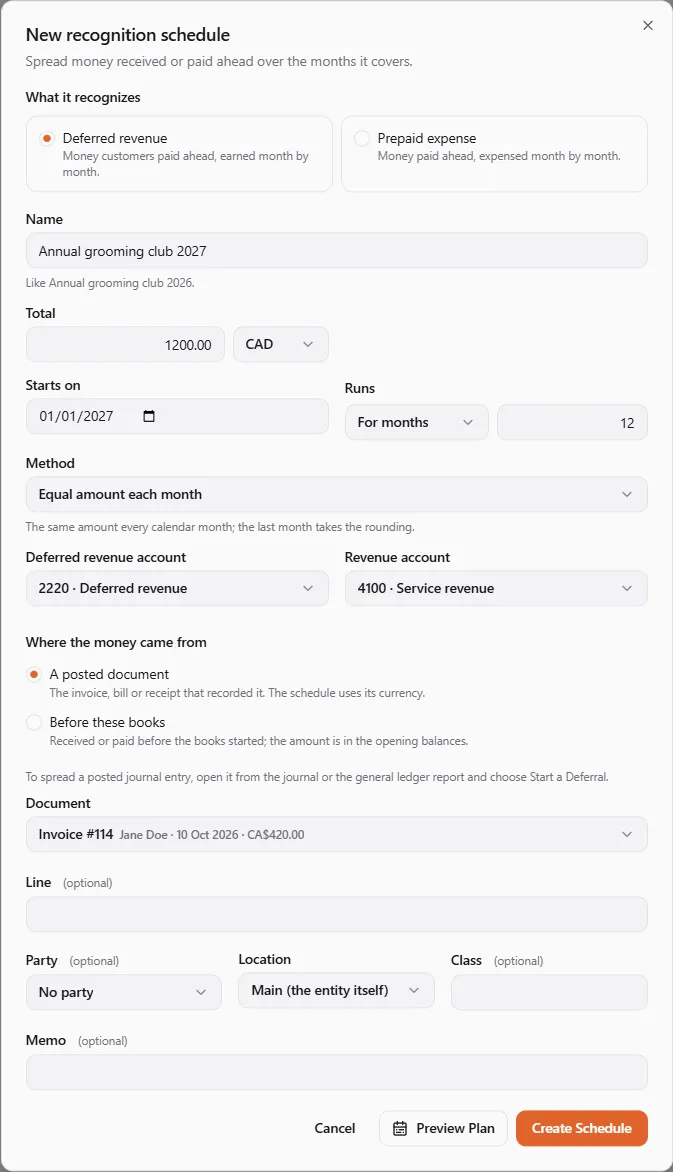
- Pick What it recognizes: Deferred revenue (“Money customers paid ahead, earned month by month.”) or Prepaid expense (“Money paid ahead, expensed month by month.”).
- Enter a Name (like Annual grooming club 2026) and the Total. For another currency, also the Currency and the rate when the money came in.
- Enter Starts on, then choose How long it runs: For months (the Number of months) or Until a date (Ends on).
- Pick the Method:
- Equal amount each month: the same amount every calendar month; the last month takes the rounding;
- By the days in each month: each month gets its share of the days, so a part month gets part of the amount.
- Choose the accounts: the Deferred revenue account and Revenue account, or the Prepaid account and Expense account. Add a Party, Location, Class or Memo if you like.
- Choose Where the money came from:
- A posted document: the invoice, bill or receipt that recorded it (the schedule uses its currency);
- Before these books: received or paid before the books started, so the amount is in the opening balances.
- Choose Preview Plan to see each period, then Create Schedule.
Each period posts on the last day of its month (or on the end date, for a last part month): deferred revenue moves into revenue, or the prepaid moves into the expense. A schedule starts on or after the books’ start date.
Start a Deferral from an entry
Section titled “Start a Deferral from an entry”To spread a posted journal entry, start from the entry itself:
- Open the entry from the journal or the general ledger report (see Reports), or from any Notes and attachments on this entry link.
- Choose Start a Deferral.
- Pick the Line that holds the amount to spread, or The whole entry.
- Fill in the rest as above and choose Create Schedule.
The schedules from one entry can never add up to more than it put into the balance account.
Changing, shortening or cancelling
Section titled “Changing, shortening or cancelling”Before anything is recognized, everything can change. After that, “only the name, memo, dimensions, revenue or expense account and an earlier end date can change”. An earlier end date posts a catch-up on the Effective on date.
Cancel Schedule stops it: “What the plan had earned by the date posts now. The rest stays in the balance account, to refund or schedule again.” Tick Recognize everything left as revenue (or Expense everything left) to clear the balance instead.
A loan posts each payment split into interest and principal, either when you confirm it or automatically. Use it for a bank loan, an equipment loan, or a loan to or from a shareholder or another company of yours.
- On Loans, choose New Loan.
- Who lent: The entity borrowed (payments reduce what it owes and book interest expense) or The entity lent (payments bring interest income).
- Enter a Name (like Equipment loan, Coast Capital), the Principal and the Annual interest rate (%). For a loan older than the books, the principal is what was still owed when they started.
- Choose Payments (Monthly, Every two weeks or Weekly) and Compounding: At each payment, Monthly, Semi-annually (“Canadian fixed-rate mortgages compound semi-annually.”) or Annually.
- Give the Term as a Number of payments or a Number of months, and the First payment date.
- Leave Payment amount empty to work it out from the rate and term, or enter the bank’s amount.
- Optionally add Interest-only payments first and Extra principal payments (Add Extra Payment).
- Choose the Loan account, the Interest expense account (or Interest income account) and the account it is Paid from (or Paid into), and the Lender or Borrower.
- Pick How payments post:
- When you confirm them (the default): “You confirm each payment, or match the bank line that paid it.”;
- Automatically on their dates: “the bank line usually matches itself at import.”
- Choose Preview Table to see every payment, the interest over the loan and the payoff date, then Create Loan.
The last payment pays the balance off exactly, so it takes the rounding.
Paying a loan payment
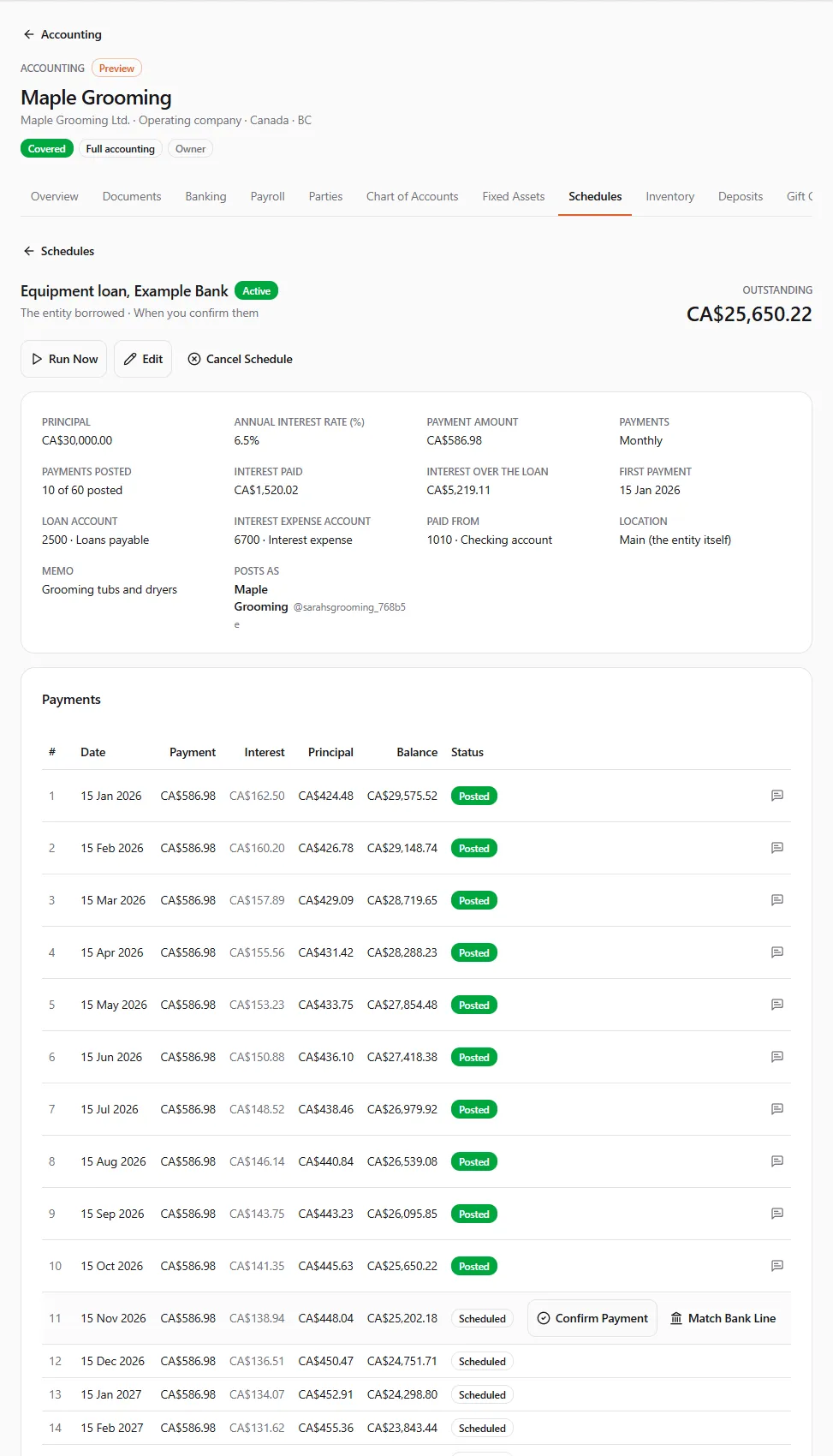
Section titled “Paying a loan payment”When a payment shows Waiting for you:
- Confirm Payment posts it (“{payment}: {interest} of interest and {principal} of principal.”). Enter the date it was Paid on if it differs from its due date.
- Match Bank Line posts it from the statement line that paid it: pick the Bank account and the Statement line (only unrecorded lines for exactly the payment’s amount are offered), then Record From This Line. This also needs Import and review bank lines. See Banking and reconciliation.
Payments post in order.
Changing or cancelling a loan
Section titled “Changing or cancelling a loan”Before a payment is posted, every term can change. After that, “the principal, currency, frequency, first date and loan account stay. A new rate, term or payment applies to what is still owed.” On an edit, enter 0 as the payment to work it out again for what is still owed.
Cancel Schedule stops a loan that was paid off elsewhere or refinanced; payments already posted stay. To pay a loan off early, add an extra payment for what is owed.
Leases
Section titled “Leases”A simple operating lease is a recurring entry of the kind Operating lease (below): “A lease payment: it must debit an expense account.” Right-of-use lease accounting (a lease asset and liability) isn’t available yet; ask your accountant whether your lease needs it.
Recurring entries
Section titled “Recurring entries”A recurring entry posts (or drafts) the same balanced lines on a calendar: rent, a monthly software bill, a lease payment.
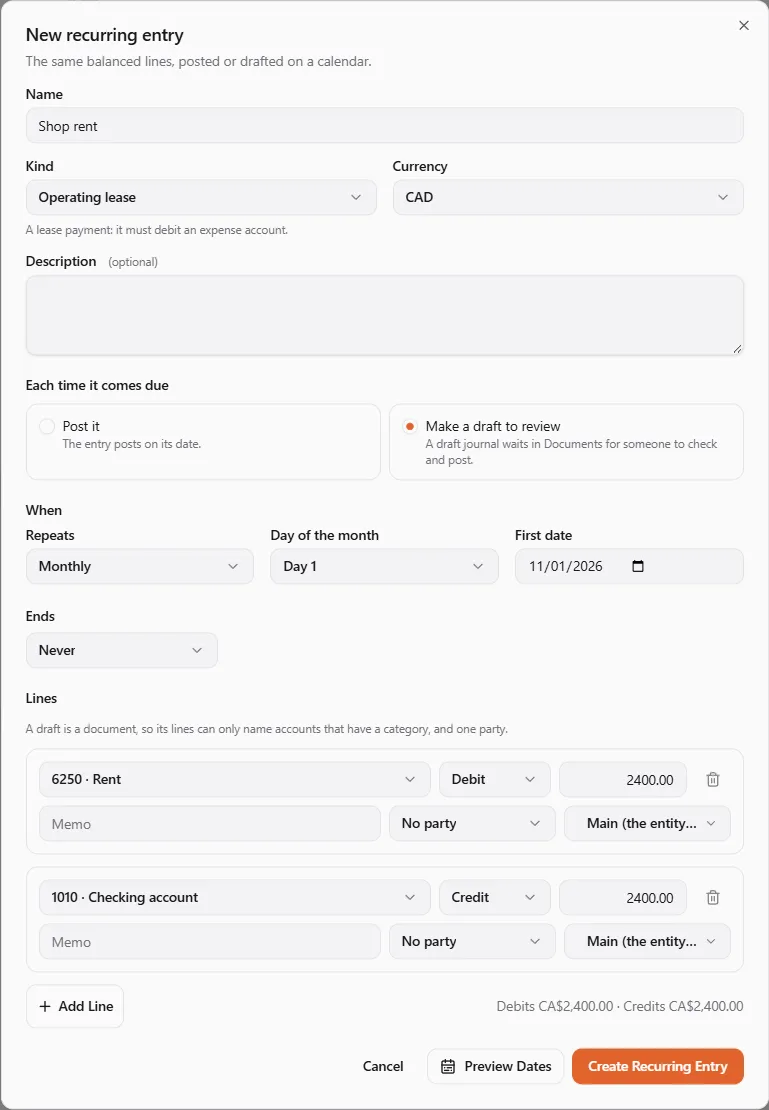
- On Recurring, choose New Recurring Entry.
- Enter a Name, pick the Kind (General or Operating lease) and add a Description.
- Choose what happens Each time it comes due:
- Post it: “The entry posts on its date.” Needs Post documents.
- Make a draft to review: “A draft journal waits in Documents for someone to check and post.” Needs Draft documents.
- Under When, choose how it Repeats (Weekly, Every two weeks, Monthly, Quarterly or Yearly), the Day of the month (Same day as the first date, a day, or Last day of the month), and the First date.
- Choose When it ends: Never, On a date, or After a number of entries.
- Add the Lines (at least two; Add Line for more): each with an account, debit or credit, an amount, and an optional memo, party and location. Debits and credits must be equal.
- Choose Preview Dates, then Create Recurring Entry.
A day that a month doesn’t have falls on that month’s last day: day 31 gives January 31, February 28, March 31, April 30. A draft is a document, so its lines can only name accounts that have a category, and at most one party.
Pause stops a recurring entry. When you Resume it, “Entries it missed while paused are skipped unless you run them now”: tick Also run the entries it missed to post them. Cancel Schedule ends it; entries already made stay. A change of frequency or day starts the calendar again from the next date.
Runs and Summary
Section titled “Runs and Summary”- Runs lists every period, payment and entry that ran, with its status: Posted, Drafted, Replaced, Waiting for the lock date, At the yearly limit, Failed or In progress.
- Summary shows, on an As of date, the deferred revenue and prepaid expenses still to recognize, the loans payable and receivable (outstanding, due within 12 months and later), and the recurring entries.
If something went wrong
Section titled “If something went wrong”“This schedule paused because the person it acts as lost access. Resume it to take it over.” See When a schedule pauses itself.
A period says Waiting for the lock date. It posts on its own date once the books’ lock date moves before it. See Year-end and currencies.
“No unrecorded line in this account is for exactly this payment.” Import the statement first, or confirm the payment instead.
“A draft can name only one party.” Use Post it, or keep one party across the lines.