

Importing and exporting
Moving to UPC Accounting from another program, or handing your books to an accountant who uses one? The Import tab brings another program’s books in from the file it exports; the Export tab takes yours out. Everything is by file: UPC Accounting doesn’t connect to other programs directly.
- The entity’s Import tab (
/dashboard/finances/accounting/{entity}/import), also Import From Other Software. The wizard needs the Import data permission (the Accountant and Admin roles, and the owner). Anyone with access sees the import history. - The entity’s Export tab (
/dashboard/finances/accounting/{entity}/exports), also Export the Books. It needs the Export data permission (the Accountant and Admin roles, and the owner). Report files are under Reports instead.
Importing from other software
Section titled “Importing from other software”Bring in another program’s books from the file it exports: QuickBooks, Xero, Sage, Wave, FreshBooks, Zoho Books, FEC, DATEV, SAF-T, JPK or our templates. You map and check everything before anything posts.
The wizard has four steps: Read, Map, Check and Post.
Files it reads
Section titled “Files it reads”| Program | Files |
|---|---|
| QuickBooks Online | Account list, customer and vendor contact lists, products and services, Journal report, General ledger, Trial balance, Open invoices, Unpaid bills, Journal entry import |
| QuickBooks Desktop | IIF |
| Xero | Chart of accounts, Contacts, Account transactions, General ledger detail, Trial balance, Manual journal import |
| Sage | Journal, Chart of accounts, Contacts |
| Wave | Transactions, Contacts |
| FreshBooks | General ledger, Journal entries, Chart of accounts, Clients, Invoices |
| Zoho Books | Manual journals, Chart of accounts, Contacts, Invoices, Bills |
| Statutory files | France: FEC; DATEV: Buchungsstapel, Kontenbeschriftungen, Debitoren/Kreditoren; SAF-T (OECD); Poland: JPK_KR |
| Our templates | Chart of accounts, Contacts, Products and services, Journal, Trial balance, Open invoices and bills, the Workbook |
Any other journal layout works once you map its columns. CSV, Excel, IIF, XML or JSON, up to 25 MB.
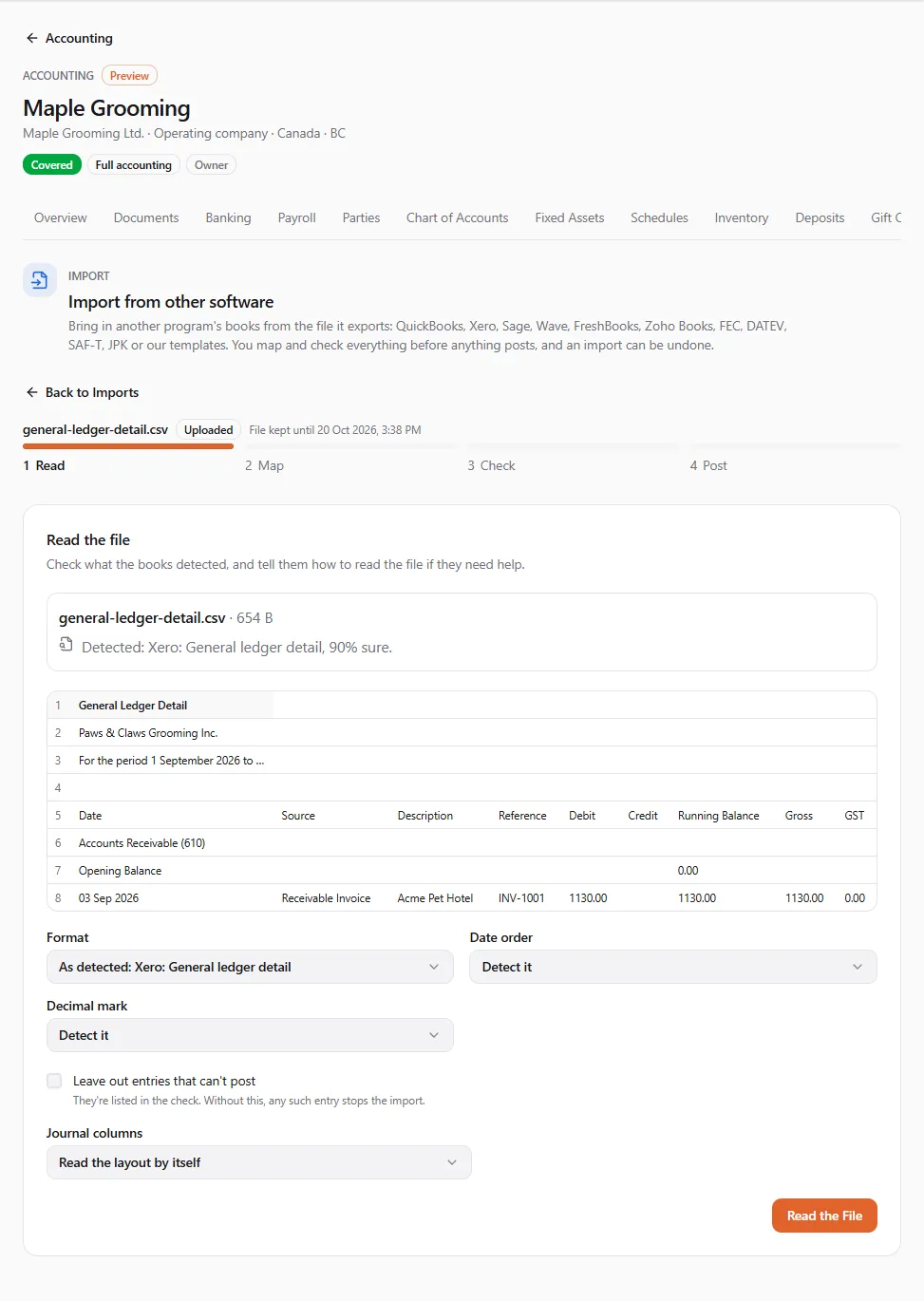
1. Read
Section titled “1. Read”- Choose the File. Leave Format on Detect it unless the books can’t tell what the file is.
- Choose Upload and Read. You see Detected: (format), 98% sure. and the first rows of the file.
- If the file was not recognised, pick its Format, or under Journal columns choose Map the columns myself… and say Which column holds what: the Date, the account (Account code or Account name) and an amount (Debit and Credit, or Amount (signed)) are needed; Entry number, memos, Reference, Customer or supplier, Class, Location, Tax code, Tax amount, Currency and Exchange rate are optional. Say how Rows form an entry. Tick Save these columns for the next file to keep the layout.
- Tick Leave out entries that can’t post if you want the rest to post anyway: They’re listed in the check. Without this, any such entry stops the import.
- Choose Read the File.
The uploaded file is kept only while the wizard needs it: it is deleted when you post or cancel, and at the latest 24 hours after the upload (File kept until …).
2. Map
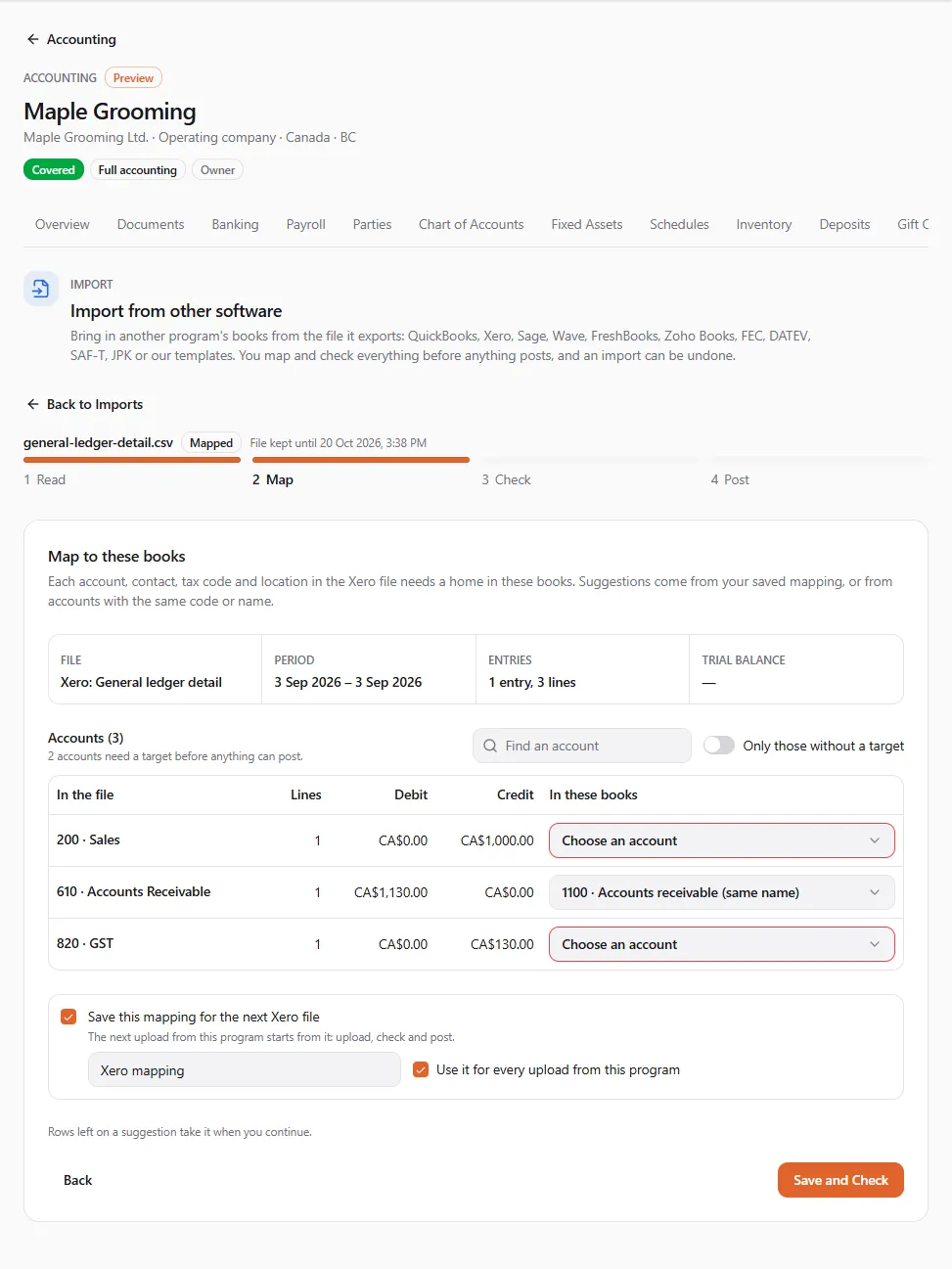
Section titled “2. Map”Each account, contact, tax code and location in the (program) file needs a home in these books. Suggestions come from your saved mapping, or from accounts with the same code or name, and each shows why (saved mapping, same code and name, same code, same name, new).
- Accounts — pick an account of these books for each account in the file, or Create a new account… with a Code, Name and kind (needs the Manage the chart of accounts permission). (n) accounts need a target before anything can post. Tick Only those without a target to find them.
- Contacts — the contact with the same name, a new contact, or No contact. Tick Create the contacts these books don’t have yet (needs Manage customers and suppliers).
- Tax codes — Used only to balance an entry whose tax sits beside its net amount, as Sage and Zoho export it.
- Locations — the entity’s locations. Lines of a location left unmapped keep no location.
- Opening balances date — for a trial balance: The trial balance becomes one opening entry on this date. Any difference goes to opening balance equity. Posting it needs the Adjust journals, rates and opening balances permission.
- Tick Save this mapping for the next (program) file: The next upload from this program starts from it: upload, check and post.
Choose Save and Check. Rows left on a suggestion take it when you continue.
3. Check
Section titled “3. Check”A dry run: the books post nothing until you post the import. You see either Ready to post (n) entries. or (n) problems to fix before anything posts., with counts (To post, Already in the books, Left out, New accounts, New contacts, Opening lines), the period and the debit and credit totals.
Problems stop the import: an account without a target, an entry that doesn’t balance, a date in a locked period, an entry above your posting limit, too many entries for one import (split the file by period), or, for a holding company, more entries in a year than its limit. Notes don’t stop it: entries already in the books, dates before the books start, locations not mapped, documents and products not imported. Fix problems with Back to Mapping, then Check Again.
4. Post
Section titled “4. Post”Post (n) entries into these books. Each is marked as imported, and the whole import can be undone later. Choose Post (n) Entries. You see what was posted, created and skipped, with See the Reports.
Importing the same file again — or an overlapping one — posts nothing twice: entries already in the books are skipped.
Import history and undo
Section titled “Import history and undo”The Imports list shows every file brought in, its Status (Uploaded, Mapped, Checked, Posting, Imported, Undone, Cancelled, Expired), its entries and actions: Continue or Cancel an unfinished import, View a finished one, or Undo it.
Undo needs both Import data and Void documents. Each of its entries gets a mirror entry, so the books are as they were. Accounts and contacts it created stay. Statement lines matched to its entries go back to review. Give a Reason and choose Undo Import. An import can’t be undone once any of its entries is in a locked period, or when a statement line matched to one of them is in a finished reconciliation.
Saved mappings lists your program mappings and journal column layouts: A program’s default mapping starts every upload from that program.
Exporting the books
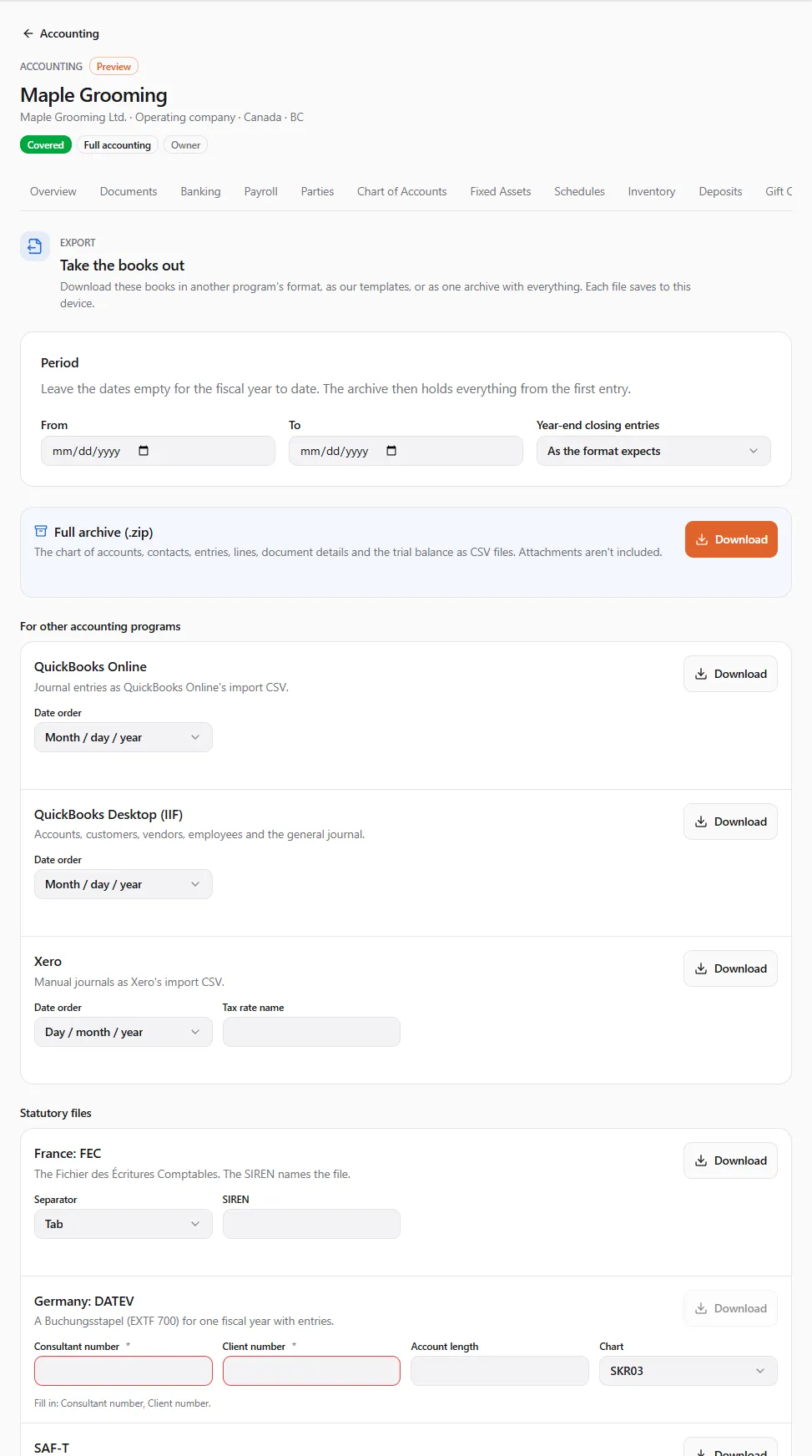
Section titled “Exporting the books”Download these books in another program’s format, as our templates, or as one archive with everything. Each file saves to this device.
- Under Period, set From and To, or leave them empty for the fiscal year to date (the archive then holds everything from the first entry).
- Choose whether to include Year-end closing entries: As the format expects (statutory files and the archive include them; QuickBooks, Xero and our templates leave them out), Include them or Leave them out.
- Fill in a format’s details if it asks, then choose Download.
| Group | Format | What you get |
|---|---|---|
| For other accounting programs | QuickBooks Online | Journal entries as QuickBooks Online’s import CSV (Date order). |
| QuickBooks Desktop (IIF) | Accounts, customers, vendors, employees and the general journal. | |
| Xero | Manual journals as Xero’s import CSV (Date order, Tax rate name). | |
| Statutory files | France: FEC | The Fichier des Écritures Comptables (Separator; the SIREN names the file). |
| Germany: DATEV | A Buchungsstapel (EXTF 700) for one fiscal year with entries (Consultant number, Client number, Account length, Chart SKR03 / SKR04). | |
| SAF-T | The OECD Standard Audit File for Tax 2.0, with the opening balances (Tax registration number). | |
| Poland: JPK_KR | The accounting books structure, with the opening balances (NIP, Tax office code). | |
| Our templates | Full archive (.zip) | The chart of accounts, contacts, entries, lines, document details and the trial balance as CSV files. Attachments aren’t included. |
| All templates (Excel), Chart of accounts, Customers, suppliers and employees, Products and services, Journal lines, Trial balance, Open invoices and bills | Our templates, one CSV each or one workbook. They import back with the wizard. |
Exports work on read-only books too: you can always take your books out. Employee names appear in exports only for people with payroll access; otherwise their lines keep their amounts without a name. When the books are too big for one download, you see This is more than one download can hold. Choose a shorter period.
If something went wrong
Section titled “If something went wrong”- “This file is larger than 25 MB. Export a shorter period.” — export a shorter period from the other program.
- “The books couldn’t tell what this file is.” — choose its format, or map its journal columns.
- “The uploaded file is no longer kept” — more than 24 hours passed; upload it again.
- “Importing another program’s books needs the data import permission.” / “Exporting the books needs the data export permission.” — ask the owner for the Accountant role, or for that permission.
- “Fill in: …” — a format needs details such as the DATEV consultant and client numbers.