

Work samples
A work sample shows one piece of your work: a groom, a trim, a show day, a training plan. Published samples appear in the Work section of your career portfolio, and a before-and-after pair gets a slider that visitors drag to compare the two photos. Work samples are free, for every profile, personal or business.
Open them from the Dashboard sidebar: My Profile → Work samples (My Business or My Place on those profiles).
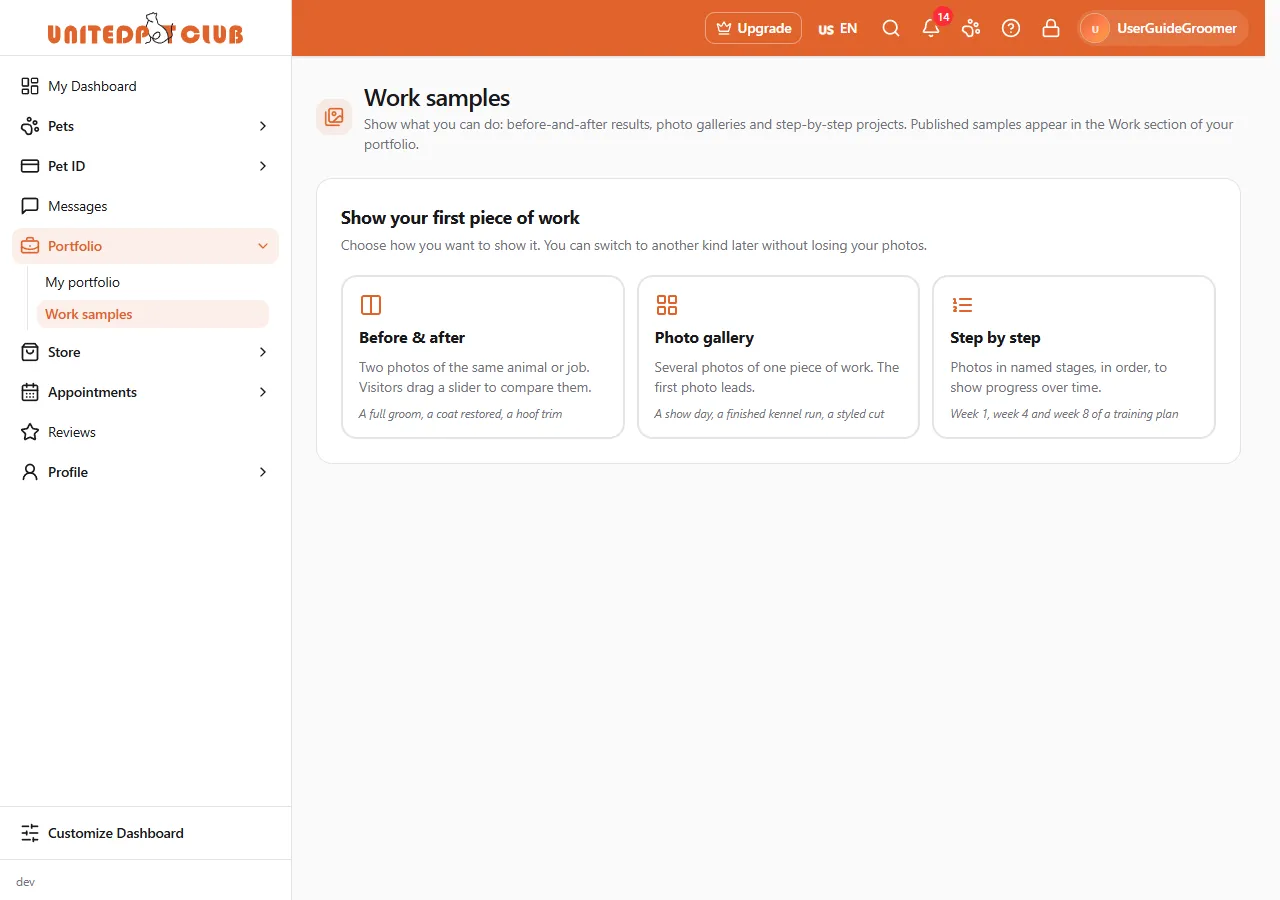
Choose the kind of sample
Section titled “Choose the kind of sample”| Kind | Use it for | What visitors see |
|---|---|---|
| Before & after | Two photos of the same animal or job, for example a full groom or a coat restored | A slider they drag to compare the two photos |
| Photo gallery | Several photos of one piece of work, for example a show day or a styled cut | The cover photo, with the other photos under it |
| Step by step | Photos in named stages, in order, for example week 1, week 4 and week 8 of a training plan | The photos, with the stage names in order |
You can switch to another kind later without losing your photos. When you switch, check that each photo is in the right place.
Create a work sample
Section titled “Create a work sample”- Go to My Profile → Work samples and select Add work sample, or select one of the three kinds on the empty page. From My portfolio, select Add work sample on the Work card.
- What kind of sample is it? Select Before & after, Photo gallery or Step by step.
- Add your photos. Drag photos from your computer onto a box, select Upload photos, or select
Choose from my files to use photos you already uploaded.
- Before & after: add at least one photo to Before (the starting point) and one to After (the finished result). Use the same angle and light so the change is easy to see.
- Photo gallery: add up to 20 photos. The first photo leads.
- Step by step: name each stage (for example Week 1), add its photos, and select Add a stage for the next one. You can have up to 10 stages.
- Describe the work. Give it a short, specific Title (what you did, and for which animal), an optional Description, and, if you have more than one profession, the Specialty it belongs to.
- Select Publish, or Save as draft to finish it later.
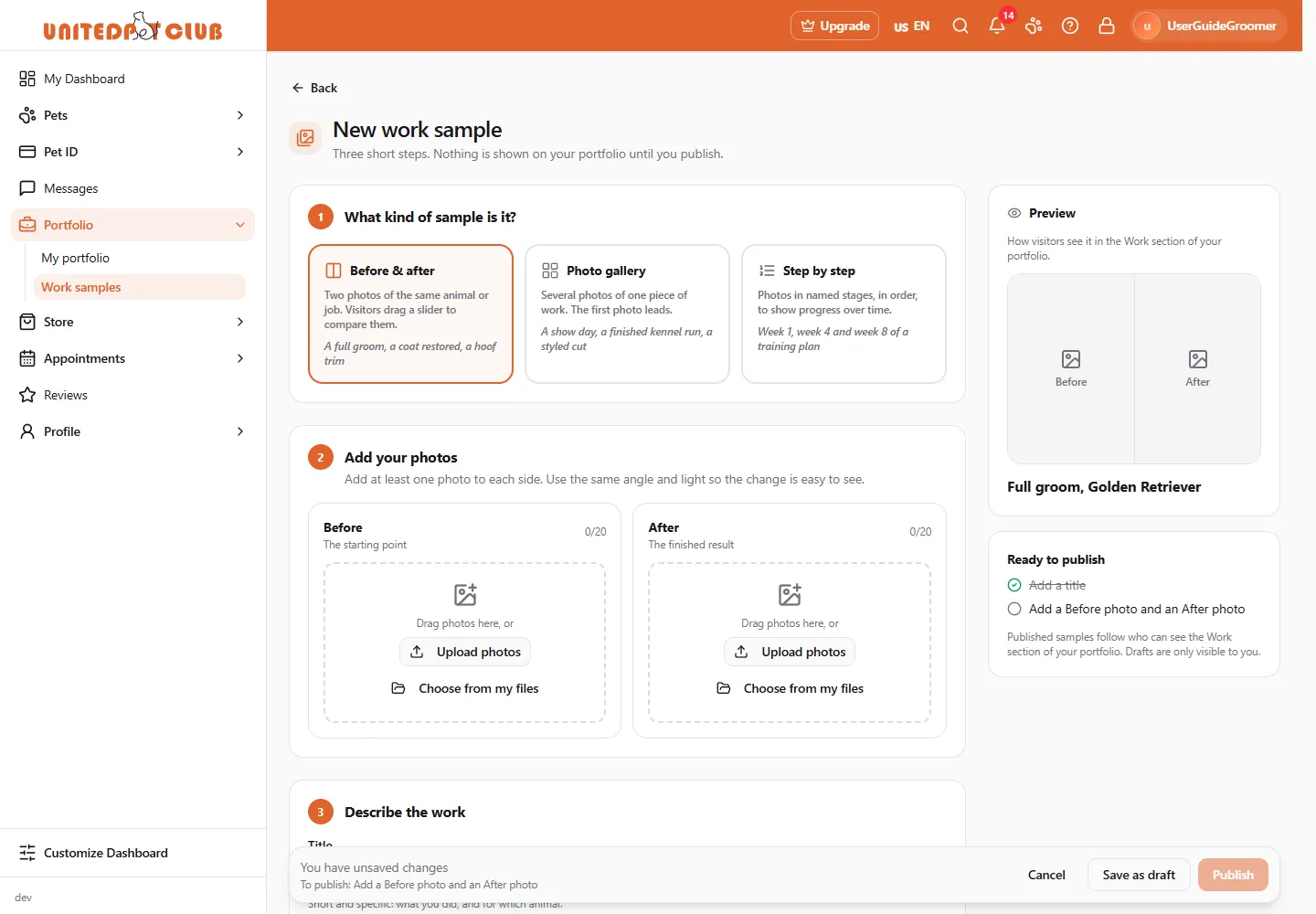
The preview and the checklist
Section titled “The preview and the checklist”On the right (below the form on a narrow screen), Preview shows the sample as visitors will see it in the Work section of your portfolio, and it changes as you type and add photos.
Ready to publish lists what is still missing: a title, and at least one photo (for a before-and-after pair, a Before photo and an After photo). Publish stays greyed out until every item is ticked, and the bar at the bottom tells you the next thing to do, for example To publish: Add a title.
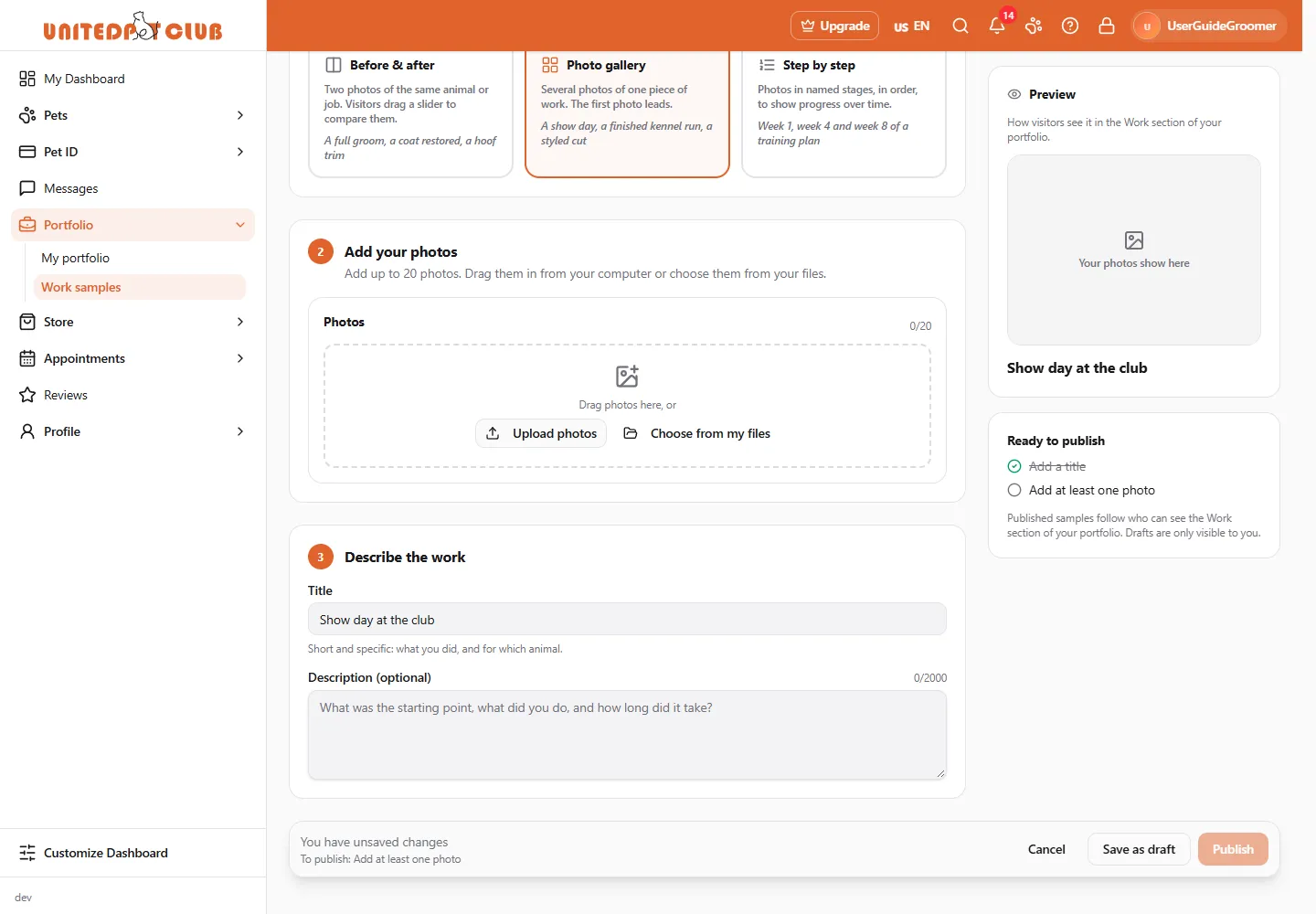
Arrange the photos
Section titled “Arrange the photos”Each photo has a ⋯ menu:
- Use as cover: the photo shown on the sample’s card. If you don’t choose one, the cover is the first After photo of a before-and-after pair, or the first photo.
- Move earlier / Move later: change the order within the box.
- Move to …: move the photo to the other side of a pair, or to another stage.
- Remove from sample: takes the photo out of this sample. It stays in your files.
Drafts and published samples
Section titled “Drafts and published samples”- A Draft is only visible to you.
- A Published sample appears in the Work section of your portfolio, for the people allowed to see that section (see Choose who sees each section).
- To take a published sample off your portfolio without deleting it, open it and select Move to drafts. To change it, edit it and select Save changes.
Manage your work samples
Section titled “Manage your work samples”The Work samples page shows each sample as a card with its cover, its kind, Published or Draft, and how many photos it has.
- Select the card or Edit to change it.
- Use the ⋯ menu to Move earlier, Move later (the order in which they appear on your portfolio) or Delete it. Deleting asks you first and can’t be undone; the photos stay in your files.
- From My portfolio, select a sample in the Work section to edit it, or Manage work samples to come here.
A profile can have up to 30 work samples, each with up to 20 photos per box.