

Getting verified
The verified badge tells other members that we checked who you are — or who runs your business — this year. It comes with a yearly plan: US$15 a year for a personal profile, US$30 a year for a business. Canadian customers pay GST/HST on top. The plan is the only way to get the badge.
Which badge you get
Section titled “Which badge you get”| Badge | For | What we check |
|---|---|---|
| Verified | your personal profile | one government photo ID, and your address |
| Verified Owner | your business or place | the owner’s identity, through your connected payout account, and your address |
| Verified Business | your business or place | everything for Verified Owner, plus your business licence or registration |
A business buys one plan. It shows Verified Owner as soon as the owner is confirmed, and Verified Business once we approve your licence or registration.
No registered business? If you trade under your own name, a municipal business licence, a trade-name or sole-proprietorship registration, a tax registration that shows the business, or a professional licence that names your practice all work. Without any of these, your business stays Verified Owner: you are verified, and your business is you.
Where your badge shows
Section titled “Where your badge shows”The checkmark appears next to your name wherever other members meet you:
| Where | What they see |
|---|---|
| Your profile | the badge under your name |
| The profile switcher | the checkmark beside each of your verified profiles |
| Career portfolios | the checkmark on a verified person or business linked in a portfolio, and in the picker when you link one |
| The feed | the checkmark next to your name on every post, including posts written before you were verified |
| The forum | the checkmark next to your name on your questions and answers |
| Animal listings | the checkmark on your listing cards and listing pages; buyers can filter for Verified seller |
| Your store | the checkmark next to your store’s name on product pages, in the cart, on quote ads and when you are suggested as a lost-pet recovery provider |
| Apps you publish | the checkmark next to your name as the app’s publisher |
| The professional directory | the checkmark next to your name in search results |
Verified and Verified Owner are blue; Verified Business is gold. When your badge starts, ends or changes, the feed, your listings and your store follow within a few minutes, the forum within an hour, and the professional directory by the next day.
A licence, credential or business check on its own does not show the badge any more. Those checks still count where they always did: they unlock professional privileges in the forum (a verified vet can add vet notes), they raise your listings’ trust score, and some listing types still require your identity to be checked.
What you need
Section titled “What you need”For Verified (personal):
- one government photo ID — a passport, driver’s licence, national ID card or permanent resident card. Upload the front, and the back unless it is a passport;
- the ID number and its expiry date, which you type in;
- your legal name exactly as the ID shows it.
For Verified Business:
- the payout account for your business connected, with its identity confirmed (the same step that lets you take online bookings — see Verifying your business);
- one licence or registration document (a photo or a PDF), its number, the name on it, and where it was issued.
Photos can be JPEG, PNG, WebP or HEIC, or a PDF, up to 10 MB each.
Get verified, step by step
Section titled “Get verified, step by step”You manage verification in your Account, one profile at a time, while you are acting as that profile.
-
Go to Profiles, open the profile, and find the Verification card. Choose Get verified.
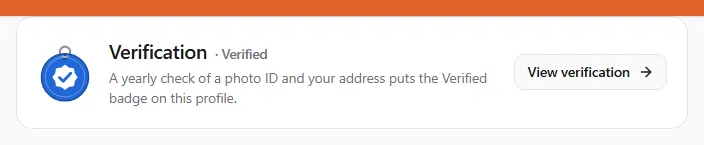
If you are acting as a different profile, the page offers Switch to @yourhandle first: the plan is billed to the profile you are acting as, and only that profile can upload its documents.
-
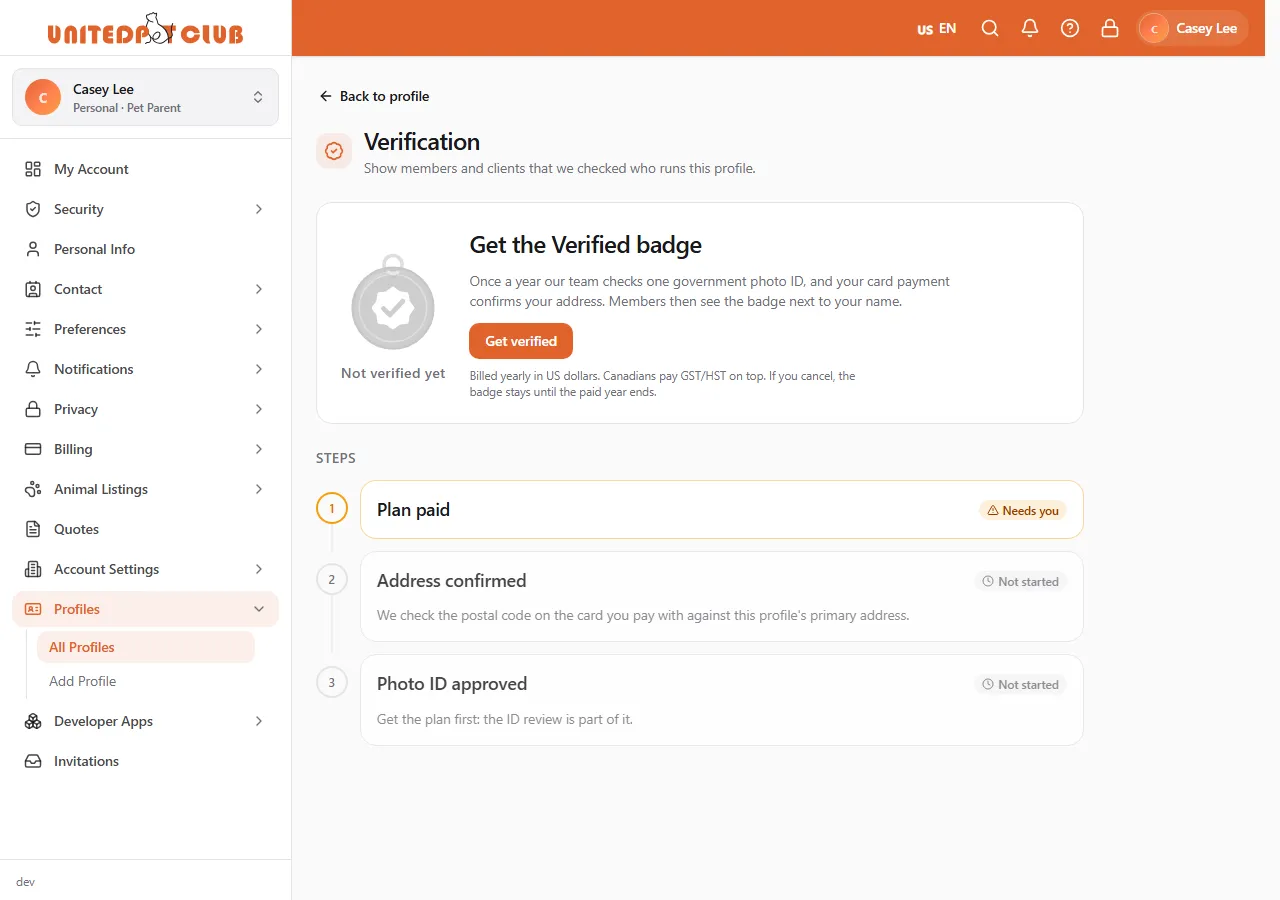
The Verification page shows the badge you are working towards and the steps in order. Choose Get verified. A personal profile is offered Verified; a business or place is offered Verified Business.
-
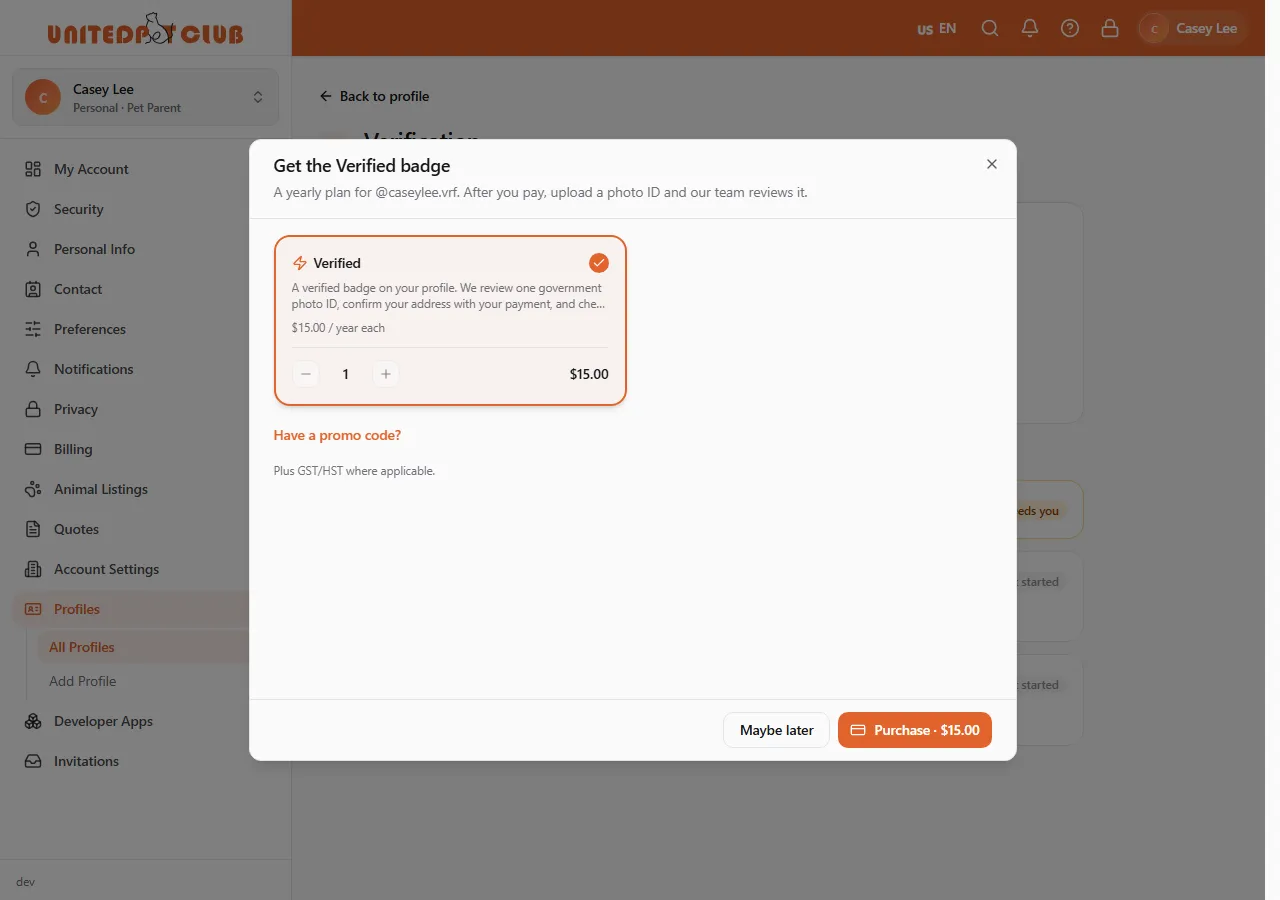
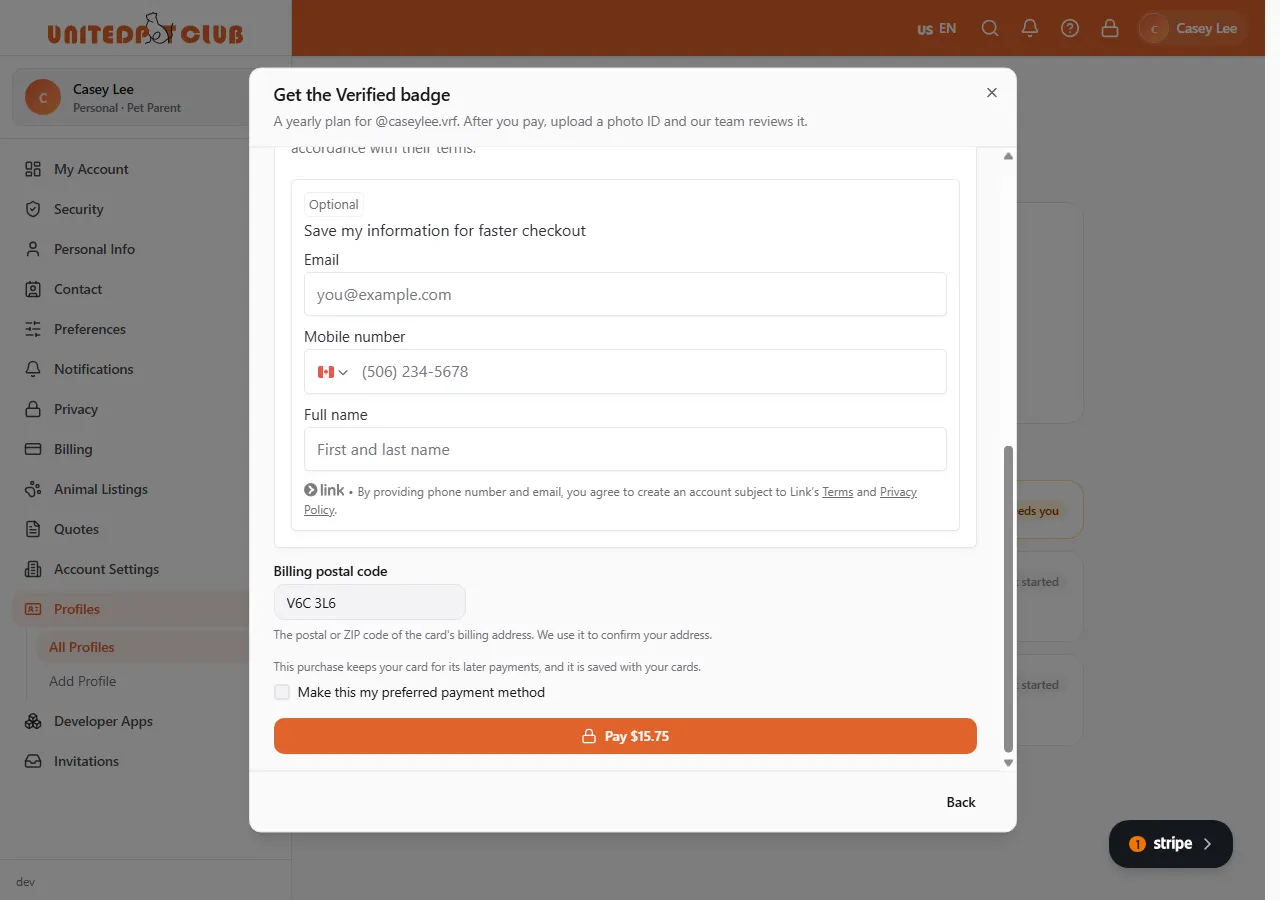
Pick the plan and choose Purchase. Pay with a saved card, or choose Use a new card. For a new card, type the Billing postal code of the card: that is how your payment confirms your address. GST/HST is shown before you pay if you are in Canada.
-
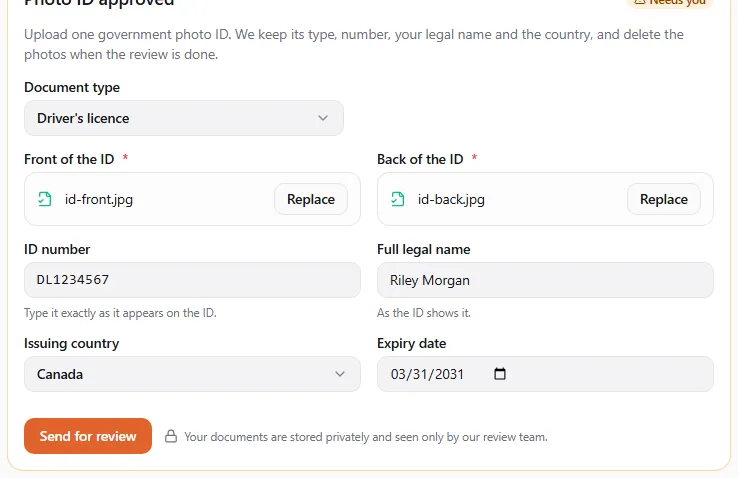
When the payment goes through, Plan paid and, if your card’s postal code matched your profile’s address, Address confirmed are done. Under Photo ID approved, pick the type of ID, add the photos, type the number, your legal name, the issuing country and the expiry date, and choose Send for review. If we need a proof of address, its field appears here too.
-
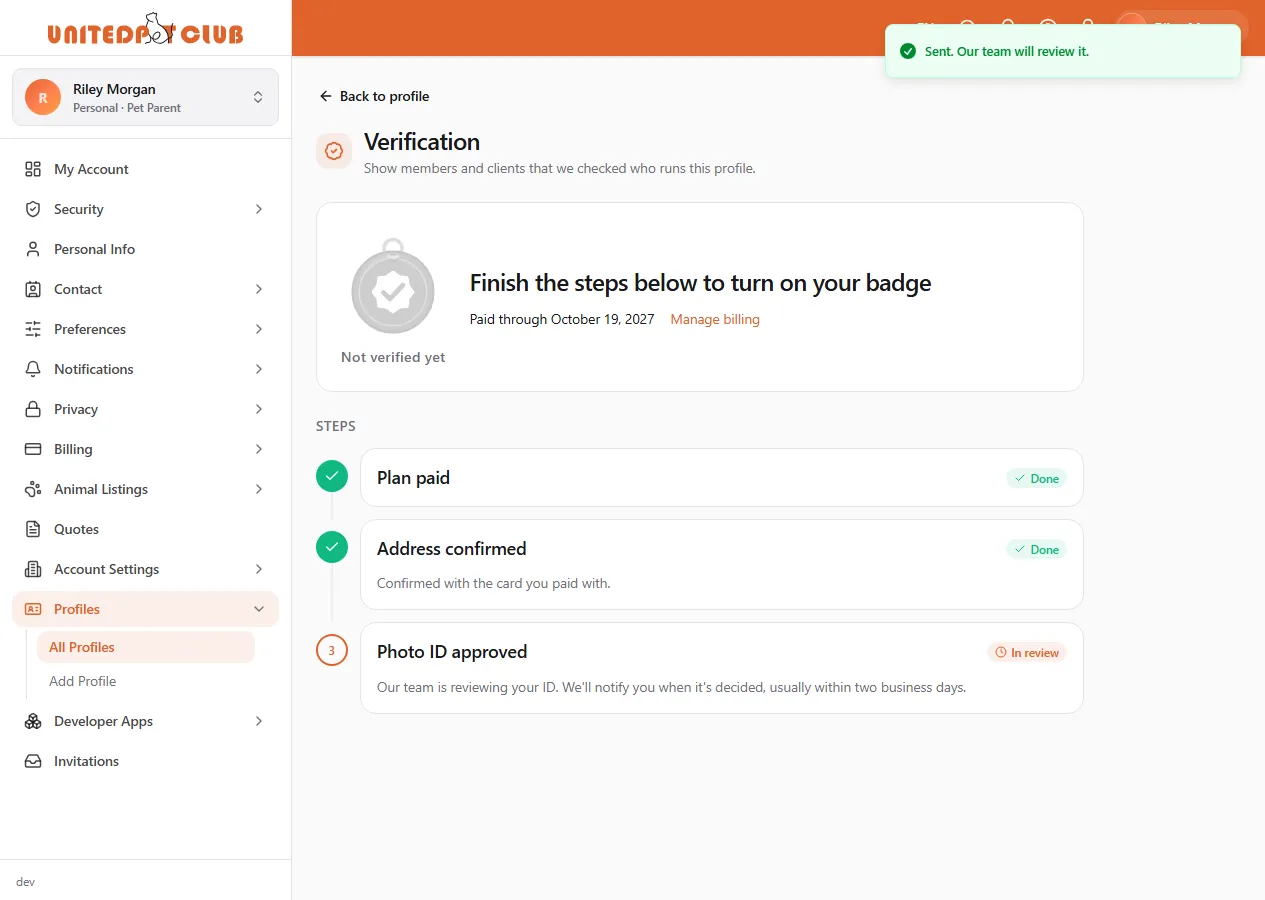
The step shows In review until our team decides, usually within two business days.
-
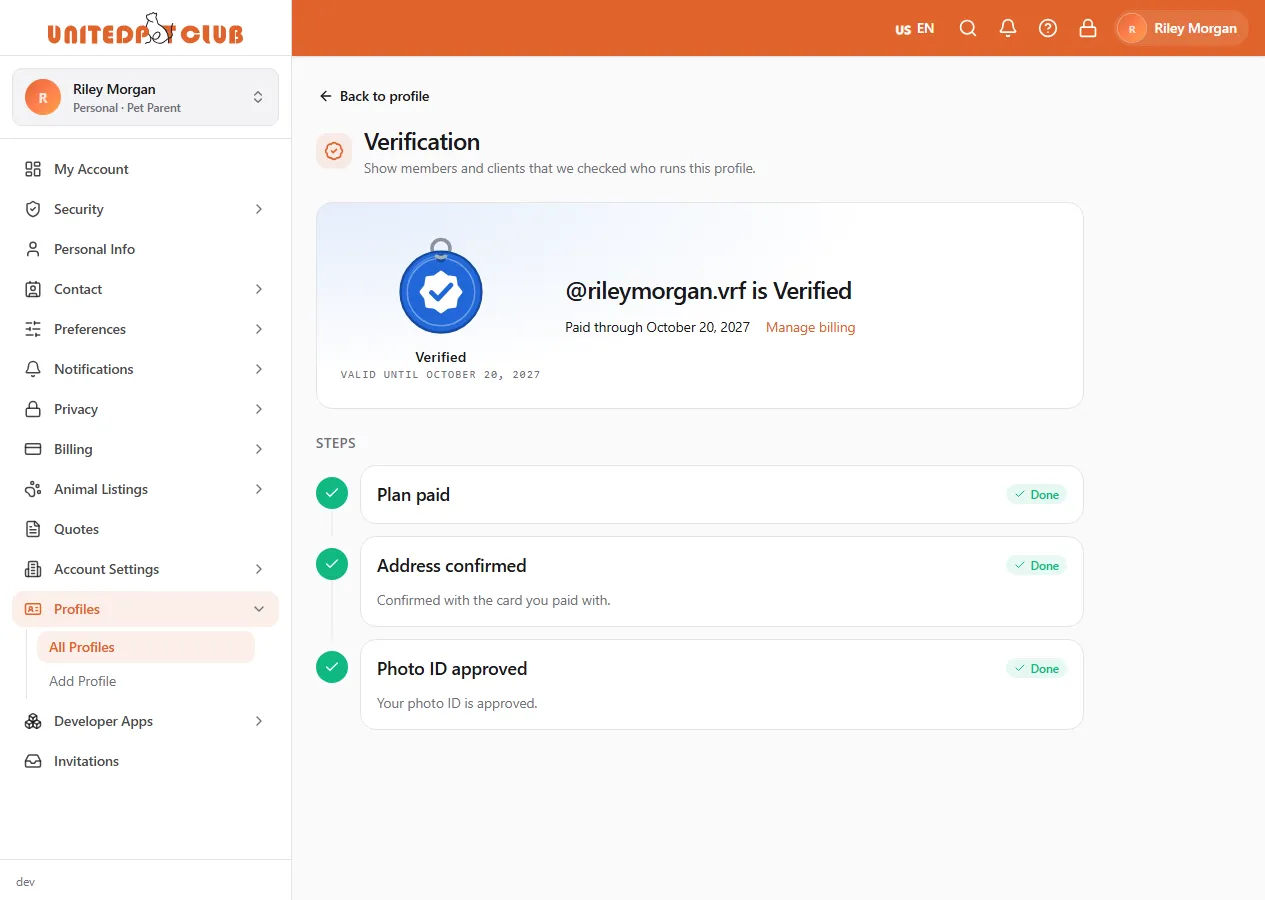
Once approved, the page shows your badge in colour and the date it is valid until.
For a business: after paying, the Owner identity confirmed step points you to Set up payouts in the Dashboard if your payout account is not connected yet. Upload your licence or registration under Licence or registration approved: choose the type, add the document, type its number, the name on it, the country and, if it has one, the province, state or city, and its expiry date (or tick This document has no expiry date).
Your address
Section titled “Your address”Your address is confirmed by your plan payment: when the postal code and country on your card match your profile’s primary address, you have nothing more to do. If they do not match, or your profile has no primary address, we ask for a proof of address — a utility bill or bank statement from the last 90 days — which you upload with your ID.
Your ID stays private
Section titled “Your ID stays private”- A member of our team reviews your ID. The photos are deleted as soon as the review is done.
- We keep only what the badge needs: the result, your legal name, the issuing country, the type of ID and its number. The number is stored encrypted and our team sees only its last four digits.
- Sometimes we ask you to finish the check with our identity partner, Stripe, who will ask for a photo of your ID and a selfie. When that happens, open your Verification page and choose Continue with Stripe. For your security the link is shown only there, never in an e-mail.
- Business documents are kept for the year they cover, so we can check them again at renewal.
If we cannot accept your ID or document, we tell you why so you can upload a better one.
What we tell you
Section titled “What we tell you”We let you know in your notifications and by e-mail, in your language:
| When | What you hear |
|---|---|
| You send an ID or a document | we received it and usually decide within two business days |
| A step is approved | that it was approved, and which badge your profile shows now |
| A step is not approved | why, and to upload a new document |
| We ask Stripe to finish your ID check | to open your Verification page and continue with Stripe |
| 30, 7 and 1 days before your plan renews | the renewal date, so you can make sure your card is up to date |
| A renewal payment fails | the date your badge stays until; update your card before then |
| Your plan ends | that the badge was removed, and that you can get verified again |
Every notice links to your Verification page.
Renewing, missing a payment, cancelling
Section titled “Renewing, missing a payment, cancelling”| What happens | Your badge |
|---|---|
| Your plan renews each year | stays |
| A renewal payment fails | stays for 30 days with a reminder to renew, then is removed |
| You cancel | stays until the end of the year you paid for; there is no refund for the rest of the year |
| Your ID expires | stays 30 days while you upload a current one |
| Your business document expires | your business shows Verified Owner after 30 days, until a current document is approved |
Each year, upload a current copy of your business document before renewal. A document that has no expiry date (most registrations) still needs a fresh copy, or a dated printout from the registry, every year.