

Your career portfolio
Your career portfolio is your online résumé on United Pet Club. It brings together your skills, the breeds you work with, where you have worked, your education, your awards, before and after photos of your work, and what kind of job you are looking for. You edit it right on the page, and you decide who can see each part of it.
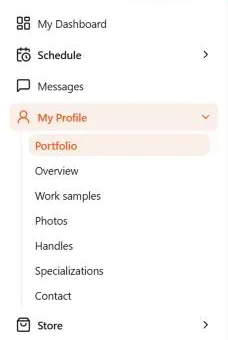
In the Dashboard, open My Profile → Portfolio (/dashboard/career-portfolio). My Profile
sits near the top of the sidebar, right after Messages, and it is always shown. Portfolio is
its first page, and on a phone the My Profile tile under More opens it. Two pages of
My Profile are about your portfolio:
- Portfolio: your career portfolio, which you edit on the page.
- Work samples: your before and after photos and other work. Your portfolio’s Work section shows them.
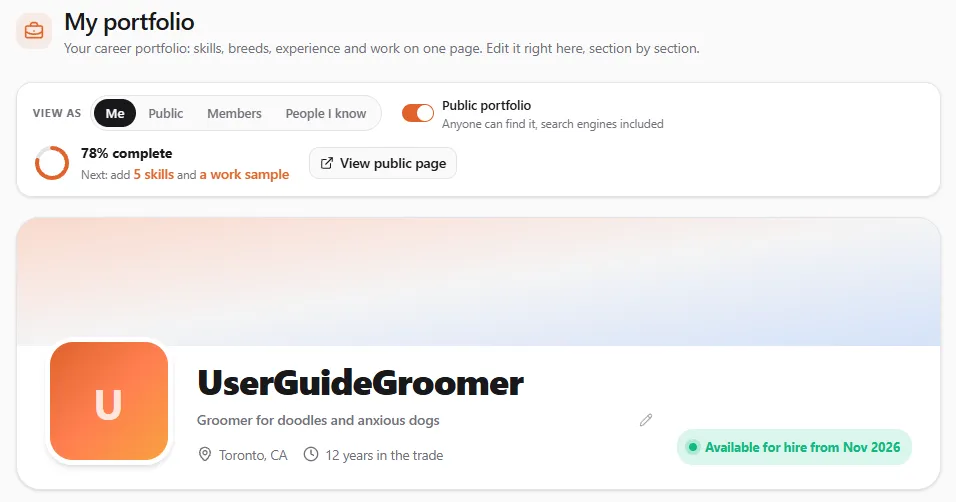
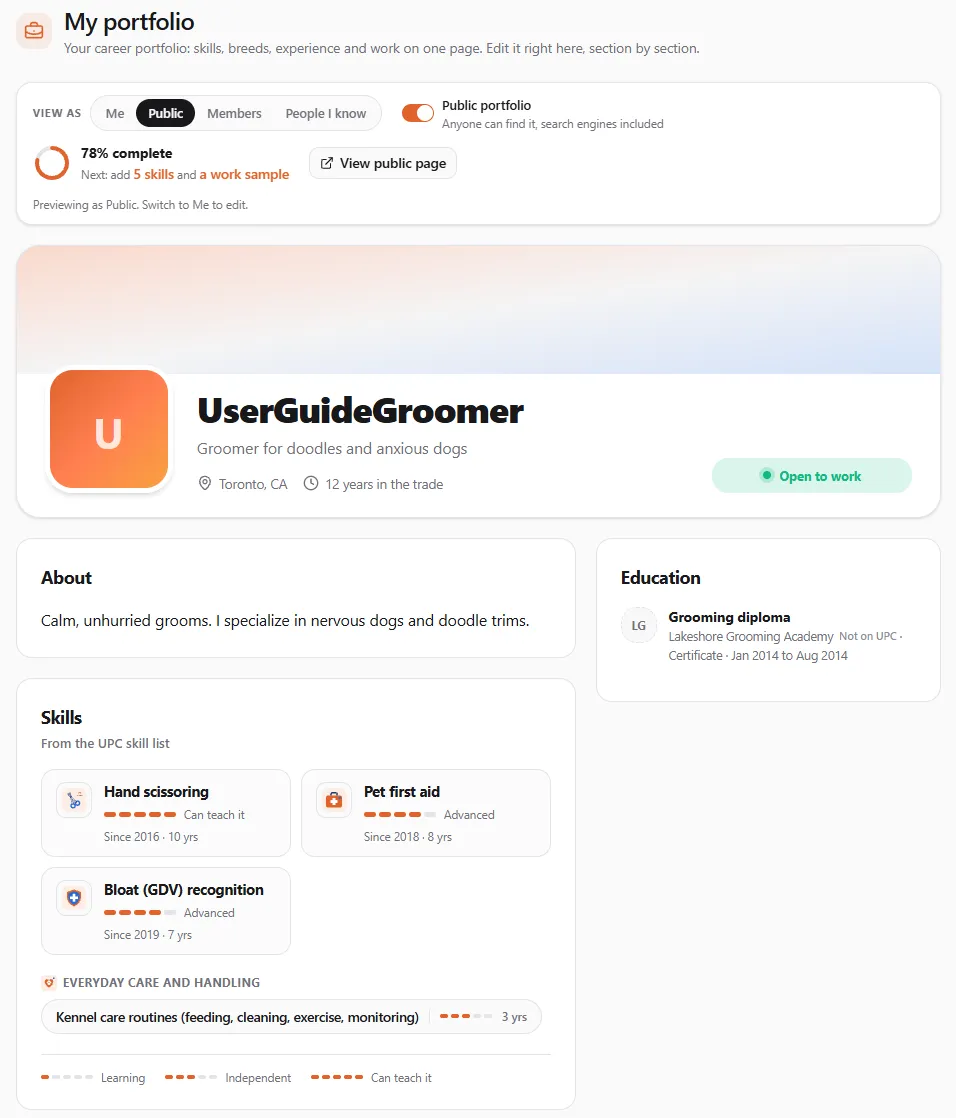
The page opens on your portfolio as you see it. At the top is a toolbar with View as, the Public portfolio switch, how complete your portfolio is, and View public page. On a phone the toolbar folds into one line (who you are viewing as, Public or Private, and how complete it is) so it doesn’t cover the page: tap it to open the full toolbar. It folds again when you pick someone under View as.
Edit it on the page
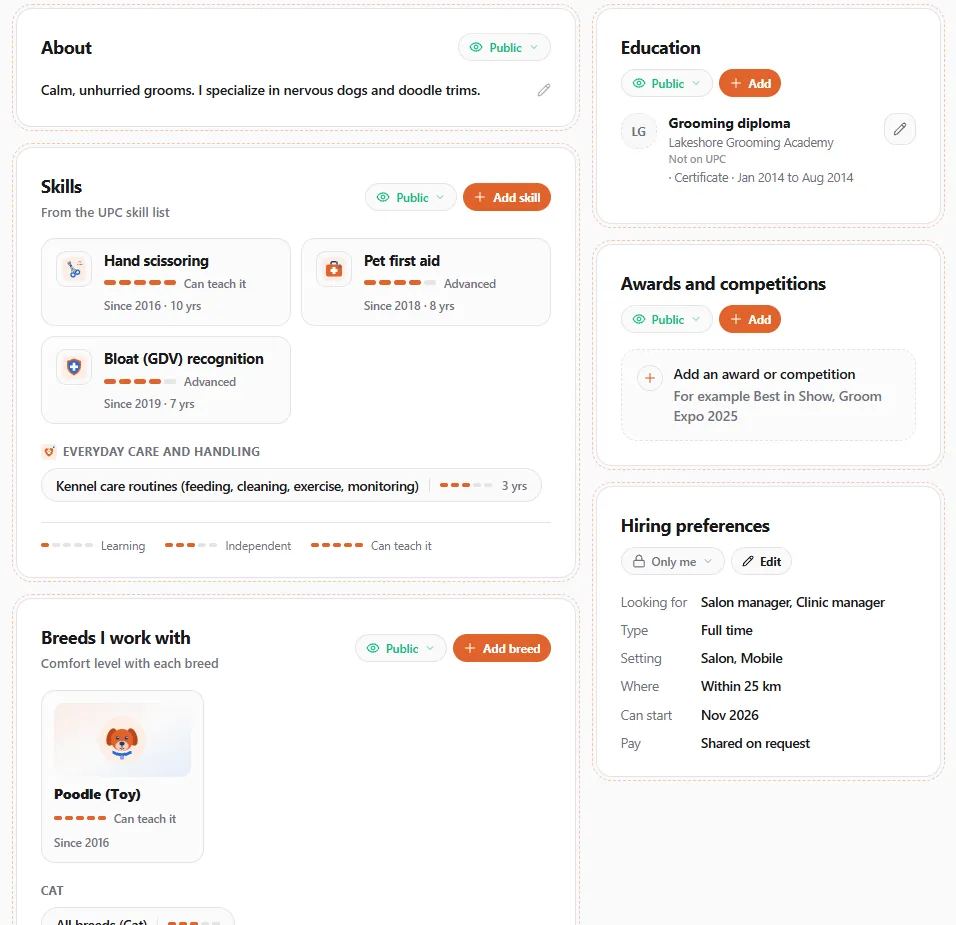
Section titled “Edit it on the page”Every section of your portfolio is a card. To change something:
- Select the pencil next to it, or the Edit button on the card.
- Select Add (or Add skill, Add breed, Add role) to add an entry.
- An empty section shows an example card, such as Add your first role. Select it to start.
Each change is saved when you press Save or Add in its window, and you will see Saved or Added. If a change can’t be saved, you will see Could not save. Your change was undone. Try again in a moment.
The header
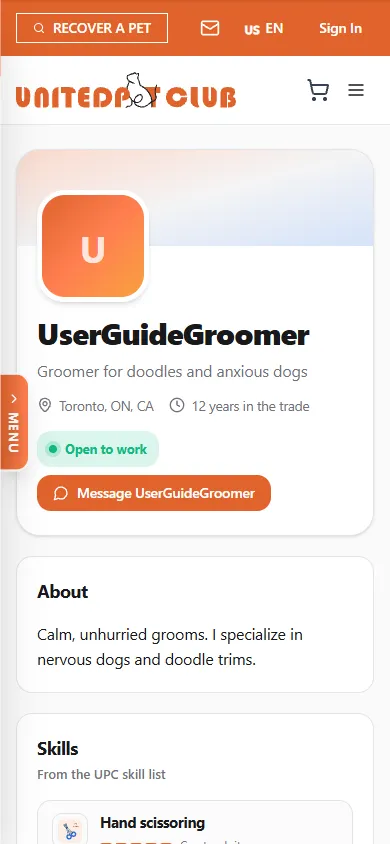
Section titled “The header”The header shows your photos, your name and your @handle from your profile, and the things you set here:
-
Cover photo: the wide picture across the top of the header. Until you have one, select Add cover photo in its top-right corner. Your media library opens: pick a photo, or upload a new one, then select Use This Photo. You will see Photo updated. A wide landscape photo works best, because the strip is much wider than it is tall. This is the same photo as the one across the top of your profile page (the header photo under Profile Photos), so changing it here changes it there too. Uploads count toward your profile’s storage space.
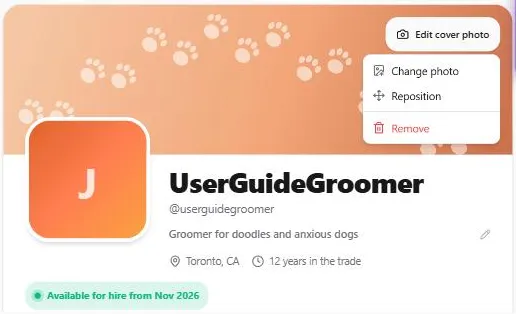
Once you have a cover photo, point at it to see Edit cover photo (on a phone or tablet the button is always there). It opens three choices:
- Change photo opens your media library again.
- Reposition lets you choose which part of the photo shows. Drag the photo (or use the arrow keys), then select Save position. You will see Position saved. Cancel or the Esc key puts it back. The position also applies at the top of your profile page.
- Remove takes the photo off: the strip goes back to a plain colored gradient, and the photo stays in your media library.

-
Profile photo: select the photo square beside your name (or press Tab to it, then Enter). A camera appears when you point at it; on a phone or tablet a small camera badge sits in its corner. Your media library opens: pick a photo, or upload a new one, then select Use This Photo. You will see Photo updated. This is the same profile photo you set under Profile Photos, so it changes everywhere your profile photo shows. Uploads count toward your profile’s storage space. Until you set a photo, the square shows the first letter of your first name.
-
Headline: one line about what you do, for example Groomer for doodles and anxious dogs. Select the pencil to change it.
-
Open to work: select the badge on the right to switch it on or off. When it is on, visitors see Open to work. If you add a start date in your hiring preferences, people who can see your hiring preferences see Available for hire from that date instead.
-
Years in the trade is worked out for you, from your earliest role or the earliest “using since” year on your skills.
Write a few lines about yourself: how you started, what you are known for and how you work with animals. You can write up to 2,000 characters.
Add your skills
Section titled “Add your skills”Skills come from the UPC skill list, which has more than 490 pet-industry skills in 24 groups, from bathing and hand scissoring to veterinary dentistry, training and pet first aid. Skill names show in each visitor’s own language.
-
On the Skills card, select Add skill.
-
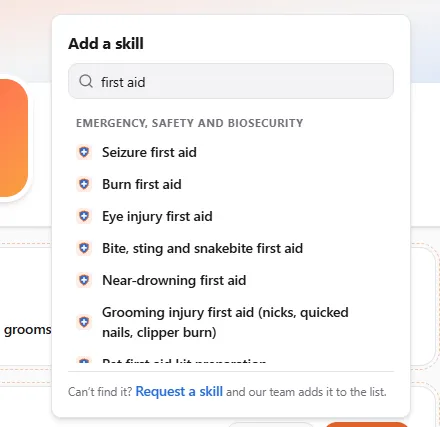
Type in the search box, for example first aid. Matching skills are listed under their group. Skills for your professions are listed first.
-
Pick the skill.
-
Answer How comfortable are you? with one of five levels:
Level What it means Learning You are in training and practise under supervision. With guidance You do it, with someone checking your work. Works independently You do it on your own, to a reliable standard. Experienced You handle hard cases and fix other people’s work. Can teach it You are an expert and you train others. -
Optionally set Using since and Last used (leave Still using if you still do it). Your portfolio shows the years, for example Since 2016 · 10 yrs.
-
Tick Show at the top of my skills to make it one of your top skills. Up to 5 skills can be at the top, as cards. The rest are listed under them by group, one line each, strongest first.
-
Optionally add A line about it, for example Show coats and hand-scissored finishes.
-
Select Add.
Each skill shows its level as a five-part bar with the level written beside it, for example Experienced, and how many years you have used it. On a wide screen the level and the years line up in columns, so people can compare your skills at a glance.
With more than 10 skills, the section folds into groups so it stays short:
- Top skills opens first. Opening any other group closes it, to make room.
- Every skill is also listed in its group, and your top skills have a star there.
- A closed group shows its strongest three skills and how many it holds. Select it to open it.
- Expand all opens every group, and Collapse all closes them.
- When you add a skill, its group opens so you can see it.
With 10 skills or fewer, everything is shown open.
Request a skill
Section titled “Request a skill”If a skill is missing from the list:
- In the Add a skill window, select Request a skill.
- Fill in Skill name, and choose a Category (or Not sure).
- Optionally say Why it matters.
- Select Send request. You will see Skill request sent for review.
Our team reviews the requests. You can have up to 10 requests waiting at a time, and you can’t request the same skill twice.
Add the breeds you work with
Section titled “Add the breeds you work with”A Bichon, a Komondor and a Persian are different jobs, so breeds have their own section.
- On the Breeds I work with card, select Add breed.
- Pick a Species, then a Breed. Scroll the list or type part of the name to find it. To cover the whole species, pick All breeds (for example All breeds (Cat)). The breed starts on All breeds until that species is on your portfolio; after that it starts empty, and breeds you already have are greyed out.
- Answer How comfortable are you with this breed? with the same five levels as skills.
- Optionally set Working with them since and a short Note, for example show coats.
- Tick Show as a tile at the top to show the breed as a picture tile. Up to 8 breeds can be tiles. The others are listed by species.
- Select Add.
Add your experience
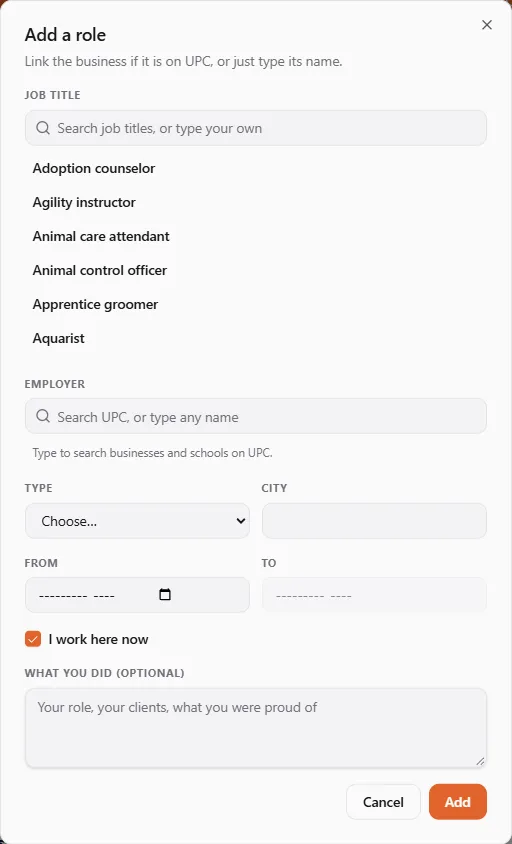
Section titled “Add your experience”- On the Experience card, select Add role.
- Job title: search the UPC job title list (for example Bather, Salon manager, Kennel attendant), or type your own title and choose Use ”…” as a custom title.
- Employer: start typing the business’s name.
- If the business is on United Pet Club, pick it from the list. Your role then links to its profile and always shows its current name.
- If it isn’t, choose Use ”…” as text. The name is shown as you typed it, marked Not on UPC.
- Choose the Type (for example full time), and optionally the City.
- Set the Start month and the End month. If you still work there, tick I work here now.
- Optionally describe What you did.
- Select Add.
Education, awards and work samples
Section titled “Education, awards and work samples”- Education: select Add and fill in the Qualification (for example Grooming diploma), the School or academy (linked or typed, like an employer), the Type, the dates, and whether it is Finished or you are Still studying.
- Awards and competitions: select Add and fill in the Award (for example Best in Show, Groom Expo 2025), who it was Awarded by (linked or typed), the Type and the Date. If you link the giver’s United Pet Club profile, they’re asked to confirm the award: until they do, it’s Pending and only you see it. An award with a typed giver shows straight away, marked Not confirmed. Each award carries its status, for example Waiting for Groom Expo to confirm. Awards a business gave you, and the ones you’re waiting on, are managed on Certificates & Awards, which shows the same list.
- Work: your portfolio shows the work samples you publish. A Before & after sample gets a slider that visitors drag to compare. Select Add work sample to create one, select a sample to edit it, or select Manage work samples to see them all.
Hiring preferences
Section titled “Hiring preferences”Tell employers what you are looking for. Select Edit on the Hiring preferences card:
- Open to work: shows the Open to work badge on your portfolio.
- Roles I’m looking for: pick job titles from the list, and add Anything else in your own words.
- Type and Setting (Salon, Mobile, In-home, Clinic, Kennel, Farm or Remote).
- Where and Travel radius (km).
- Can start and Pay.
This section is set to Only me until you choose to share it.
Choose who sees each section
Section titled “Choose who sees each section”Every section has a chip, such as Public or Only me. Select it to answer Who can see this section?:
| Choice | Who can see it |
|---|---|
| Public | Everyone, including search engines |
| Members | People signed in to United Pet Club |
| People I know | People you work with on United Pet Club: the people in the same business team as you |
| Only me | Only you |
Each choice includes the people above it in the table, so People I know also see everything set to Members. Your headline is always shown on a public portfolio.
Until you change them, sections start like this:
| Section | Starts as |
|---|---|
| About, Skills, Breeds I work with, Work, Awards and competitions | Public |
| Experience, Education | Members |
| Hiring preferences | Only me |
When a visitor can’t see a section, it shows a short note instead, such as Visible to signed-in members. Sign in to see this section. Sections set to Only me are left out with no note at all.
Public or private
Section titled “Public or private”The Public portfolio switch at the top decides who can find your portfolio at all:
- Public portfolio: Anyone can find it, search engines included. Each section then follows its own choice from the table above.
- Private portfolio: Hidden from search. People you know can still see it. Everyone else sees only a note that you keep your portfolio private.
See it the way others do
Section titled “See it the way others do”Use View as at the top to preview your portfolio as Public, Members or People I know. The page shows exactly what that visitor would see, without the edit buttons, and says Previewing as Public. Switch to Me to edit. Select Me to go back to editing.
How complete is it?
Section titled “How complete is it?”The circle in the toolbar shows how complete your portfolio is, and what to add next, for example Next: add 5 skills and a work sample. Select a suggestion to jump to that section. It counts a headline, an About, 5 skills, 3 top skills, a breed, a role, education, a work sample and hiring preferences. When everything is there it says Looks complete.
What visitors see
Section titled “What visitors see”Your public page is on the United Pet Club website at /accounts/your-handle/portfolio. Select View public page in the toolbar to open it.
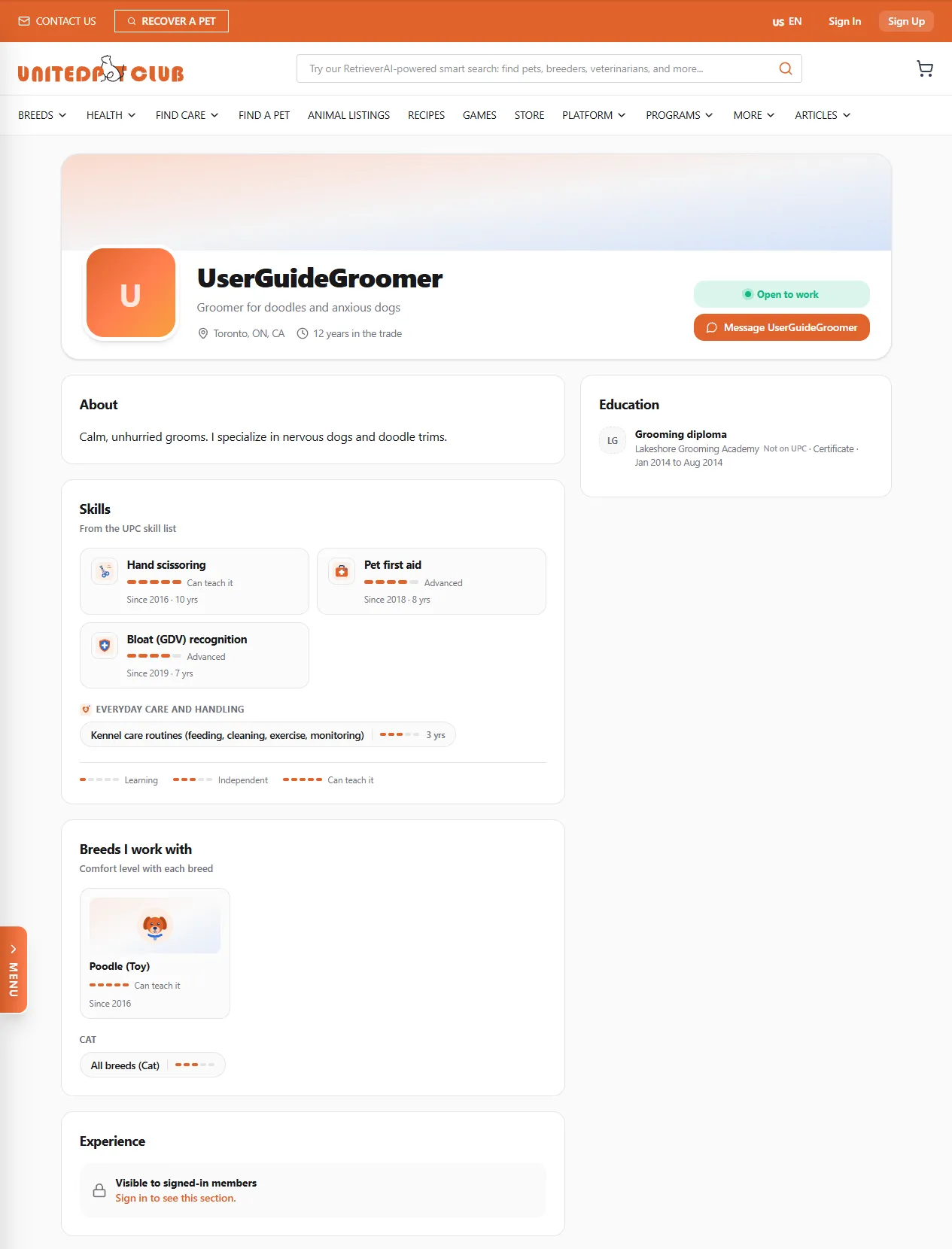
- Visitors can select Message to write to you.
- Once your portfolio has something to show, your profile page gets a Career Portfolio card with See the career portfolio, and Portfolio becomes the first item in your profile’s menu.
- When you look at your own public page, a note says This is your portfolio. Visitors see only the sections you share with them., with an Edit my portfolio link.
- Signed-in visitors see the sections shared with members, and the people you work with also see the sections shared with People I know.
- Search engines list your portfolio only when it is public and has something in it.
- In Awards and competitions, visitors see only Confirmed awards (with a check mark) and Not confirmed ones. Pending, declined and withdrawn awards are never shown to them. See what the statuses mean.
On a phone, the page is a single column.
Limits
Section titled “Limits”You can add up to 60 skills, 40 breeds, 30 roles, 20 education entries and 30 awards (declined and withdrawn awards don’t count toward the 30).
If something went wrong
Section titled “If something went wrong”- “Career portfolios are for personal profiles”: you are acting as a business. Switch to your personal profile.
- I can’t find a skill: try another word, for example nails instead of pedicure. If it really isn’t there, request it.
- “This skill is already on the portfolio” or “This breed is already on the portfolio”: it is already in your list. Edit the existing entry instead.
- A visitor says a section is missing: check its chip, then use View as to see what they see. Remember that People I know means people in the same business team as you.
- My changes don’t show on the public page yet: the public page can take a few minutes to update.
Related
Section titled “Related”- Work samples: before-and-after photos, galleries and step-by-step work for the Work section.
- Certificates & Awards: confirm, accept or decline awards, and your badges and certificates.
- Teaching your profession: say that you teach what you do.
- Customize your dashboard: the sections in your Dashboard sidebar.
- Your website: a professional portfolio website of your own.