

RetrieverAI in your books
RetrieverAI helps with the slow parts of bookkeeping: it reads receipts, explains how to record a tricky transaction, and suggests categories for bank lines. It never posts anything: a person always checks and posts.
Who can use it, and who pays
Section titled “Who can use it, and who pays”- It needs the Use RetrieverAI permission. The owner has it; on a shared role the owner switches it on or off (Granting access).
- Each use spends RetrieverAI credits from the profile you are acting as. An accountant working as their firm’s profile spends the firm’s credits. When the credits are used up you see Add Credits.
- Answers come in your language: line descriptions and explanations are written in the language you use UPC in.
Scanning a receipt
Section titled “Scanning a receipt”The Documents tab, Scan a Receipt (also on the Overview). It needs Use RetrieverAI and Draft documents.
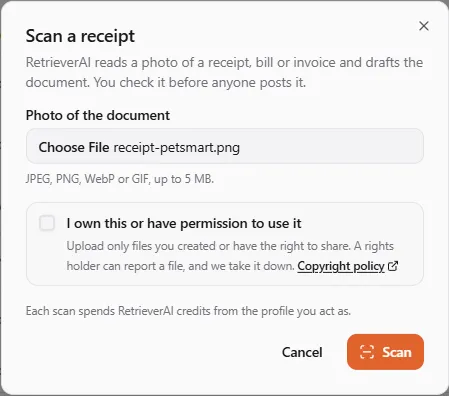
- Choose Scan a Receipt. RetrieverAI reads a photo of a receipt, bill or invoice and drafts the document. You check it before anyone posts it.
- Choose the Photo of the document: JPEG, PNG, WebP or GIF, up to 5 MB.
- Choose Scan. You see Saving the image…, Reading the document…, Drafting the document…
- When it’s done: Draft created from the scan. Check it before it is posted.
The draft has the supplier, date, totals, tax lines, currency and line items RetrieverAI read, a suggested category and party, and the photo attached. Open it, check everything against the photo, fix what is wrong, and post it (or submit it for review). Vendor names, reference numbers and tax labels stay as printed.
If RetrieverAI can’t read the photo: RetrieverAI couldn’t read this document. Try a clearer photo, or enter it by hand.
Asking how to record something
Section titled “Asking how to record something”Ask RetrieverAI on the Documents tab or the Overview.
- Describe the transaction under Your question, for example I paid for a year of salon insurance up front. How do I record it?
- Choose Ask. Each question spends RetrieverAI credits from the profile you’re acting as.
- Read RetrieverAI’s answer · help only: an explanation and a Proposed entry on this entity’s own accounts, with a check that Debits equal credits.
It’s help only: nothing is recorded. To use the proposal, choose Record It by Hand: a new document opens and you enter it yourself. Watch for:
- Have an accountant confirm this treatment before you record it. — RetrieverAI flags treatments that need a professional.
- This proposal doesn’t balance. Don’t record it as it is.
- An account shown as (not in these books) — your chart has no such account; pick the closest one or ask your accountant.
Category suggestions for bank lines
Section titled “Category suggestions for bank lines”On a money account, Suggest Categories asks RetrieverAI about lines no rule covers. See Bank lines. Rules run first and are free; RetrieverAI only looks at what’s left.
If something went wrong
Section titled “If something went wrong”- “Your RetrieverAI balance is used up.” — choose Add Credits, or enter the document by hand.
- “RetrieverAI couldn’t answer right now. Try again.” — try again later.
- “Your access to these books doesn’t include RetrieverAI.” — ask the owner to switch on Use RetrieverAI for your role.