

Setting up the books
Once an entity exists, its books are set up once, by an owner or admin. Setting up takes a minute: you choose how the books are kept, whether to bring in history from UPC, accept the Accounting Terms, and make sure a subscription covers the books.
The entity’s Overview says These books aren’t set up yet with Set Up Books, and the Entities list shows
Set Up Books on its row. Both open Set up books (/dashboard/finances/accounting/{entity}/setup).
Only an owner or admin of the entity, acting as its owner profile, can set up its books. Anyone else sees Only an owner or admin can set up these books.
The setup steps
Section titled “The setup steps”The steps are listed down the side (Books, History, Terms, Subscription, Review). A holding company skips History, and Subscription appears only when none of your subscriptions is free for these books.
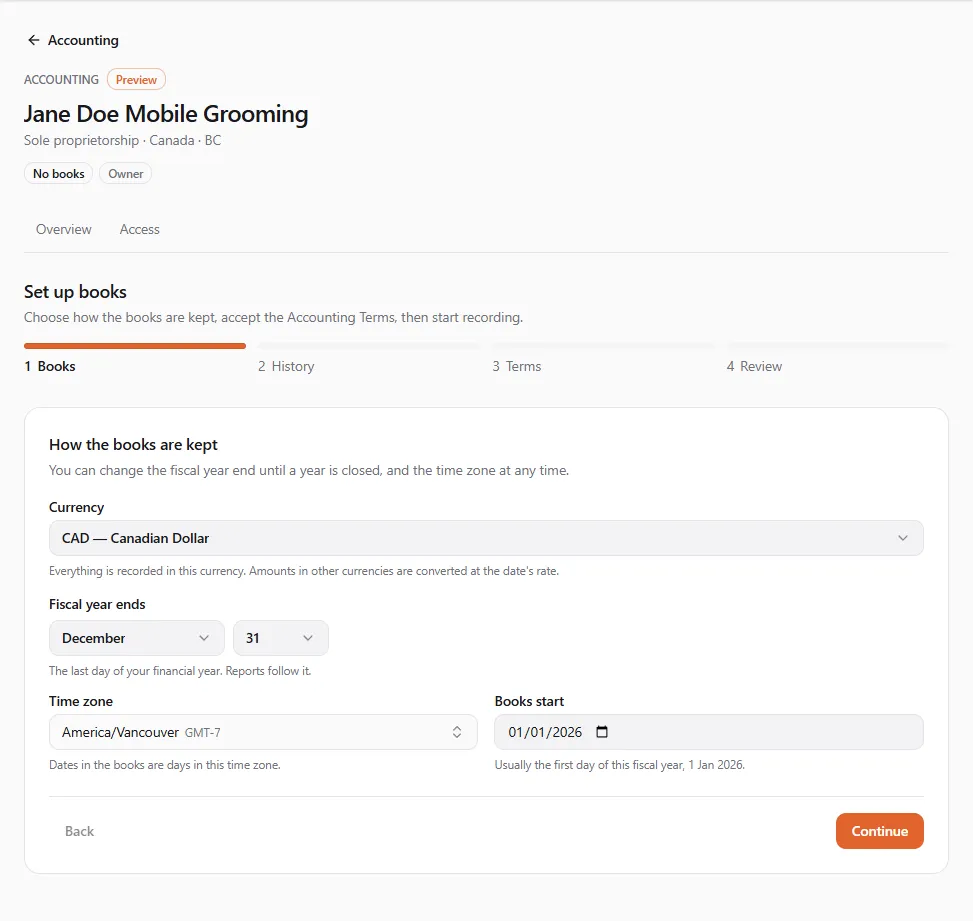
1. Books — how the books are kept
Section titled “1. Books — how the books are kept”| Field | What to enter |
|---|---|
| Currency | Everything is recorded in this currency. Amounts in other currencies are converted at the date’s rate. It can’t change later. |
| Fiscal year ends | The month and day your financial year ends. Reports follow it. Personal books usually follow the calendar year. For a year ending in February, pick February 28: the books treat it as the last day of February every year. |
| Time zone | Dates in the books are days in this time zone. |
| Books start | Usually the first day of this fiscal year. It can’t be in the future. |
You can change the fiscal year end until a year is closed, and the time zone at any time.
2. History — bring in what you already did on UPC
Section titled “2. History — bring in what you already did on UPC”- Start fresh — Only what happens from now on is recorded automatically.
- Bring in history — Sales, payouts and invoices from the date you pick are copied in. Pick Bring in history from: any date up to 24 months back. Bringing in history is free.
If the entity has no linked profile or locations, there is nothing to bring in and the step says so.
3. Terms — the Accounting Terms
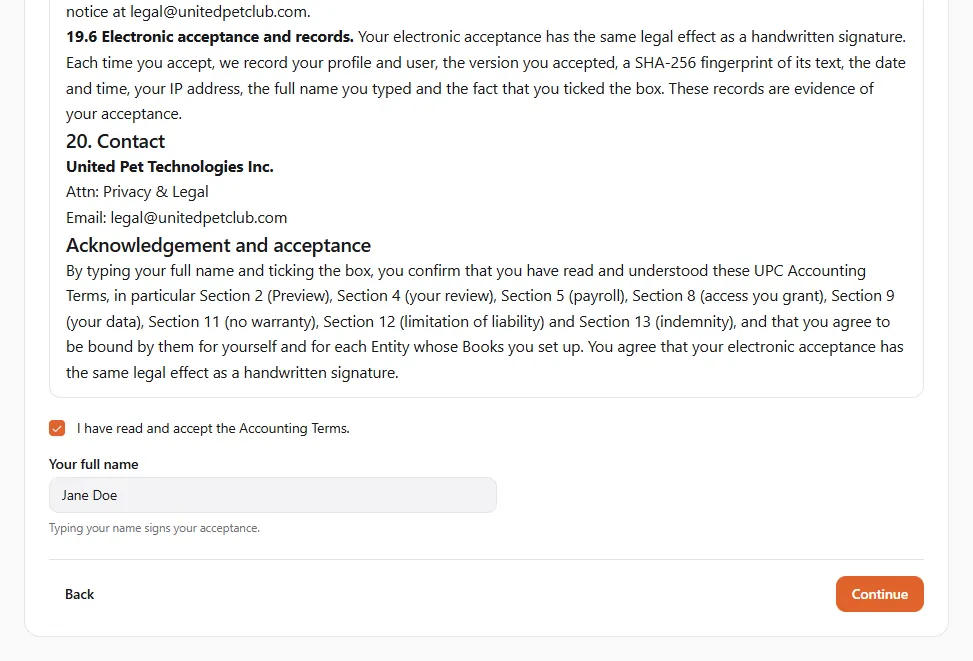
Section titled “3. Terms — the Accounting Terms”Read the Accounting Terms in full (they also open in a new tab). They say, among other things, that UPC Accounting is software and not professional advice, that you review every figure it produces, and how Preview pricing works.
- Tick I have read and accept the Accounting Terms.
- Type Your full name. Typing your name signs your acceptance.
You accept them once for the owner profile: the acceptance covers every entity it owns.
4. Subscription — when none is free
Section titled “4. Subscription — when none is free”Each entity’s books need their own accounting subscription, and none of yours is free for these books. Pick Billing (Monthly or Yearly) and choose Buy Subscription. The checkout line reads UPC Accounting (Preview); the price is shown at checkout. Preview prices. They rise at full release, with at least 30 days’ notice, and you can cancel before then.
- Full accounting covers every kind of entity except holding companies; a holding company needs a Holding company subscription.
- The subscription is billed to the owner profile. If you are acting as another profile, the step asks you to switch.
- After paying you see Your purchase is being confirmed. This usually takes a few seconds. If it takes longer, choose Check Again.
5. Review
Section titled “5. Review”Check the summary (Plan, history From … or Starting fresh, Accepted by …) and choose Set Up Books. You see Books set up. You can start recording.
The Overview
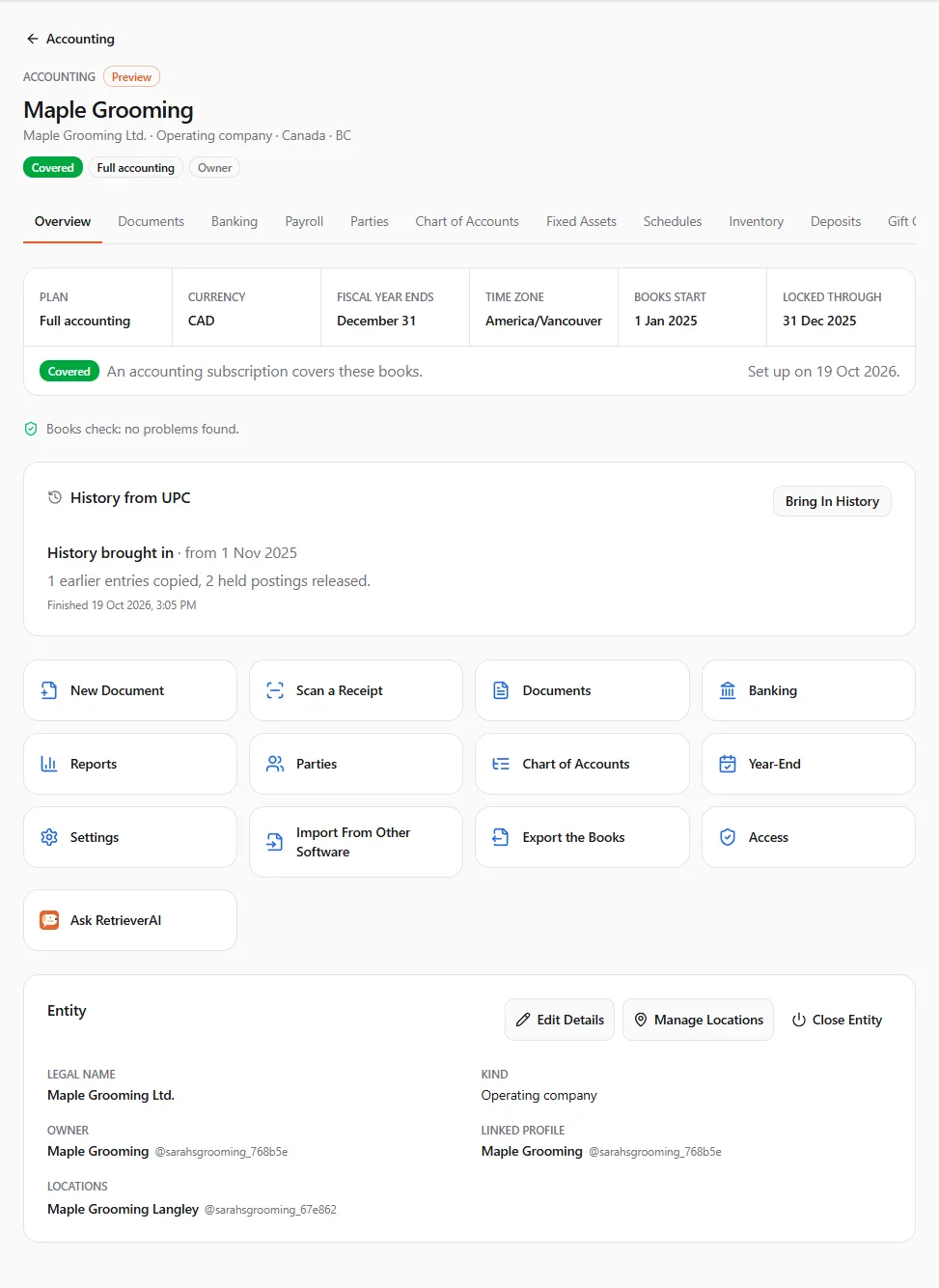
Section titled “The Overview”Once set up, the Overview shows:
- Plan, Currency, Fiscal year ends, Time zone, Books start and Locked through (or Not locked);
- History from UPC — Bringing in history, then History brought in with how many earlier entries were copied and held postings released. If you started fresh, Bring In History starts it later;
- Entity — legal name, kind, owner, linked profile, locations, and the Edit Details, Manage Locations and Close Entity buttons for owners and admins;
- Go to — quick links such as New Document, Scan a Receipt and Ask RetrieverAI;
- the books check (below).
The books check
Section titled “The books check”UPC checks the books every night. With nothing wrong you see Books check: no problems found. Otherwise the card lists each problem with the date it was found:
| Problem | What to do |
|---|---|
| A bank line is matched to a voided entry | Unmatch the line in Banking, then match or record it again. |
| UPC activity has waited more than a week to post | Check the books’ status and exchange rates in Settings. |
| An entry’s debits and credits differ, an entry’s totals don’t match its lines, an entry has fewer than two lines, a line uses an account from other books, the books’ ledger is missing | Errors: the books need a fix from UPC. Choose Contact support. |
A problem stays listed until a later check no longer finds it.
Changing the settings later
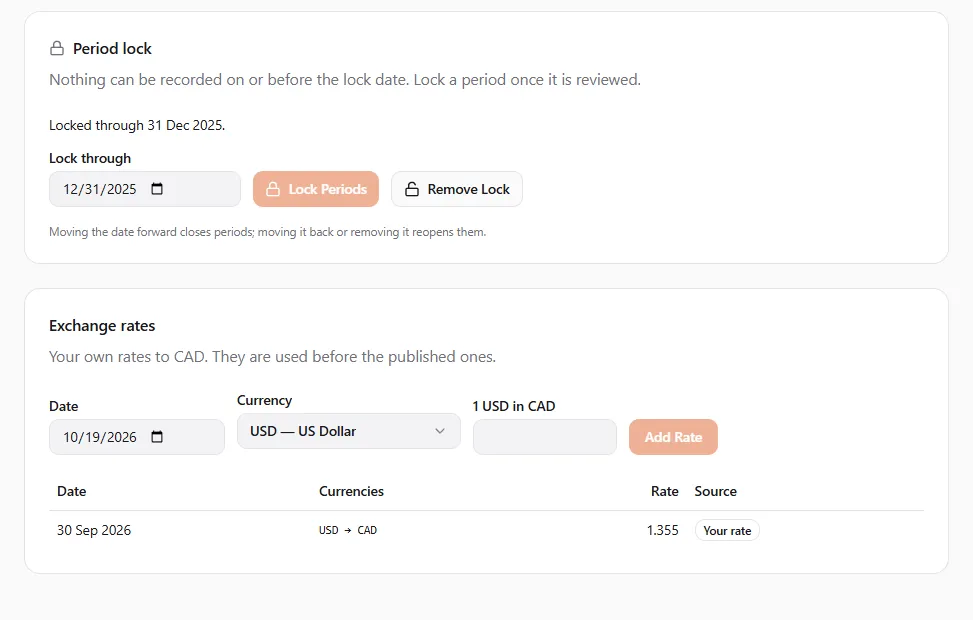
Section titled “Changing the settings later”The Settings tab (/dashboard/finances/accounting/{entity}/settings) has three cards:
- Books — the fiscal year end (It can change until a fiscal year is closed) and the time zone.
- Period lock — Nothing can be recorded on or before the lock date. Lock a period once it is reviewed. Pick Lock through and choose Lock Periods. Move Lock Back and Remove Lock reopen periods. Moving the date forward needs the Close periods permission; moving it back or removing it needs Reopen periods.
- Exchange rates — Your own rates to (your currency). They are used before the published ones. Choose Add Rate with a Date, a Currency and the rate. See Year-end and currencies.
When the subscription stops covering the books
Section titled “When the subscription stops covering the books”Each entity’s books show their coverage on the Entities list and the Overview:
| Status | What it means |
|---|---|
| Covered | A subscription covers the books. |
| In grace | No subscription covers them any more. They stay open for seven days (Grace until a date), then become read-only. |
| Read-only | Nothing new can be recorded. Reports and exports still work. |
| Closed | The books are closed. Reports and exports still work. |
To restore read-only books, buy or renew a subscription from Accounting subscriptions on the Entities page (Buy a Subscription). The books open again within about a minute of the payment. One subscription covers one entity’s books; when you hold fewer subscriptions than entities, the oldest books are covered first.
When the Accounting Terms change
Section titled “When the Accounting Terms change”When a new version of the Accounting Terms is published, the books show New terms to accept:
- Owners and admins (acting as the owner profile) see The Accounting Terms changed. Read and accept the current version to keep recording in these books. Choose Review the Terms, tick I have read and accept the updated Accounting Terms., type your name and choose Accept Terms. One acceptance covers every entity the owner profile owns.
- Everyone else sees that an owner or admin must accept the new version before anything new is recorded.
Until then the books stay readable: reports, exports and files keep working, and UPC activity keeps posting. Only recording by hand waits.
People you shared the books with are asked to accept a new version of the accounting user terms in the same way when it changes.
If something went wrong
Section titled “If something went wrong”- “These books can’t be set up now” — they may already exist, or the entity is closed.
- “The Accounting Terms changed or weren’t accepted.” — read them again, tick the box and type your name.
- “Pick a date from … to today” — history reaches back at most 24 months.
- “Your purchase is still being confirmed.” — choose Check Again in a minute.
- “The books are locked up to …” — the date you used is in a locked period. Use a later date, or ask someone with the reopen permission to move the lock.