Time clock — clocking in, hours, schedules & time off
Time clock lets the people who work for your business clock in and out, and works out their hours for you. Your team can clock in:
- on the website, which shares the browser’s location;
- in the Pro app for Android, which can also keep recording location during a shift and write NFC stickers;
- by tapping an NFC sticker or scanning a printed QR code at the door;
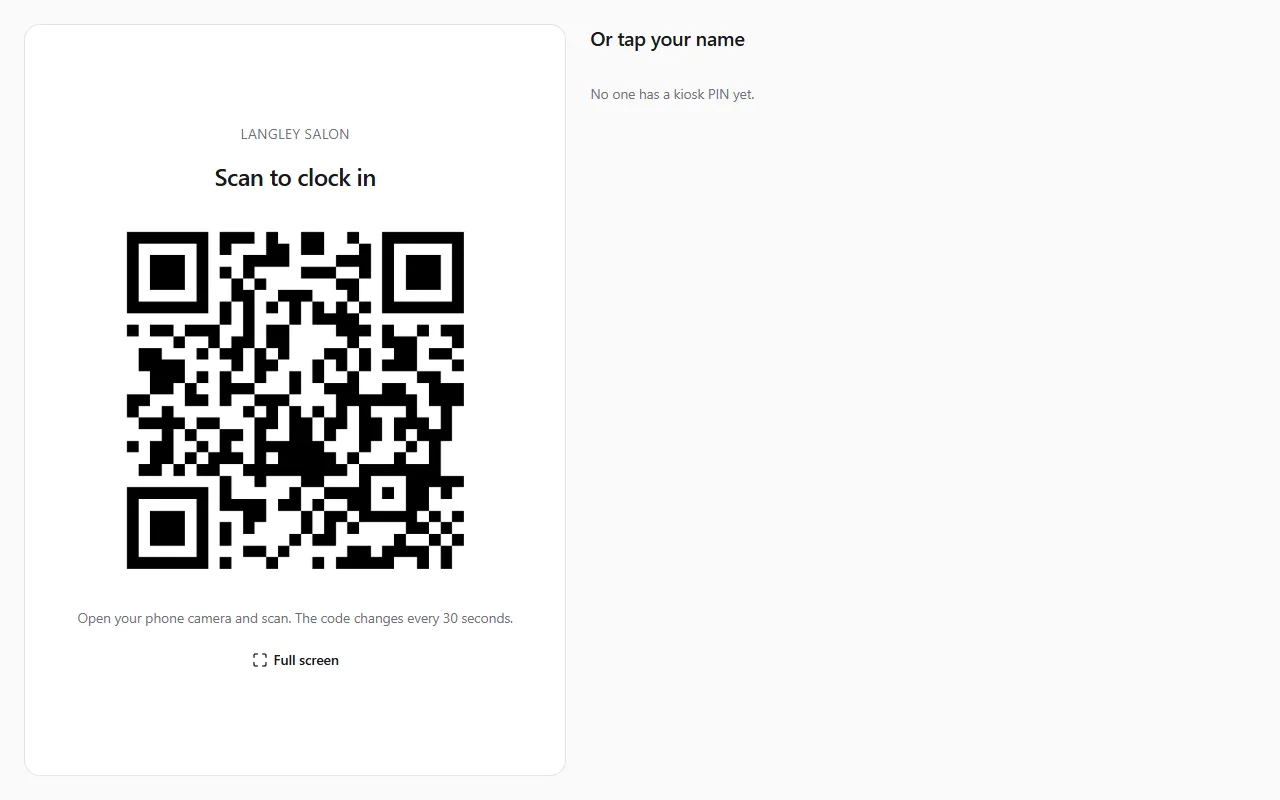
- at a kiosk tablet, by scanning the code on its screen or entering a PIN.
Every punch records where it happened. You decide where people may clock in and how close they have to be.
The menu shows Time clock for a business, and for anyone who works on a time clock. Its pages are Clock in, My hours (personal profiles), Work log, Who’s in, To review, Timesheets (business profiles), Schedule, Time off, Employees and Setup (business profiles).
For employees
Section titled “For employees”Before your first punch
Section titled “Before your first punch”The first time you open Time clock → Clock in you’re asked to read two notices: United Pet Club’s Time Clock & Location Notice, and your employer’s own time clock policy. Tick I have read both notices and agree to how my time and location are recorded and select Accept and continue. You’re asked again only when one of them changes.
Clock in as yourself: switch to your personal profile in the profile menu. If you work for more than one business, choose where you work first.
Clocking in and out
Section titled “Clocking in and out”Clock in, Start break / End break and Clock out are on the big card. Your browser asks to share your location: allow it, so the punch shows where you were. If you don’t, the punch is still saved, without a place.
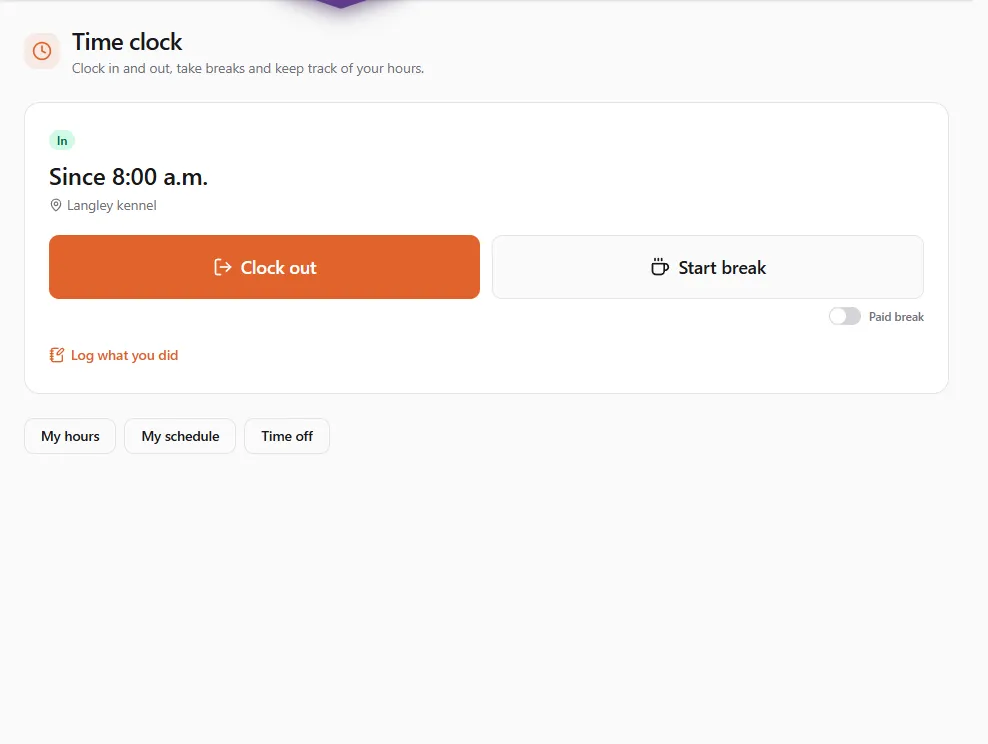
A punch is never refused. If a check doesn’t pass (you’re outside the work area, the location is too imprecise, the code was retired, you’re not on the shop’s network…), your time is saved anyway and you see Saved, with a note needed. Write what happened in Note for your manager, e.g. delivered an order on the way in, and select Send note. Your manager reviews it.
Some sites also take a quick photo when you clock in or out (the Pro app opens the front camera for it). A manager can see it; no face recognition is used. On a site that detects fake locations, a punch from the Pro app also has to come from the genuine app: one sent any other way is saved, but flagged for your manager.
If your shift has a checklist (opening, closing, cleaning), it appears when you clock in. Tick the items as you go; some ask for a photo.
Tags and QR codes
Section titled “Tags and QR codes”At work you may find an NFC sticker or a printed QR code. Tap the sticker with your phone, or scan the code with the camera. It opens Clock in or out for that site. Sign in if asked, then clock in. A kiosk tablet shows a QR code that changes every 30 seconds: scan it the same way. If you see This tag or code was retired, ask your manager for the current one.
My hours
Section titled “My hours”Time clock → My hours shows your punches, breaks and totals for each pay period.
- To fix a time, select the punch (Fix…) or Add a missed punch, give a Reason and select Send. Your manager approves or rejects it and you’re told either way. The original punch stays on record.
- If your manager changes a punch directly, you get a notification with the change.
- If your employer asks for it, Confirm my timesheet before your manager approves the period.
- My data → Download my location history saves your punch locations and route.
- Withdraw consent stops you clocking in until you accept the notices again. Talk to your manager first.
Work log
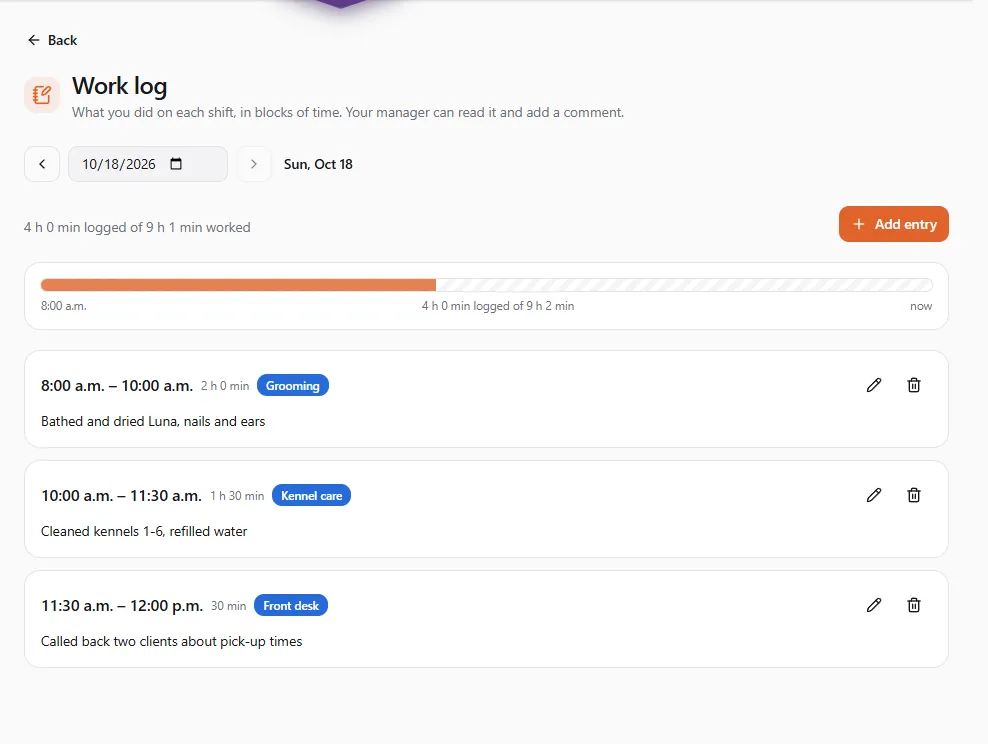
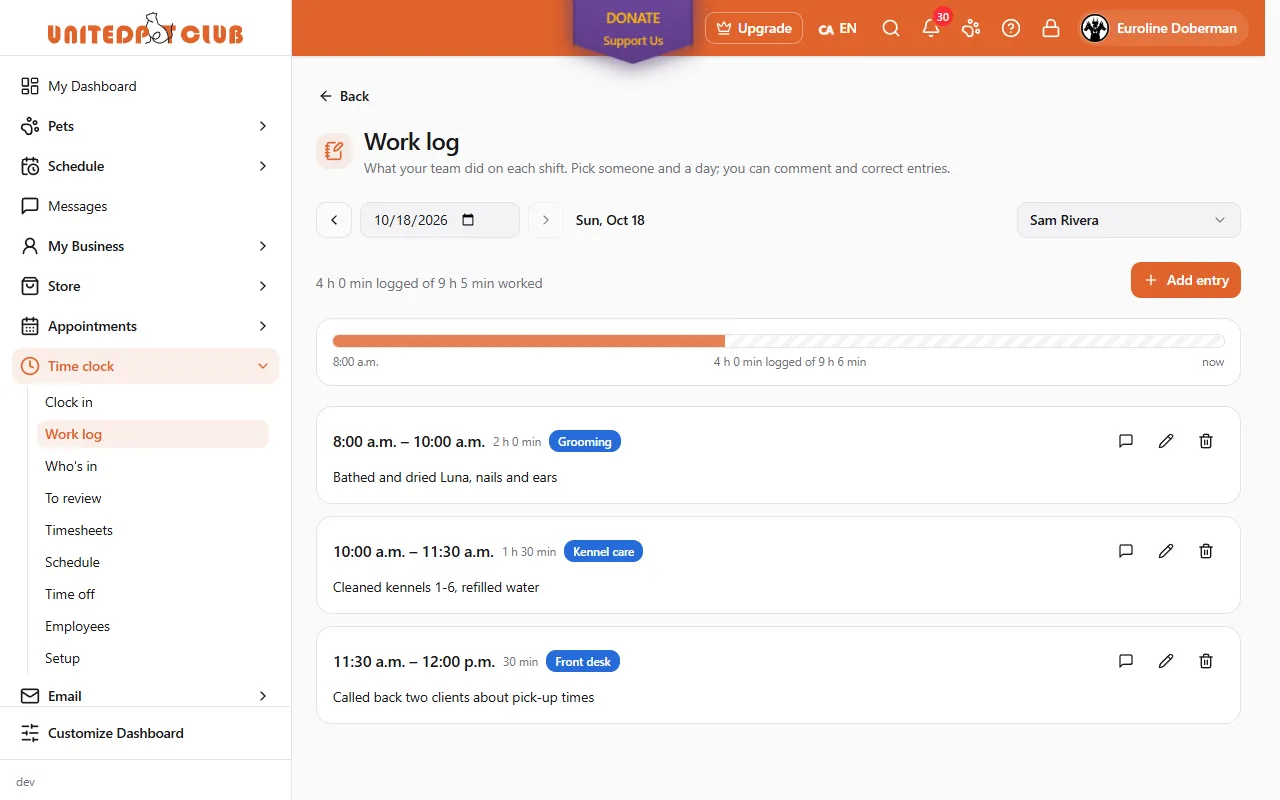
Section titled “Work log”Time clock → Work log is where you write down what you did during a shift, in blocks of time: 8:00–10:00 a.m., bathed and dried Luna, nails and ears. Select Add entry, set From and To, pick a Category if your business uses them, say what you did and add up to 5 photos, then Save entry. Log what you did on the clock-in card opens it too.
The bar at the top shows your shift, filled where you’ve logged time and striped where you haven’t. Appointments you were booked on that day appear under From your bookings: select Add to turn one into an entry.
- Your manager can read your log and add a comment under an entry. Nobody outside the business sees it.
- An entry outside your punched hours is kept and marked Outside a shift.
- When your manager approves the pay period, its entries are locked (Approved).
- If your business requires a work log, a finished shift with nothing logged is flagged on the timesheet. It never stops you clocking out.
Schedule and time off
Section titled “Schedule and time off”Schedule shows your shifts. You can Offer a shift to a co-worker, Claim an open shift and Take it when someone offers theirs. Your manager approves swaps and claims.
Time off shows your balances. Request time off, pick the Kind, the dates (and hours for part of a day) and Send request. Your manager approves it.
For businesses
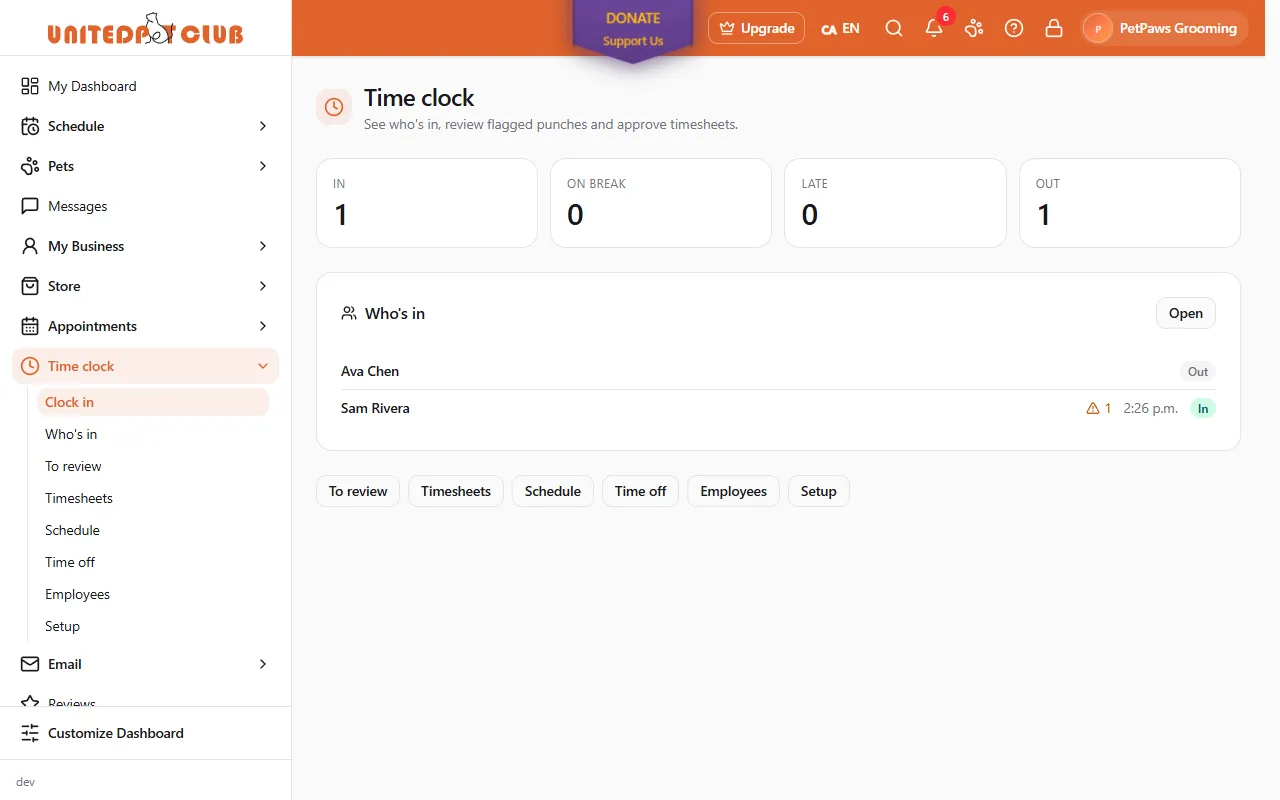
Section titled “For businesses”Time clock opens with today’s counts and who’s in right now, with shortcuts to every page.
Setting up
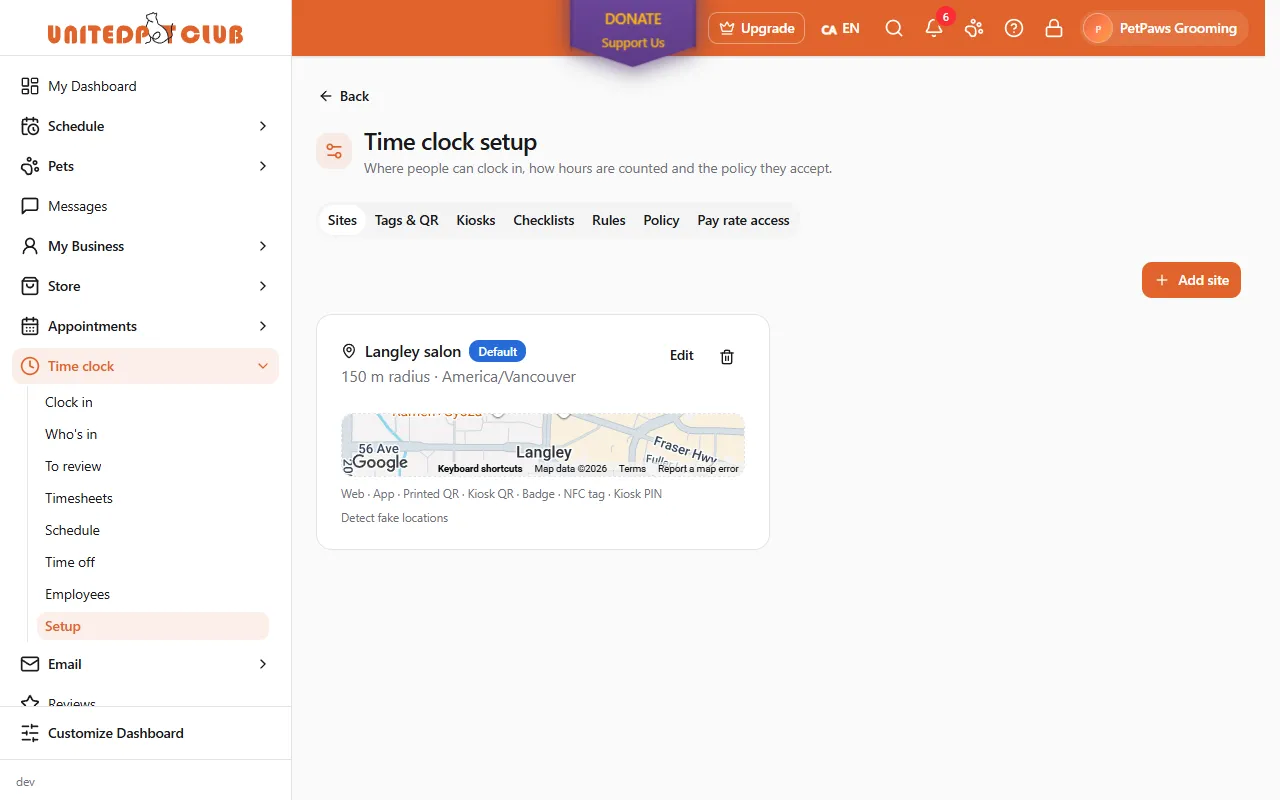
Section titled “Setting up”Time clock → Setup walks you through Finish setting up: add a work site, publish your policy, add employees. Only owners and admins of the business can change setup.
| Tab | What you set |
|---|---|
| Sites | Where people clock in. A site starts at your address with a 150 m radius; drag the centre on the map, change the radius, or draw an area. Pick the Ways to clock in and any Extra checks: a photo at clock-in and clock-out, approved devices only, detect fake locations (in the Pro app this also checks the punch came from the genuine app), the shop’s network (IP addresses) |
| Tags & QR | Add tag or code: an NFC tag, a printed QR code or a personal badge for a site. Each one’s secret is shown only once: print it or write the tag right away. New secret replaces it; Retire stops it working |
| Kiosks | Add a kiosk, then open the kiosk page on the tablet and enter the one-time code. The kiosk stays signed in to that site only |
| Checklists | Opening, closing or cleaning lists that appear at clock-in or clock-out. End an item with [photo] to ask for a photo |
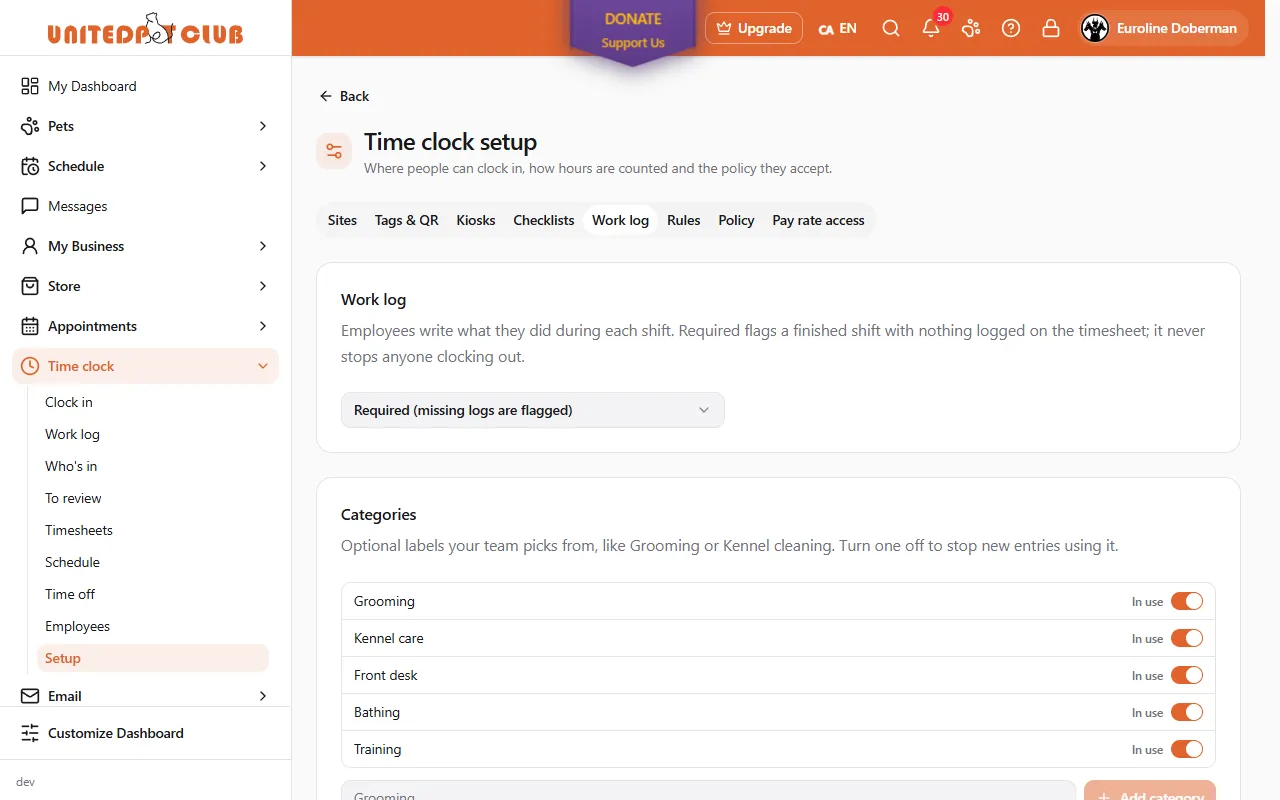
| Work log | Off, Optional (the default) or Required, and your own Categories (Grooming, Kennel care, Front desk…). Turn a category off to stop new entries using it |
| Rules | Employment rules for your province or state (overtime, breaks, call-in pay), then the pay period, rounding, unpaid break deducted, overtime overrides, when a forgotten shift closes, location while clocked in, and whether employees confirm their timesheet or swaps are approved automatically |
| Policy | Your time clock policy. Start from the template, make it yours, Save draft, then Publish |
| Pay rate access | Owners and admins always see pay rates. Turn it on for a manager who runs payroll |
The employment rules and the policy template are a starting point. Check them against the law where you operate: before you can publish the policy you must tick We have reviewed this policy and confirm it follows the laws where we operate. Each time you publish, everyone on your time clock accepts the new version before their next punch.
NFC stickers work with any NTAG213 or NTAG215 sticker. The quickest way is the Pro app’s Write NFC tag, which writes and registers a sticker in one step.
Location while clocked in records a point every few minutes, only in the Pro app, only while someone is clocked in, and paused during unpaid breaks. The website can only record the place of each punch. Location history is kept 90 days at most (you can choose fewer). Punches and timesheets are kept 7 years.
Employees and seats
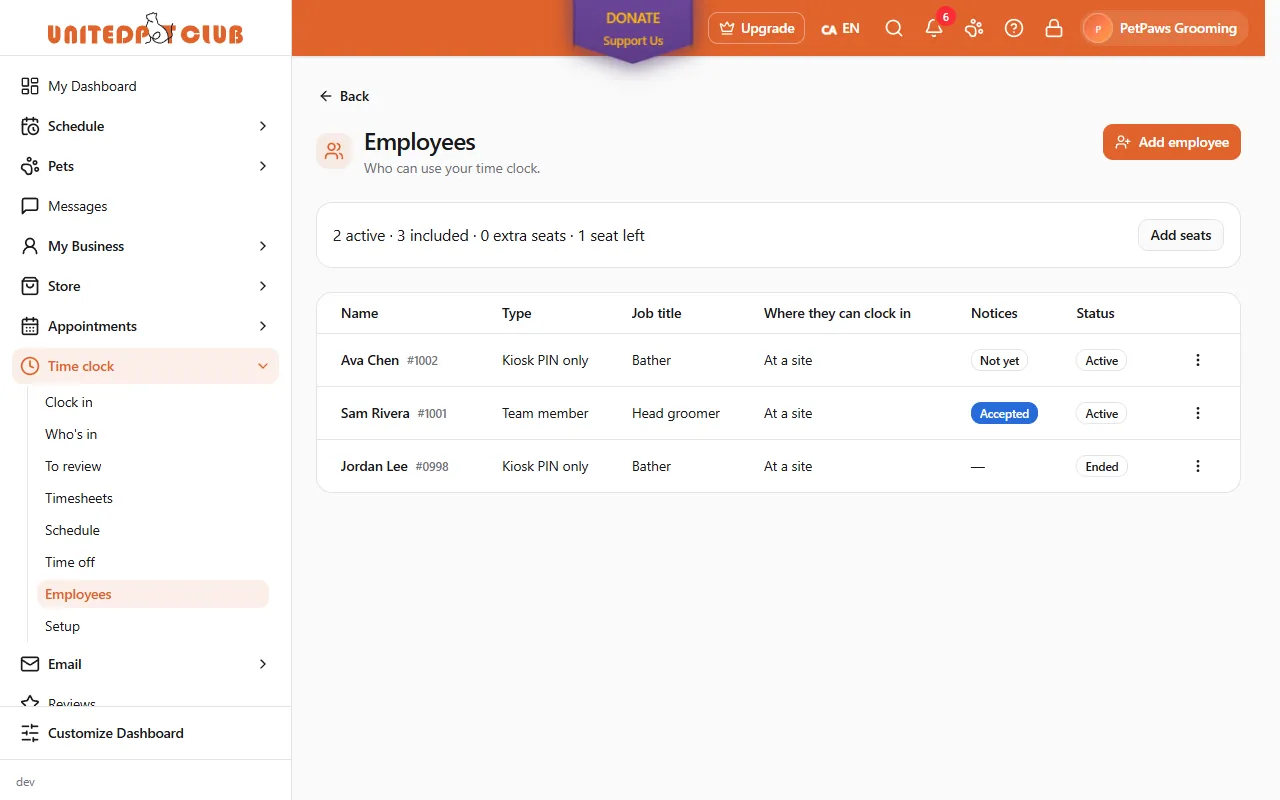
Section titled “Employees and seats”Time clock → Employees → Add employee adds a Team member (someone already on your team, who clocks in with their own login) or a kiosk-only person who uses a PIN (no login). For each one set Where they can clock in: At a site, At a site or a booked appointment (for mobile staff) or Anywhere (location recorded). Under Notices you see who has accepted the current notices.
The first 3 employees at each location are free. Each further active employee needs a time clock seat (prices). Kiosk-only staff count the same. The line at the top shows how many are active, included, extra and left; Add seats buys more.
If you turned on Approved devices only, new phones and browsers wait under Devices waiting for approval.
Who’s in
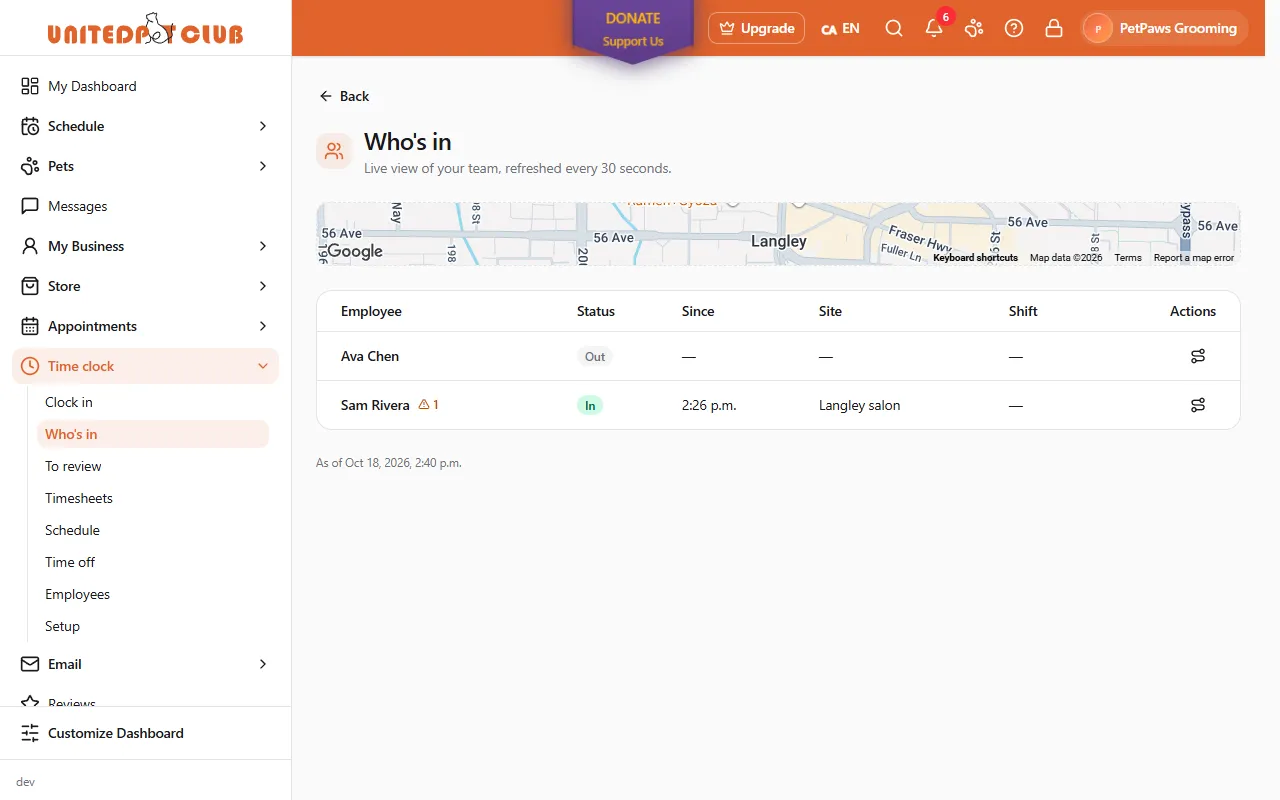
Section titled “Who’s in”Who’s in shows your team right now: in, on a break or out, since when, at which site and against which shift. It refreshes every 30 seconds, with a map. Show today’s route shows someone’s route for the last 16 hours. Viewing it is logged.
To review
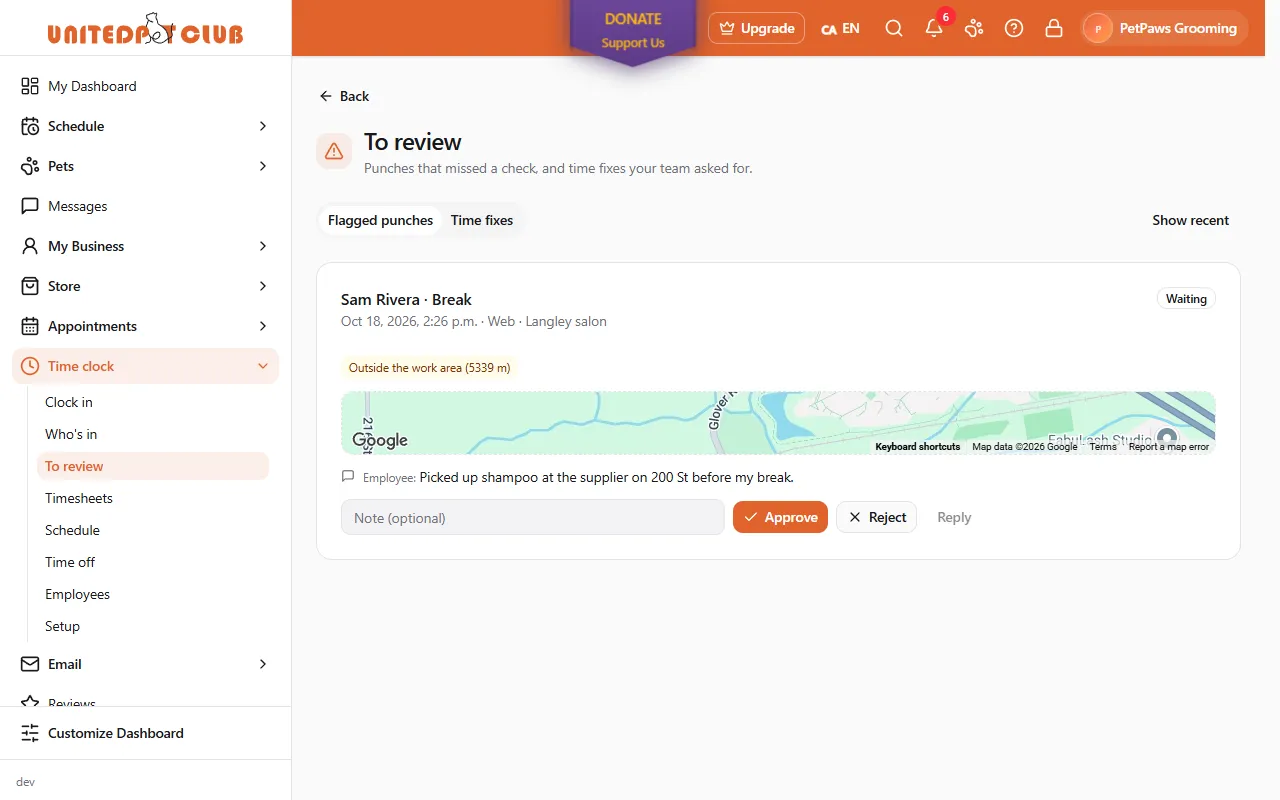
Section titled “To review”To review holds Flagged punches (a check didn’t pass, with the employee’s note) and Time fixes your team asked for. Approve or Reject each one, with an optional note, or Reply to the employee.
Timesheets and payroll
Section titled “Timesheets and payroll”Timesheets shows hours by pay period for everyone: paid, regular, overtime and double time, time off, tips, and gross wages for those who can see pay rates. Each line names the rules that produced it. Add punch or edit a punch directly (the employee is told). Select people and Approve: an approved period is locked. Reopen unlocks it, with a reason; only owners and admins can.
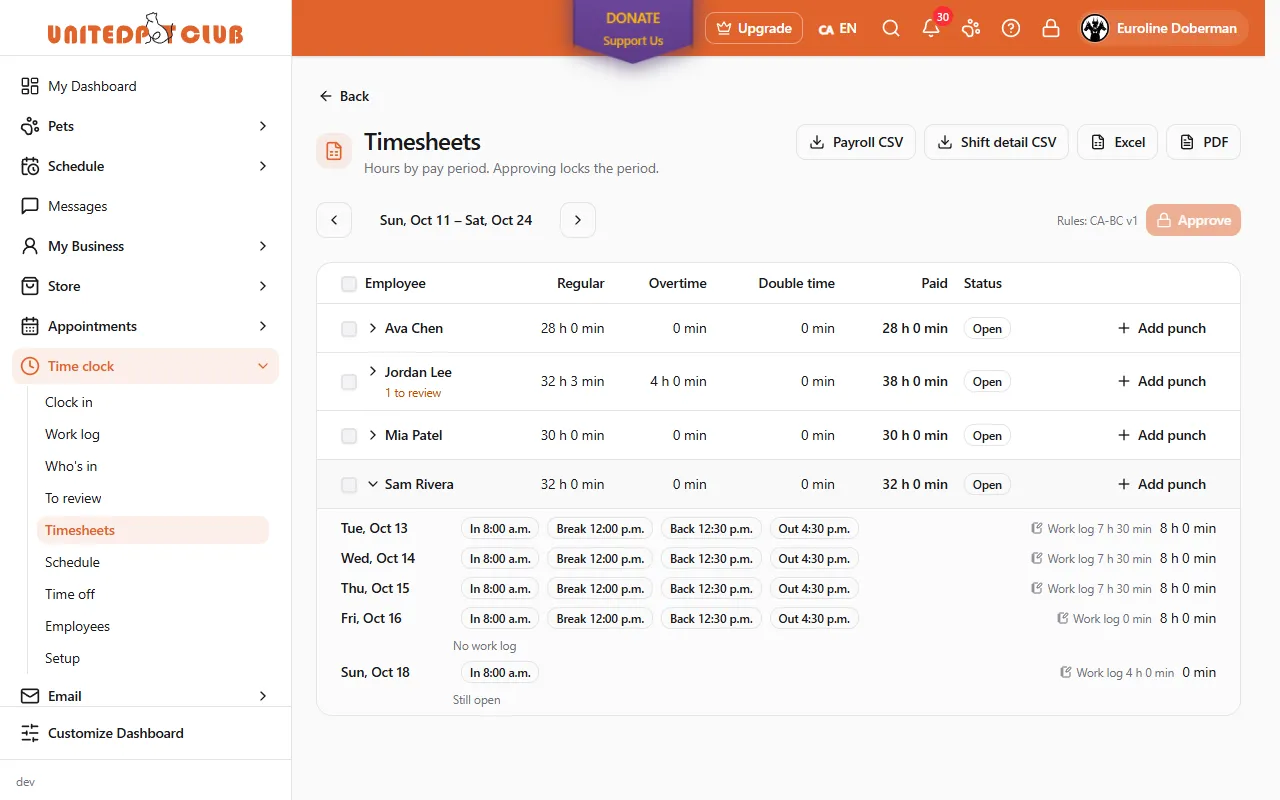
Each shift shows how much of it is in the work log; select it to open that day’s log. With the work log required, a finished shift with nothing logged says No work log.
If your business keeps its books on United Pet Club, approving a period also records its gross wages in your accounts as a payroll expense that is still to be paid (tips are not wages, so they are left out). Reopening the period takes that entry back out; approving it again records the new amount. This only records the cost: it doesn’t run payroll.
Payroll CSV exports totals per employee for the period; Shift detail CSV exports every shift. Excel gives one workbook with three sheets (payroll, shifts and the work log), and PDF a printable timesheet per employee with their shifts, totals and edit history. Wages appear only for people who can see pay rates. Tips come from your sales and appointments: the time clock only shows them.
Work log (managers)
Section titled “Work log (managers)”Work log lets you read what anyone did: pick the employee and the day. You can Comment on an entry (the employee sees it), add an entry for someone, or correct one; changes you make are recorded as yours. Approved periods are locked until you reopen them.
Schedule and time off
Section titled “Schedule and time off”Schedule is your week of shifts: draft them, add open shifts anyone eligible can claim, then Publish (your team is notified). Approve or decline swaps and claims there.
Time off lists requests and balances. Add the leave types you offer (paid or unpaid, hours earned a year) and approve or reject requests.
A kiosk tablet
Section titled “A kiosk tablet”Open the kiosk page on any tablet browser and enter the 8-character code from Setup → Kiosks. It shows a QR code that changes every 30 seconds (scan it with the phone) and a list of names: kiosk-only staff tap their name and enter their PIN. After too many wrong PINs it waits a few minutes. The first time, a PIN user accepts the notices on the kiosk. Kiosks can’t take photos, so on a site that asks for one, kiosk punches are sent for review.