

Create an account
Sign up and verify your email.
The signup steps
Section titled “The signup steps”-
Who is this account for? — there are two choices, and nothing is picked for you:
- Personal account (pet parents and pet professionals) — an account for you as a person.
Once you choose it, one optional box appears right under it, I’m a pet professional (groomer, breeder, vet, vet tech, trainer,
sitter, walker, judge, event planner, photographer, advocate and more). It starts unticked:
- Leave it unticked if you’re here for your own pets.
- Tick it if pets are your work. You pick what you do right after signup, and your profile becomes a professional one. A professional can be a pet parent too, so ticking it takes nothing away.
- Not sure? Leave it unticked. You can add a profession any time later from Specializations in your dashboard.
- Organization (company account) — a clinic, shelter, kennel, salon, store, brand or club. An organization signup still creates your personal profile first: it becomes the organization’s owner and admin.
Continue works as soon as you’ve picked one of the two. You can move between them with the arrow keys, then press Tab to reach the box and Space to tick it.
- Personal account (pet parents and pet professionals) — an account for you as a person.
Once you choose it, one optional box appears right under it, I’m a pet professional (groomer, breeder, vet, vet tech, trainer,
sitter, walker, judge, event planner, photographer, advocate and more). It starts unticked:
-
You — your email, your name, your personal handle and your address. Near the bottom you accept the Platform Agreement, which covers pet food research.
-
The organization (organization signups only) — its public name, its own business or company handle and its address. If the business you pick is already on United Pet Club, you can ask its team to add you instead.
-
Verify your email — enter the six-digit code we emailed you.
-
Set a password that meets the password rules and accept the Platform Agreement and Privacy Policy. You’re signed in and taken to your dashboard.
Signing up with Google, Microsoft, Apple or Facebook
Section titled “Signing up with Google, Microsoft, Apple or Facebook”You can start from Or continue with on the sign-in screen instead of typing an email. If we don’t have an account for that login yet, the provider’s page brings you to the same signup form with your email and name already filled in:
- The email comes from the provider and can’t be changed on the form — it’s the address your account will use. If the provider didn’t share one (Apple’s Hide my email, a Facebook login without an email), the field is empty and you enter yours: every account needs an email address.
- You still confirm the email with a code and choose a password — a social login is a convenient way in, not a replacement for either. Once the account exists, that provider is connected to it and signs you in directly from then on.
- Started a signup earlier that never finished? Continuing with the same provider (or any provider on that email) brings you back to the form to finish it — same email, new password.
Your business is already on United Pet Club
Section titled “Your business is already on United Pet Club”When you sign up an organization, search for the business name in the address field and pick your business from the suggestions. If that business already has a page on United Pet Club, the form tells you before anything else: … is already on United Pet Club, with its name, town and @handle. It finds the business even when Google lists it more than once at the same street address (for example the business and the building it is in), as long as the name matches. You then have two choices:
- That’s my business, ask its team to add me. You sign up as yourself only. The organization’s kind, name and handle fields go away, and the form says You’ll create your own account, then we’ll ask …‘s team to add you. They choose your role. Your account is just your personal profile: no second business page is created, and the business’s address isn’t copied onto your profile.
- It’s a different business. The box goes away and you carry on creating your organization, or claiming our listing of it (below).
Once your password is set, the welcome page sends the request for you and says We asked …‘s team to add you. You’ll get a notice when they answer. The business’s owners and admins choose your role and approve, or decline. You can follow the request, or withdraw it, under Invitations (see Requests to join a business team). If the request couldn’t be sent at that moment, the welcome page says so and links to the business’s page. Your sign-up carries on either way. In that case, ask the business to invite you.
We only look for a business whose page shows its full address. A business that shows only its city, region or country, or hides its address, isn’t offered here.
Claiming a business we already list
Section titled “Claiming a business we already list”United Pet Club may already list your business, from public information such as Google Maps. When you sign up an organization, search for the business name in the address field and pick your business from the suggestions. If we list it, the form says We already list … and fills in its name and handle for you.
To claim it:
- The form shows the email we have for the business, with the first part hidden, like
h•••@happypaws.example. Type that address in full and choose Check. - If it matches, your account uses that address. If you entered a different email on the You step, the form asks first: Use … for my account.
- We email the usual six-digit code to that address. Entering it proves the inbox is yours. Once your account is created, the business page is yours, and it already shows the hours, phone number and website we had.
After five wrong addresses, checking pauses for an hour. The form tells you when you can try again. An email typed beside the business’s phone number, when it isn’t the one we hold, counts as one of the five, and while checking is paused your email alone won’t find the business either.
No access to that inbox, or no email shown? Choose Ask us to verify you by phone. Give your name and the email the invitation should go to. Our team calls the number listed for the business to confirm you work there, then sends you an invitation to claim it. You don’t need to finish signing up in the meantime.
Not your business? Choose Not my business and carry on. If the form says the business is already on United Pet Club but offers no button to ask its team, it has an owner: finish signing up as yourself and ask them to invite you to its team.
Personal handle vs. business or company handle
Section titled “Personal handle vs. business or company handle”Every account has two kinds of handle, and the form labels them so you don’t mix them up:
- Your personal handle is you, the person —
@jane.doe. Every account gets one. - Business or company handle is the organization’s own handle —
@frontstreetvets. Only an organization signup asks for it, on the organization’s step, and it must differ from your personal one.
Handles are 5 to 60 characters of letters, numbers, dot and underscore, can’t start or end with a
dot, and are checked for availability as you type. Capitals are kept as you type them, so
@JaneDoe reads more easily, but they don’t make a different handle: @JaneDoe and @janedoe are
the same handle, and only one profile can hold it.
Your name and your password
Section titled “Your name and your password”Your name is your personal profile’s public name: other members see it on your profile, your posts and in search. Only the last step asks for a password, so never type it into the name or handle fields. If what you type as your name looks like a password (one word, with digits and symbols), the form warns you: This looks like a password.
On the last step, the password can’t be the same as your name, your handle or your email address, because those are public or easy to guess. When your browser or password manager offers to save the login, it saves it under your email, which is what you sign in with.
Password rules
Section titled “Password rules”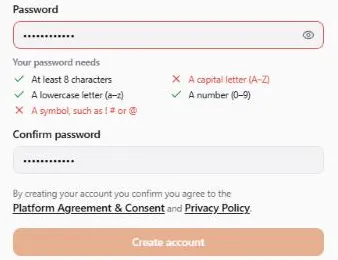
The password step lists what your password needs, right under the password field, and ticks each rule as you type. By default a password needs:
- at least 8 characters
- a capital letter, A to Z
- a lowercase letter, a to z
- a number, 0 to 9
- a symbol, such as
!,#or@
Create account stays greyed out until every rule has a tick, so an insecure password can’t be sent at all. When you move on from the password field with rules still missing, those rules turn red. If the password is the same as your name, your handle or your email address, the form says so right under the password field, and the button stays greyed out until you change it.
Accented letters such as É or Ñ don’t count as capital letters, so Ñandú#2024 still
needs a plain capital from A to Z. They do count as symbols: Perro2024ñ meets every rule.
The same rules apply when you later change or reset your password under Account → Security.
Your address
Section titled “Your address”Every profile needs an address, so the You step always asks for yours — whether you sign up as a pet parent, as a pet professional or for an organization. It’s kept private: it isn’t shown on your profile. An organization signup asks for two addresses: yours on the You step, and the organization’s own on the next step, which is the one shown on its page. If you join a business that’s already on United Pet Club, only your own address is saved — the business already has its own.
Start typing and pick your address from the suggestions. A typed address that wasn’t picked can’t be saved, so the form asks you to pick one. If suggestions aren’t available, you can type the address in full instead.
A profile always keeps at least one address: you can add more and change one at any time, but you can’t delete the last one. If a profile you use was made before addresses were required, the dashboard asks for its address the next time you open it as that profile. A personal address stays private; a business’s or a place’s is shown on its page, and you can choose how precisely in its address book.
Pet food research
Section titled “Pet food research”There is no separate question about pet food research. What your pets eat, and how they do, counts in totals about each food as part of the Platform Agreement you accept on this step (only for groups of 10 or more pets, never anything about your pet or you). See Pet food research.
What we keep about your sign-up
Section titled “What we keep about your sign-up”To protect members from fraud and to stop people who were banned from signing up again, we keep a record of where each sign-up came from: the internet address (IP) it came from and the country and city that address belongs to, your browser’s time zone and languages, the device and browser you used, and the country of the address you typed. We also keep your device’s position, but only if you had already allowed this website to use your location in your browser. Signing up never asks for it. This record is only seen by United Pet Club staff who review fraud. See the privacy policy for how we use it.
What you do is asked right after signup
Section titled “What you do is asked right after signup”The wizard itself asks only who the account is for, your own details and, for an organization, its name, handle and address. What you do (Veterinarian, Groomer, Trainer, Breeder…), what kind of organization it is (Clinic, Shelter, Kennel…) and which animals it works with are all picked on the welcome step right after signup — and you can skip that step and come back later from your profile. Your professions lists every profession you can pick, from Pet Sitter & Walker and Judge to Farrier, Pet Photographer and Writer & Journalist.
The professions describe you as a person: pick Veterinarian because you are one, not because you run a clinic. Leave them empty if you’re here as a pet parent. The kind of organization describes the business or company itself — a veterinary clinic, not the veterinarian. So a vet who runs a clinic picks Veterinarian for themselves and Clinic for the organization.