

Pay runs
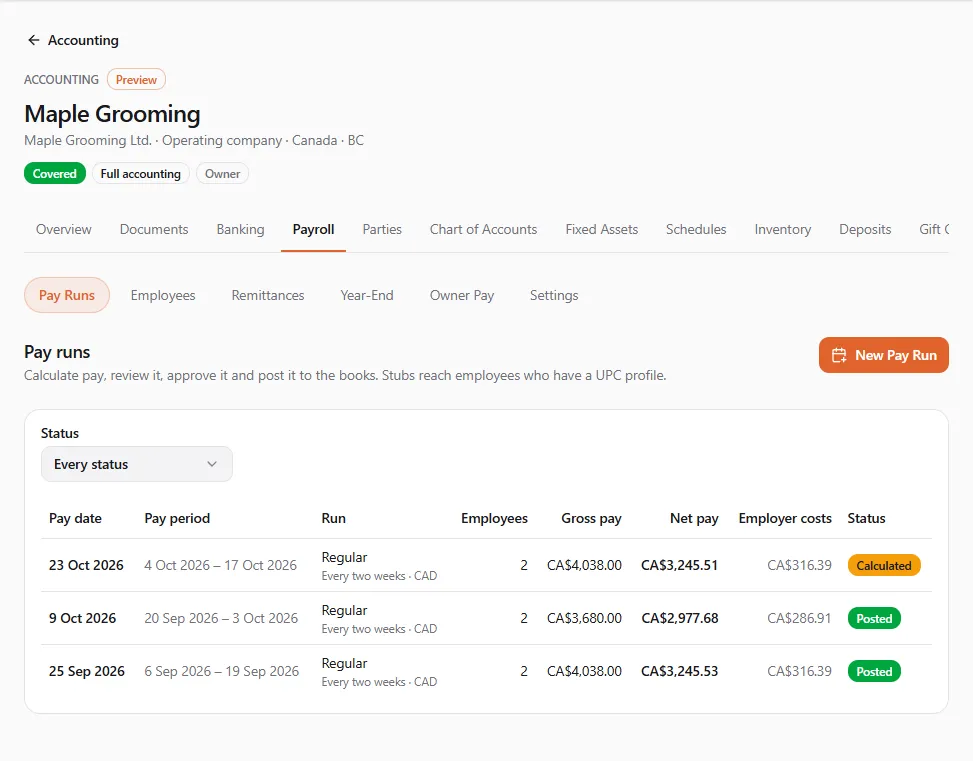
A pay run pays a group of employees for one pay period. It moves through five steps: Draft, Calculated, Reviewed, Approved and Posted. Posting writes one journal entry to your books and makes each employee’s pay stub final. Set up your employees and payroll accounts first: see Payroll.
Finances → Accounting, then the entity, then the Payroll tab, Pay Runs
(/dashboard/finances/accounting/{entity}/payroll). The list shows each run’s Pay date, Pay period, kind,
Employees, Gross pay, Net pay, Employer costs and Status, newest first. Filter by Status to find
drafts or posted runs.
Until everything is ready, a Before your first pay run checklist sits above the list: Add the employees you pay, Every payroll role has an account, and (optional) Choose the account net pay comes out of.
The steps at a glance
Section titled “The steps at a glance”| Status | What it means | Who moves it on |
|---|---|---|
| Draft | Created; pays can still change | Calculate (Run payroll) |
| Calculated | Deductions and contributions worked out | Mark as Reviewed (View payroll is enough) |
| Reviewed | Someone checked it | Approve (Run payroll) |
| Approved | Ready to post | Post to Books (Run payroll) |
| Posted | In the books; stubs final | Reverse Run (Run payroll) |
| Cancelled | Stopped before posting; nothing was written to the books | |
| Reversed | Undone by an exact opposite entry |
A rail at the top of a run shows where it stands. When the next step isn’t yours to take, the run says who it is waiting for, for example “Waiting for a reviewer to check it.”
1. Create the run
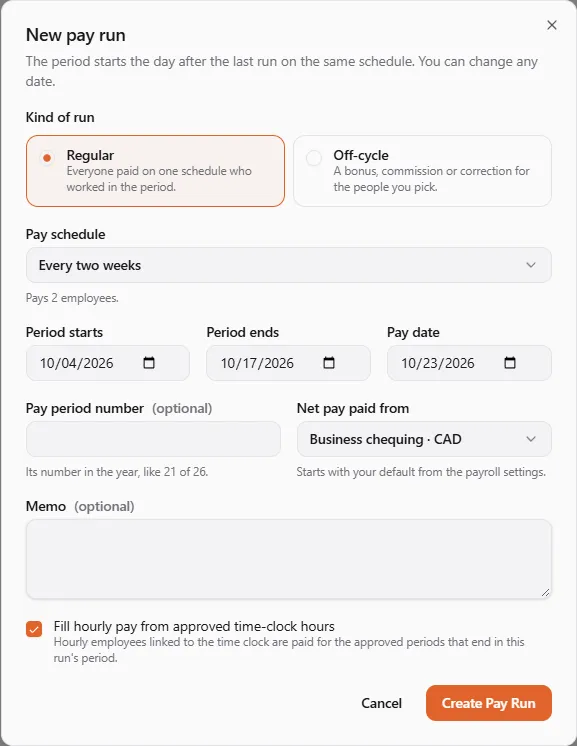
Section titled “1. Create the run”- Choose New Pay Run.
- Pick the Kind of run:
- Regular: “Everyone paid on one schedule who worked in the period.” Choose the Pay schedule; the dialog says how many employees it pays.
- Off-cycle: “A bonus, commission or correction for the people you pick.” Tick them under Who is paid.
- Check the dates. Period starts begins the day after the last run on the same schedule; change any date you need. Enter the Pay date and, if you number your pays, the Pay period number (like 21 of 26).
- Choose Net pay paid from: a money account in the run’s currency, or net-pay clearing when a payroll service pays. It starts with your default from the payroll settings.
- Leave Fill hourly pay from approved time-clock hours on to pay linked hourly employees for their approved periods. Add a Memo if you like.
- Choose Create Pay Run. The run opens as a Draft.
A run pays employees of one country: “Canadian and US employees are paid in separate runs: use an off-cycle run for each country.” A regular run pays one pay frequency.
Notes from setting up this run lists what the run noticed, for example that an employee has no approved time-clock hours in the period, or that approved leave hours were not added.
2. Enter each employee’s pay
Section titled “2. Enter each employee’s pay”Each employee starts from their salary, their approved time-clock hours, or their usual hours. Open an employee’s row to see what is entered, then choose Edit Pay to change it.
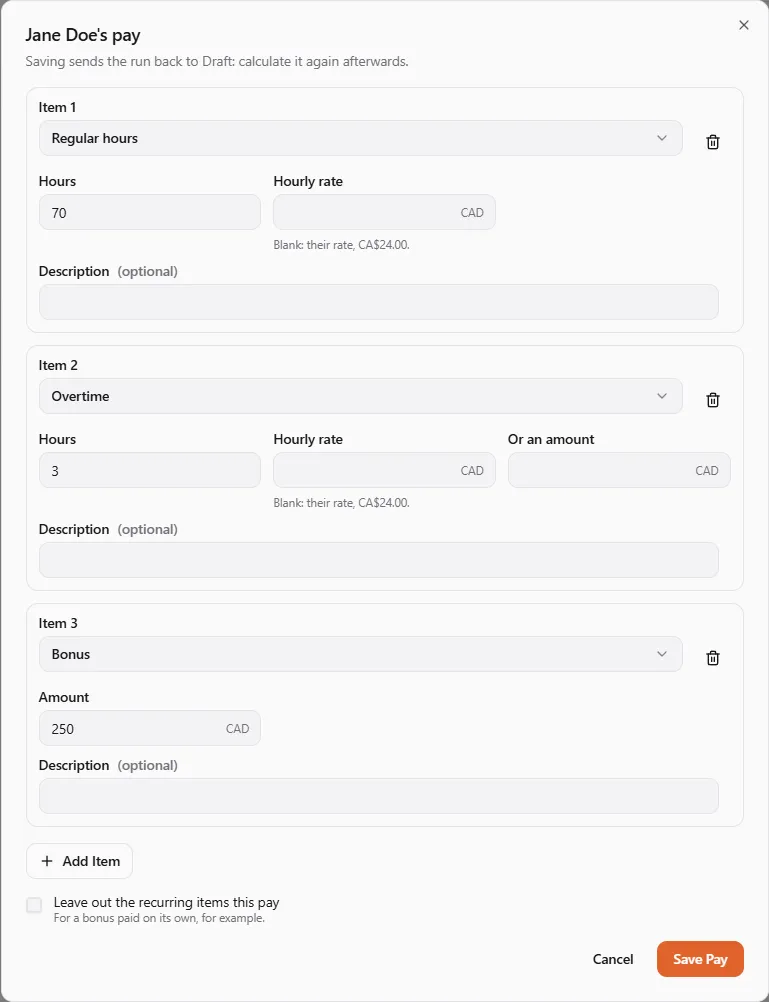
- Choose Add Item and pick what it is. The items are grouped as Earnings (regular hours, overtime, double time, call-in pay, statutory holiday pay, commission, bonus, retroactive pay, vacation pay, tips, taxable benefits), Deductions (pension plans, RRSP, union dues, court-ordered support, 401(k), garnishment, state income tax and others), Employer costs and Reimbursements (expense reimbursement, mileage).
- Fill in what the item needs: Hours, Sales, Kilometres or Miles, a rate, or an Amount. A blank rate uses the employee’s own (“Blank: their rate, …”); blank mileage uses the published rate on the pay date.
- For a bonus paid with pre-tax plan contributions, tick Take from the bonus on the contribution.
- Tick Leave out the recurring items this pay for a bonus paid on its own.
- Choose Save Pay. Saving a calculated run sends it back to Draft: calculate it again afterwards.
You can also Add Employee to the run, take someone out (Take Out), or Pull Approved Hours Again after a timesheet changed. Items pulled from the time clock are replaced; items you typed stay.
3. Calculate
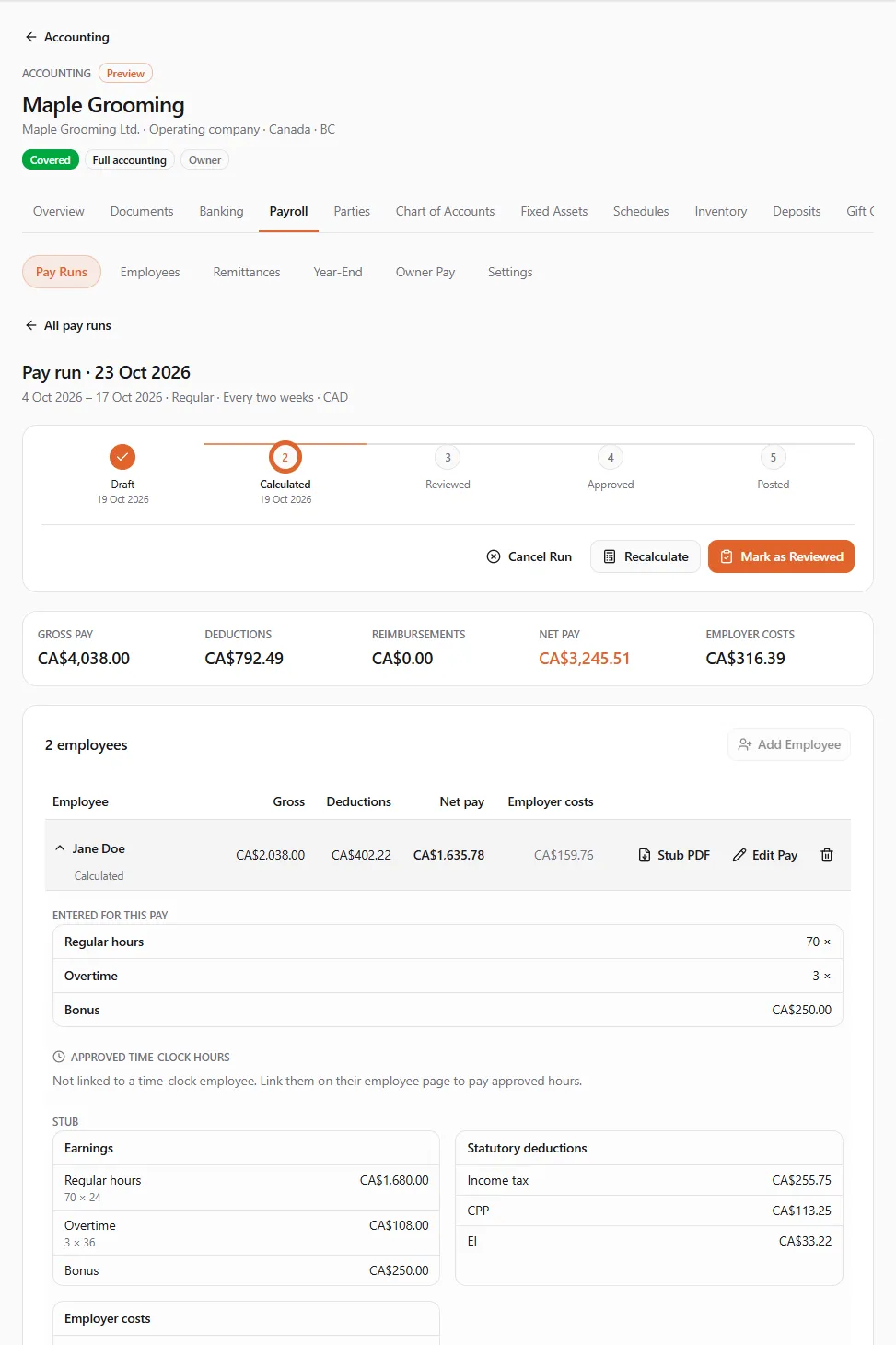
Section titled “3. Calculate”Choose Calculate. Every employee’s deductions and employer contributions are worked out for the pay date. The run shows totals for Gross pay, Deductions, Reimbursements, Net pay and Employer costs, and one row per employee.
Open an employee to check their pay:
- Entered for this pay: the items, and the approved time-clock periods paid in this run;
- Stub: earnings, deductions, employer costs and net pay, line by line;
- How it was calculated: each step of the official formula with its value;
- Tax tables used: each table with its date and review status (Not reviewed yet until a tax professional has reviewed it).
Warnings appear on the pay they concern, for example a W-4 that claims exemption, or deductions larger than the cash paid.
Recalculate after any change. A recalculation clears an earlier review.
4. Review and approve
Section titled “4. Review and approve”- Someone with View payroll checks the run and chooses Mark as Reviewed.
- Someone with Run payroll chooses Approve.
Approval is refused while an employee isn’t calculated (“Calculate the run again before approving it.”) or has a negative net pay (“{name}‘s net pay is negative. Change their deductions before approving.”).
By default one person may do every step, which suits a one-person business. If your payroll settings ask for a separate approver, the run says so, and the person who marked it reviewed can’t approve it: “Someone else must approve this run: you marked it reviewed, and the payroll settings require a separate approver.”
5. Post to the books
Section titled “5. Post to the books”- Choose Post to Books.
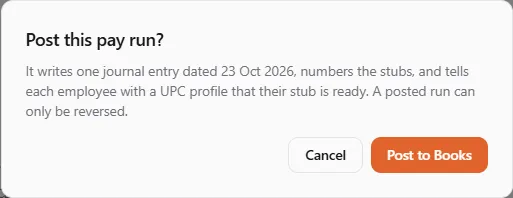
- Read the confirmation: “It writes one journal entry dated {date}, numbers the stubs, and tells each employee with a UPC profile that their stub is ready. A posted run can only be reversed.”
- Confirm. You see “Pay run posted to the books”.
The entry debits wages and your employer costs, credits each deduction and contribution you now owe the agencies, and credits net pay to the run’s money account (or net-pay clearing). Those amounts then appear on Remittances with their due dates.
Each employee row now has Stub PDF. The stub shows the employer and employee (tax number masked), the period and pay date, every line, the totals and the year to date, and how it was calculated. Employees linked to a UPC profile also find it on their own Pay Stubs page. A stub downloaded before posting says it is not final.
Cancelling or reversing a run
Section titled “Cancelling or reversing a run”- Cancel Run stops a run that isn’t posted yet. “It stays in the list as cancelled and can’t be posted. Nothing was written to the books.”
- Reverse Run undoes a posted run. Choose the Date of the reversal (on or after the pay date) and confirm. “The books get the exact opposite entry. The pay no longer counts in the year to date or the remittances, and any time-clock wages it cleared are open again.” The employee’s stub shows Reversed.
If something went wrong
Section titled “If something went wrong”“A run pays Canadian or US employees, not both: create one run per country.” Create one off-cycle run for each country.
“The pay date is more than three months from the period’s end.” Check the dates; a pay date must be close to the period it pays.
“These books have no account for … Choose one under the payroll account mapping.” Open Settings → Accounts in payroll and choose an account for that role.
“No payroll tax table for … covers pay date …” There is no table for that year yet. Wait for it rather than paying with last year’s rates.
“Link the employee to their time-clock employee first.” Link them on their employee page (see Linking the time clock), or enter their hours by hand.
“These books are read-only, so this run can’t move on.” The books’ subscription no longer covers them. See Entities and access.