

Payroll
Payroll works out each employee’s pay, the deductions to withhold and your employer contributions, posts every pay run to your books as one journal entry, and gives each employee a pay stub. This page covers the setup: who can use it, the settings and the employees. Running pay is on Pay runs; remittances, year-end slips and owner pay are on Remittances, year-end slips and owner pay.
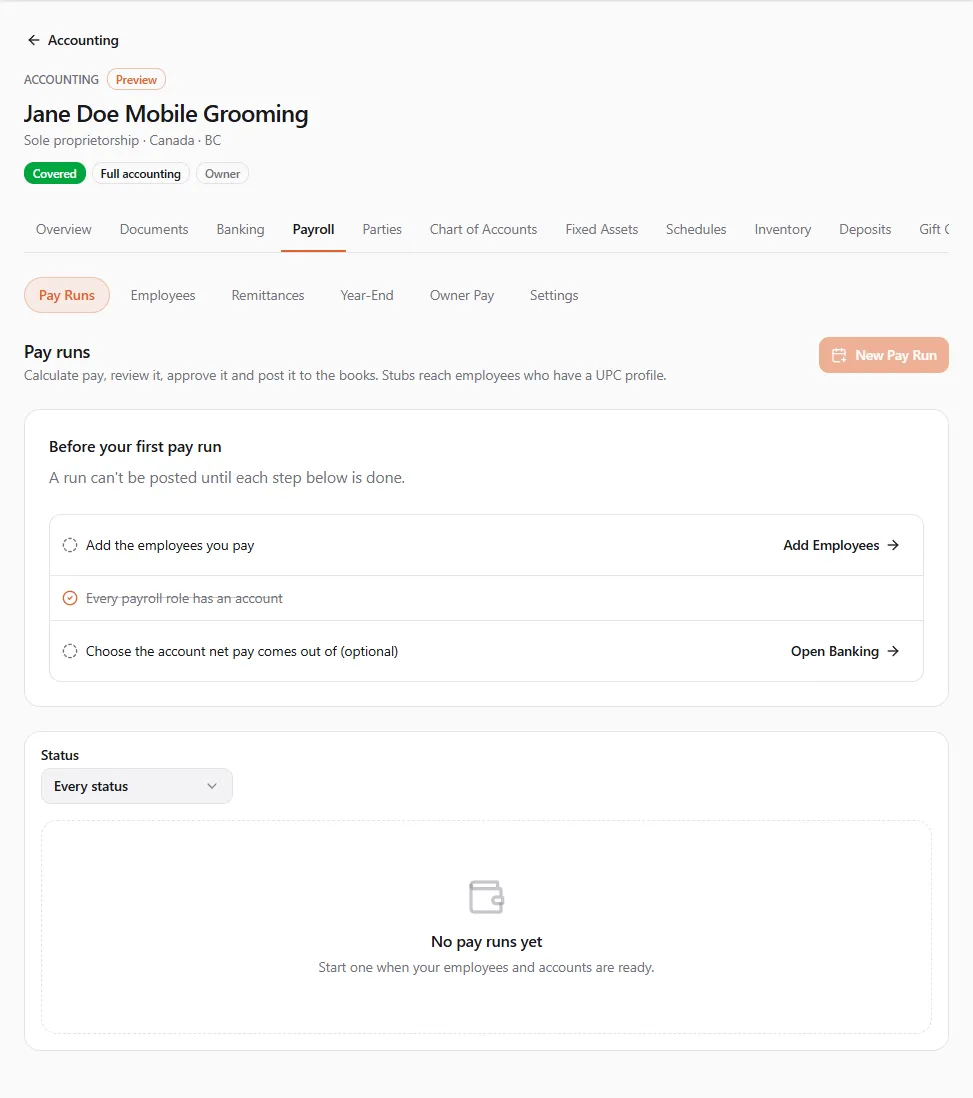
Finances → Accounting, then the entity, then the Payroll tab
(/dashboard/finances/accounting/{entity}/payroll). Payroll has its own sections along the top: Pay Runs,
Employees, Remittances, Year-End, Owner Pay and Settings.
Who can use payroll
Section titled “Who can use payroll”The Payroll tab shows only to people whose access to the books includes payroll. Payroll has three permissions of its own:
| Permission | What it allows |
|---|---|
| View payroll | See the settings, employees (tax numbers masked), pay runs, stubs, remittances, year-end worksheets and owner pay. Also Mark as Reviewed on a calculated run. |
| Run payroll | Change the settings, accounts and employer rates; create, calculate, approve, post, cancel and reverse pay runs; record remittances, dividends, draws and shareholder loans; change contractor slip amounts. |
| Manage employees | Add and edit employees, save or remove tax numbers, recurring items and year-to-date imports, link the time clock, and download year-end slips with full tax numbers. |
The owner of the books has all three. Anyone else gets them through their access: the Payroll role (“Runs payroll and manages employees.”) and the Accountant role include payroll; a Custom role can pick them one by one. See Entities and access. Without them, the tab is missing and payroll lines in the journal show summed per account.
What is worked out for you, and what you enter
Section titled “What is worked out for you, and what you enter”Each pay is calculated with the tax tables in force on the pay date, for the province, territory or state the employee works in.
| Worked out automatically | You enter it yourself |
|---|---|
| Canada, outside Quebec: federal and provincial or territorial income tax (one Income tax line), CPP and CPP2, EI, and the employer’s CPP, CPP2 and EI | Workers’ compensation (WCB, WSIB, CNESST) as an employer rate |
| Quebec: federal income tax with the Quebec abatement, Quebec income tax, QPP and QPP2, EI at the Quebec rate, QPIP, and the employer’s QPP, QPP2 and QPIP | Employer health taxes (Ontario EHT, BC EHT, Manitoba levy, Newfoundland and Labrador HAPSET, Quebec health services fund) as an employer rate |
| United States, federal: federal income tax withholding from the Form W-4 (2020 or later, or earlier), Social Security, Medicare, Additional Medicare, the employer’s Social Security and Medicare, and FUTA | US state and local income tax, as a State income tax or Local income tax item on each pay or as a recurring item |
| Bonuses and other non-periodic pay, by the method the employee’s form asks for | State unemployment (SUTA) at your assigned rate, as an employer rate |
| Vacation pay, by the employee’s vacation policy | Benefits, pension plans, union dues, garnishments and other deductions, as pay items or recurring items |
A few cases are not covered: pension and annuity payments, employees who work outside Canada or the US, and the pension adjustment on a T4. When you are not sure a pay is right, check it against the agency’s own calculator before you approve it.
Payroll settings
Section titled “Payroll settings”Open Settings in the payroll sections. Changing anything here needs Run payroll; with View payroll you see the same cards read-only.
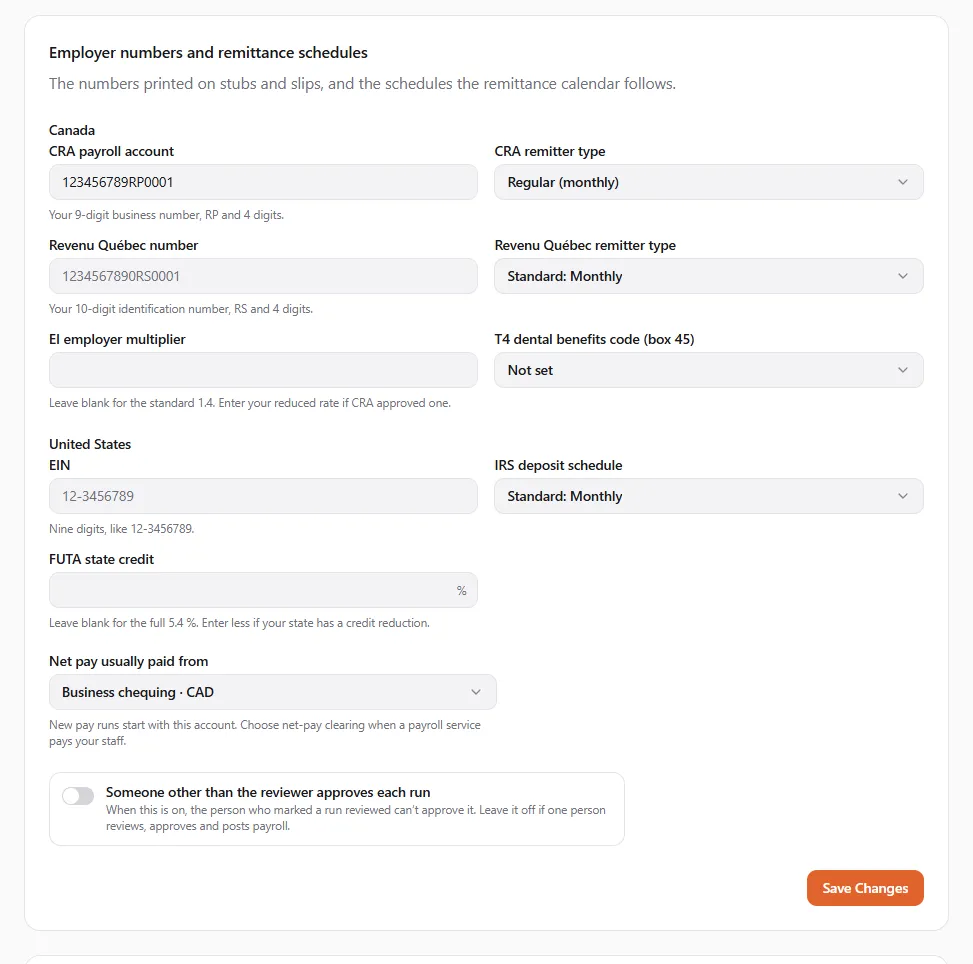
Employer numbers and remittance schedules
Section titled “Employer numbers and remittance schedules”| Field | What to enter |
|---|---|
| CRA payroll account | ”Your 9-digit business number, RP and 4 digits.” |
| Revenu Québec number | ”Your 10-digit identification number, RS and 4 digits.” |
| EIN | ”Nine digits, like 12-3456789.” |
| CRA remitter type | Regular (monthly), Quarterly, Accelerated, threshold 1 (twice a month) or Accelerated, threshold 2 (up to four times a month) |
| Revenu Québec remitter type | Monthly, Quarterly, Yearly, Twice a month or Weekly |
| IRS deposit schedule | Monthly or Semiweekly |
| EI employer multiplier | Leave blank for the standard 1.4; enter your reduced rate only if CRA approved one |
| T4 dental benefits code (box 45) | The code that describes the dental coverage you offer |
| FUTA state credit | Leave blank for the full 5.4 %; enter less if your state has a credit reduction |
| Net pay usually paid from | The money account new pay runs start with, or Net-pay clearing (paid outside the books) when a payroll service pays your staff |
| Someone other than the reviewer approves each run | Off by default. Turn it on to require a second person: “the person who marked a run reviewed can’t approve it.” |
The schedules you choose here drive the due dates on Remittances.
Accounts
Section titled “Accounts”The Accounts card lists every payroll role (wages, each deduction payable, employer costs, net pay) and the account it posts to. The Source column says where the account came from: Your choice, Chart default (your chart’s own account for it) or No account.
- Find a role that says No account, or one you want elsewhere.
- Choose Change, pick the account (or Use the chart’s default) and choose Save Account.
A pay run can’t be posted while any role has No account. Posted runs keep the accounts they used.
Employer rates
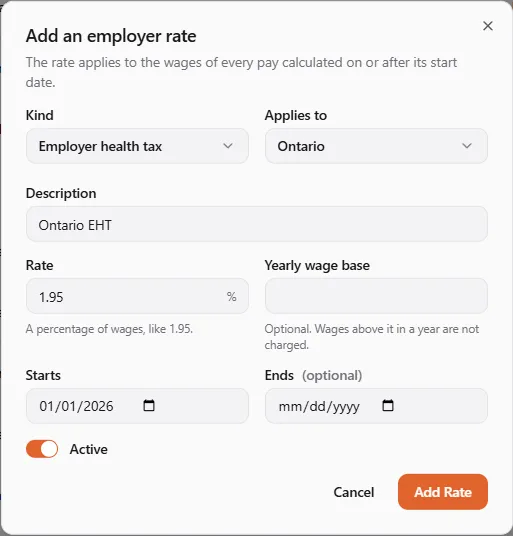
Section titled “Employer rates”Use Employer rates for everything you pay on wages that payroll does not work out itself.
- Choose Add Rate.
- Pick the Kind: Employer health tax, Workers’ compensation, State unemployment (SUTA) or Other employer tax.
- Choose who it Applies to: a province or state, or Every employee.
- Enter a Description (like Ontario EHT), the Rate as a percentage of wages (like 1.95), an optional Yearly wage base (wages above it in a year are not charged), and the Starts and Ends dates.
- Save. The rate applies to every pay calculated on or after its start date.
Pay schedules at the bottom shows each pay frequency you use, how many active employees it pays, the last paid period and the next one, with Start This Run.
Adding an employee
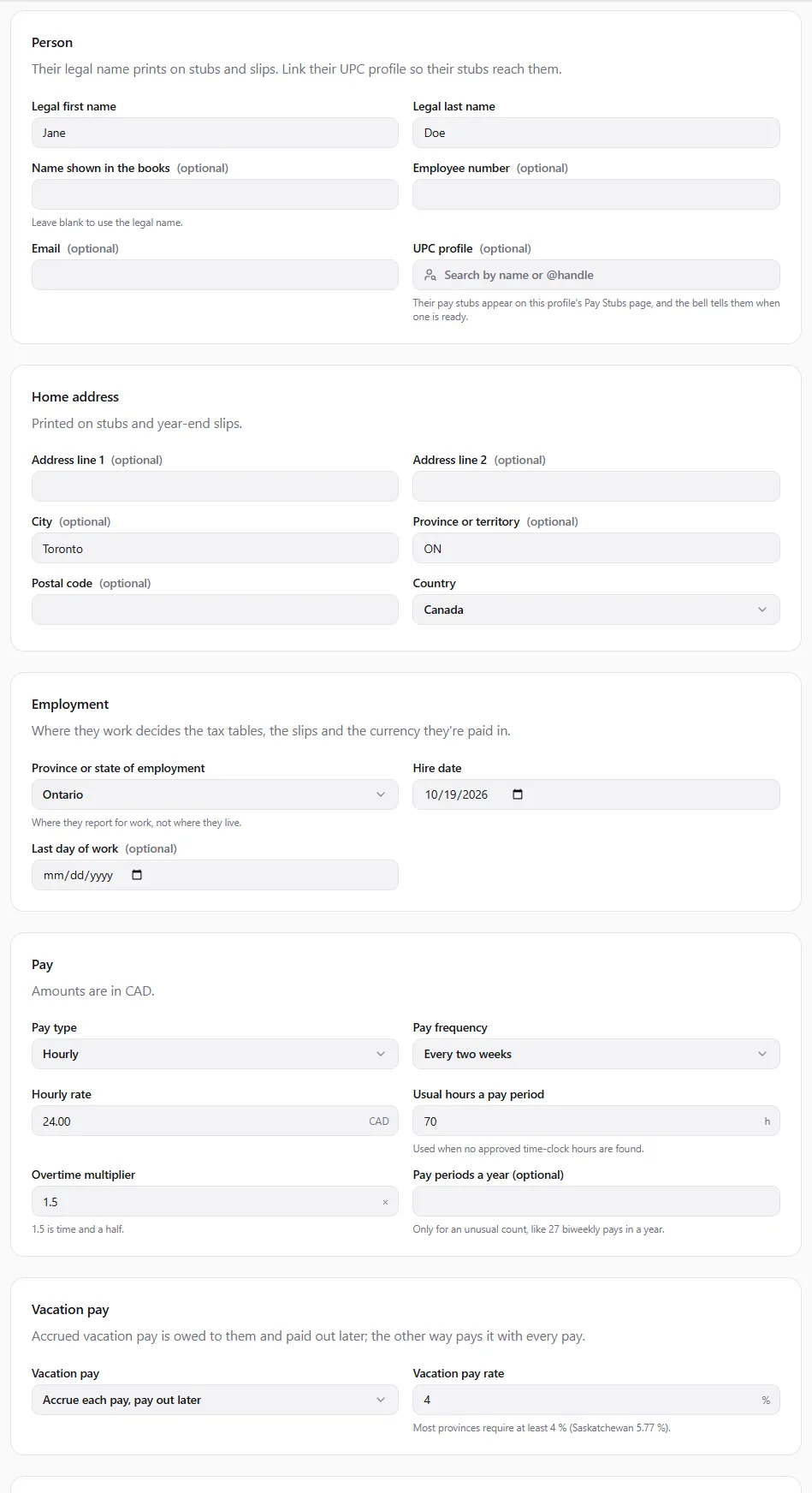
Section titled “Adding an employee”Open Employees and choose Add Employee (needs Manage employees). Each employee becomes an employee party of these books.
-
Person. Pick an existing Employee record or Add a new employee record, then the Legal first name, Legal last name, an optional Name shown in the books, Employee number and Email.
-
UPC profile. Search for the employee’s profile by name or @handle. Their pay stubs then appear on that profile’s Pay Stubs page. Without a profile, you hand them the PDF yourself.
-
Home address. Printed on stubs and year-end slips.
-
Employment. Choose the Province or state of employment: where they report for work, not where they live. It decides the tax tables, the slips and the currency. A US employee also needs the Work state. Enter the Hire date, and later the Last day of work. Turn On payroll off to leave someone out of new runs; past pays stay.
-
Pay. Choose the Pay type and Pay frequency:
- Salary: the Annual salary;
- Hourly: the Hourly rate, an optional overtime rate, and the Usual hours a pay period (used when no approved time-clock hours are found);
- Commission: the Commission percentage of the sales you enter each pay, and an optional base salary.
Also the Overtime multiplier (1.5 is time and a half) and, only for an unusual count, Pay periods a year.
-
Vacation pay. No vacation pay, Accrue each pay, pay out later or Pay with every pay, and the Vacation pay rate (most provinces require at least 4 %).
-
Tax forms. Copy what the employee claimed. Leave a field blank when they didn’t fill it in:
- TD1 (federal and provincial): the claim amounts, Extra tax each pay, Claim code E (no income tax), non-resident, authorized deductions and credits, Ontario dependants, and Tax on bonuses;
- TP-1015.3 (Quebec) for a Quebec employee, after the federal TD1: Personal tax credits (line 10), extra Quebec tax, deductions, Fonds de solidarité FTQ and Fondaction shares, and Tax on lump sums;
- W-4 for a US employee: Form W-4 from 2020 or later, Filing status (step 1c), Multiple jobs or a working spouse (step 2), steps 3, 4(a), 4(b) and 4(c), allowances for an older form, exemption, nonresident alien and Tax on bonuses;
- Exemptions: tick only what applies, such as No CPP or QPP, No EI or No FUTA.
-
Choose Add Employee. You see “{name} added to payroll”.
An employee’s page has the tabs Details, Recurring Items, Year to Date and Tax-Number History.
Tax numbers
Section titled “Tax numbers”A tax number is added after the employee is saved, on their Details tab.
- Choose Add Tax Number.
- Pick the Kind of number: Social Insurance Number (SIN) for a Canadian employee, Social Security Number (SSN) or Individual Taxpayer Identification Number (ITIN) for a US one.
- Type the nine digits, then Type it again, and choose Save Tax Number.
The number is stored encrypted and never shown in full again: screens and stubs show only the last digits, like
SIN ***-***-544. Full numbers print only on a year-end PDF downloaded with full tax numbers (see
Year-end slips). Every save, removal and full printing is listed on the
Tax-Number History tab, with who did it. To move an employee to another country, remove the number first.
Recurring items
Section titled “Recurring items”On Recurring Items, choose Add Recurring Item for anything added to every pay: benefits, pension plans, RRSP or 401(k) contributions, union dues, garnishments, advance recovery, or US state income tax.
- Each pay: A fixed amount or A percentage of gross pay.
- Stop after a total of: for a garnishment or an advance, the total to take back.
- Starts and Ends, and Active.
Items are added when a run is calculated. A single pay can leave them out (see Pay runs).
Starting mid-year
Section titled “Starting mid-year”If the employee was paid earlier in the year by another payroll provider, open Year to Date and choose Import Year-to-Date. Enter the totals from the other provider, Totals as of (the last pay date it covered) and Where the totals come from, then Import Totals. They count toward this year’s maximums (CPP, EI, Social Security and so on) and the year-end slips. A new import replaces the earlier one.
Linking the time clock
Section titled “Linking the time clock”An hourly employee who clocks in on the UPC time clock can be paid for their approved hours.
- On the employee’s Details tab, find Time clock.
- Pick the Time-clock employee from the list. A match with the same UPC profile is marked suggested. If the person isn’t listed yet (no approved timesheet so far), choose Enter an ID Instead and type the Time-clock employee ID shown on their page in the time clock.
- Save. Choose Unlink to undo it.
Once linked, a new pay run fills the employee’s regular hours, overtime, double time and call-in pay from the approved periods that end in the run’s period. Approved leave is not added: the run notes it, and you enter paid leave yourself.
Each time a timesheet period is approved, its wages are also booked as wages owed. The pay run that pays them clears that amount, so the wages are expensed once.
If something went wrong
Section titled “If something went wrong”The Payroll tab is missing. Your access doesn’t include payroll. Ask the owner for View payroll (or the Payroll role).
“1 role has no account. Posting a pay run is refused until each has one.” Open Settings → Accounts and choose an account for each role marked No account.
“Another employee of this entity already has this number.” Each tax number can belong to one employee in these books. Check for a duplicate employee record.
“Clear the tax id before moving the employee to another country.” Remove the tax number, change the jurisdiction, then add the new country’s number.