

Gift cards and store credit
A gift card your business sells, or store credit it gives a customer instead of a refund, is money you owe the holder until it is spent. The books keep each card’s balance as a liability and post every issue, reload and redemption.
Finances → Accounting, then the entity, then the Gift Cards tab
(/dashboard/finances/accounting/{entity}/gift-cards). It has two tabs: Cards and Report. The top shows the
total Outstanding on cards. Filter with Show: With a balance, Active, Void or All cards.
Holding-company books have no Gift Cards tab. Issuing and using cards needs Post documents; the report needs View reports.
Issuing a card
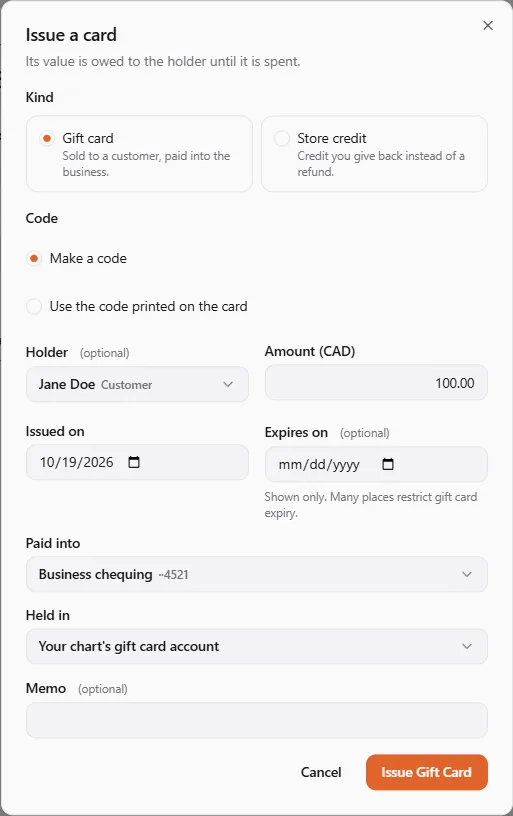
Section titled “Issuing a card”- Choose Issue Gift Card (or Issue Store Credit).
- Pick the Kind: Gift card (“Sold to a customer, paid into the business.”) or Store credit (“Credit you give back instead of a refund.”).
- Choose the Code:
- Make a code: the books make one, like
K7QM-2HXP-9RTW-4BNA; - Use the code printed on the card: type the Printed code;
- No code: tie it to the holder (store credit only).
- Make a code: the books make one, like
- Pick the Holder, or No holder named.
- Enter the Amount, the date it was Issued on and, if you print one, the date it Expires on (shown only).
- For a gift card, choose where it was Paid into; for store credit, where it is Given from (your chart’s refunds account by default). It is Held in your chart’s gift card account.
- Choose Issue Gift Card (or Issue Store Credit). You see “Card #{no} issued.”
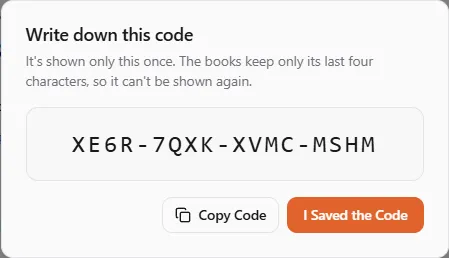
Lists show a card by its number and the last four characters of its code, like ****4BNA. To find a card a customer
hands you, type its code under Find a card by its code and choose Find.
Using a card
Section titled “Using a card”Open the card to see its History and the actions:
- Reload: add value to the card.
- Redeem: use it. Enter the amount (or “Leave it empty to use the whole balance.”) and what it is Redeemed against: “A sales account, or the receivable of the invoice the card pays.”
- Void Card: “The {balance} left goes back to where the card’s value came from, and the card can’t be used again.”
“The expiry date is shown only: nothing expires a card on its own.”
Breakage
Section titled “Breakage”Breakage turns an unspent balance into income. It is never recognized on its own, because the law often limits it:
Many provinces and states restrict or ban expiry dates and fees on gift cards, and some require unclaimed balances to be reported or paid to the government as unclaimed property. Recognize breakage only where the law allows it, and check with your accountant first.
- Open the card and choose Recognize Breakage.
- Enter the amount (or leave it empty for the whole balance) and what to Recognize as (Other income by default).
- Tick “I checked that the law where I sell allows this, with my accountant.”
- Choose Recognize Breakage.
The gift card report
Section titled “The gift card report”Report lists every card with a balance on an As of date, with subtotals for gift cards and store credit, then compares the total with each gift card account’s balance.
If something went wrong
Section titled “If something went wrong”“No card here has that code.” Check the code. A code from another business never matches a card in your books.
“That’s more than the {amount} on the card.” Enter at most the card’s balance.
“Confirm that you checked the law first.” Breakage needs the confirmation ticked.