

Notes and attachments
Every document and every journal entry in your books can carry notes and attachments. Notes are short threads: a question from your accountant, your answer, resolved when it is settled. Attachments are the receipts, contracts and photos that back the record up.
- On a document: open it from the Documents tab. Notes and attachments are below its details.
- On a journal entry: open the entry’s own page
(
/dashboard/finances/accounting/{entity}/entries/{entry}). You reach it from a row of the journal or general ledger report, from Open the entry on the Notes tab, or from any Notes and attachments on this entry link in fixed assets, schedules, inventory, deposits, gift cards and intercompany entries. - All open questions: Finances → Accounting, then the entity, then the Notes tab
(
/dashboard/finances/accounting/{entity}/notes).
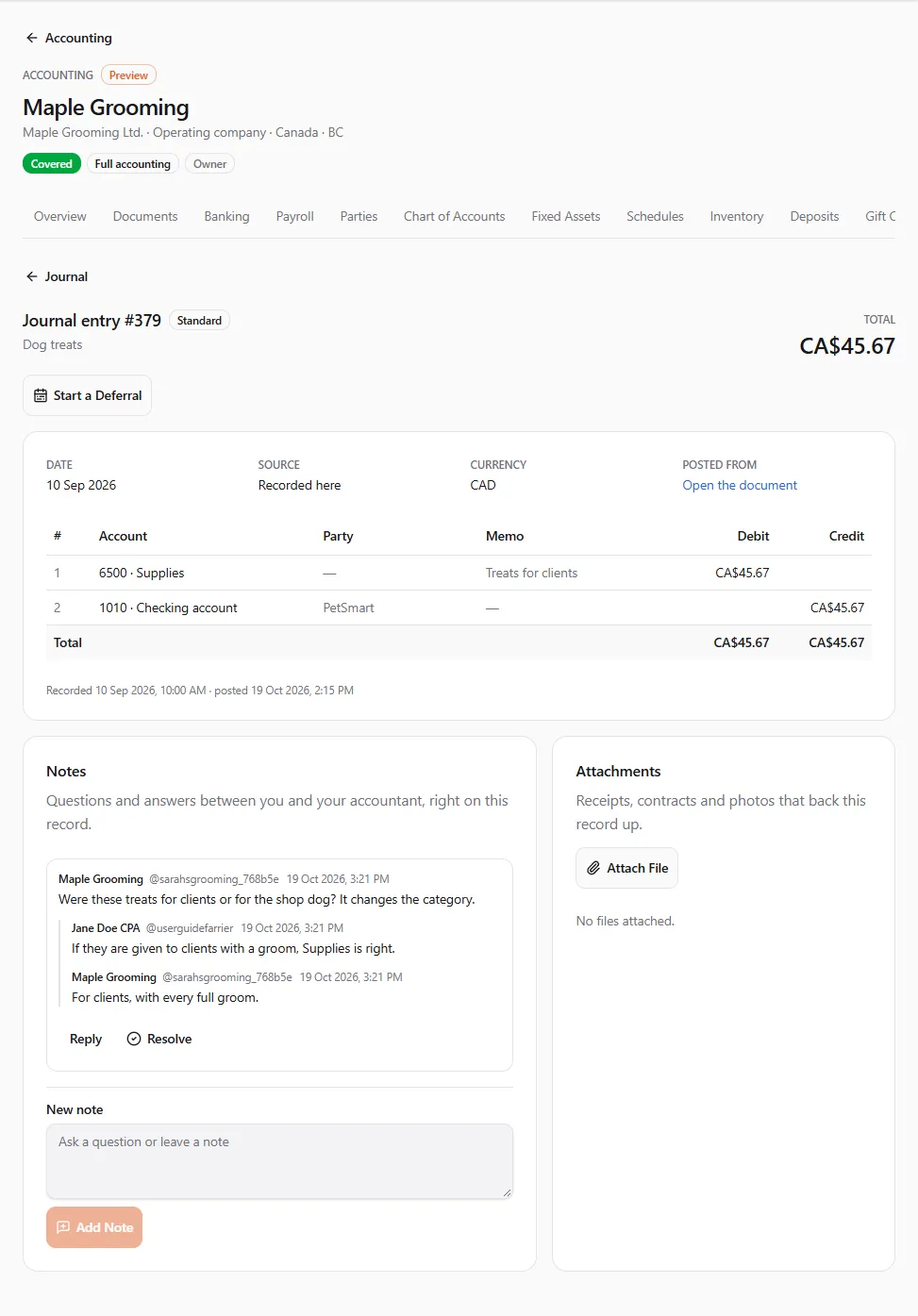
The entry page
Section titled “The entry page”An entry’s page shows its number, kind and total, the date, the source, any links (Posted from, Voids, Cancels, Cancelled by, Copied from), and its lines with account, party, memo, debit and credit. An entry in another currency shows the amounts in that currency and the rate.
If your access doesn’t include payroll, a payroll entry shows each payroll account as one summed line: “Payroll detail is hidden: your access to these books doesn’t include payroll.”
From an entry you can also Start a Deferral: see Schedules.
Writing a note
Section titled “Writing a note”- Open the document or entry.
- Under New note, type your question or note (“Ask a question or leave a note”), up to 4,000 characters.
- Choose Add Note.
Each note shows the profile it was written as. When an accounting firm works on your books, their staff write as the firm’s profile.
To answer, choose Reply on the thread, write Your reply and choose Send Reply.
Resolving and reopening
Section titled “Resolving and reopening”When a question is settled, choose Resolve on the thread. It shows Resolved and leaves the open list. Choose Reopen to bring it back. A reply to a resolved thread reopens it: “Reply added. The thread is open again.”
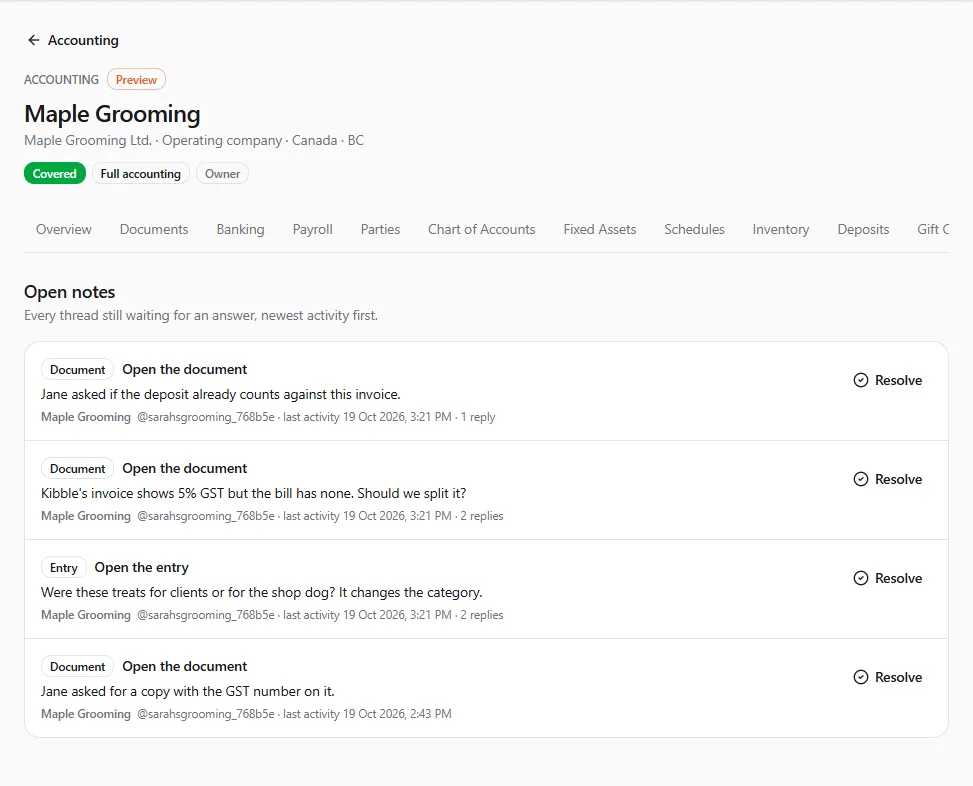
The Notes tab
Section titled “The Notes tab”Open notes lists “Every thread still waiting for an answer, newest activity first”, each with the record it is on, its last activity and Open the document or Open the entry. It is the to-do list for you and your accountant. When nothing is waiting, it says “Every note on these books is resolved.”
Attaching a file
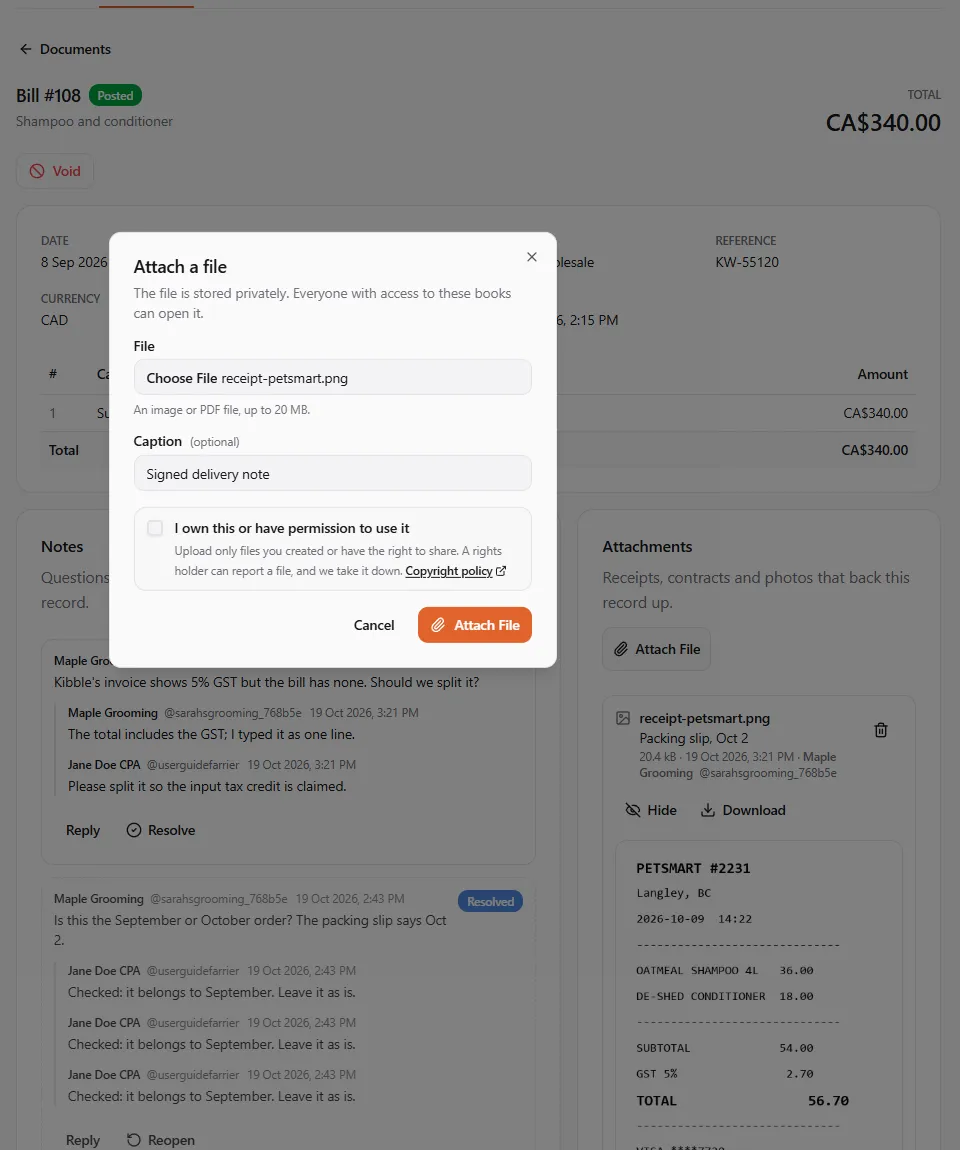
Section titled “Attaching a file”- Open the document or entry. Under Attachments, choose Attach File.
- Choose the File: “An image or PDF file, up to 20 MB.” Images can be JPEG, PNG, WebP, GIF, AVIF or HEIC.
- Add a Caption if you like, and choose Attach File.
“The file is stored privately. Everyone with access to these books can open it.” It is uploaded as the profile you are acting as, and only files you uploaded yourself can be attached. The same file attached twice to one record is kept once.
To remove a file, choose Remove next to it. It stops being listed, and who attached and removed it stays on record.
Opening an attached file
Section titled “Opening an attached file”- View shows an image right on the page; Hide closes it.
- Download (or Download PDF) saves the file to your device. A PDF is always downloaded, never opened as a page.
Who can see and write
Section titled “Who can see and write”| What | Who |
|---|---|
| Read notes, the Notes tab and attachments | anyone with access to these books |
| Write notes, reply, resolve and reopen | anyone who can draft documents, adjust journals, or view reports (the client who records, the accountant who adjusts, the owner or viewer who reviews) |
| Attach and remove files | anyone who can draft documents |
Attaching and removing need books that are not read-only. See Entities and access for the roles and permissions.
If something went wrong
Section titled “If something went wrong”“Choose an image (JPEG, PNG, WebP, GIF, AVIF, HEIC) or a PDF file.” Other file types can’t be attached. Save the file as a PDF first.
“This file is larger than 20 MB.” Make it smaller (a lower-resolution photo, or a compressed PDF).
“Attach a file you uploaded yourself. Upload it again from the profile you’re acting as.” Switch to the profile you are working as and upload the file again.
“This browser can’t show this photo. Download it to view it.” Some browsers can’t show HEIC photos. Choose Download.